Overview
In SmartCare, the Problem List is called “Client Clinical Problems”. This was done to distinguish the Behavioral Health problem list from other types of problem lists already present in SmartCare. While there is a specific screen where problems are added to the Client Clinical Problem list, CalMHSA wanted to make updating the problem list as simple as possible. To that end, there is a section module that has been added to other documents and screens in SmartCare. Currently, this includes the CalAIM Assessment and the Progress Note. CalMHSA is working on getting this module added to other screens, such as the CA ASAM.
No matter which screen you’re on in SmartCare that has the Problem List section module, the data is the same across the system. When you add a problem to the Problem List in the CalAIM Assessment, it will show up on the Problem List in the Progress Note.
There are a few things to keep in mind when troubleshooting why a problem added one place is not visible elsewhere, and that generally involves dates. For Progress Notes, the Problem List module will only show problems that are active as of the date of the service of that progress note. If you add a problem today, but you’re writing a note for a service that took place a few days ago, your newly-added problem won’t show up. This is based on the Start Date of the problem.
The same is true for the CalAIM Assessment, which uses the Effective Date of the document to determine which problems to show.
CDAG
The Problem List is behind CDAG protections. This means that you must select a program to tag the problem with. Anyone who can view that program via their CDAG will be able to see that problem, so you don’t need to duplicate a problem across all the programs the client is enrolled in.
Since some problems will be hidden from some users, it’s inevitable that some problems will be duplicated. For example, if an SUD program adds “homelessness” to the client’s problem list, the client’s MH programs will not be able to see it without a signed Coordinated Care Consent. It’s likely, then, that the MH program will also add “homelessness” to the client’s problem list. If then the client signs a Coordinated Care Consent, both “homelessness” problems would be visible to all users. That’s ok. If desired, you can add an end date to one of the problems, or you can leave both of them active, in case the client revokes their Coordinated Care Consent in the future
Anyone who can see the problem can update it, as the problem list is meant to be a living document. The system tracks who created the problem and when, and who last updated the problem and when they updated it. This currently does not show on the front end, due to initial concerns about privacy. However, CalMHSA has created report “CalMHSA 115 – Client Clinical Problems Report”, which shows the information about the most recent updates. This is to meet the documentation requirements as laid out in BHIN 23-068. CalMHSA is exploring methods of adding this information to the system so it’s visible to users.
ICD-10 and SNOMED
Per the Medi-Cal documentation requirements, counties are required to include the ICD-10 code of the problem on the Problem List. SmartCare has crosswalks between ICD-10 codes and their corresponding SNOMED codes. Often, this means that a single ICD-10 code has multiple corresponding SNOMED options. Since SNOMED is not used by DHCS or CMS for billing, it’s ok to select any of these options, so long as the ICD-10 code is accurate to the problem you’re adding.
CalMHSA recently was able to deploy a change where the focus has shifted to the ICD-10 code from the SNOMED code. Previous to this development, the SNOMED description would be the one shown on the problem list, as well as any documents that used the problem list module. Now, the ICD-10 description is visible and is considered primary. That means that when a document uses the problem list module, the ICD-10 description is shown, rather than the SNOMED description. Again, this was done to align SmartCare to DHCS requirements. This also allows a description to be present when an ICD-10 code does not have any corresponding SNOMED codes.
Note: Some codes have an asterisk (*) next to them. Those indicate that this is a DSM-5 code and description. You may choose a code with or without an asterisk. There shouldn’t be any impact in the system regardless of which you choose, so long as it has an ICD-10 code.
Problem List Fields
The problem list has only a few fields.
- The problem itself
- The Start Date
- The End Date
- The associated Program
- The person who Identified the problem
- Any Comments
The problem is found via searching by either the code (recommended) or the description. You can also save commonly-used problems as favorites and select them by selecting them from the Favorites list. More information on how to search for the problem can be found below.
The Start Date is the date the problem started, not when the problem was identified. The system keeps track of when the problem was identified by tracking the date and user that added the problem to SmartCare. For example, a client who reports that they’ve been experiencing depression since the summer of 2020 may have a start date of 6/1/20, even if the client only recently became a client. The start date should be able to pre-date the client’s enrollment in SmartCare and the client’s enrollment in the associated program.
In the same way, the End Date is the date the problem was resolved. Again, the system keeps track of when the problem was last modified. For example, a client who’s had homelessness since 7/1/25 just recently found housing. You’re documenting this on 7/15/25, but the client moved into their new home on 7/10/25. The end date of the problem should be 7/15/25 and the system will track that you entered this into SmartCare on 7/15/25.
As described above, all problems must be associated with a program. When you’re adding a problem, associate the problem with the program you’re currently working with the client in. If the client is discharged from your program, but remains open to another, you may want to update the program the problem is associated with. Currently, when a client is discharged from a program, the problems associated with that program are not automatically ended. That’s because even if a person ends services, it doesn’t mean they’re no longer experiencing those issues.
This is also why problems are editable by anyone who can see the problem list. If the assessing program adds a problem, then transfers the client to a different program, it’s the next program that will maintain the accuracy of the client’s problem list. They need to be able to close out old problems that are no longer active, and they need to be able to update the associated program as needed.
The “Identified By” is meant to indicate who is actually making the identification, as required by BHIN 23-068. This field will default to you as the logged in user. But this field allows you to enter problems on behalf of someone else, or to document that you are not making the diagnosis, but simply documenting something that the client told you about. While this field defaults to you as the logged in user, you can enter something like “Client” as the person who identified it.
The comments field allows you to document more clearly for items that need explanation. For example, if the client is identifying the problem, and you’re not sure which ICD-10 code to select, you can select your best guess and document this in the comments field. The same could be said about a long-standing problem that you don’t have an exact start date for but want to document that the problem has lasted for a very long time. Entering the start date of “1/1/2002” and putting “client reports they have been homeless since 2022” helps to clarify at a clinical level that you’re estimating the start date.
Adding a Problem
To add a problem to the problem list, you’ll need to search for the problem you’re wanting to add.
- Search by code
- In the Code field, start typing the ICD-10 (or DSM-5) code. As you type, the system will begin to search for codes that match. The system will show you any search results, and continuing to type will narrow down the search results. This is recommended, as the system will be able to find the exact code you’re looking for.
- Search by description
- In the Description field, start typing a description of the problem. As you type, the system will begin to search for descriptions that match. The system will show you any search results, and continuing to type will narrow down the search results.
Click to select a value from the search results that show up. If you’re not finding one that looks correct, click on the search icon to the right of the Description field. This will bring up a popup window with more search results. Select the code you want to add, scroll to the bottom of the window and click OK.
Once you’ve selected the problem, you’ll need to add the other fields. You at least need to add the Start Date and the associated Program. Once you’ve done that, click the Insert button to add it to the client’s list.
Favorites
You can save favorites for problems that you commonly see, such as social determinants of health (SDOH).
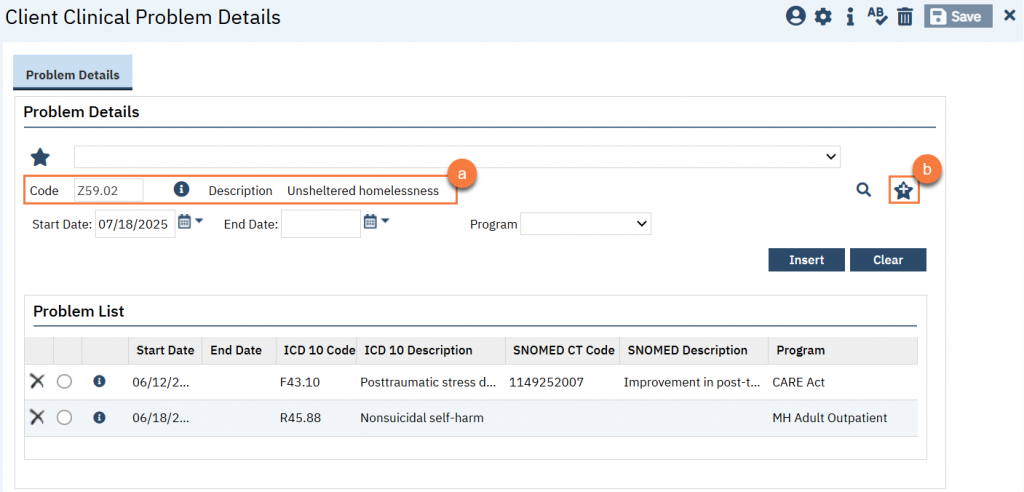
To add a favorite, search for the problem (ICD-10 code) you want to add as a favorite. Follow the steps above to search for the problem. Once you’ve selected the problem from the search results (a), click the Add Favorite icon (b).
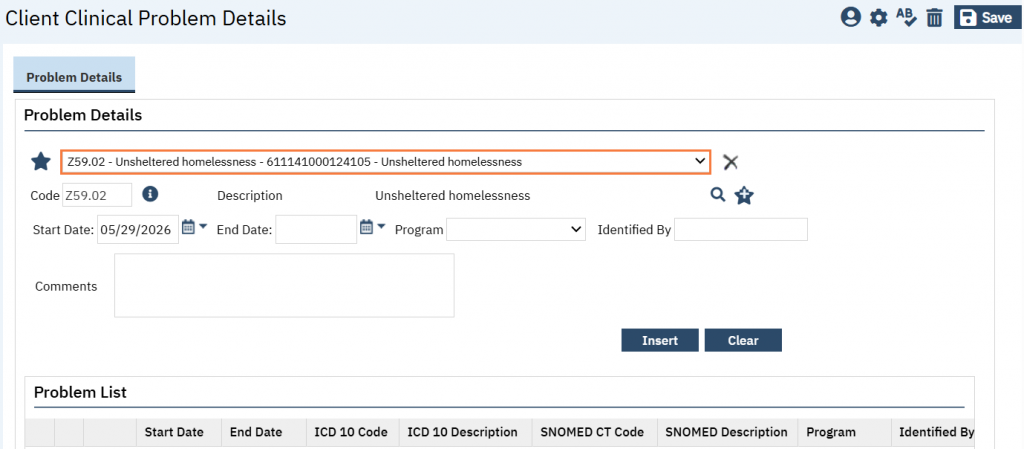
To use a favorite, you can simply select the problem from the favorites dropdown.
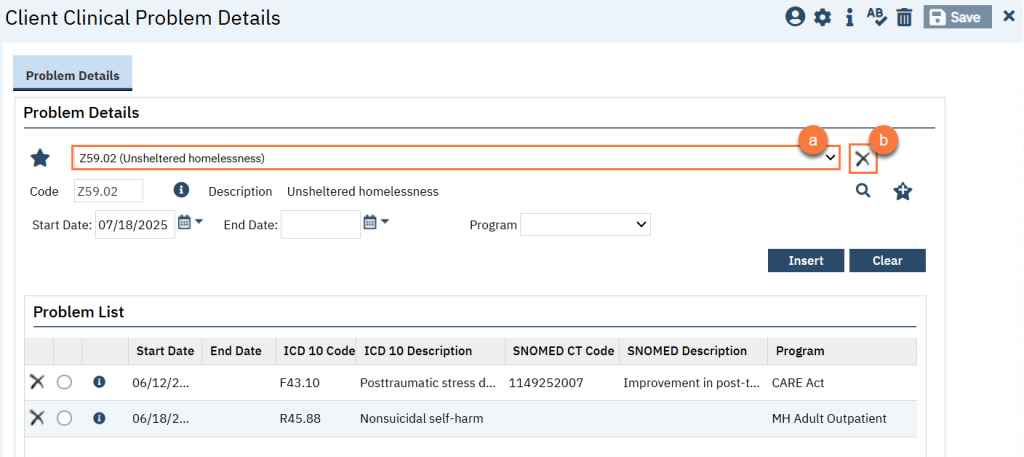
To remove a favorite, select it from the favorites dropdown (a), then click on the Delete icon to the right of the dropdown (b).