
Sys Admins have the ability to create permissions for specific fields or buttons. This is useful when needing to prevent users from entering data into a specific field or from being able to click on a specific button.
To accomplish this workflow, the sys admin user MUST have the “Administrator” checkbox checked in their Staff Details screen.
- Navigate to the screen where you want to create permission.
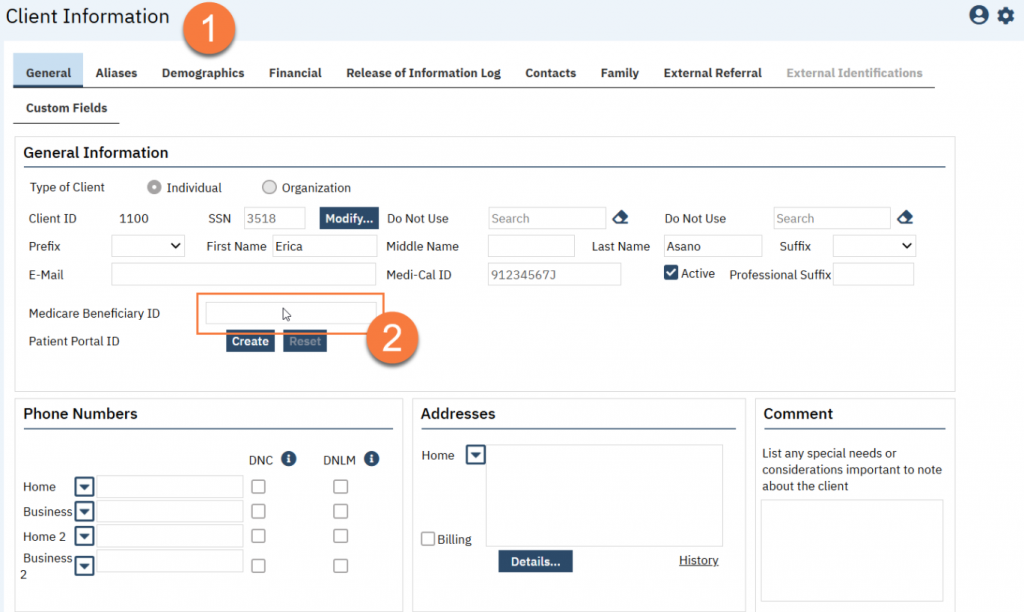
- Hover over the field that you want to create the permission for. While your cursor is over the field, press Ctrl + Alt + M. Note: you must hover over the field where users enter data. Hovering over the label of the field will not create the permission you want.
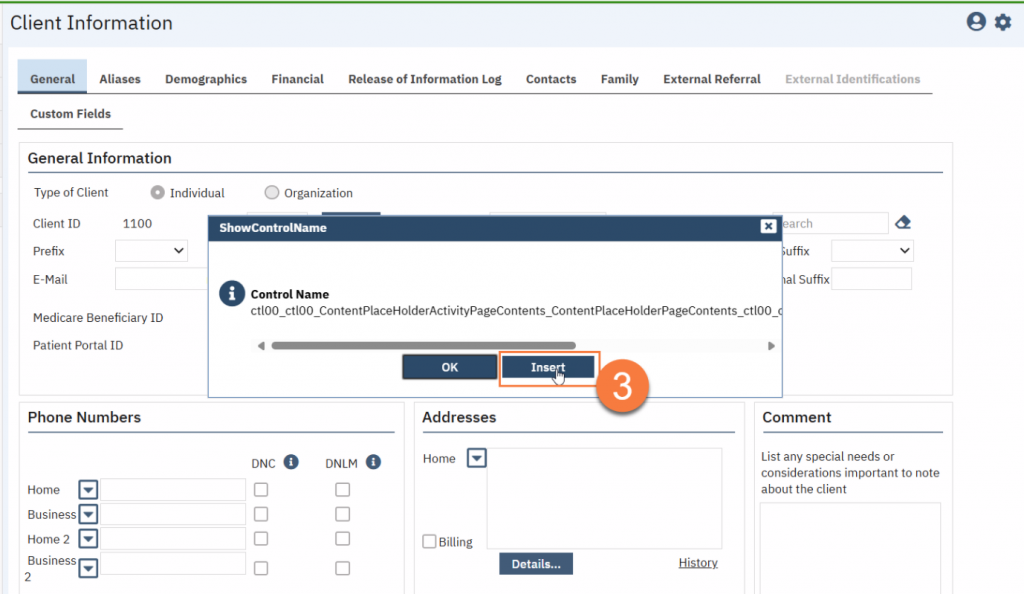
- This will bring up a popup window indicating the field in question. Click Insert to add a permission record for this field.
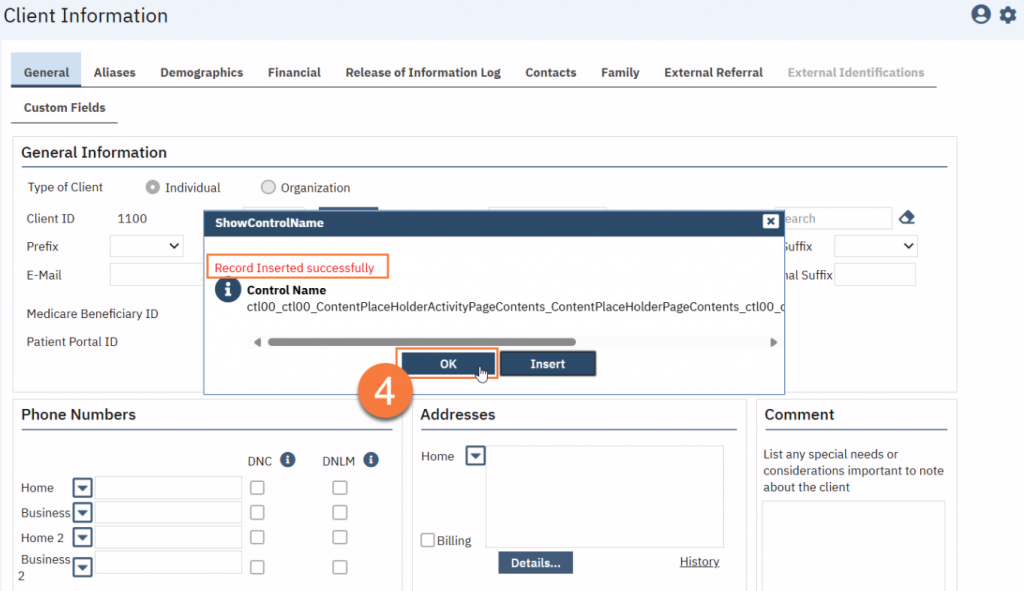
- The popup window will alert you that the permission has been added. Click “OK” to dismiss.
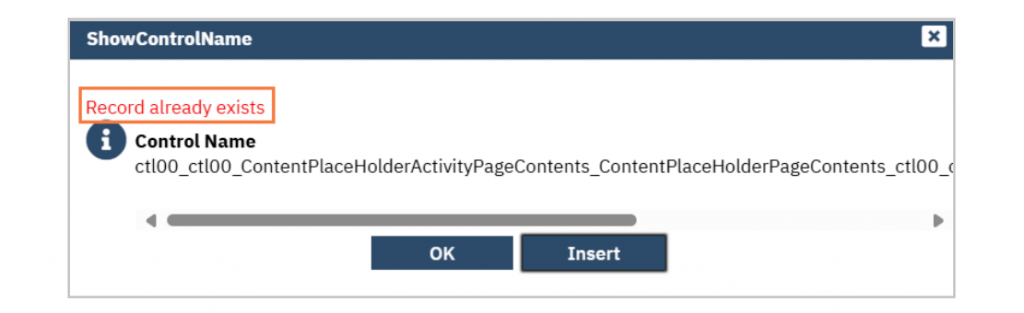
- If the permission already exists, the system will alert you that the permission already exists.
Permissions are not automatically granted to any user role. Once a permission has been created, no user will be able to enter into that field until they have been granted that permission.
To grant the permission to a specific user role, follow the steps in the How to Modify Permissions in a User Role. To grant this permission to specific users, follow the steps in How to Make Permissions Exceptions for a User.
This permission will be found under the “Screen (New Mode)” and “Screen (Update Mode)” permission types. Select the screen you created the permission on in the “Parent” section and click “Apply Filter” to find the permission you created. For more information on the difference between the “Screen (New Mode)” and “Screen (Update Mode)” permission types, see the Permissions Overview page.