
Giving a staff member emergency access allows them all the access and privileges of the selected role for 20 minutes. This enables them to have access to a client they cannot normally access or gives them privileges they normally do not have based on their standard roles/permissions. To enable this setting, follow the steps below.
Note: You can change the time a user is allowed access through the following configurations key: EmergencyAccessMinutes
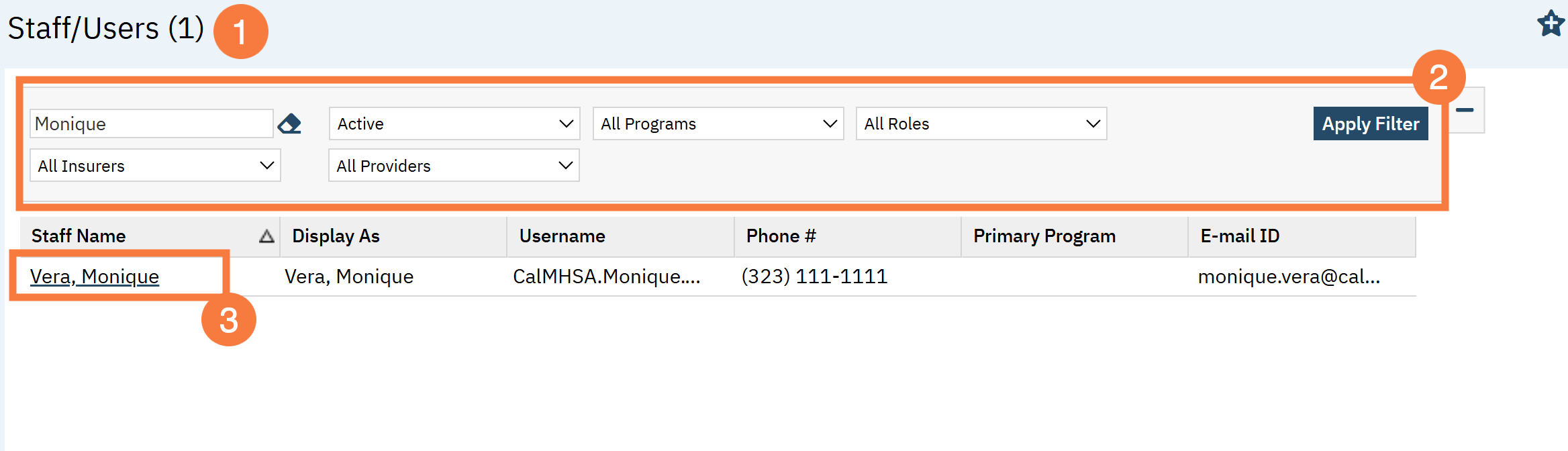
- Navigate to Staff/Users list page.
- Use the appropriate filters to find your user and click Apply Filter.
- Click the hyperlinked staff member’s name.
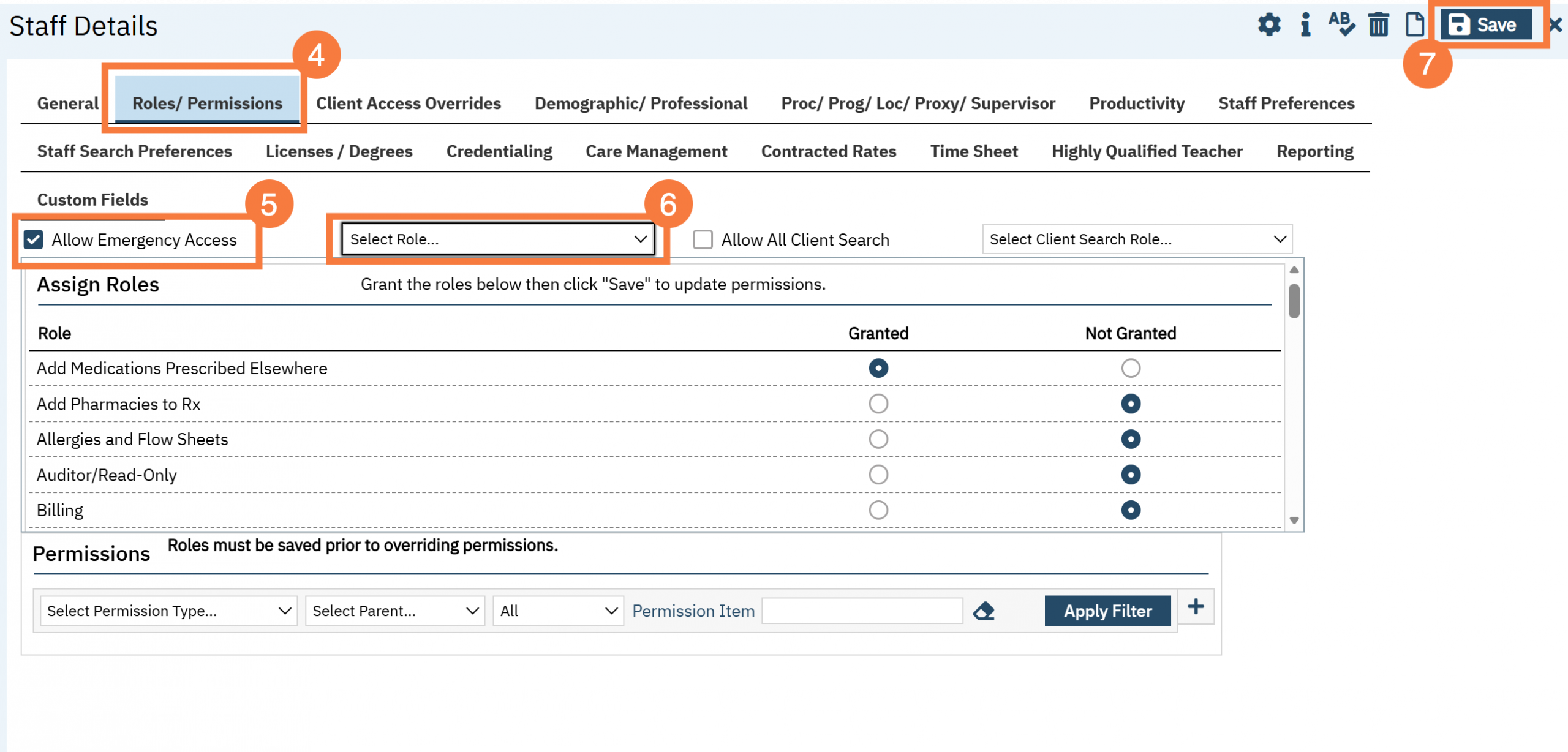
- The Staff Details screen will open. Click the Roles/Permissions tab.
- Click the Allow Emergency Access checkbox.
- Click the Select Role drop-down menu and select the appropriate role.
- Click Save.
Note: See the following end user article, that will guide them through how to activate the emergency access on their end: How to Break the Glass (Emergency Access Feature)