Approving Pending Prescriptions: Client Summary Screen
Important Note: When working with pending prescriptions, you need to make sure your location is set to the one that the prescription was created, or you need to have your preferences set to show all pending prescriptions in the location where you currently reside.
See: How to Set a Default Location and Pending Location
In this section, we will use the Client Summary Screen to approve and send pending prescriptions.
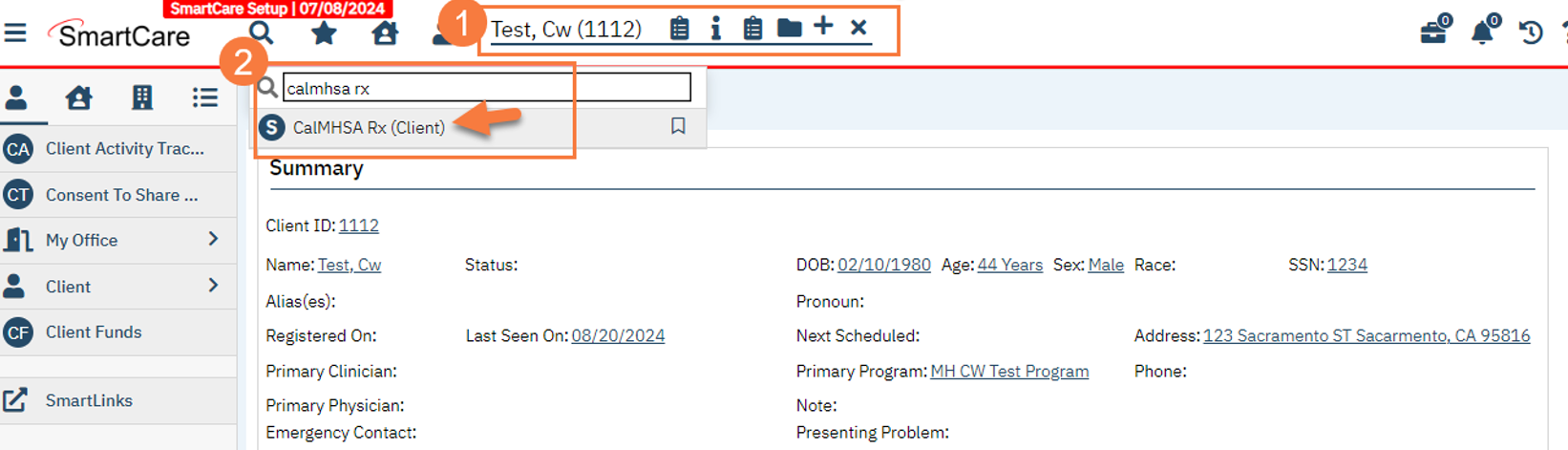
- Have your client’s chart open in Smartcare.
- Type CalMHSA Rx in the search bar and then select CalMHSA Rx (Client).
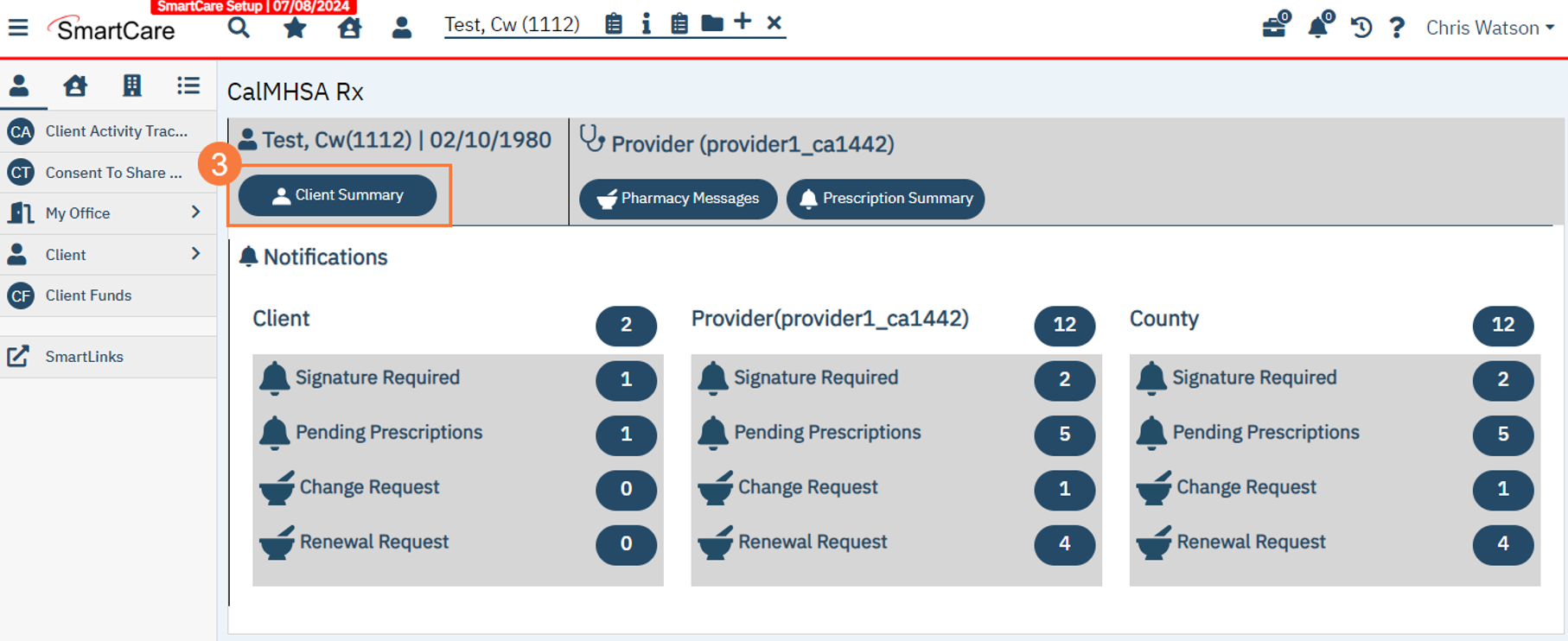
- You will land on the CalMHSA Rx transition page. Click Client Summary.
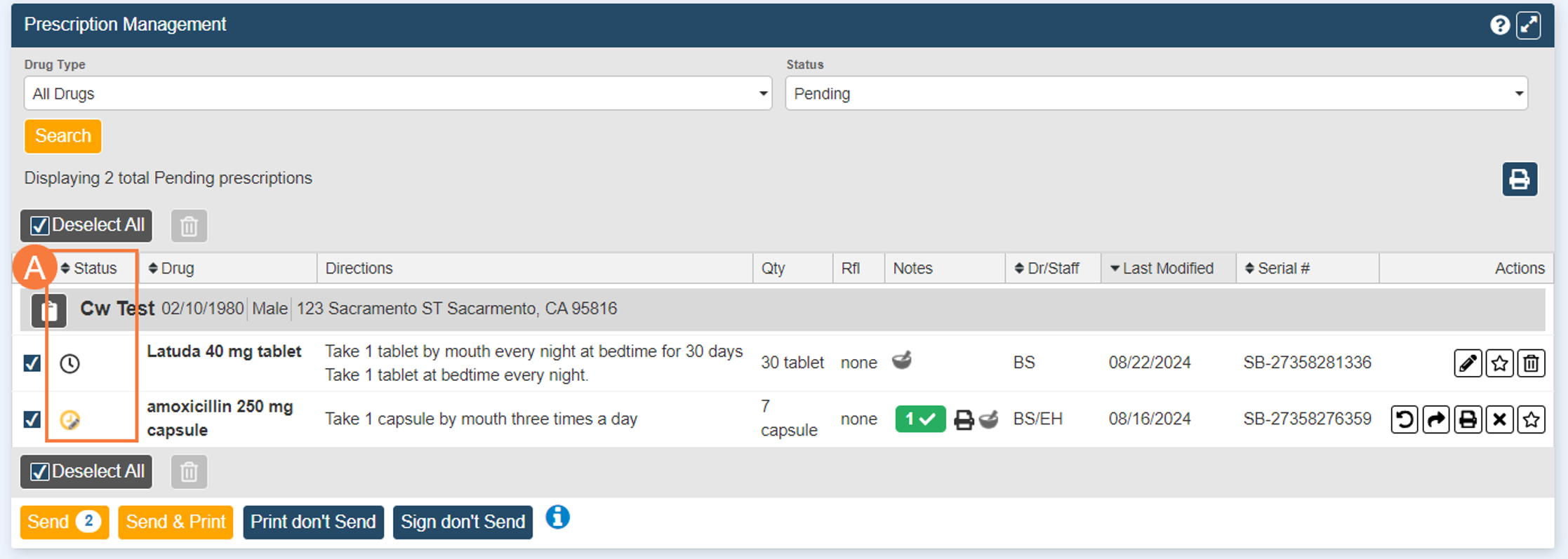
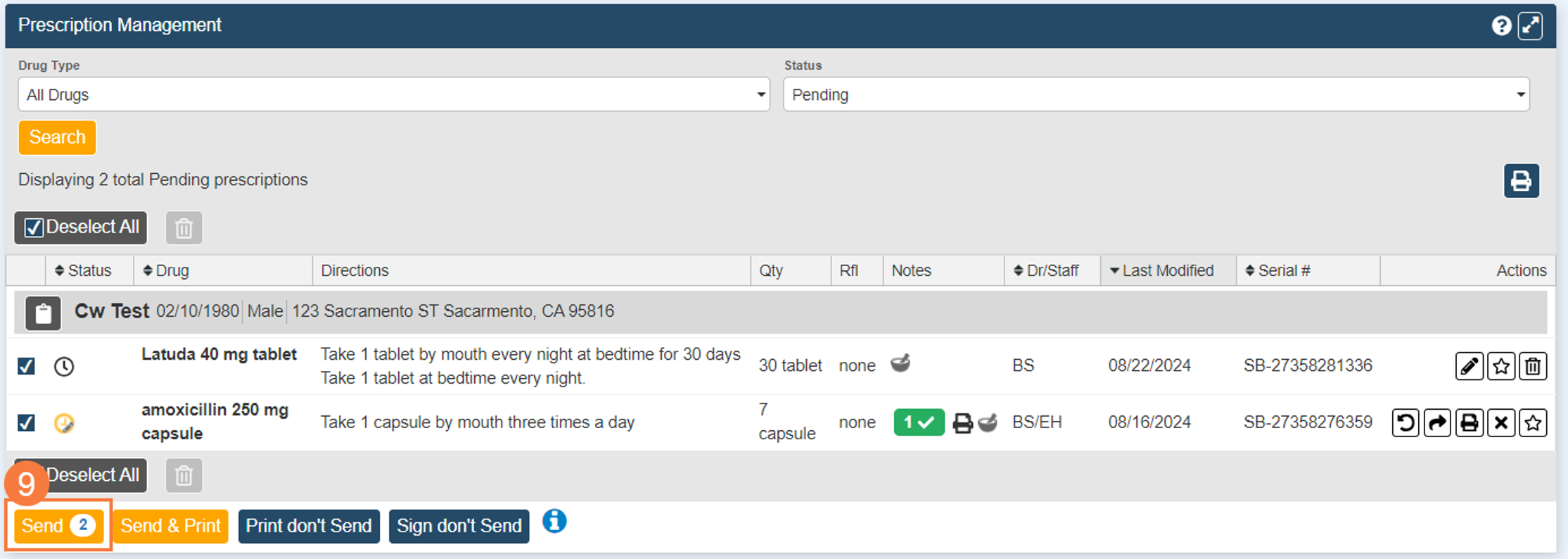
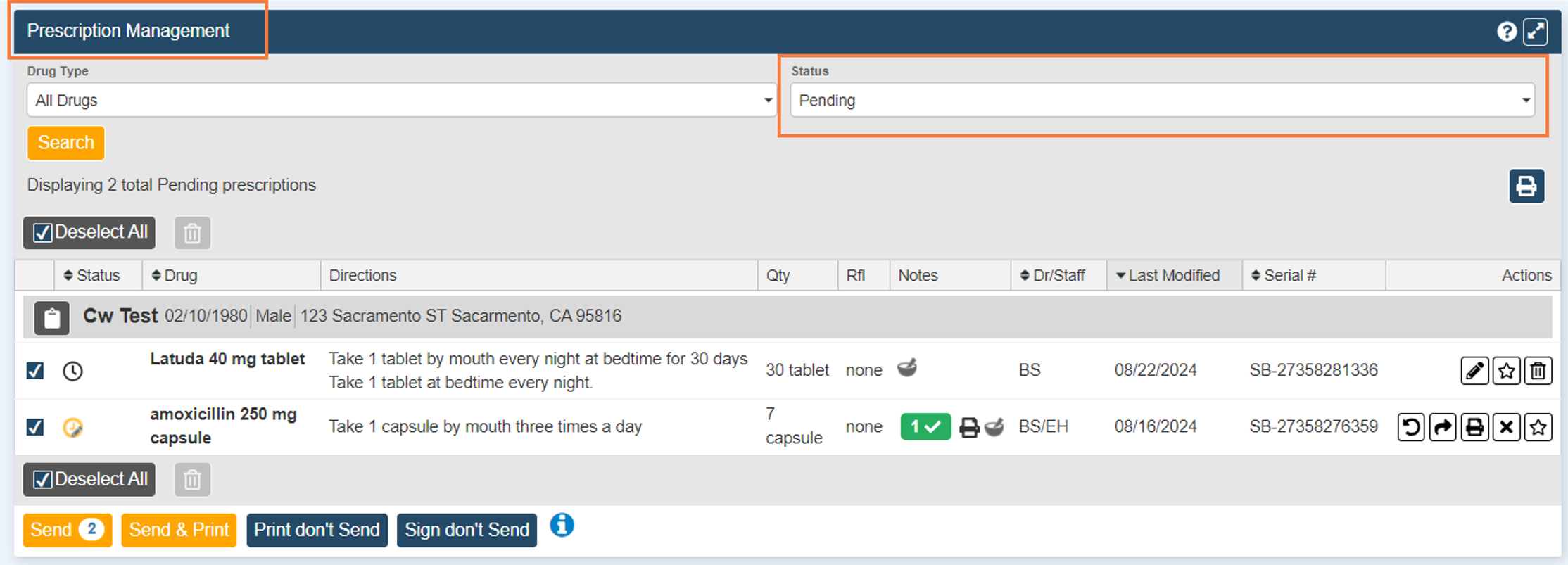
You will be taken to the Client/Patient Summary page of CalMHSA Rx. Scroll or navigate to the Prescription Management section at the bottom of the page. This section shows the status of pending, complete, canceled, or undeliverable medications for this client. In this guide we are going to focus on pending medications. By default, the Status dropdown filed may have pending prescriptions set and already showing.
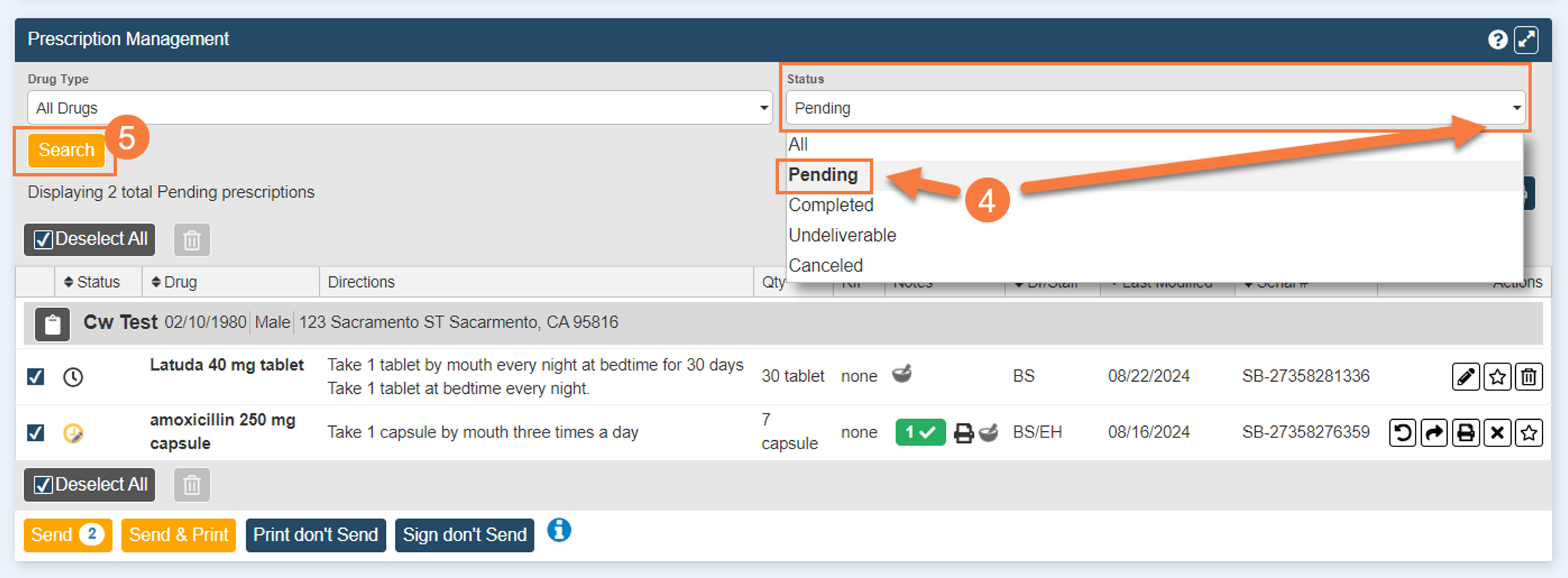
If the pending status isn’t showing,
- Go to the Status field and select drop-down. Select pending.
- Select Search.
The list should now filter down to only pending medications for the client.
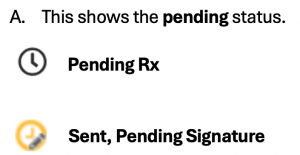
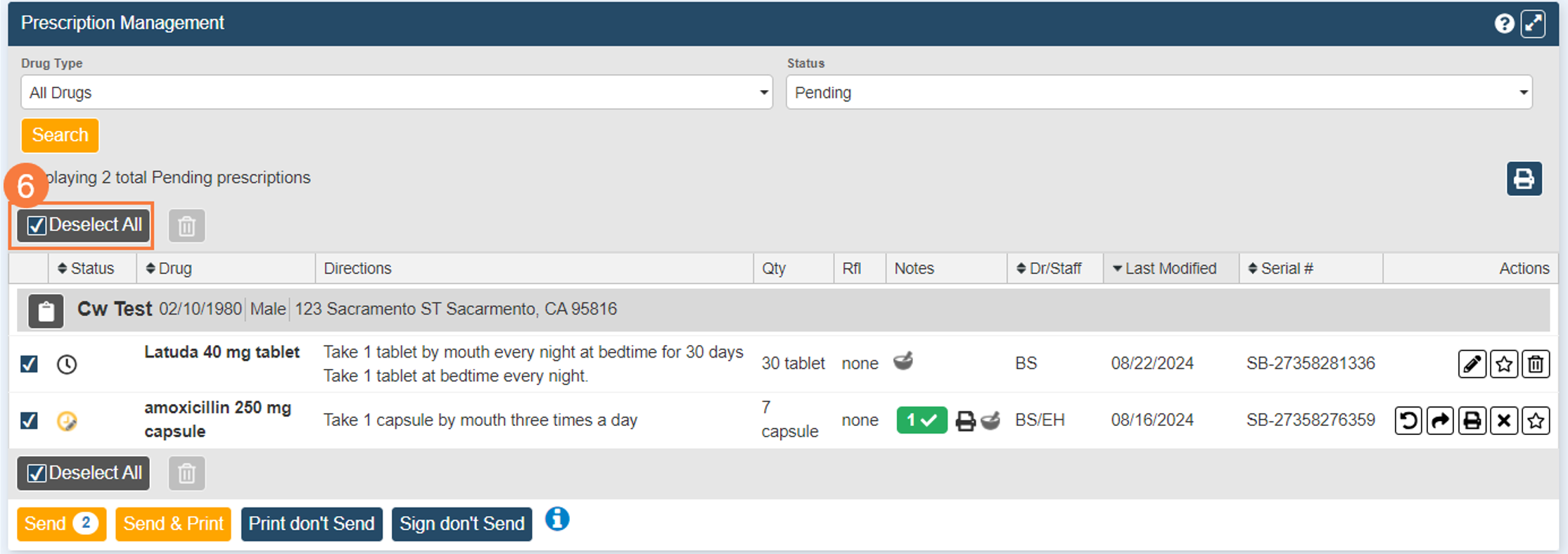
- By default, all prescriptions are selected. You can select Deselect All to unselect the prescriptions and choose one by one to send.
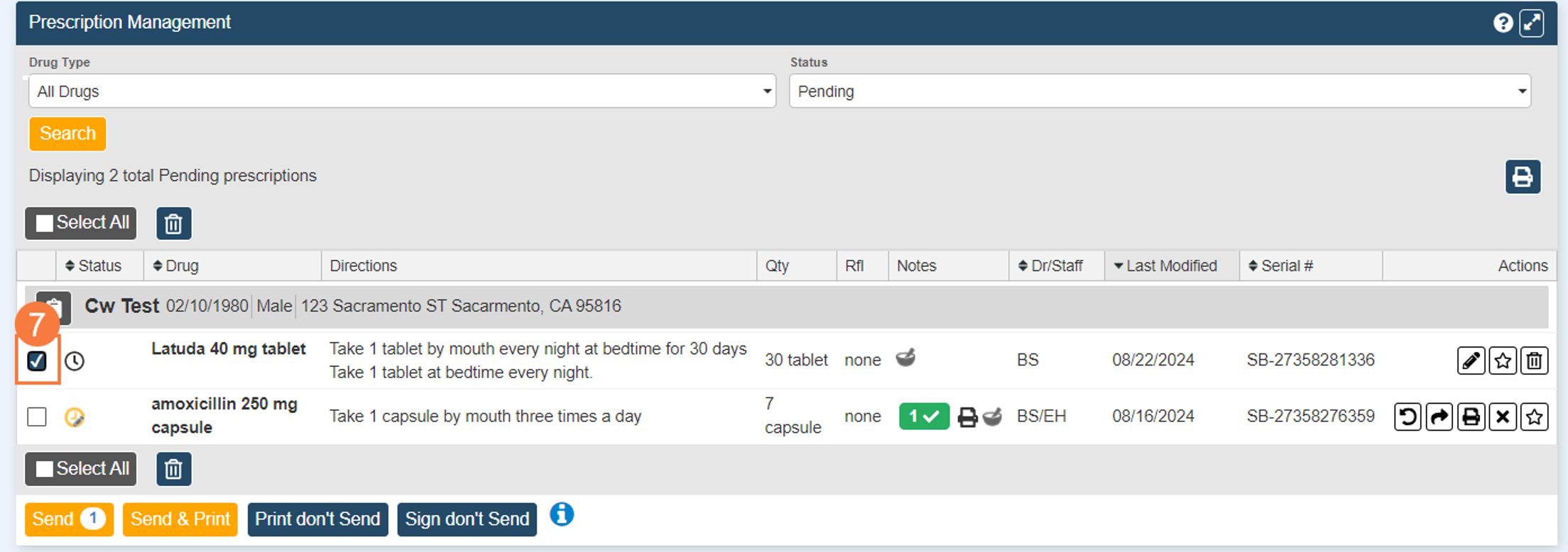
- Now that all are unselected, select checkbox next to prescription you want to send.
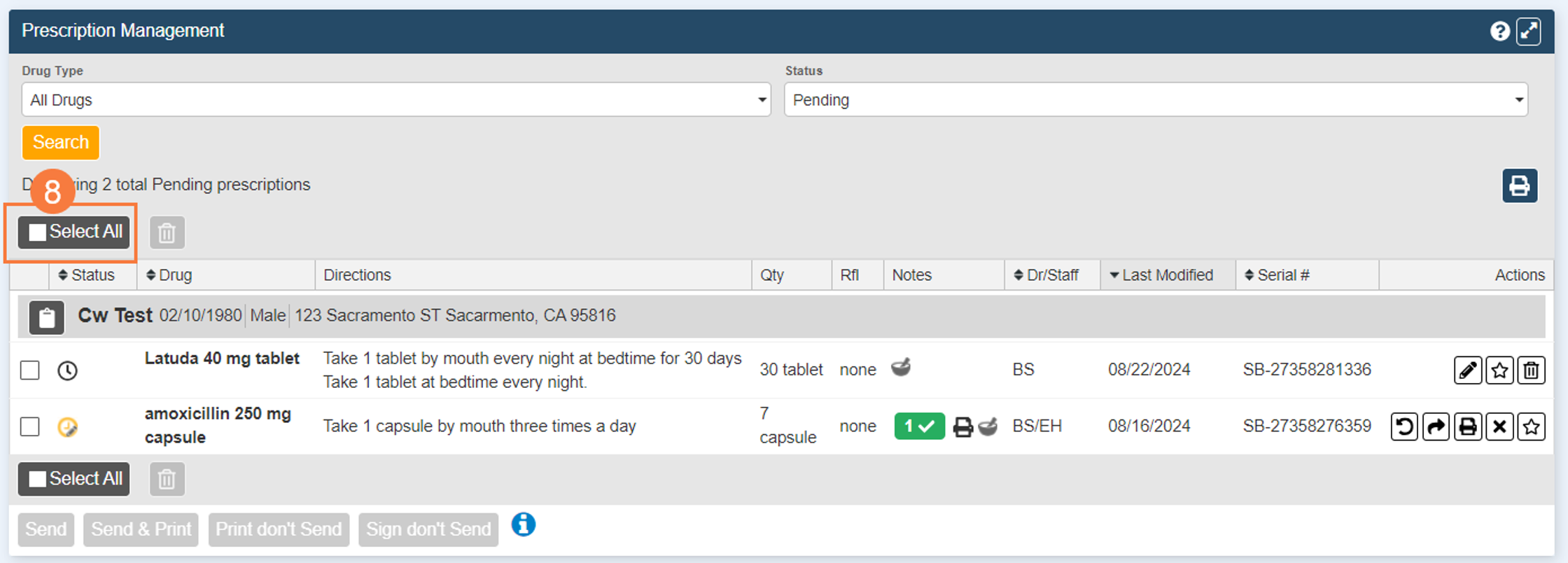
- In this example, we are going to select, select all, to choose all prescriptions.
- Now that all are selected. Select Send. This will send the one prescription to the pharmacy and the other will be officially signed off as sent.
Approving Pending Prescriptions: Prescription Summary Screen
In this section, we are going to show you how to use the Prescription Summary Screen to approve and send pending prescriptions.
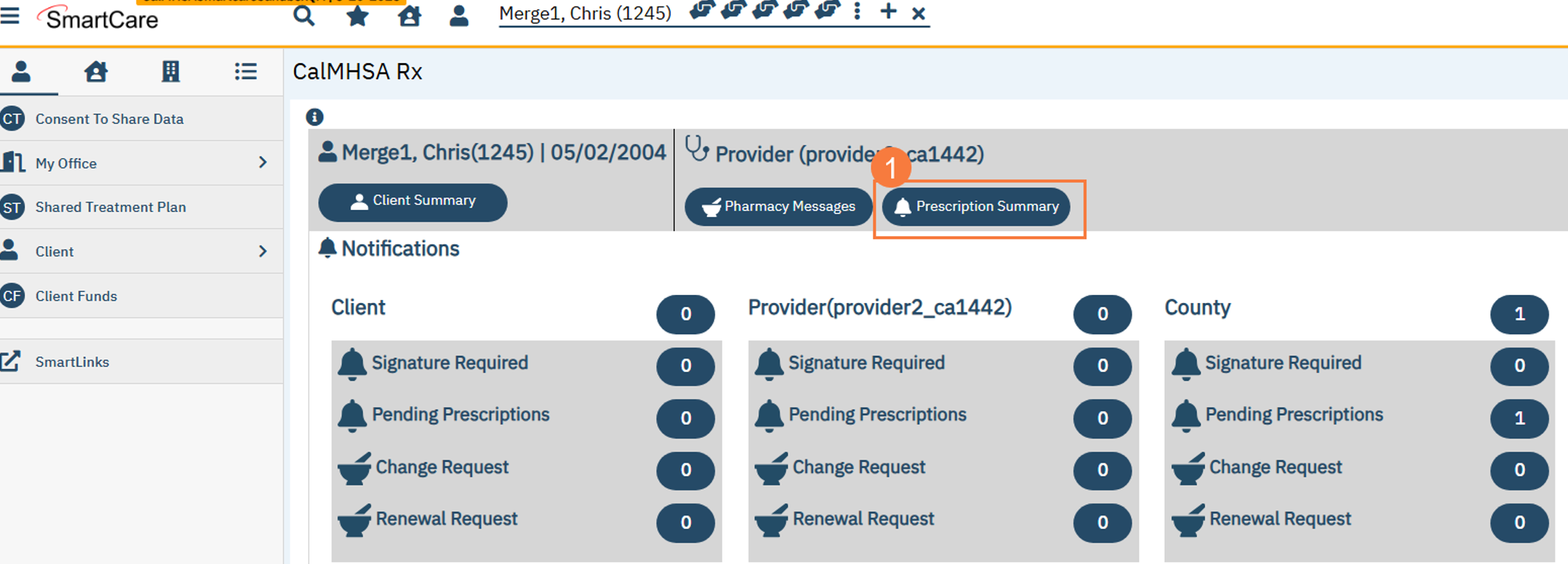
- Back on the CalMHSA Rx transmission screen, Select Prescription Summary icon.
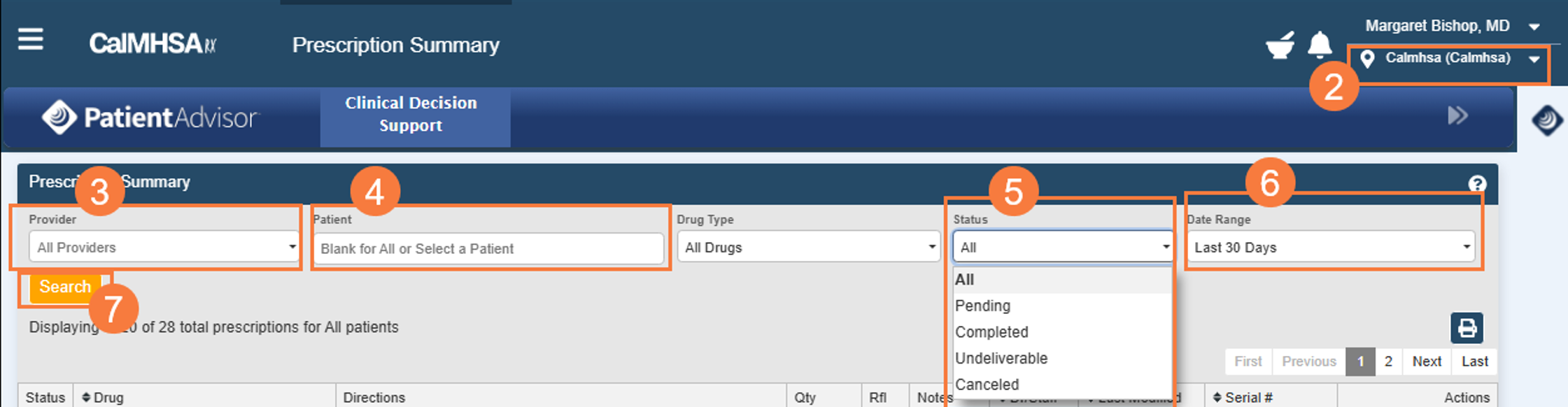
This brings you to a screen where you can search for any prescriptions for any client across your county as well as just for your own clients.
Note: Have your location set properly or have your preferences adjusted to see all pending prescriptions in the location you have selected.
- Make sure you are in the necessary location by selecting the dropdown.
- You can select your name from the Provider dropdown to search for prescriptions only meant for you.
- Search for your client’s name or leave blank to see all your clients.
- Choose the Status of the prescription you want to see. In this case,
- Choose appropriate Date Range.
- Select Search.
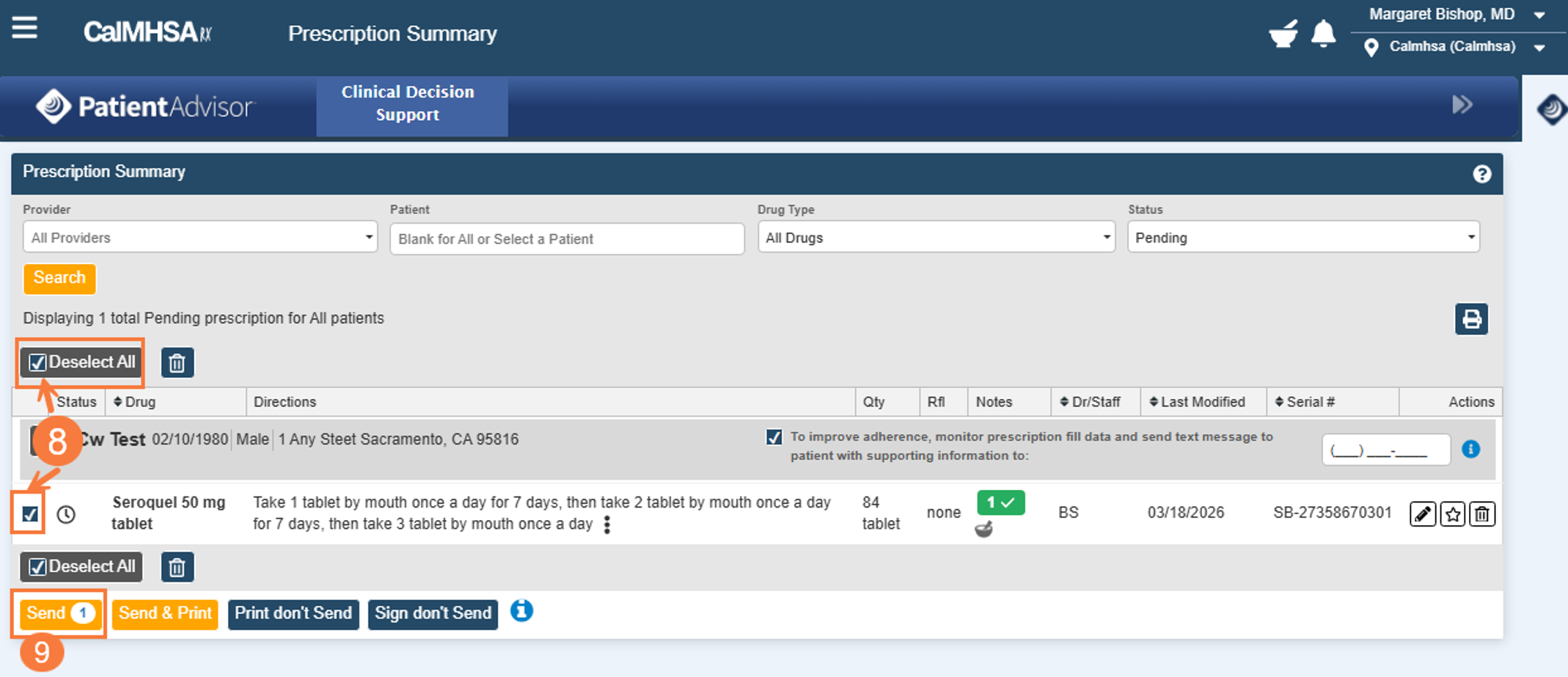
If any pending prescriptions were created for this client they would show here.
- Either Select the checkbox for the individual prescription or Select the Select All icon to select all available pending prescriptions if more than one is listed.
- Select Send.