Document the Mobile Crisis Encounter by creating a new service note.
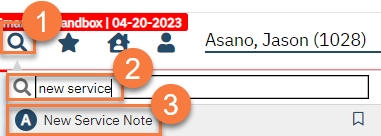
- With the client open, click the Search icon.
- Type “New Service Note” in the search bar.
- Select “New Service Note” from the search results.
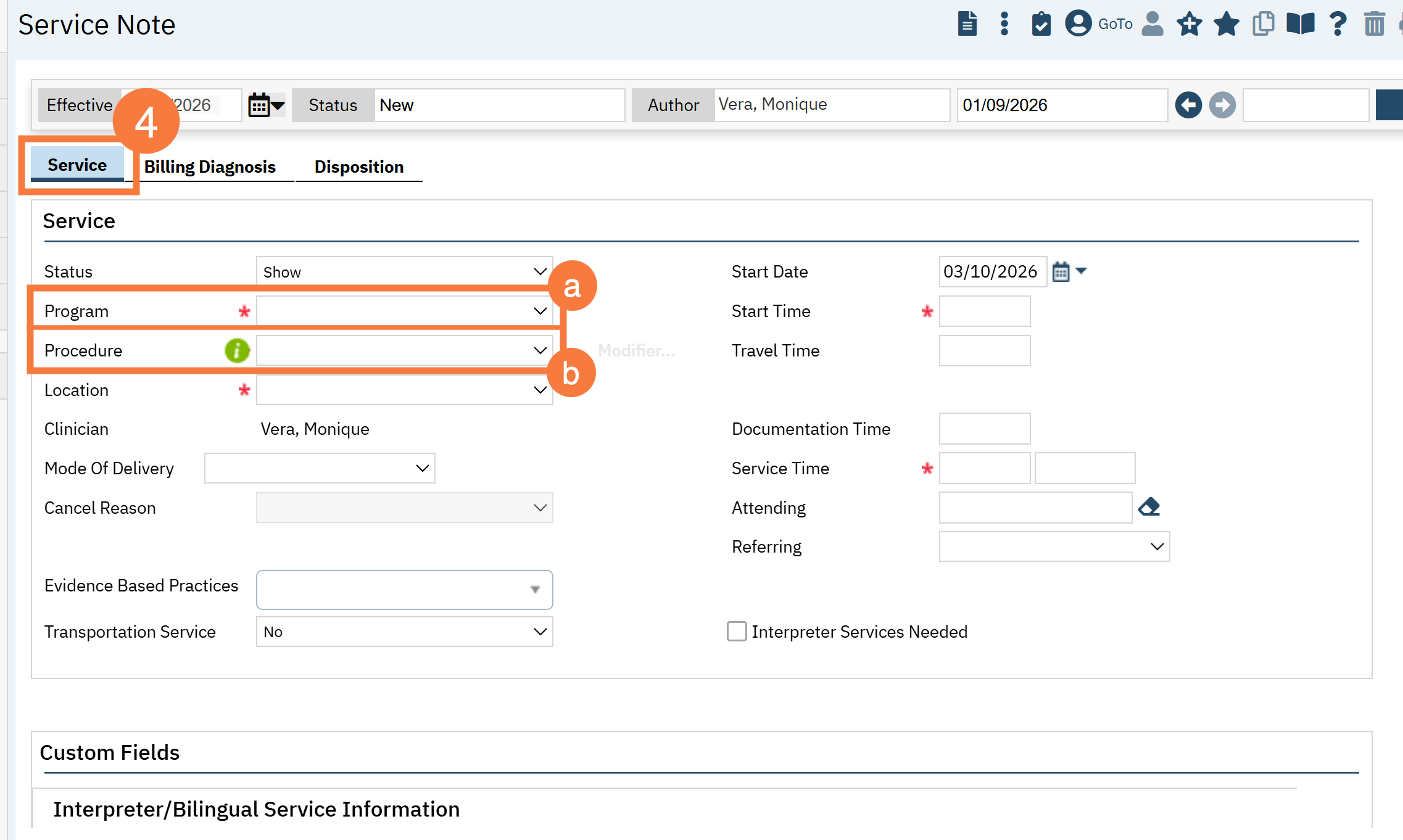
- This brings you to the service note screen. Complete the information in the Service tab.
- Select the Mobile Crisis program in the Program field.
- Select “Mobile Crisis Encounter” in the Procedure field. This will create the Note tab.
-
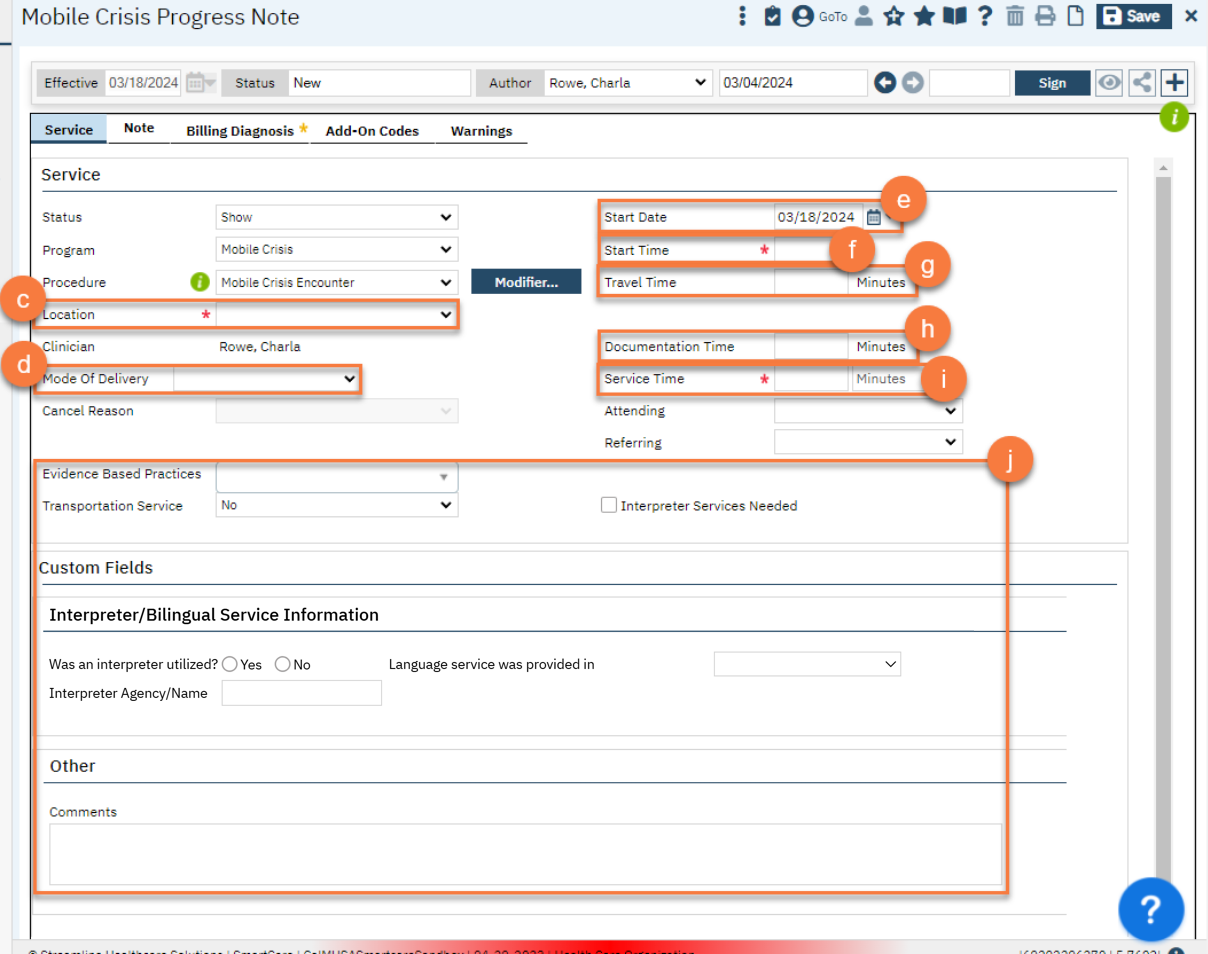
- Enter the location.
- Select “Mobile Unit” if both Mobile Crisis Team members were present on the scene.
- Select “Mobile Unit with Telehealth” if one of the Mobile Crisis Team members provided services only through telehealth and was not on the scene.
- Enter the Mode of Delivery if desired.
- Enter the date you were dispatched in the Start Date field.
- Enter the time you were dispatched in the Start Time field.
- Enter your total travel time in minutes. This includes travel to and from the scene. If you transported the client, or traveled with the client while they were being transported, do NOT include that time here; that will be included when you document your transportation time.
- Enter your total time spent on documentation, in minutes, in the Documentation Time field. You may also want to come back to this field after completing the note and before you sign.
- Enter the total time you spent on the scene, in minutes, in the Service Time field.
- Enter any additional information, such as if an interpreter was used, if the service was provided in a language other than English, and if any CSI Evidence-Based Practices were used.
- Enter the location.
- Click on the Note tab and complete the Mobile Crisis Encounter Note. This document is dynamic, meaning some questions will only be required when other questions are answered a certain way. This may also mean that some questions won’t even show up until other questions are answered.
- In the Encounter Information section, enter the arrival date/time when you arrived on the scene of the encounter. The date will default to the start date of the service, so double-check the date if you were dispatched and/or arrived around midnight.
- Enter the location type of the encounter. This is a State Reporting data dictionary, so pick the one closest to where the encounter took place.
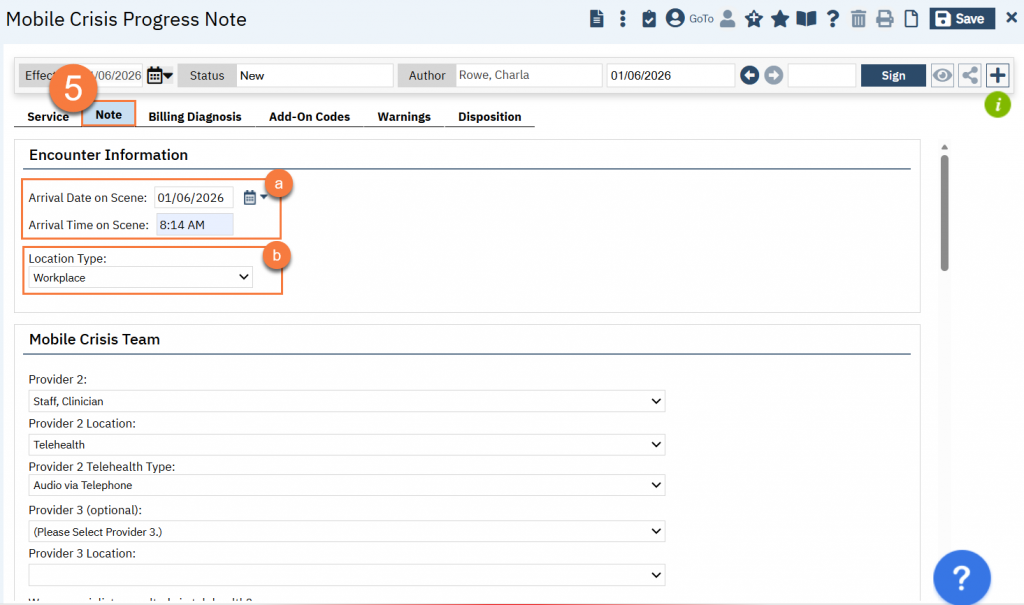
- In the Mobile Crisis Team section, select the 2nd provider and their location. If they were engaged via telehealth, select the type of telehealth used. This is a State Reporting data dictionary, so pick the one that matches closest.
- If you had a 3rd Mobile Crisis Team member, enter their information in the Provider 3 fields. If you didn’t have a 3rd member, leave these blank.
- Document whether you consulted a specialist via telehealth or not. Keep in mind that “telehealth” includes phone calls. If this is “Yes”, additional questions will appear asking about the type of specialist and the type of telehealth used. These are State Reporting data dictionaries, so pick the one that matches closest.
- Document whether you utilized an interpreter via telehealth or not. Keep in mind that “telehealth” includes phone calls. If this is “Yes”, additional questions will appear asking about the type of telehealth used. This is a State Reporting data dictionary, so pick the one that matches closest.
- Document whether law enforcement was involved or not. This is a State Reporting data dictionary, so pick the one that matches closest.
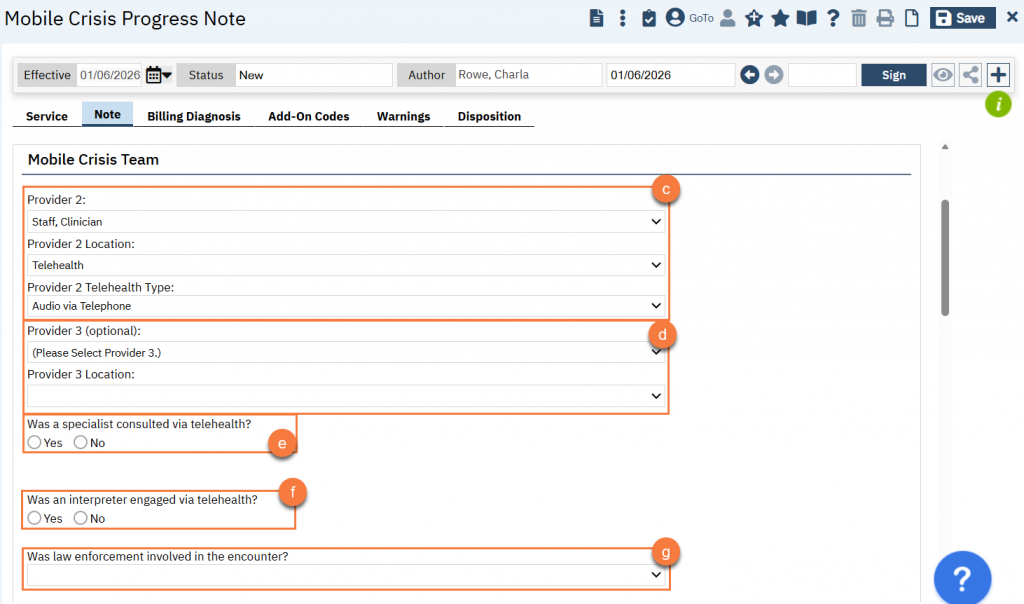
- Per county request, we included documentation of involuntary holds before and after the encounter, to help counties track when holds are initiated and/or rescinded. If a hold existed, select all the hold reasons that apply. This is a multiple-select field.
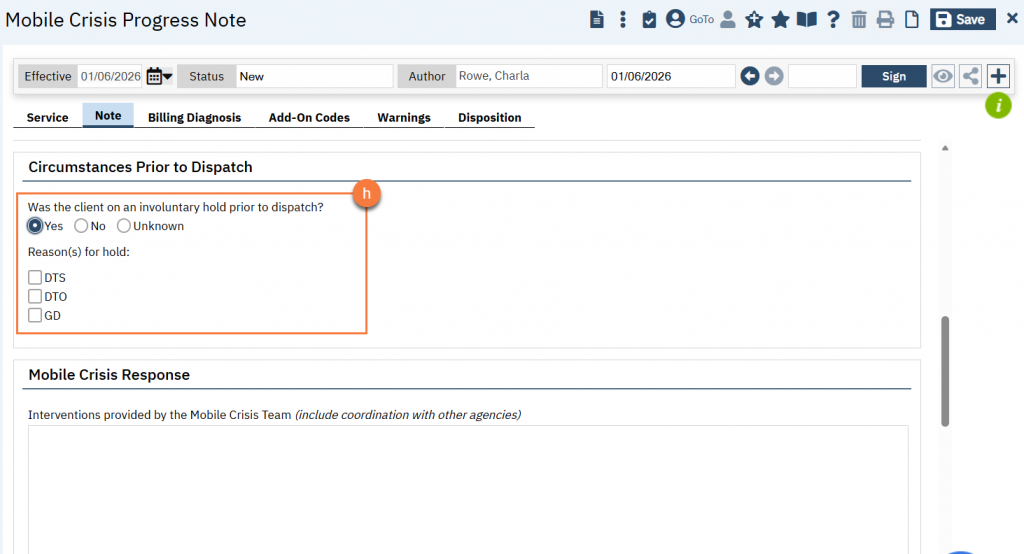
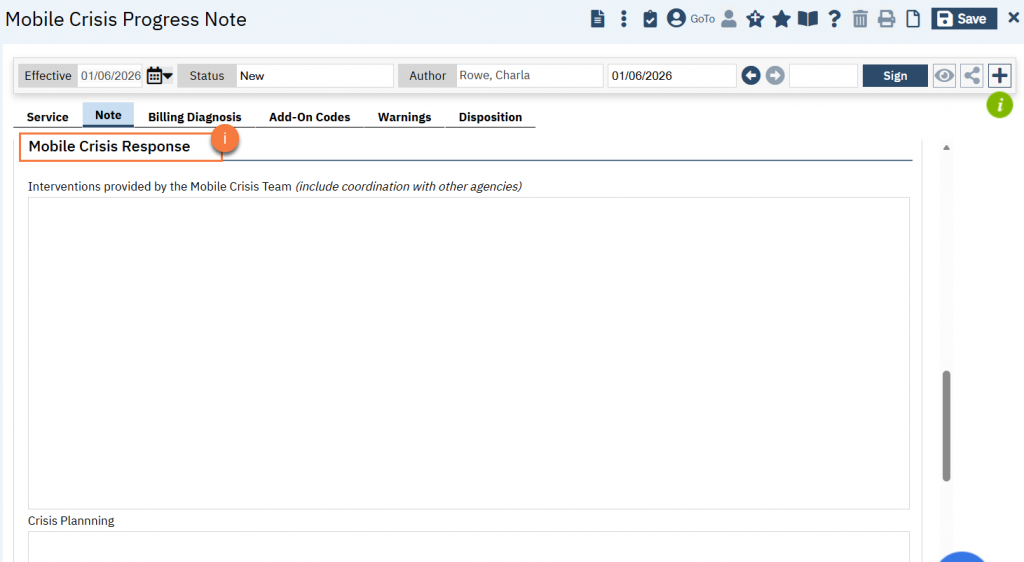
- In the Mobile Crisis Response section, there are multiple narrative fields to help you document what occurred. This includes interventions provided, crisis planning completed, and how the encounter ended. Make sure to include any coordination with other agencies, what referrals were made, and any warm hand-offs that occurred.
- Enter the disposition of the encounter. This is a State Reporting data dictionary, so pick the one that matches closest. Add any details for your own records.
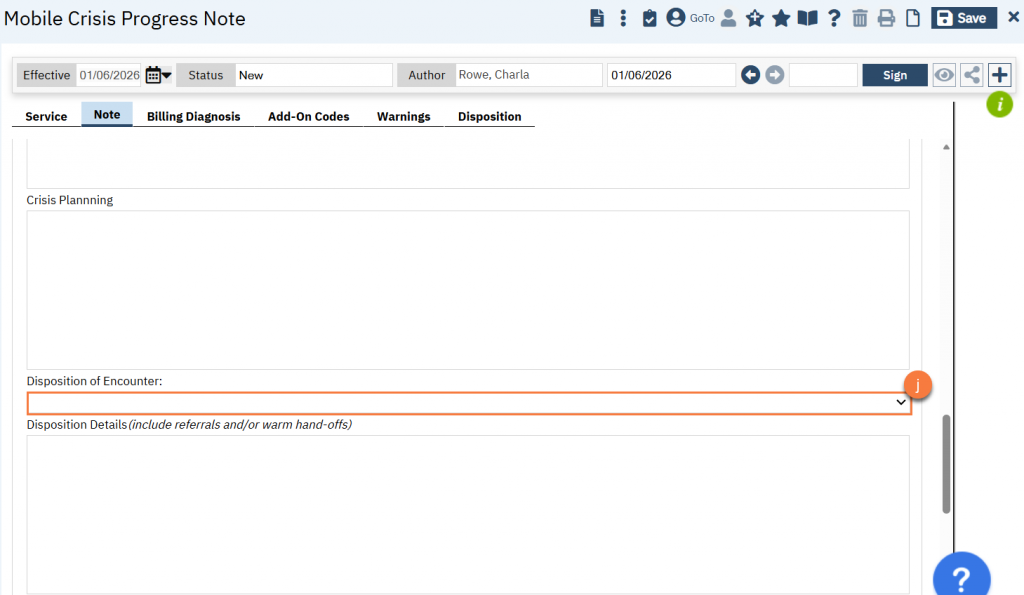
- In reference to step e above, document whether the client was on an involuntary hold after the encounter concluded. If the hold exists, select all the hold reasons that apply, as this is a multi-select field.
- Document whether any Mobile Crisis Team members transported the client, or traveled with the client as they were being transferred, to a treatment setting.
- If you answer Yes to this question, you’ll be asked to enter the number of miles driven, if you transported the client yourself. If you traveled with the client as they were being transported, enter “0”.
- You’ll also need to enter the number of minutes spent transporting or traveling with the client in minutes. Enter the number of minutes each provider spent on transportation/accompaniment.
- Document the type of transportation used. This is a State Reporting data dictionary, so pick the one that matches closest.
- Document the type of destination the client was transported to. This is a State Reporting data dictionary, so pick the one that matches closest.
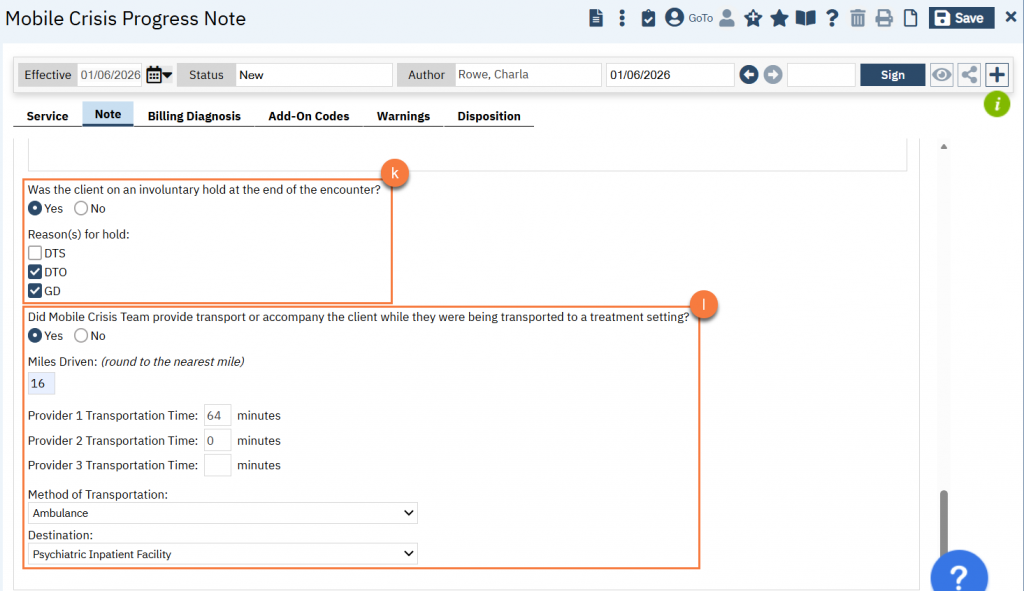
- Click on the Billing Diagnosis tab.
- Click on the ICD-10 button.
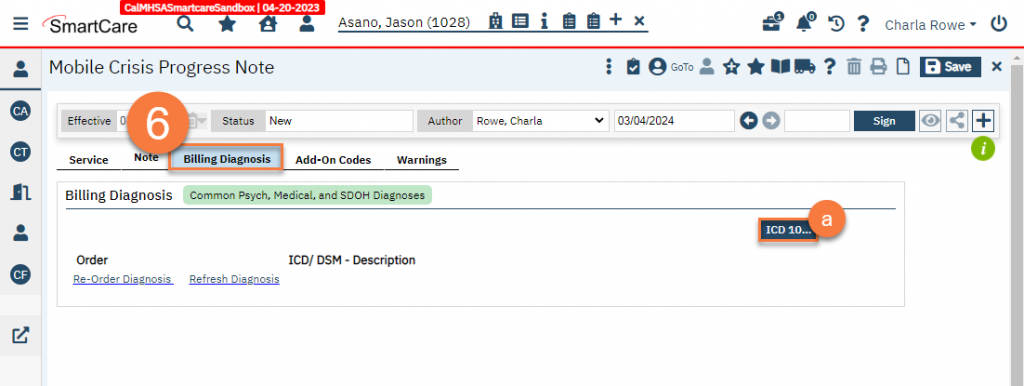
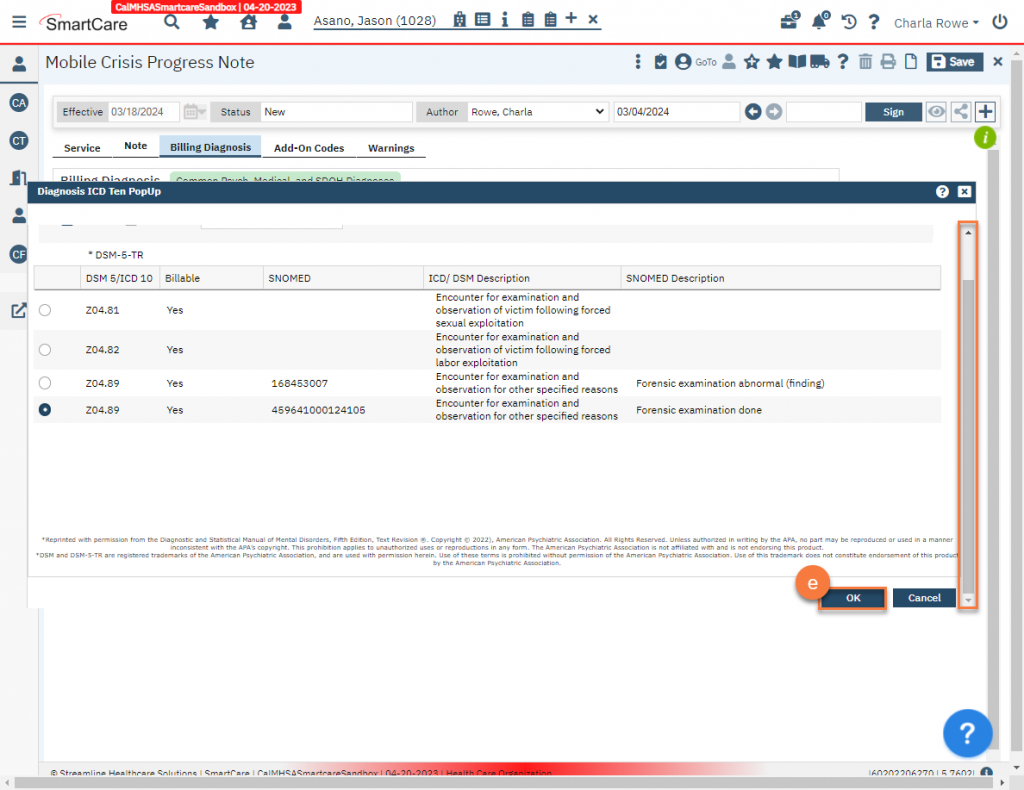
- This will bring up the Diagnosis ICD Ten PopUp window.
- Search using the code and/or description and by clicking “Search”.
- Select the code you want to use by clicking on the radio button next to it.
- Scroll down and click OK.
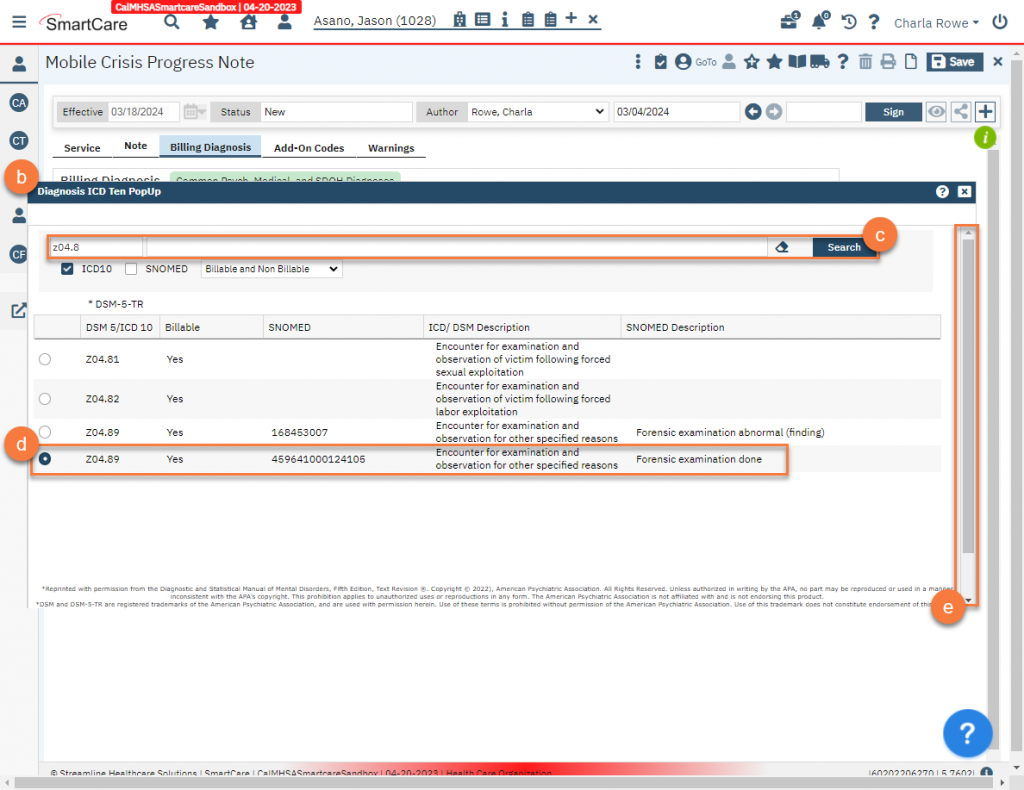
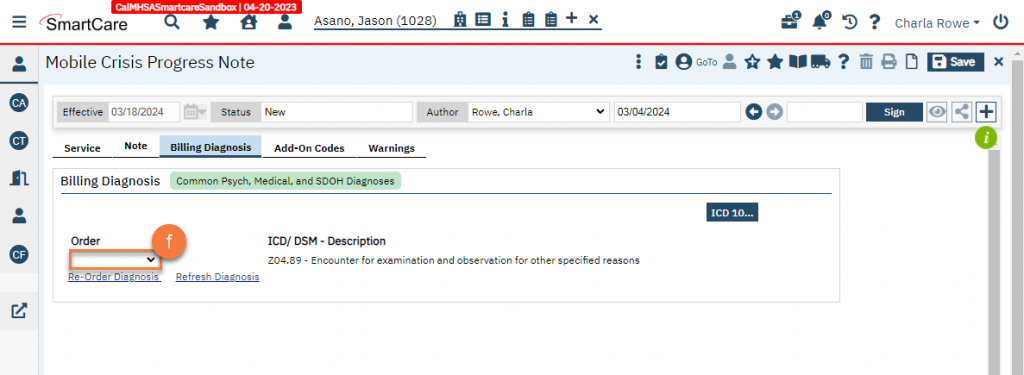
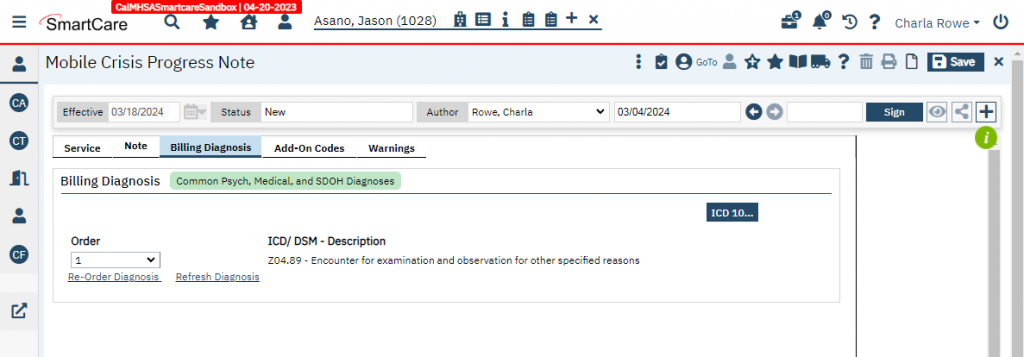
- This takes you back to the Billing Diagnosis tab. Select “1” in the dropdown next to the ICD-10 code you just added.
- If you, the clinician and author of this note, did any transportation services (miles or time), click on the Add-On Codes tab.
- Select “Transportation, Staff Time” in the Select Add-On Codes dropdown.
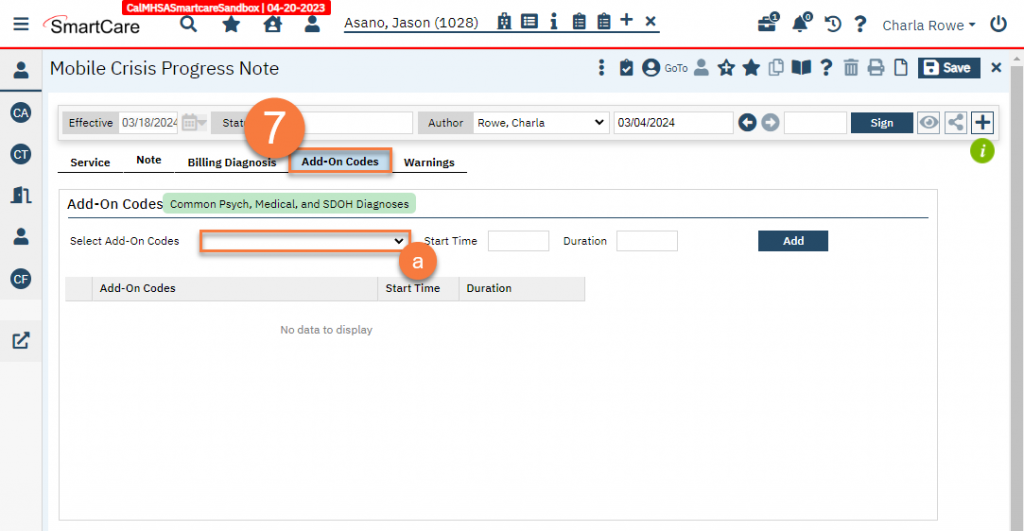
- SmartCare will automatically input the start time and total duration based on the mobile crisis encounter service. Edit these fields to match the start time and total duration time of the transportation service.
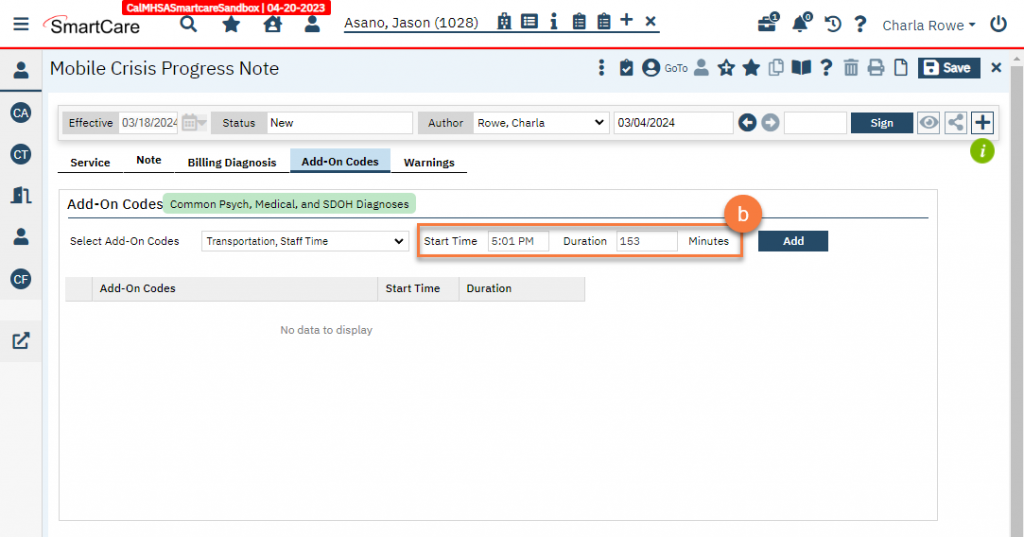
- Click Add.
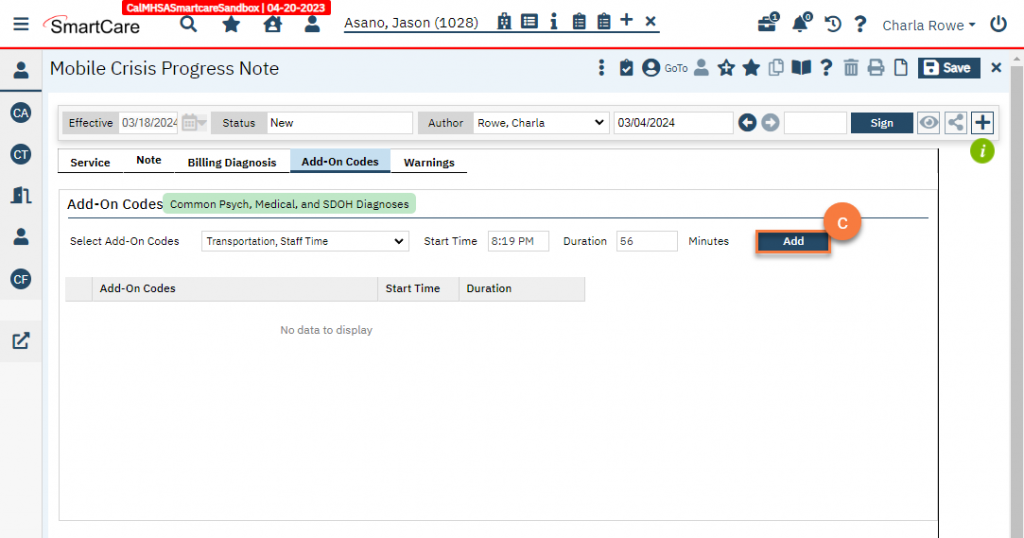
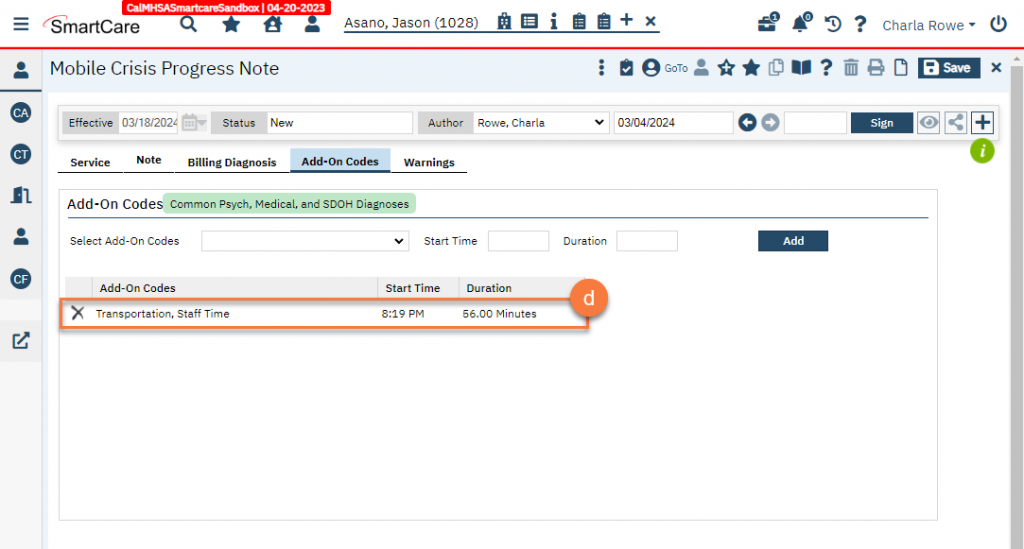
- This will add this information to the list below.
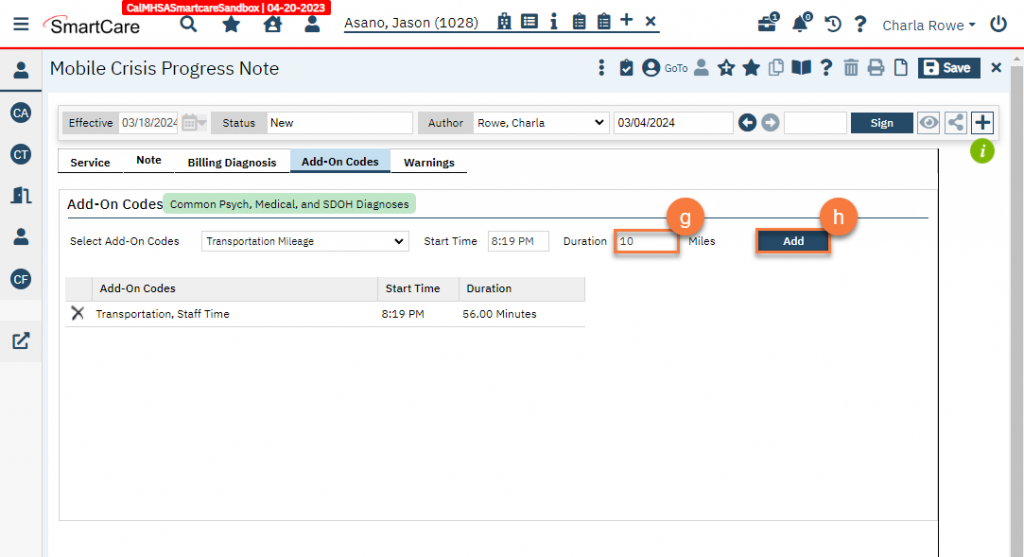
- To add mileage, select “Transportation Mileage” from the Select Add-On Codes dropdown list.
- SmartCare will automatically enter the same start time as the mobile crisis encounter service start time. Edit the start time of the transportation service to match when the transportation service actually started.
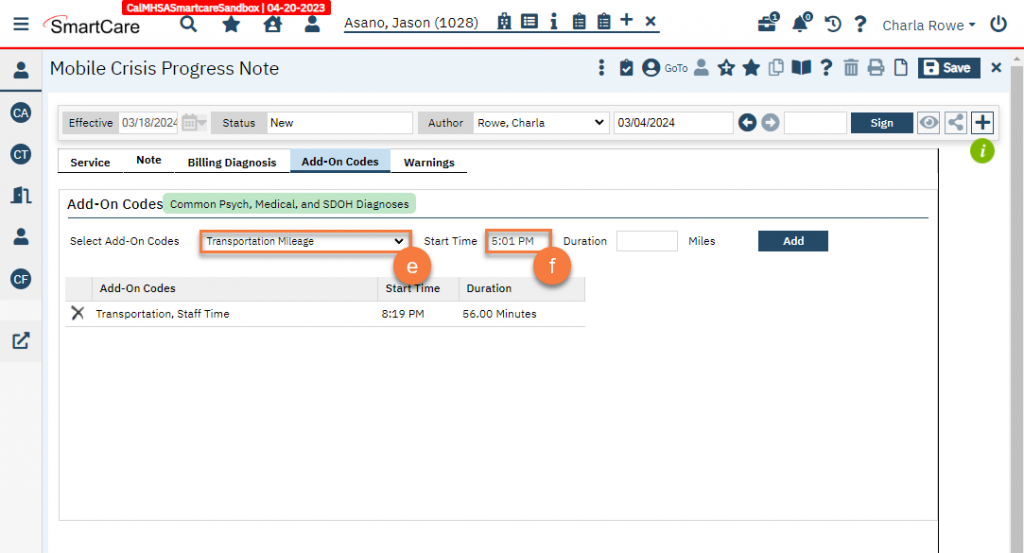
- Enter the total amount of miles driven in the Duration field.
- Click Add.
-
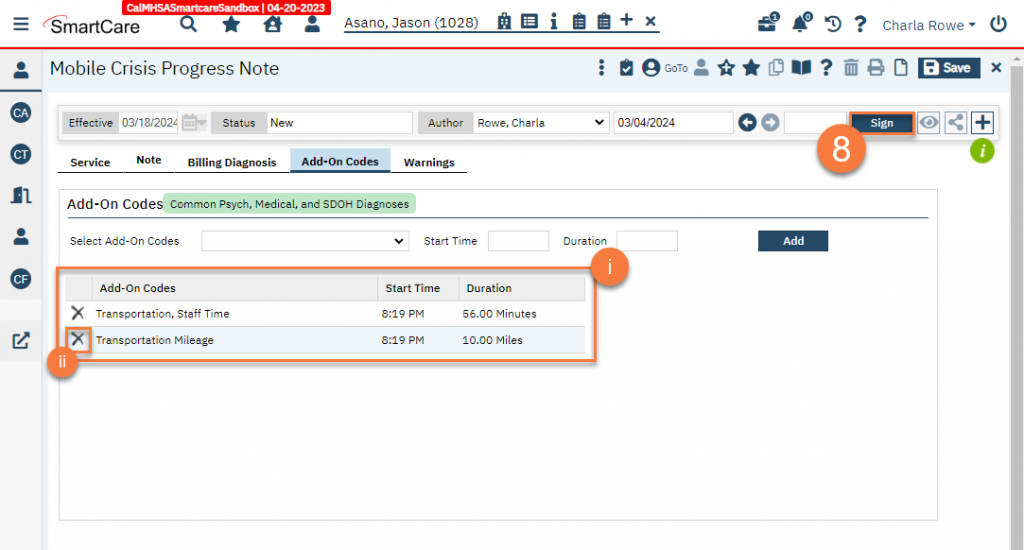
- This will add this service to the list below.
- Note: These add-on service will be under the same clinician as the clinician on the main service. If the clinician (author) of the mobile crisis encounter service is not the same person who provided the transportation service, the secondary staff member will have to document their time separately. See below for how to document transportation time or mileage when you are not the author of the mobile crisis encounter note.
- If you have made a mistake and need to remove an add-on code, or edit the information associated with the add-on code, click on the Delete icon next to the code you need to remove. For mistakes, you’ll have to re-enter the information by following the steps in 7a-h above.
- This will add this service to the list below.
- Click “Sign” to complete the service note.
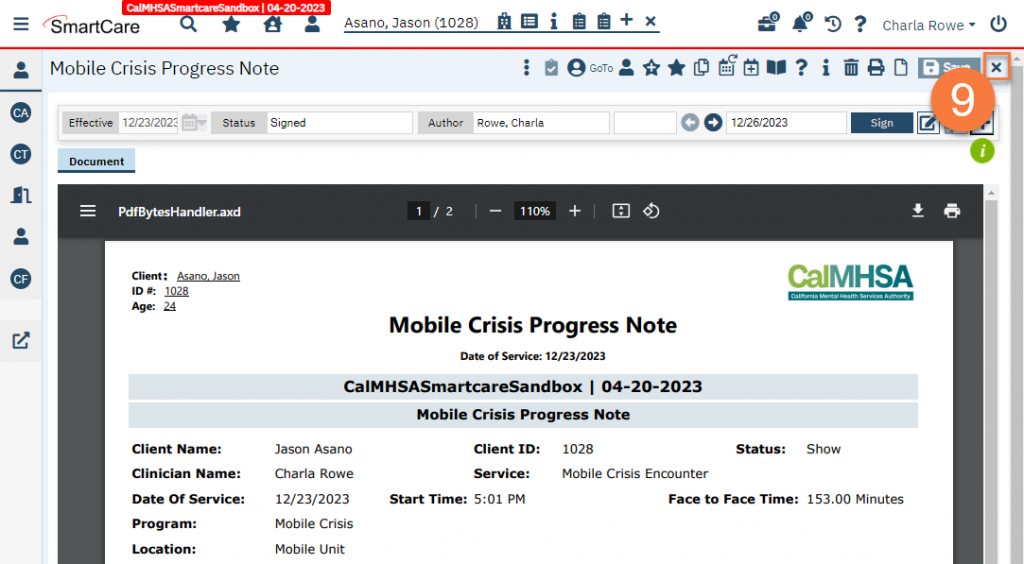
- This will bring up the PDF. If desired, you can add the 2nd provider and/or the supervising LPHA as a co-signer, but this is not required. See How to Add a Co-Signer to a Document for details. Click the Close icon to exit this screen.
How to Claim for Transportation Miles Driven When You are Not the Author of the Mobile Crisis Note
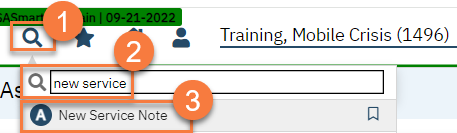
- With the client open, click the Search icon.
- Type “New Service Note” in the search bar.
- Select “New Service Note” from the search results.
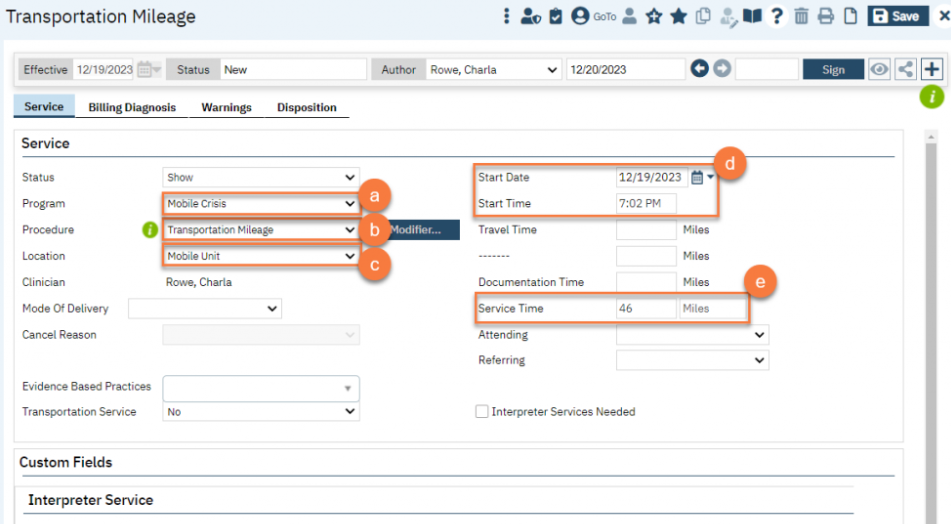
- This brings you to the service note screen. Complete the information in the Service tab. No note is required for this procedure code.
- Select the Mobile Crisis program in the Program field.
- Select “Transportation Mileage” in the Procedure field.
- Enter the location. You can use “Mobile Unit.”
- Enter the Start Date and Start Time fields based on when the transportation started.
- Enter the number of miles in the Service Time field.
How to Claim for Transportation Time When You are Not the Author of the Mobile Crisis Note
- With the client open, click the Search icon.
- Type “New Service Note” in the search bar.
- Select “New Service Note” from the search results.
- This brings you to the service note screen. Complete the information in the Service tab. No note is required for this procedure code.
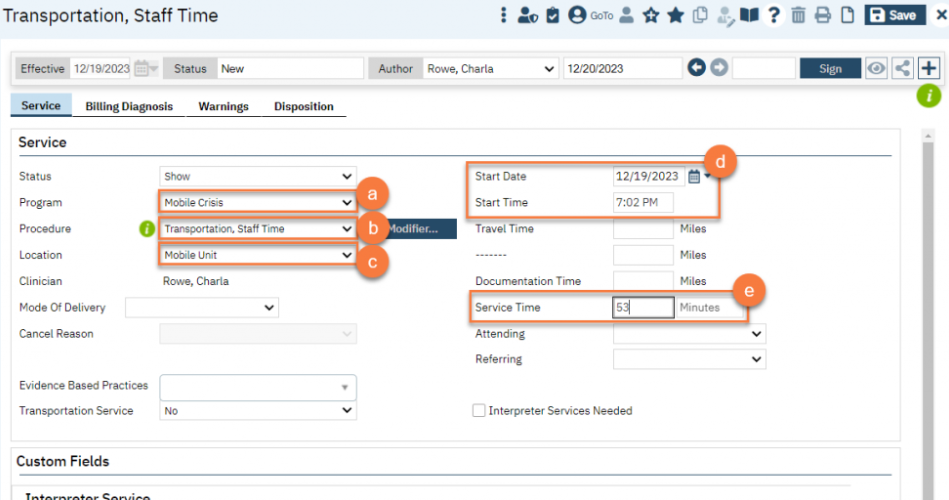
- Select the Mobile Crisis program in the Program field.
- Select “Transportation, Staff Time” in the Procedure field.
- Enter the location. You can use “Mobile Unit.”
- Enter the Start Date and Start Time fields based on when the transportation started.
- Enter the number of minutes you spent transporting or accompanying the client while they were transported in the Service Time field.