
What to do when a provider departs without finishing clinical documentation (not including progress notes)
Some documents, such as CalAIM Assessments, state reporting records, or client legal documents, can be reassigned to another provider when the original provider departs. Follow the steps outlined in “How to Reassign a Document”. If the original provider already started the document, they may be added as a co-signer when the new provider completes and signs the document. The new provider can simply remove the original clinician as a co-signer.
What to do when a provider departs without signing progress notes
All claims billed to Medi-Cal require a note signed by the provider describing the service provided. If a provider departs without signing a service note, generally that service should not be billed to Medi-Cal but counties may ultimately develop their own policies regarding how to manage incomplete progress notes after a provider departs.
In some cases, the provider may not have started their note at all, in which case there is nothing to be done. In other cases, a provider may have started a progress note but never finished or the provider finished the note but simply never signed/finalized it.
Counties should follow their policies around how to address these issues. CalMHSA has described a few workflows below that will likely be used in these types of situations.
Use the Supervisor Edit/Complete Functionality
Released as part of the December 2025 MSP.
This will allow the supervisor to change the note (or clinical document) to “complete” and document the reason for completing the document rather than having the author sign.
In order to revise the content of the document before using this functionality, the supervisor must be a proxy for the author. The “supervisor complete” functionality only marks the document as complete and does not allow the user to make any changes to the document itself.
- Navigate to the Note. This can be done any number of ways, and does not require the user to access the Service Detail screen, as the Service Note screen will work.
- Click the “Supervisor Edit/Complete” icon.

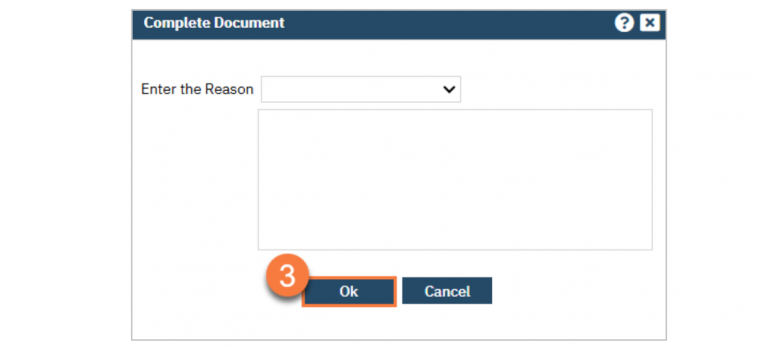
- This will pop up a window called “Complete Document”.Select the reason for completing this document and enter in any justification needed in the text box. Click “Ok” to continue.
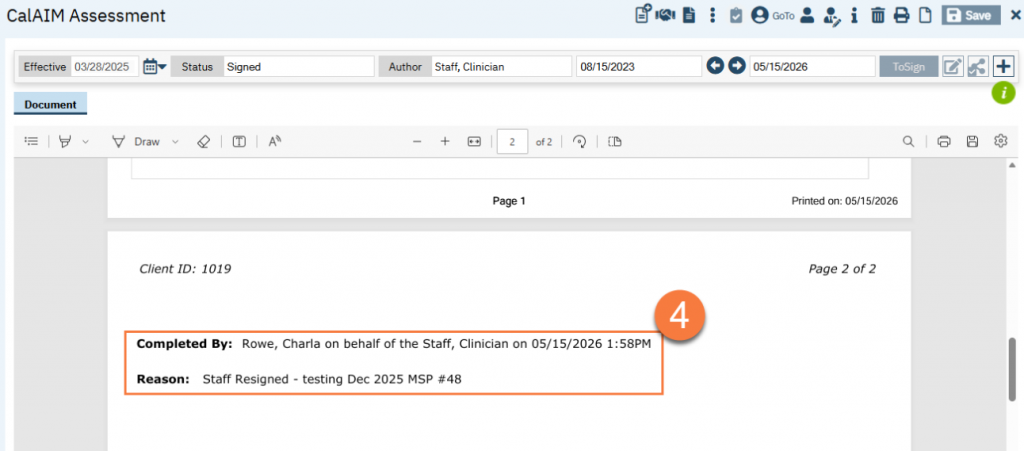
- The document will now be complete and the PDF will note that it was completed on behalf of the author by you, and list the reason.
Error Out the Service and Service Note
This will error out both the service and the associated note. Erroring means this service will not bill and will not be present in the client’s front-facing record. The associated note will be hidden from all users except those that can see errored out documents. This does not delete the record.
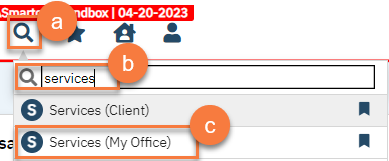
- Navigate to the Services (My Office) screen.
- Click the Search icon.
- Type in “Services” in the search bar.
- Select “Services (My Office)” from the search results.
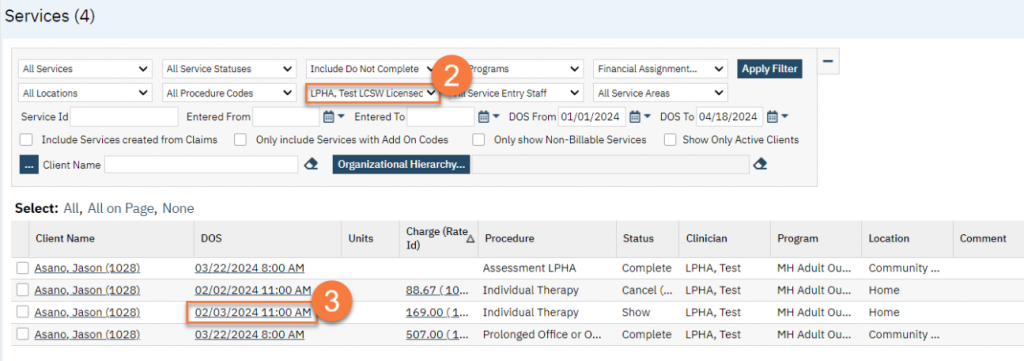
- Use the filters to find any incomplete services associated with that staff member. Services that should have notes included would be in Show status. Services that occurred but have not yet been marked as such may be in Scheduled status.
- Click on the service you need to adjust.
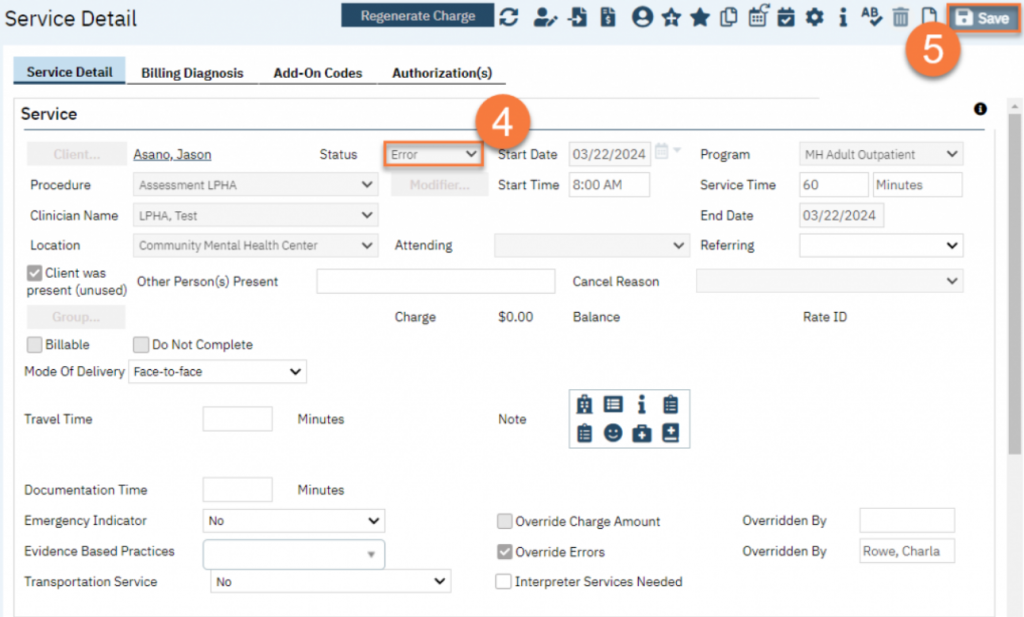
- his opens the Service Details screen. Change the service status to Error.
- Click Save and close the service.
Change the Author of the Service Note to a Supervisory Staff
It’s possible to change the author of the document. This will also change the provider associated with the service. This means the service will show in the client’s record and the note can be finalized and be part of the client’s record, but will be under the supervisor’s name rather than the original provider.
A county can choose to bill this service or not, depending on the situation. Billing may be more frequent in situations where the original author was a Medical Resident and the Supervisor is the Attending, as the Attending is often present during the session and can speak to the actual service provided.
- Navigate to the Services (My Office) screen.
- Click the Search icon.
- Type in “Services” in the search bar.
- Select “Services (My Office)” from the search results.
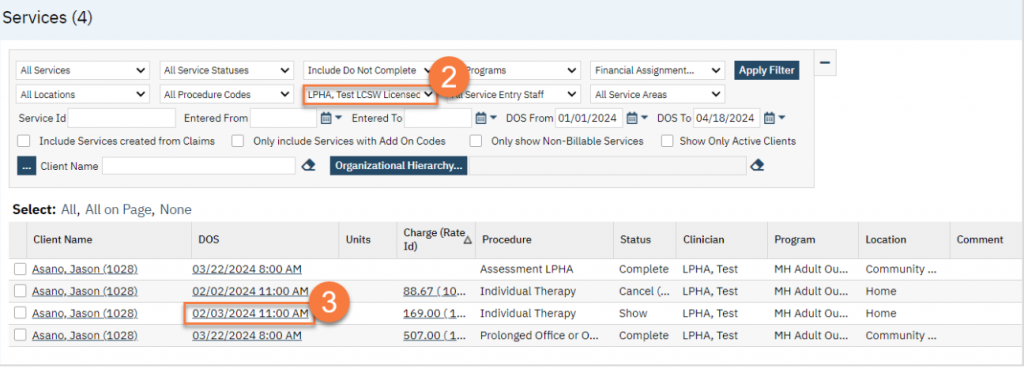
- Use the filters to find any incomplete services associated with that staff member. Services that should have notes included would be in Show status. Services that occurred but have not yet been marked as such may be in Scheduled status.
- Click on the service you need to adjust.
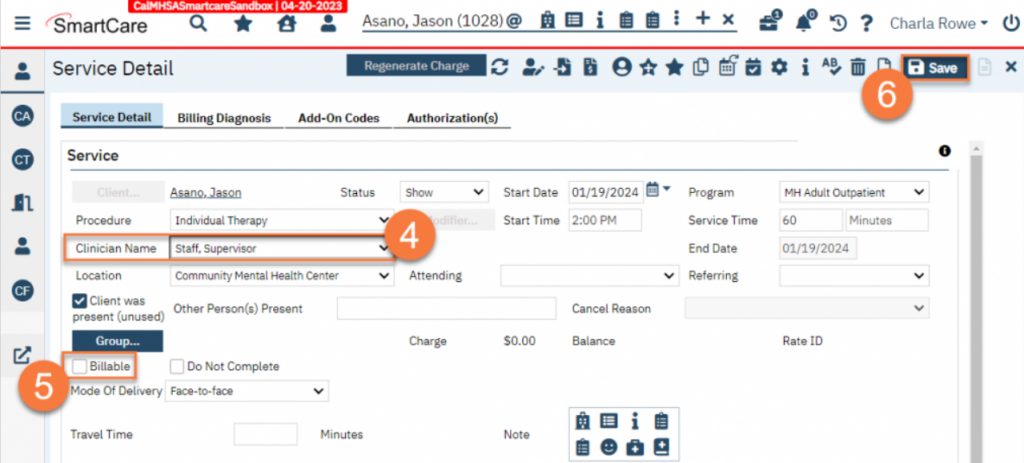
- This opens the Service Details screen. Change the Clinician Name to the supervisor’s name. This will also change the author of the note.
- Uncheck the Billable checkbox to mark the service as not billable. You can also leave the checkbox checked if you decide to bill for the service. The claim will be under the new provider’s name.
- Click Save and close the service.
- The assigned supervisor will now see this on their Assigned Documents widget.
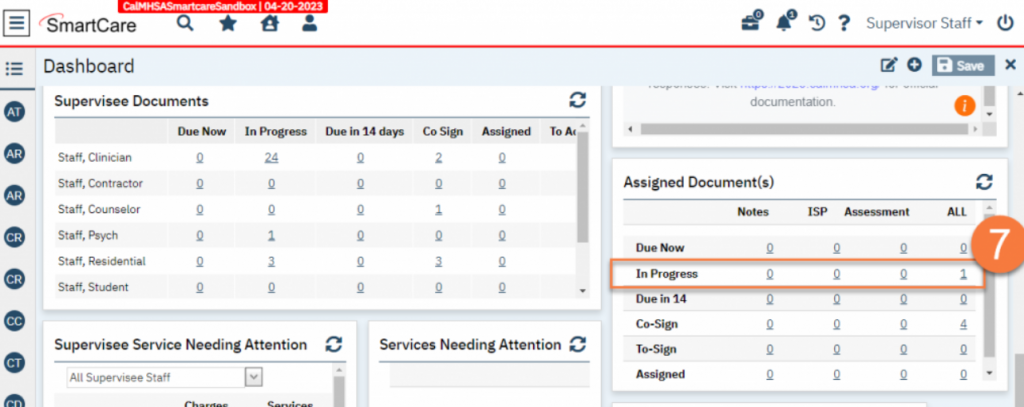
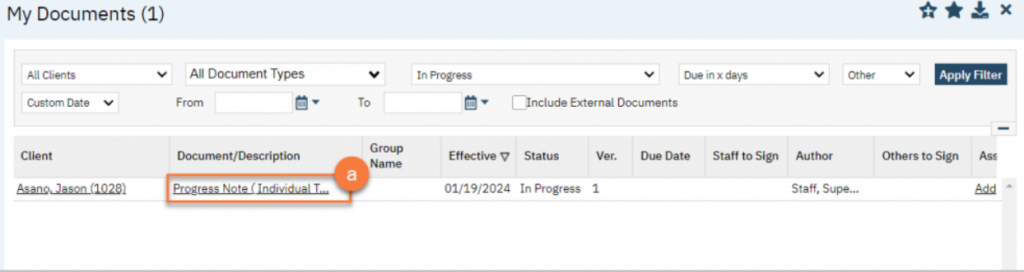
- Clicking on the Assigned Documents widget will take them to the My Documents list page. They can select the document from the list.
-
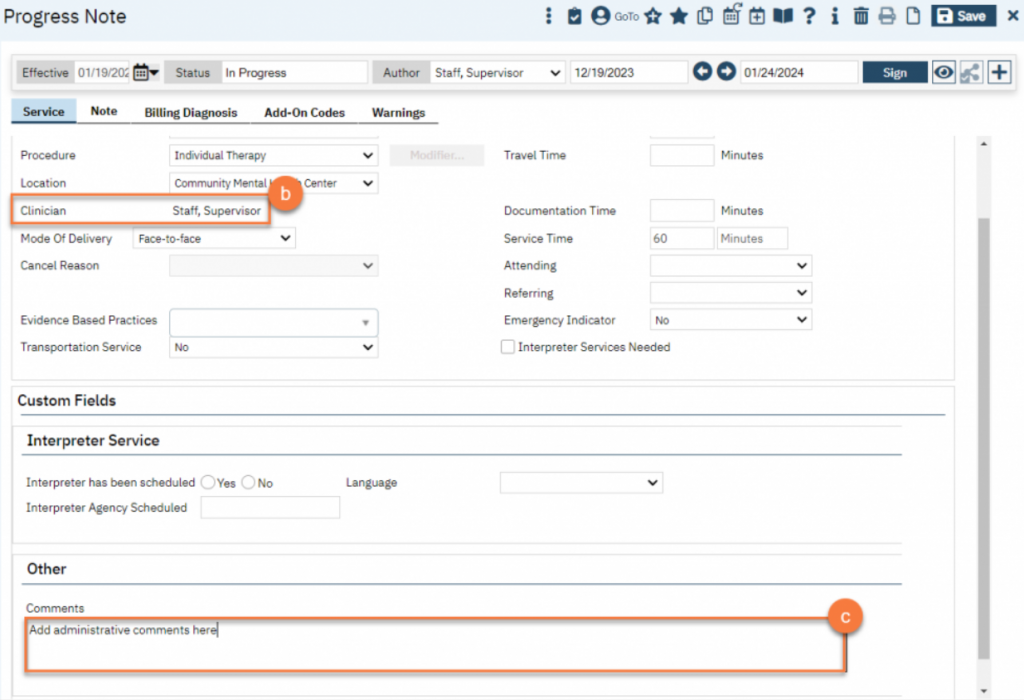
- This will take them to the Service Note. They will be listed as the clinician of the service.
- They can add administrative comments in the Other: Comments section on the service tab.
-
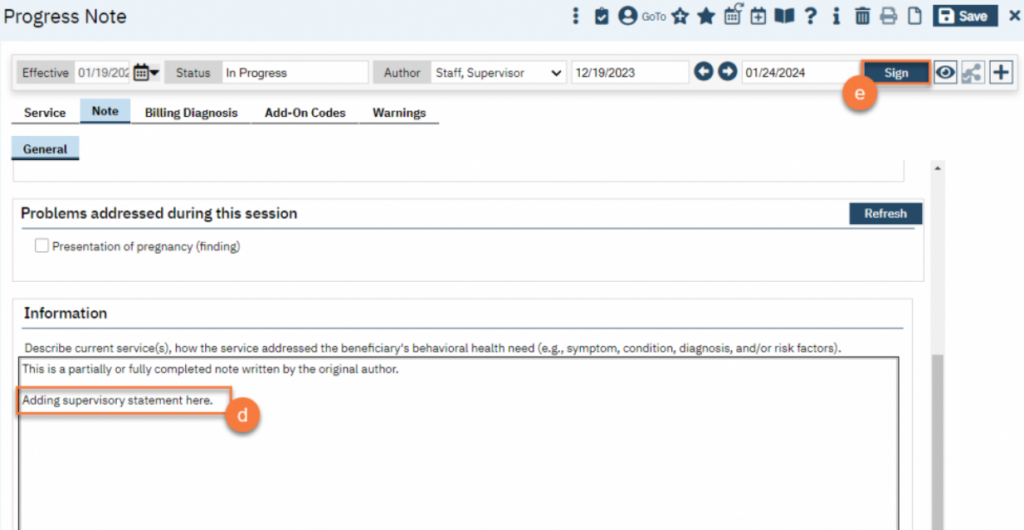
- They can finish the note or make any additional supervisory comments needed on the note itself.
- Once completed, they can sign the note.
What to do when a document needs corrections but the provider no longer is available
CalMHSA does not allow edits by non-authors to clinical documents. There are a very few exceptions to this, all of which are related to state reporting, where validation errors have caused counties to not be able to submit reports. For documents that are not clinical in nature, such as timely access records, these are editable by non-authors.
Since most documents are not editable by non-authors, once the author leaves, or is otherwise unavailable (e.g. is on extended leave), these documents cannot be edited, even by proxies and system administrators. There is no mechanism in the system to do so. The closest is the Supervisor Edit/Complete functionality, described below. However, this does not “edit” the document, per se, as the existing document remains and the new document that’s created is completely separate from the original, rather than being a newer version of the original.
It’s generally accepted that for old clinical documents that are inaccurate, a new clinical document should be created, rather than trying to fix an old document. Counties should follow their policies around how to address these corrections.
Use the Supervisor Edit/Complete Functionality
This will allow the supervisor to change the note (or clinical document) to “complete” and document the reason for completing the document rather than having the author sign.
In order to edit the document before using this functionality, the supervisor must be a proxy for the author. The “supervisor complete” functionality does not include this functionality.
- Navigate to the document. This can be done any number of ways, and does not require the user to access the Service Detail screen, as the Service Note screen will work.
- Click the “Supervisor Edit/Complete” icon.

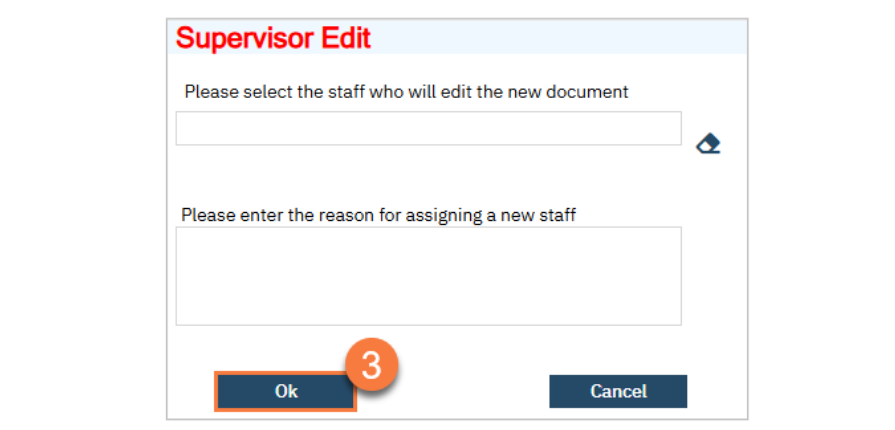
- This will pop up a window called “Supervisor Edit”. Search for and select the staff member who will be editing the document and enter the justification in the text box. Click “Ok” to continue.
- A new document will be created and will pull forward information from the original document. However, this is not a new version of the original document, but rather a separate document. The original author may still be listed as a “staff to sign”, but they can be removed from the co-signer’s list.