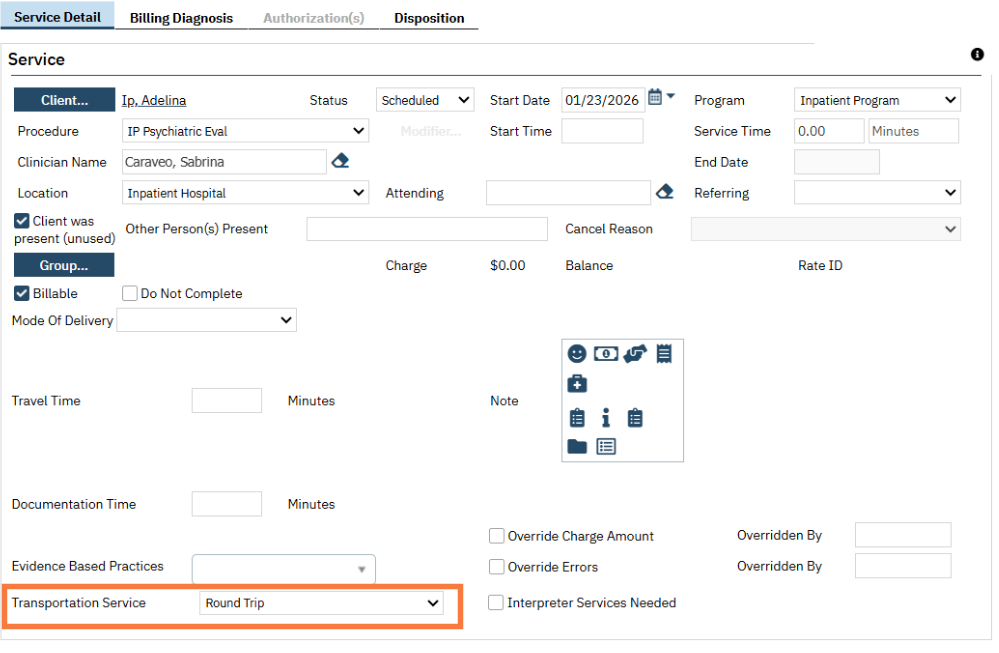
Once transportation is selected in the transportation drop down menu and the service is saved, the system creates a corresponding transportation entry. To access the list page, follow the steps below:
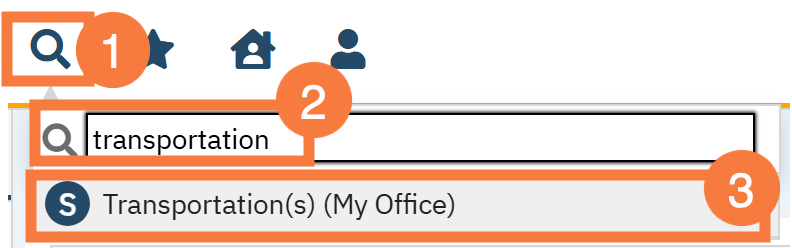
Click the Search icon.
Type Transportation into the search bar.
Click to select Transportation (My Office) from the search results.
Filter Details
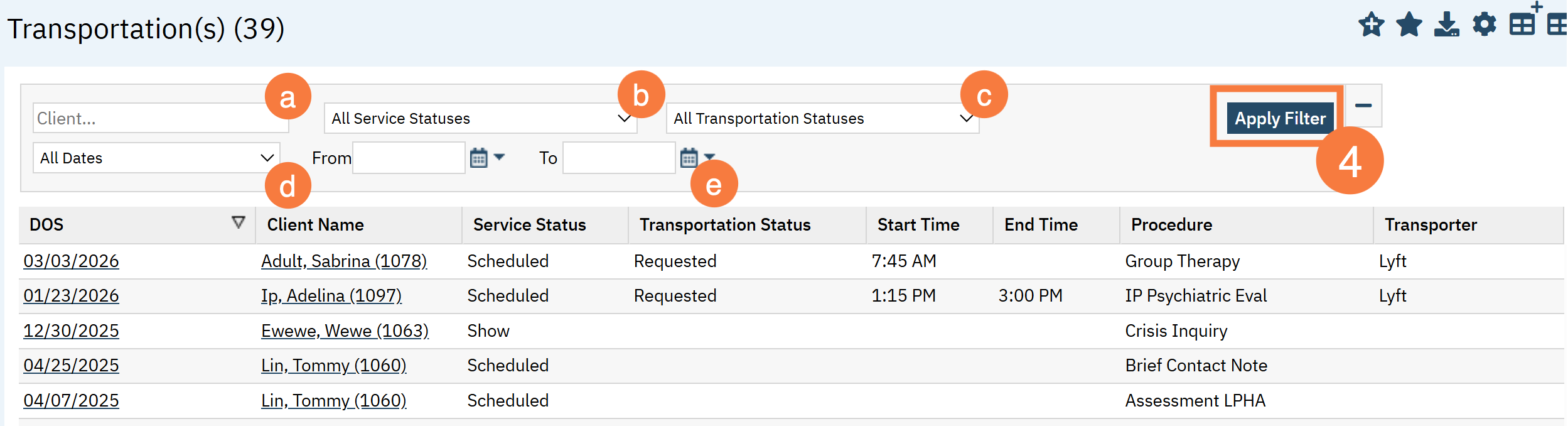
This will open the Transportation(s) (My Office) List Page. The following filters will be available:
Client: Here you can begin to type a client’s name and any client’s matching that name will appear for you to select and filter the results by.
Service status: This is a drop-down menu that allows you to select one of the following service statuses to filter by:
All
Scheduled
Show
Complete
Cancel
No Show
Error
Transportation status: This is a drop-down menu that allows you to filter by the following transportation statuses:
All
Requested
Scheduled
Rescheduled
Cancelled
Date range: This is a drop-down menu that allows you to select various date ranges to filter by.
From (date) To (date): Allows you to select a specific date range.
Click Apply filter to reset the results listed below.
Column Details
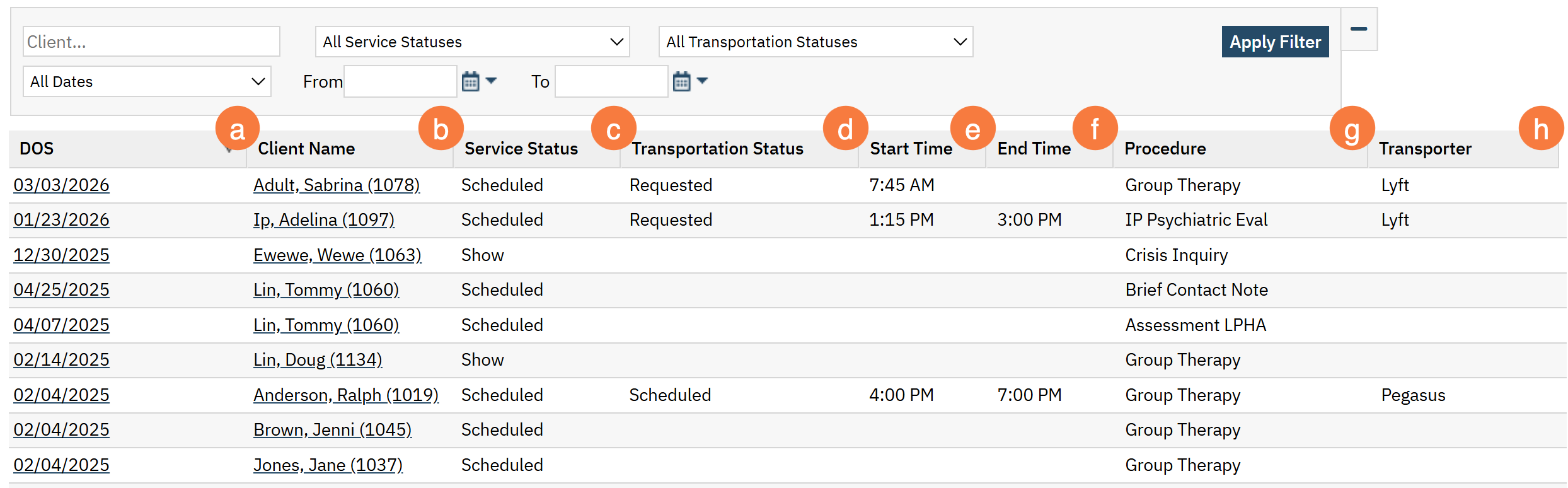
DOS: This is a hyperlink that displays the Date of Service. Clicking the hyperlink will take you to the Transportation Log Details screen.
Client Name: The client name field is a hyperlink that will take you to the Client Information screen. This could be helpful if you need to update their address for transportation services.
Service Status: This is the status of the Service the transportation record is tied to.
Transportation Status:This is the status entered in the Transportation Log Details screen.
Start Time: This is the Start Time entered in the Transportation Log Details screen.
End Time: This is the End Time entered in the Transportation Log Details screen.
Procedure: This is the procedure code the transportation service is tied to.
Transporter: The transportation company entered in the Transportation Log Details screen.