
This list page is where you can see all orders for your organization in one place. The information you see displayed is active orders for your programs. This page is used most often by clinicians, counselors, sys admins, social workers, etc.
- Click on the Search icon.
- Type “Orders” in the search bar.
- Select “Orders (My Office)” from the search results.
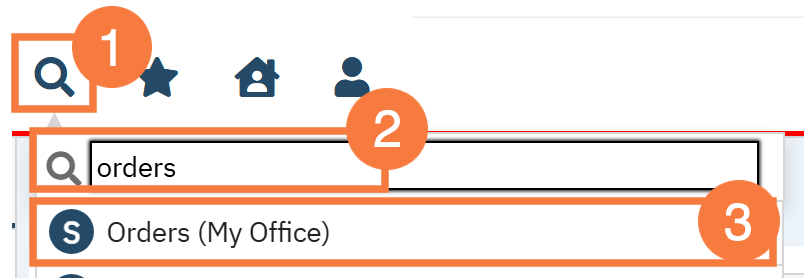
- This will bring up the Orders (My Office) list page. If needed, use the filters to narrow down your data below and click Apply Filter.
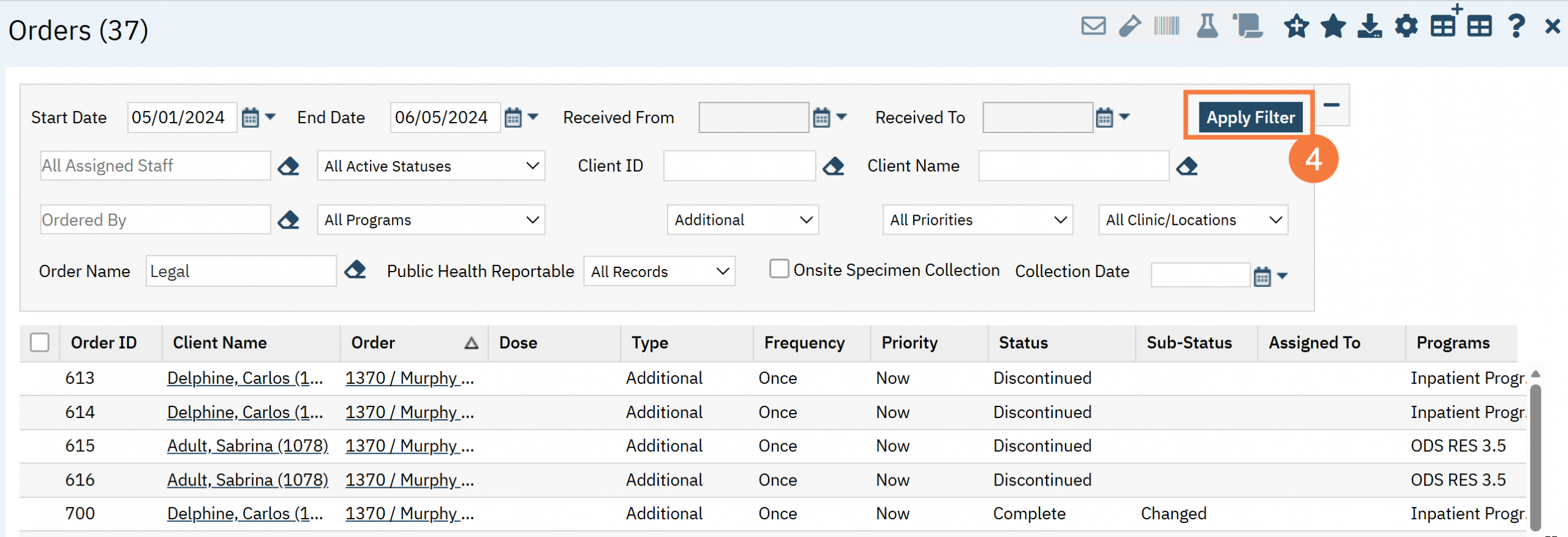
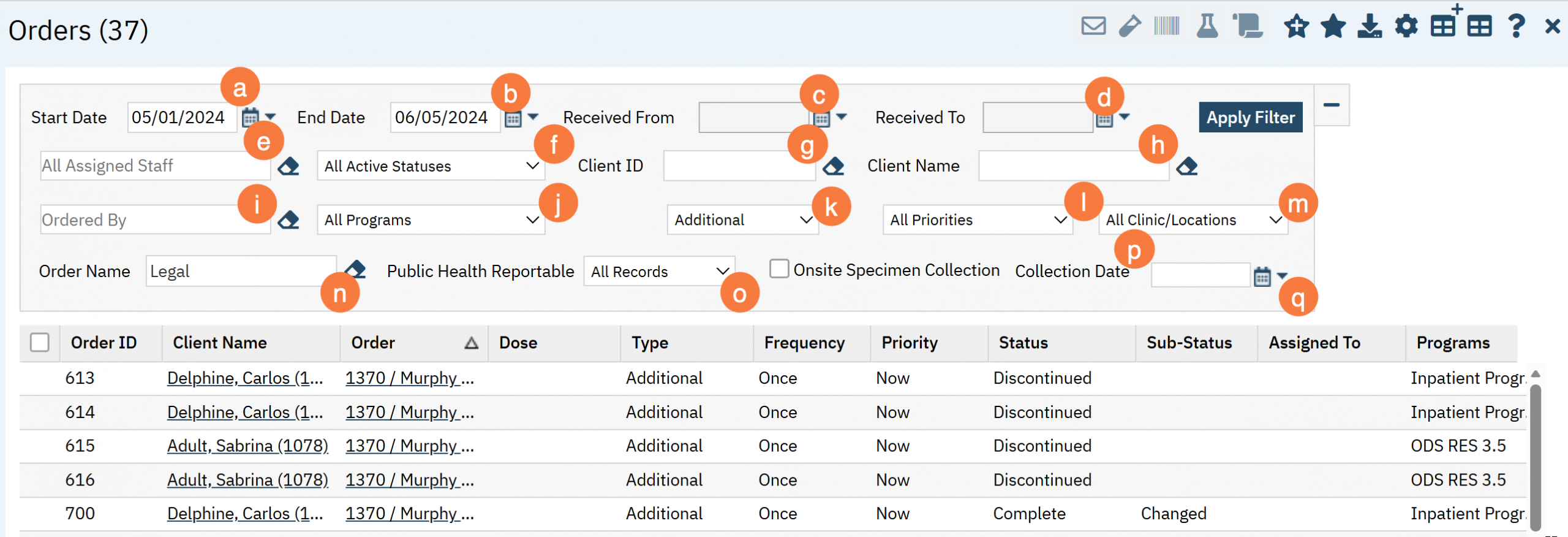
Filters
- Start Date: Allows for custom date range
- End Date: Allows for custom date range
- Received From: Not Used
- Received To: Not Used
- All Assigned Staff: The blank text box will allow you to type in the name of the user you want to filter
- All Active Statuses: This drop down menu allows you to select the status of the order. IE Active, Complete, Discontinued, etc.
- Client ID: The blank text box allows you to search using the client’s ID.
- Client Name: The blank text box here will allow you to search using the client’s name.
- Ordered By: The blank text box allows you to search by the user that has placed the order.
- Programs Dropdown: This dropdown menu allows you to select a specific program.
- Types Dropdown: This dropdown menu will allow you to select the type of order. For example, Labs, Medications, Safety Check, etc.
- Priorities Dropdown: This dropdown allows you to select the priority – Now, Routine, STAT.
- All Clinic/Locations Dropdown:
- Order Name: This blank text box will allow you to type the name of a specific order.
- Public Health Reportable: This dropdown menu allows you to select All Records, Yes or No.
- On Site Specimen Collection Checkbox: This checkbox, when checked, allows you to see specimens collected onsite.
- Collection Date: This date field allows you to filter by the collection date of the order.
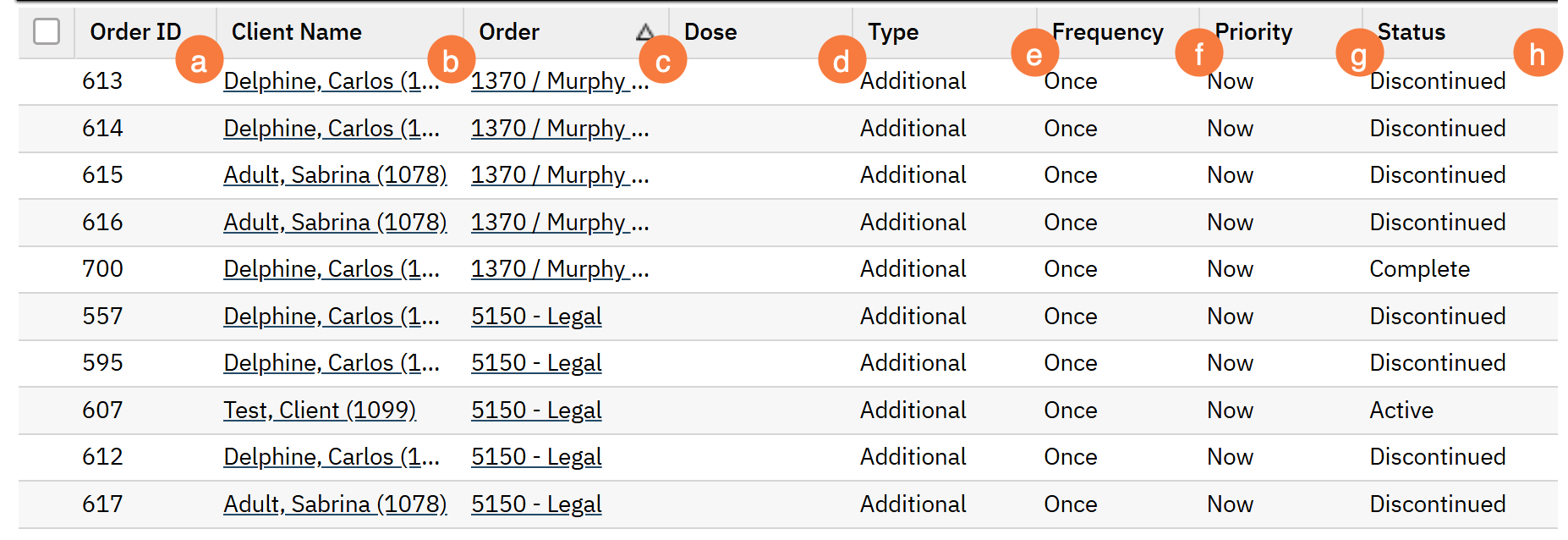
Columns
- Order ID: This column shows the Order ID associated with the order.
- Client Name: This column will show you the client’s name and clientID. This is also a hyperlink that will take you to the Client Dashboard.
- Order: This column will show you what the order is and is a hyperlink to the Client Order Details.
- Dose: This column will show you the medication dose.
- Type: This column refers to the type of order. Lab, Medication, Additional, Safety Check, etc.
- Frequency: This column shows how often the order is to be administered. Twice a day, once – Lab, etc.
- Priority: This column is where priority of the order is. IE Now, Routine, STAT.
- Status: This column shows the status of the order. IE Active, Discontinued, Action Required, etc.
-
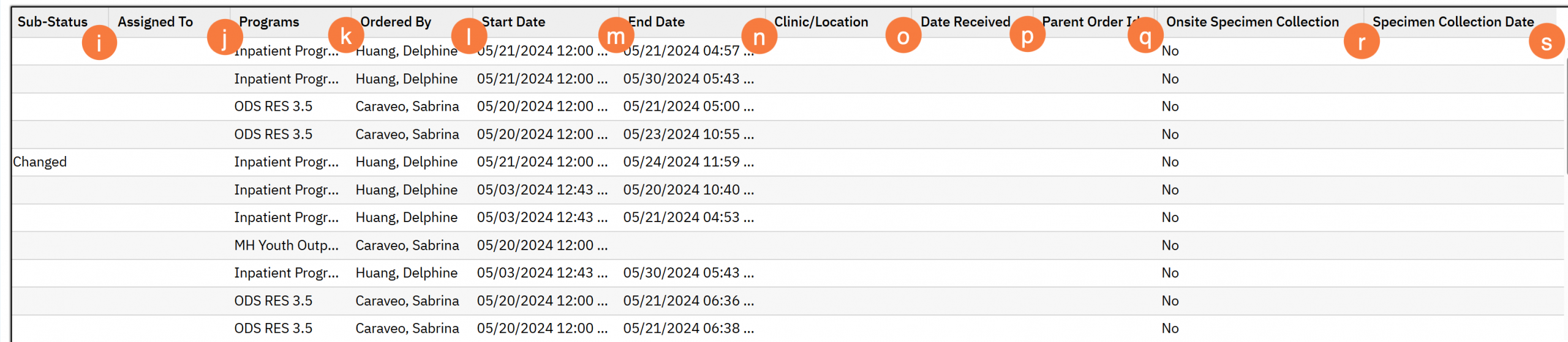
- Sub -Status: This column shows an any additional status such as Reordered.
- Assigned To: This column refers to the user that the order is assigned to.
- Programs: This column shows the program that the order was placed under.
- Ordered By: This column shows who the order was placed by.
- Start Date: This column shows the start date of the order
- End Date: This column shows the end date of the order
- Clinic/Location:
- Date Received: This column shows the date that the order was received.
- Parent Order ID:
- Onsite Specimen Collection: This column shows if a specimen was collected onsite or not.
- Specimen Collection Date: This column shows the date that the speciment was collected.
Upper Right Icons
- Barcode for specimens
- Results PDF
- Requisition PDF
- New Favorites Icon: Clicking on the “new favorites” icon will allow you to add this screen to your favorites for quick access.
- Fill out the favorite filter name, this can be whatever is easy for you to remember. When you click OK, you will see this screen under the start icon next to your search bar. Edit this by clicking by into the new favorites icon.
- Favorites Icon: If you have this listed as your favorite already, when you hover over this icon, it will tell you the favorite name.
- Export Icon: This icon is available to admins. You will be able to export the data from this screen into an excel spreadsheet.
- View Column Configurations
- Close Icon: This will close the list page.
