
This list page is where you can see all orders for the organization in one place. The information you see displayed is currently available on the Orders screen. This page is used most often by sys admins.
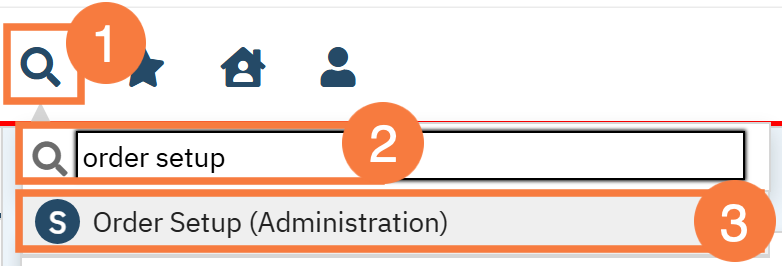
- Click on the Search icon.
- Type “Order Setup” in the search bar.
- Select “Order Setup Administration” from the search results.
- This will bring up the Order Setup (Administration) list page. Filter as needed and click Apply Filter.
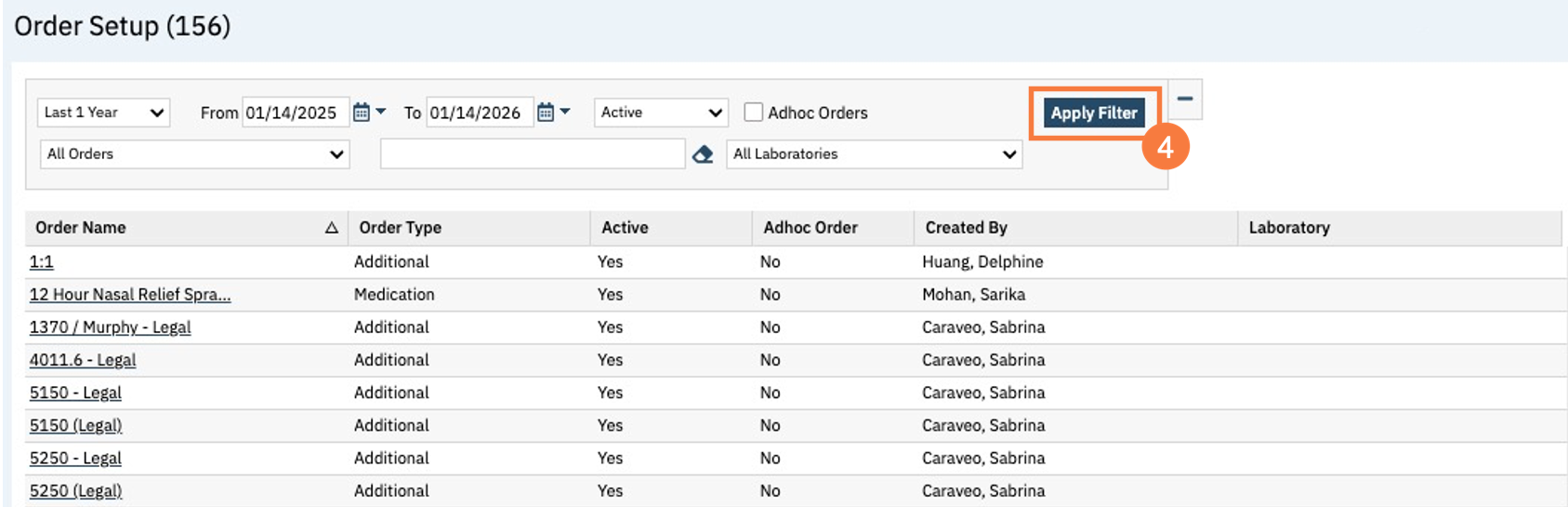
Filters
- Predefined Date Range: The first drop down allows you to filter by various date ranges (i.e. 1 year, all dates, current, etc.).
- From date: This filter allows you to choose a specific date.
- To date: This filter allows you to choose a specific date.
- Order Status: Use this drop-down menu to filter this list page based on whether or not the order is active, inactive, or if you want to see both (all statuses).
- Adhoc Orders check box: will show Adhoc orders, if left unchecked you will not see the Adhoc orders.
- Orders: This dropdown shows the following order types that can be selected:
- Activity: Not being used by CalMHSA.
- Nutrition
- Medication
- Labs:
- Radiology: Not being used by CalMHSA.
- Consults
- Nursing
- Additional: Used for bed checks (do not use for safety checks), legal statuses, illegal, admission orders, discharge, level of care, used for generic orders. If we create our own Order Type, it will mimic the additional order layout
- Procedures
- Adaptive Equipment
- Safety Check
- Free Text field: This is free text box to be able to search for a specific medication, lab, etc.
- Laboratories: Allows you to select a specific lab company.
Columns
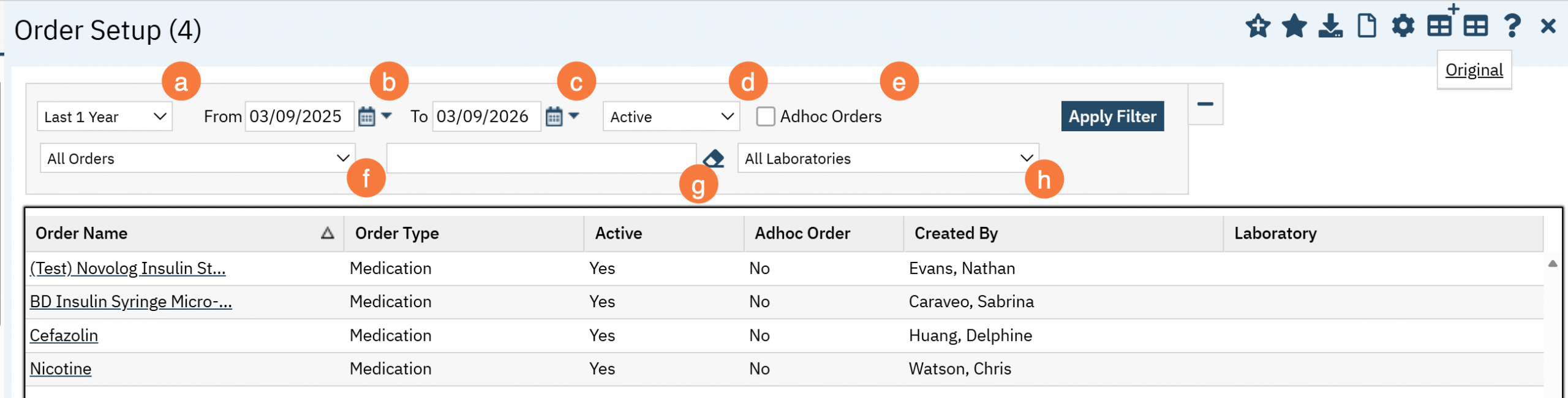
- Order Name: This column is a hyperlink that will take you into the order details/order setup screen. In the order detail screen, you will be able to edit the order setup information.
- Order Type: This column will show you the type of order. Ie medication, labs, additional, etc.
- Active: This column will show you if the order is active – yes or no.
- Adhoc Order: This column will show you if an order is an adhoc order – yes or no. Adhoc orders will only show if the Adhoc orders checkbox is selected.
- Created By: This column shows which user has created the order.
- Laboratory: This column shows the laboratory that is associated with the lab order.
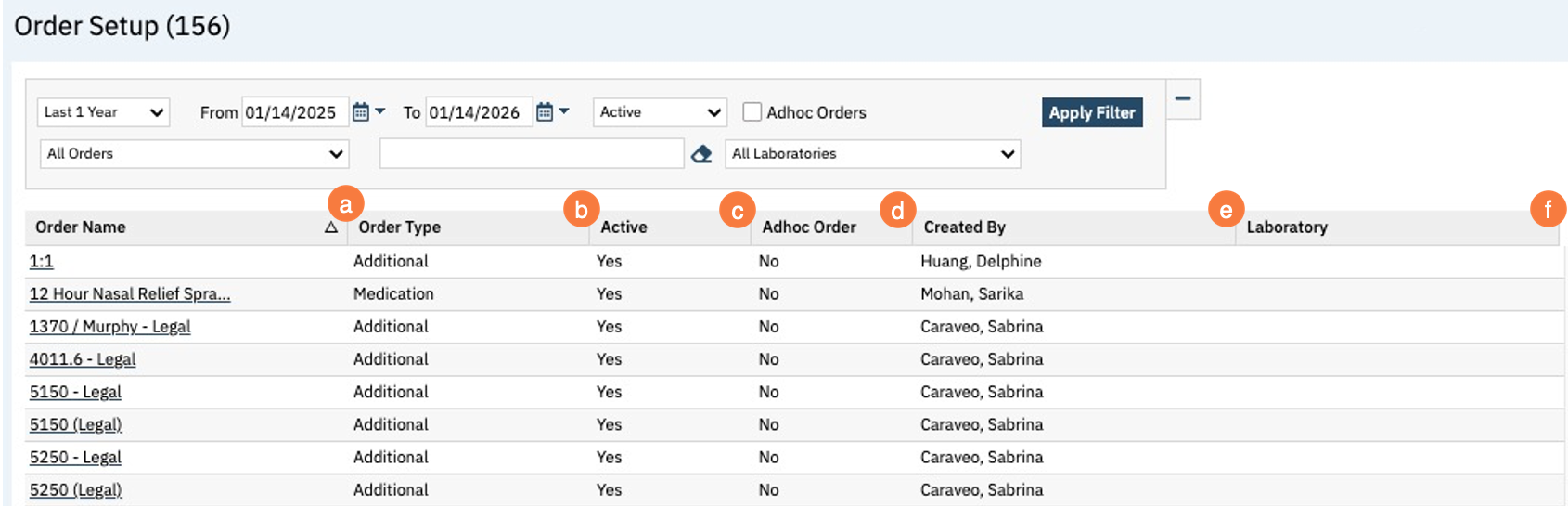
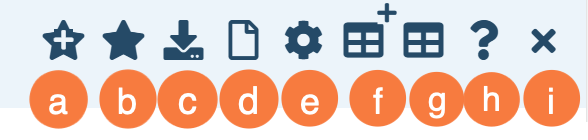
Upper Right Icons
- New Favorites Icon: Clicking on the “new favorites” icon will allow you to add this screen to your favorites for quick access.
- Fill out the favorite filter name, this can be whatever is easy for you to remember. When you click OK, you will see this screen under the start icon next to your search bar. Edit this by clicking by into the new favorites icon.
- Favorites Icon: If you have this listed as your favorite already, when you hover over this icon, it will tell you the favorite name.
- Export Icon: This icon is available to admins. You will be able to export the data from this screen into an excel spreadsheet.
- New Icon: This icon will allow you to create a new order
- Settings Icon
- New Column Configuration
- Column Configuration Original: Resets the column configurations
- Question Icon: Please do not use the question icon in the upper right corner, this takes you to generic material that is not used by CalMHSA. There is a Question button that is defaulted to display in the lower right corner. If you need assistance with creating groups / workflows please use this instead.
- New Favorites Icon: Clicking on the “new favorites” icon will allow you to add this screen to your favorites for quick access.
Walk-Me
The question button in the lower right corner will redirect you to the 2023.calmhsa.org website where you can find additional information.