
How to Scan in or Upload an Insurance Card

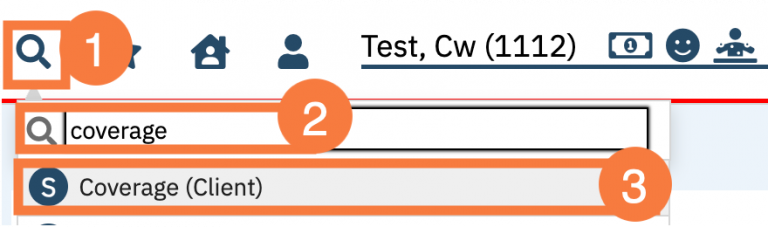
  1. Click the Search icon with the client open. 
  2. Type Coverage into the search bar. 
  3. Click to select Coverage (Client). 
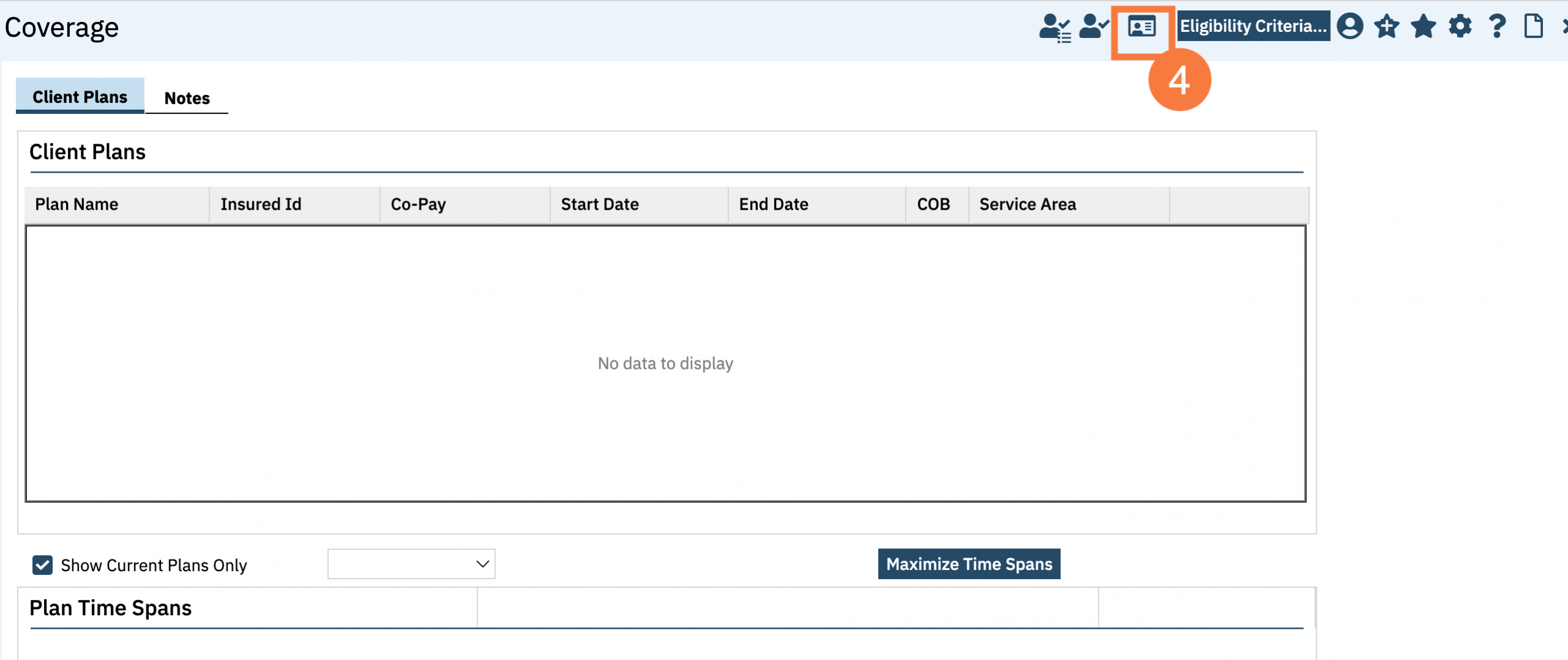
  1. The Coverage screen will open. Click the View/Scan ID Cards icon. A separate window will open. If there is a previous insurance card uploaded/scanned, it will display. 
  1. Click Scan to scan or Upload to select a file from your computer. 


Expand the accordion for instructions depending on which workflow you need.

  1. Click Select in the pop-up.

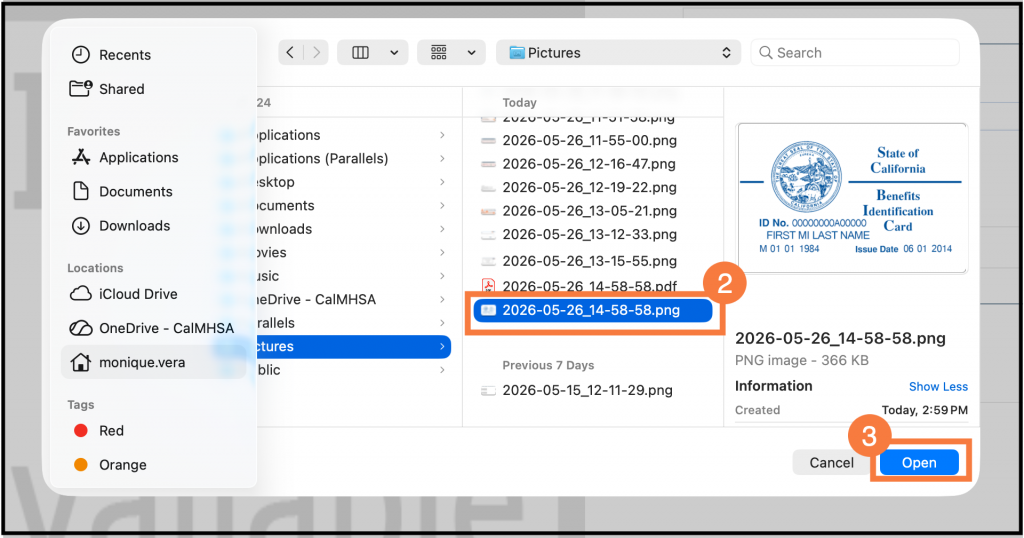
  1. A file finder window will open. Click to select the insurance card image from where it’s located.
  2. Click Open.

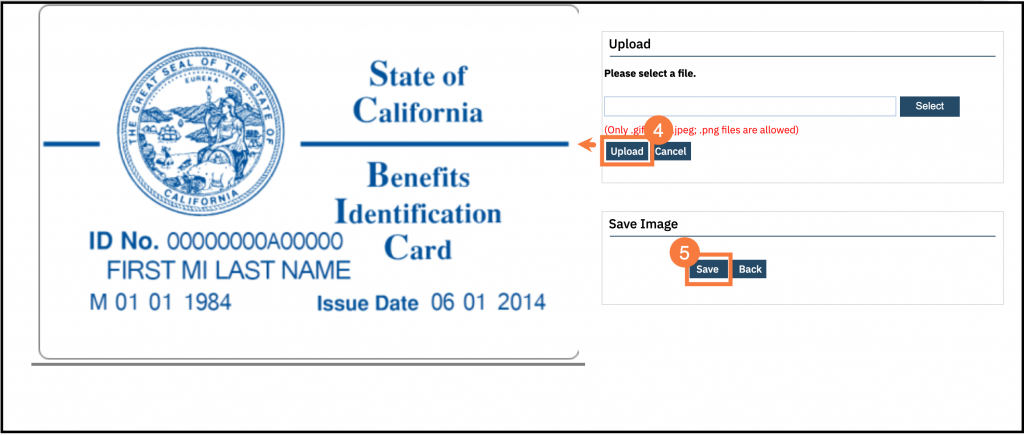
  1. Click Upload and the image will display to the left. 
  2. Click Save. 

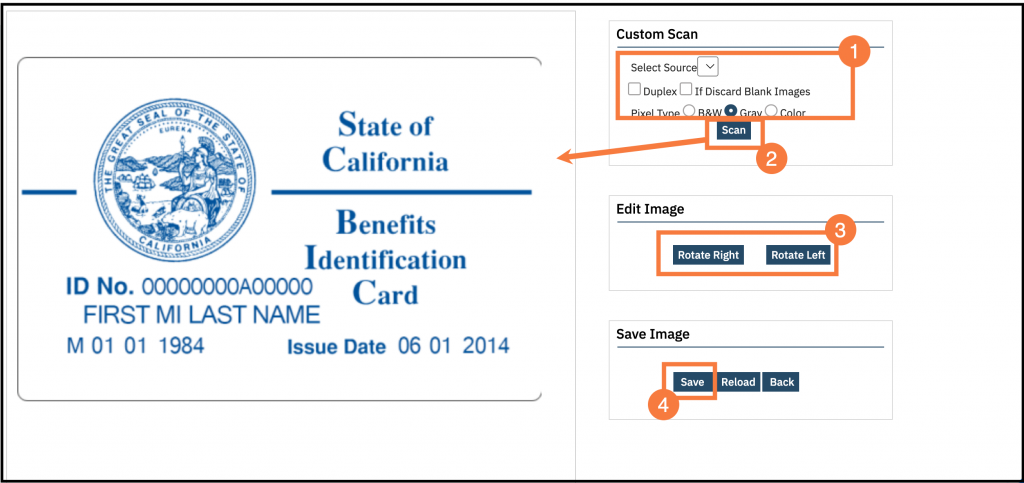
  1. In the Custom Scan section, you can select the source, change the pixel type, if needed. 
  2. Click Scan. The image will display to the left.
  3. You can rotate the image if needed. 
  4. Click Save. 

  1. Repeat these steps until both the Front and the Back of the Insurance Card have been uploaded / scanned.

Note

This information is not automatically transferred to populate any fields elsewhere in SmartCare. This icon allows you to view any previously scanned / uploaded Insurance Cards for reference. As the pop-up window can be held open at the same time as SmartCare, you can utilize multiple windows to more easily log the necessary information elsewhere for ease of use.