Sometimes Behavioral Health staff engage in activities that aren’t directly related to a single client. Some of these are reimbursable, or should be tracked for other reporting purposes. As a group, these are often called QA/UR or Admin Activities.
Since these activities are not tied to a specific client, they can’t be documented using a progress note. If you do a QA/UR or Admin activity related to a specific client, you may document this in a progress note. CARE Act activities, for example, are client-specific and should be documented in a progress note.
Some of the people who engage in these activities are not clinical staff, meaning they do not have a Staff Calendar in SmartCare. This process will allow non-clinical staff to also track their QA/UR and Admin activity time. To document time spent on these types of activities, follow the steps below.
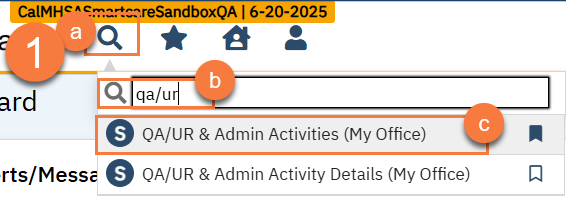
Navigate to the “QA/UR & Admin Activities (My Office)” list page.
Click on the Search icon.
Type “QA/UR & Admin Activities” in the search bar.
Click to select “QA/UR & Admin Activities (My Office)” from the search results.
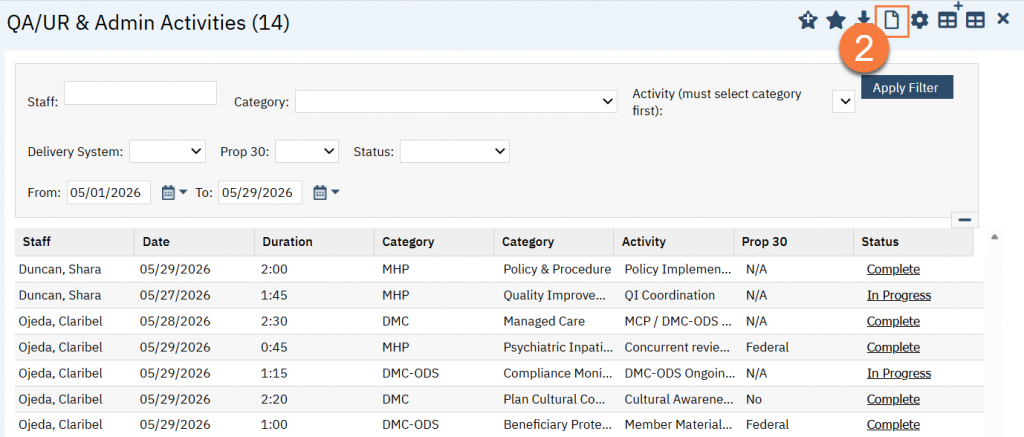
This list page allows you to see any activities that have already been documented.Click on the New iconto create a new record.
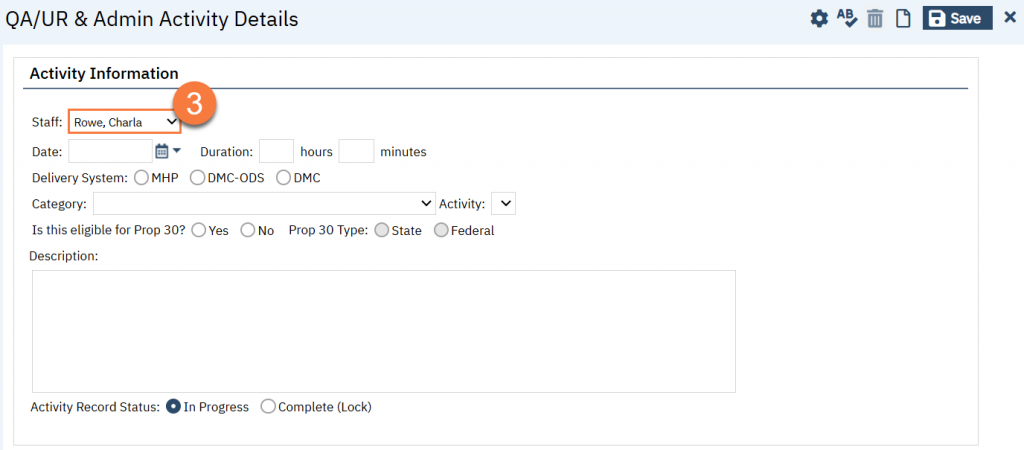
This takes you to the QA/UR & Admin Activity Details screen. The “Staff Name” field will automatically populate to you, the logged in user. If you are entering an activity on behalf of someone else, you can change this selection to someone you proxy for or supervise.
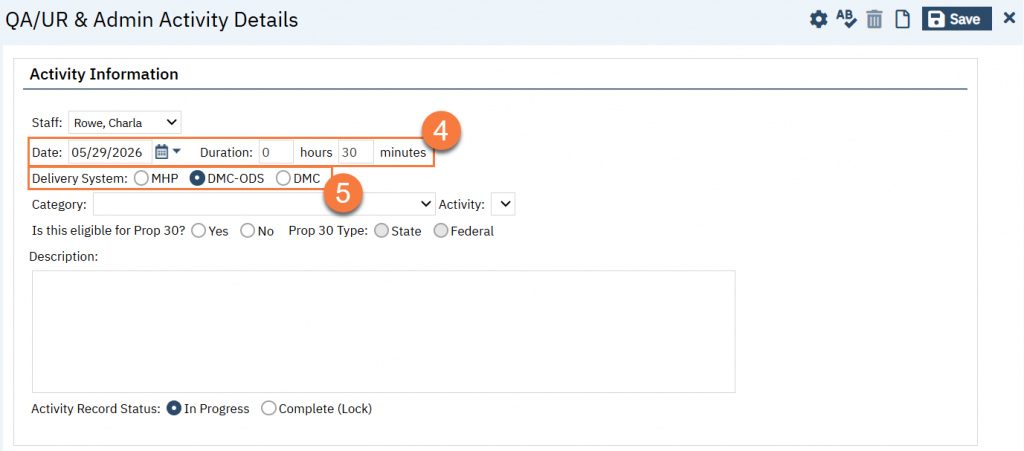
Enter the date and duration of the activity. The duration is entered in hours and minutes. If you only spent 30 minutes, enter “0” hours and “30” minutes.
Select the delivery system you were performing this activity for. This will determine which activities are available to you. You may only select one, as this activity record is used for getting reimbursed for one of these systems.
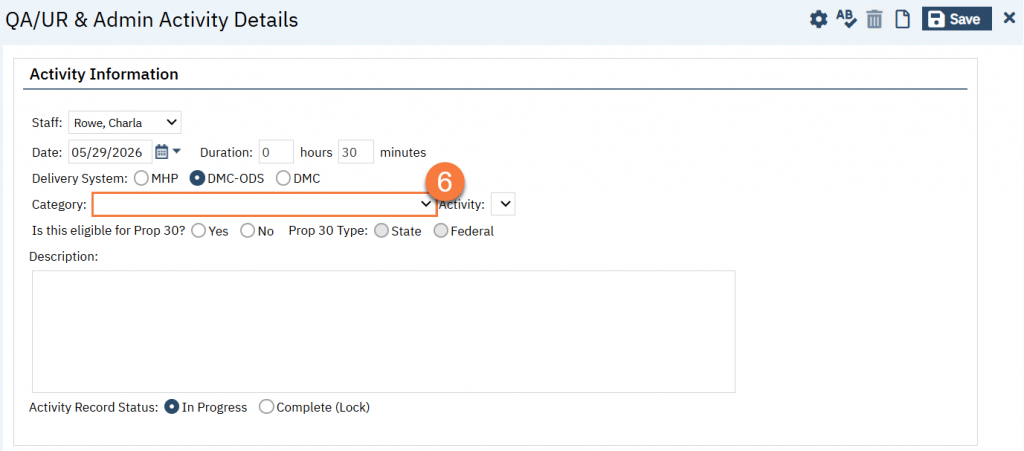
Select the category of activity you engaged in.
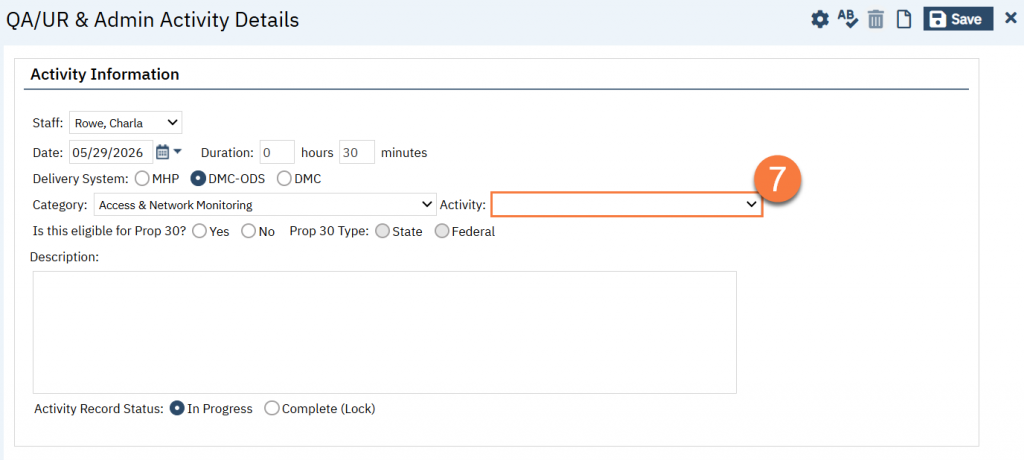
This will populate the Activity options. Select the activity you engaged in.
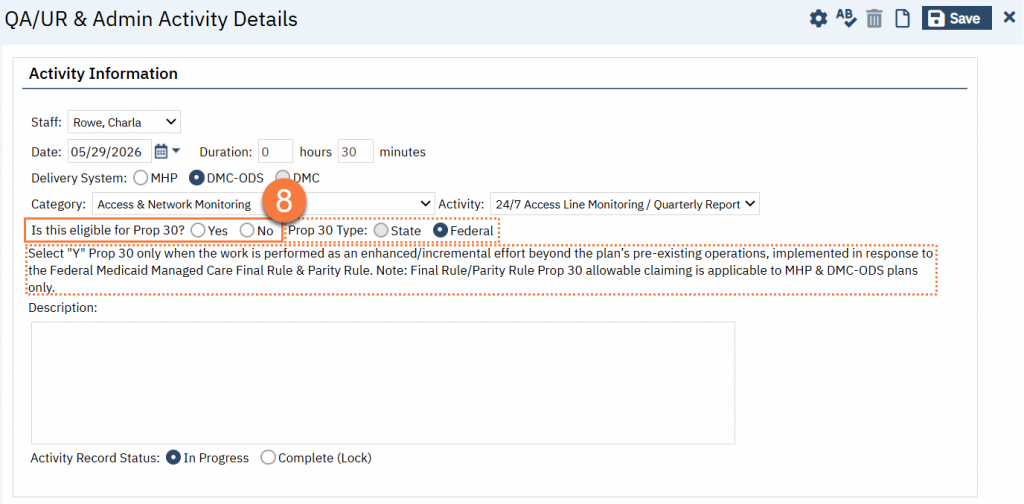
Certain activities may be eligible for reimbursement under Prop 30. If the activity you selected is not eligible, the next fields will be greyed out an uneditable. If the activity is eligible, the system will default to the type of Prop 30 the activity is eligible for and provide you with some helper text to help you determine if this specific activity record is eligible for Prop 30 or not. Document whether this particular activity record is Prop 30 eligible by clicking either Yes or No. If you have both options for State and Federal, select the appropriate Prop 30 Type.
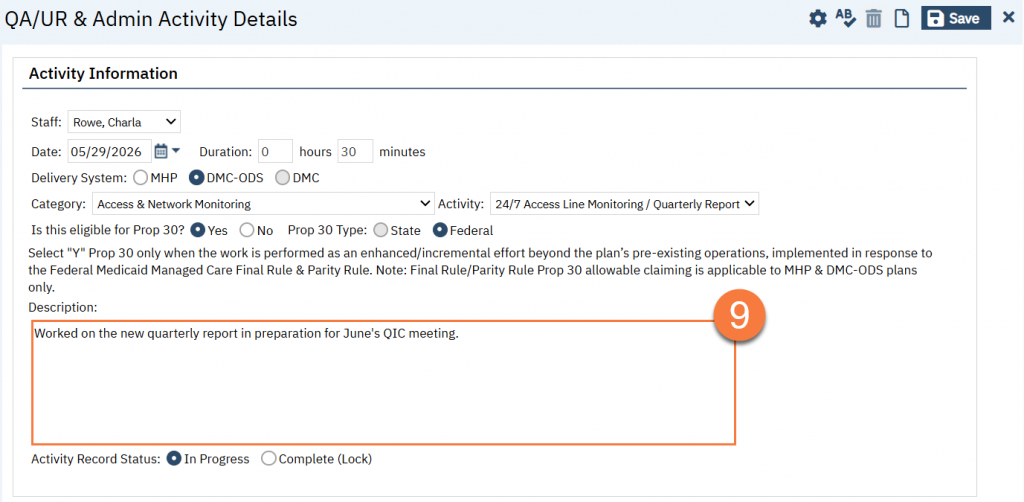
Write a description of the activity that you did.
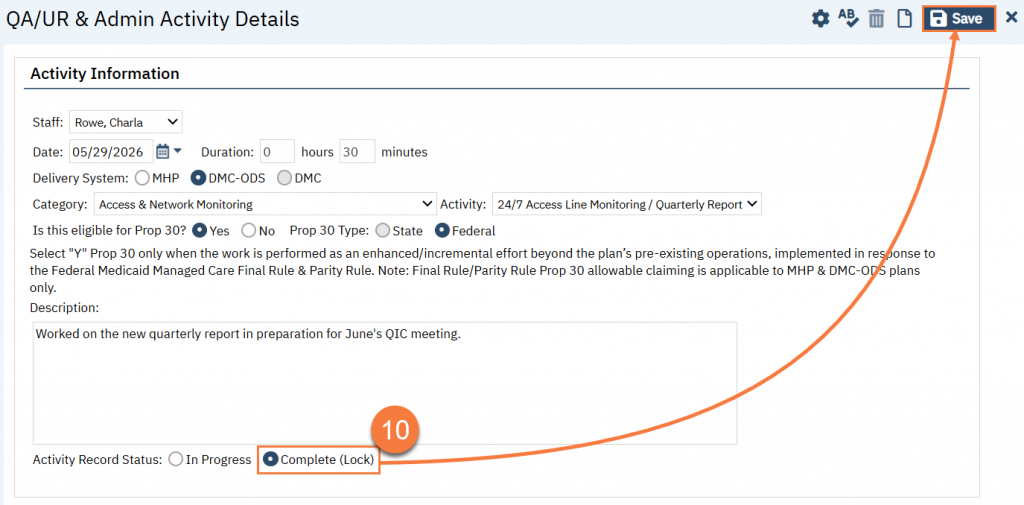
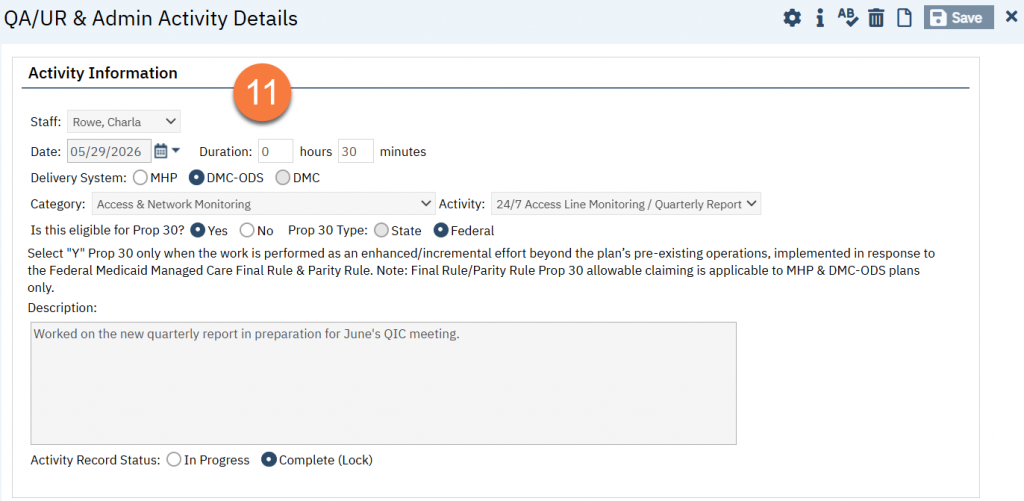
When you have completed the full record, change the Activity Record Status to “Complete (Lock)” and click Save.
This will lock the record from being edited, much like signing a document does.