Counties can receive referrals from certain types of programs or facilities for potential CARE Act petitioning. Counties are required to report on these system referrals in a similar manner to petitioned CARE individuals.
When you receive a CARE Act referral, enroll the client in the CARE Act program. Then complete the CARE Episode document. See CARE Episodes for more information.
Once the referral has been documented via the CARE Episode document, you’ll also need to do monthly reporting on this referral. This will need to occur either after the month ends or when a decision about the referral is made, whichever is sooner. See How to Complete CARE Act Monthly Reporting (DD 2.0) for more details.
If You are the One Creating the CARE Act Referral:
Some programs or agencies that can create a CARE Act Referral may have access to SmartCare and use it as their EHR. To create a CARE Act Referral, follow the steps below:
- With the client open, open the CARE Act System Referral document.
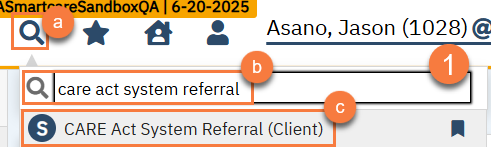
- With the client open, click on the Search icon.
- Type “CARE Act System Referral” in the search bar.
- Click to select “CARE Act System Referral (Client)” from the search results.
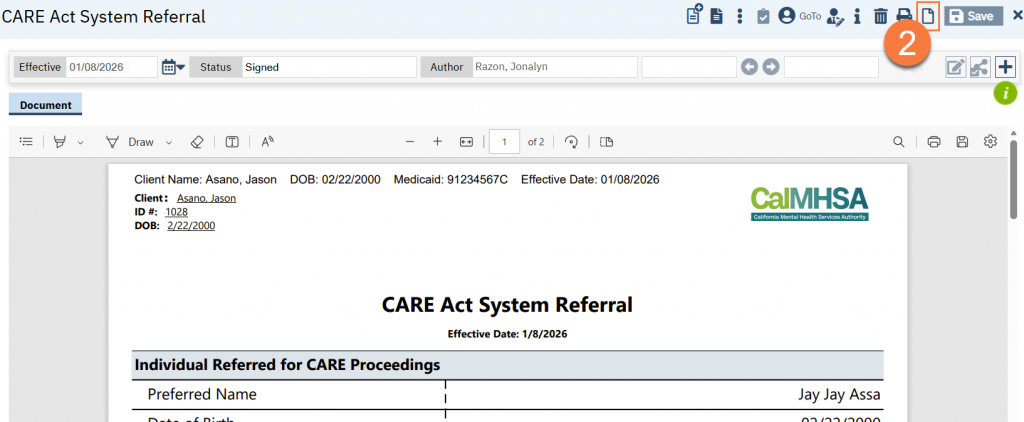
- If the client already has this type of document in their record, the most recent one will show. Click on the New icon to create a new document. If the client does not have this type of document, the system will skip to the next step automatically.
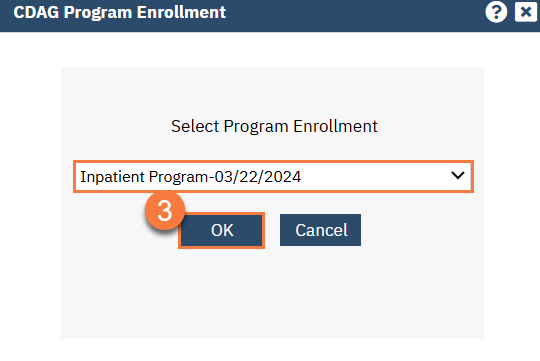
- This will bring up the CDAG popup window. Select your program and click OK.
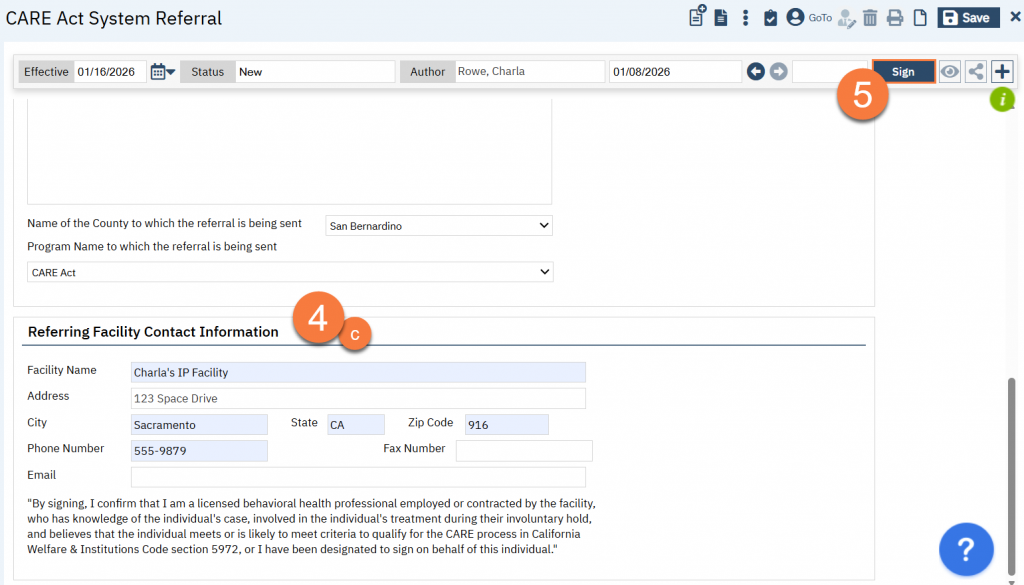
- This will bring you to the CARE Act System Referral screen. Complete the document.
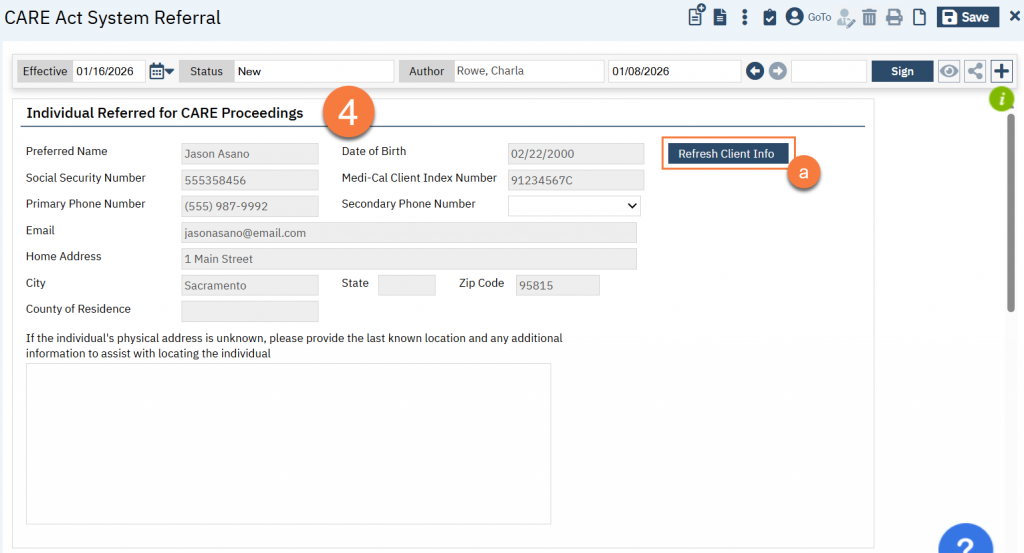
- In the Individual Referred for CARE Proceedings section, the system should pull information from the Client Information screen. If information is incorrect, update the Client Information screen and then navigate back to this document and click the “Refresh Client Info” button.
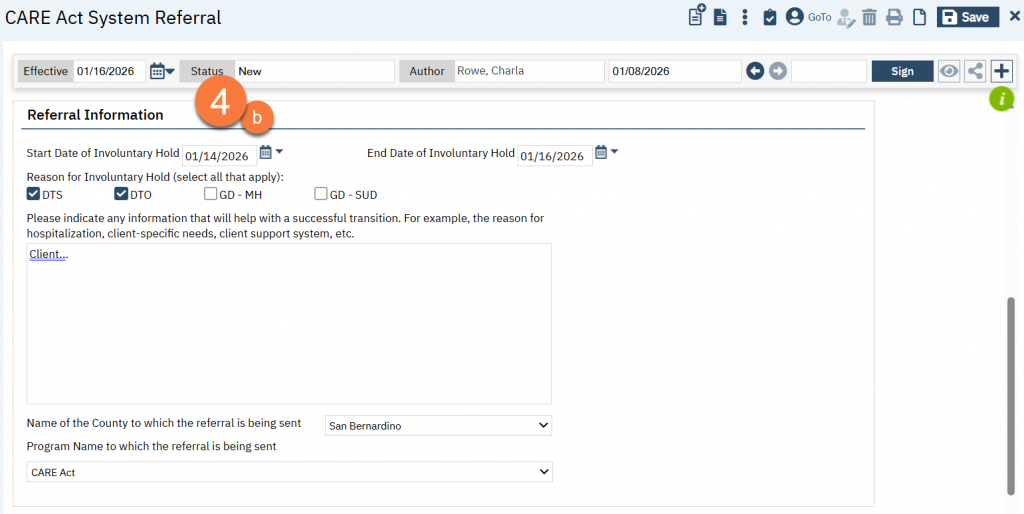
- In the Referral Information section, document information about the client’s involuntary hold, the reason for the referral, and who you’re sending this referral to. If you’re sending this referral to your own county, select the specific program you’re referring to. If you’re sending this referral to a different county, you don’t need to enter a program name.
-
- In the Referring Facility Contact Information section, enter the contact information for your facility. This will be used by the county who’s receiving the referral to contact you if they have questions.
- When you’ve completed the document, click Sign to finalize the document. From there, you can print the document to send to the appropriate county, or use the Disposition section in the progress note to put the client in Requested status for the specific program.