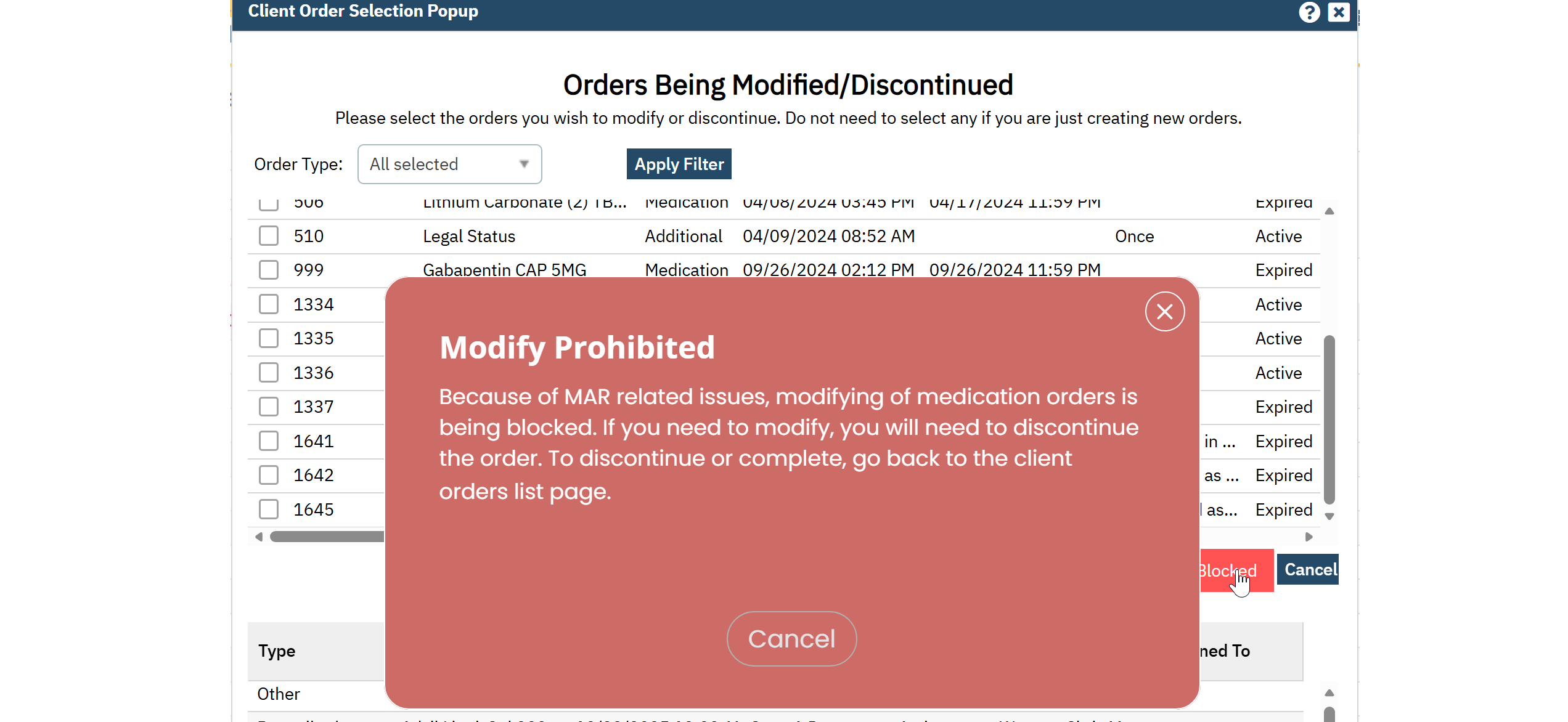
Medication orders in SmartCare cannot be modified once they are associated with the Medication Administration Record (MAR). This system behavior ensures the integrity and accuracy of medication administration documentation. When a change is required, the existing medication order must be discontinued or completed, and a new medication order created with the updated information.
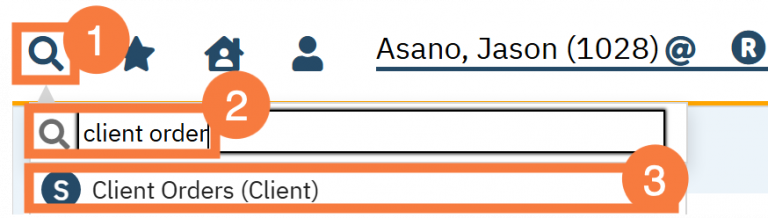
Click on the Search icon.
Type “Client Orders” in the search bar.
Select “Client Orders (Client)” from the search results.
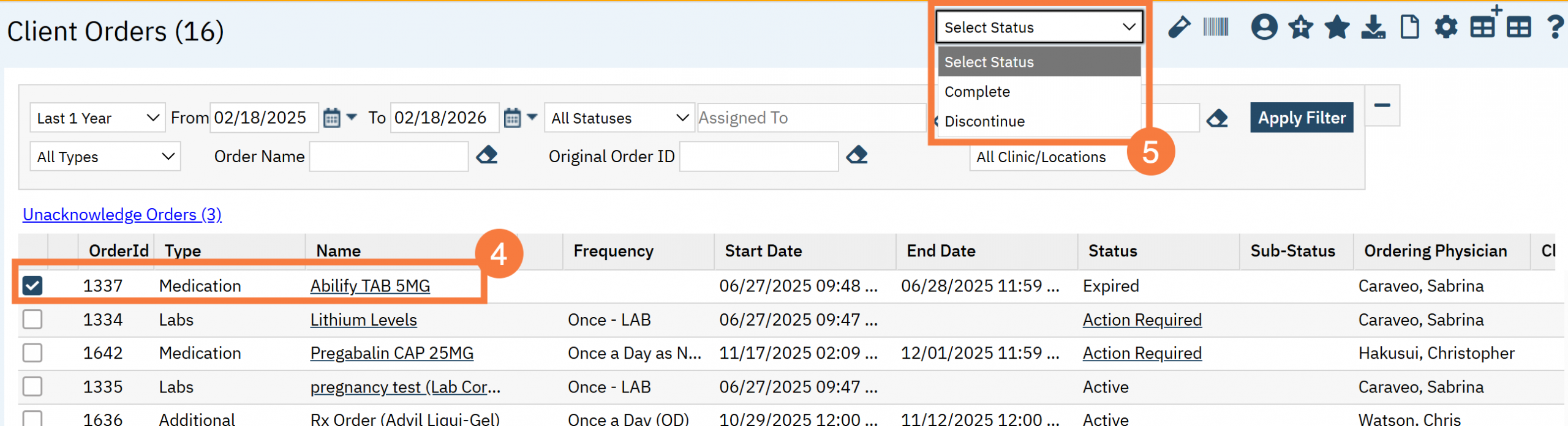
This will bring you to the Client Orders (Client) list page. Click the checkbox for the medication you want to discontinue or modify.
Click the Status dropdown and select either discontinue or complete. Whichever is more appropriate.
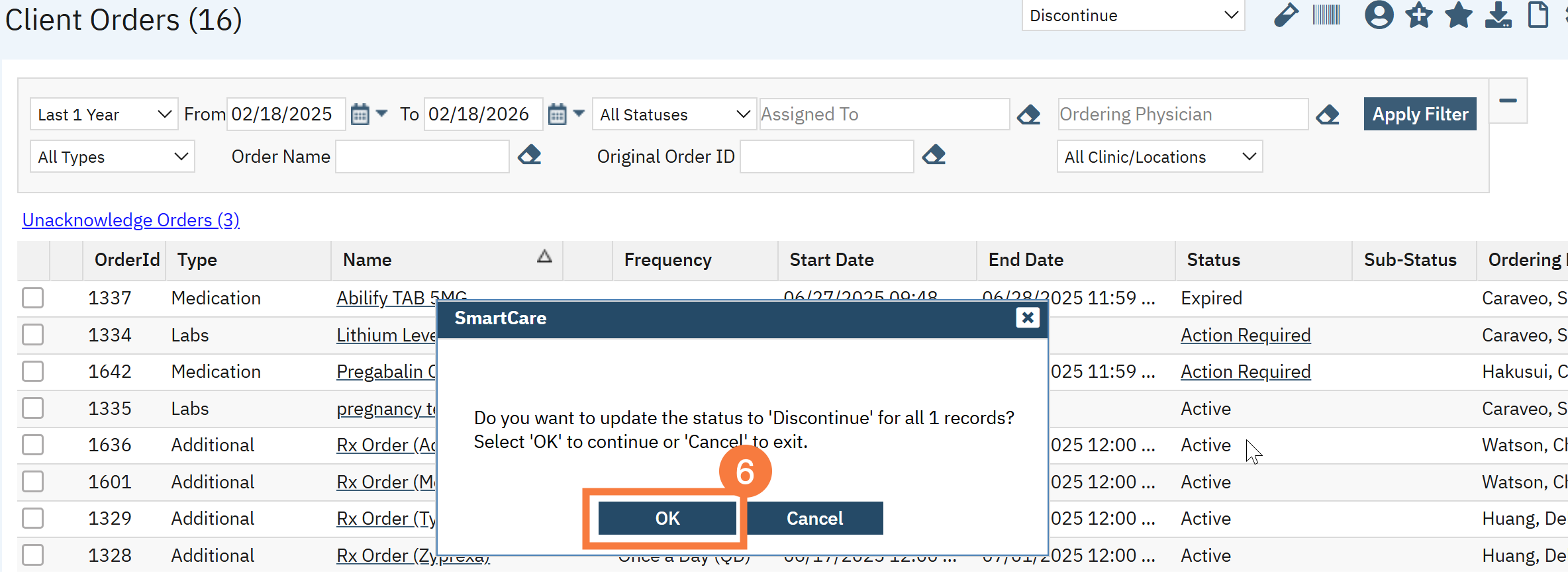
You will get a Confirmation pop-up, click OK.
The medication status updates across Client Orders, related screens, and generated PDFs.
To Re-Order, you will need to create a brand new medication order.
System Behavior When Attempting to Modify a Medication Order Incorrectly
NOTE: The following will only occur for medication orders or when you have multiple orders selected and at least one of them is a medication order.
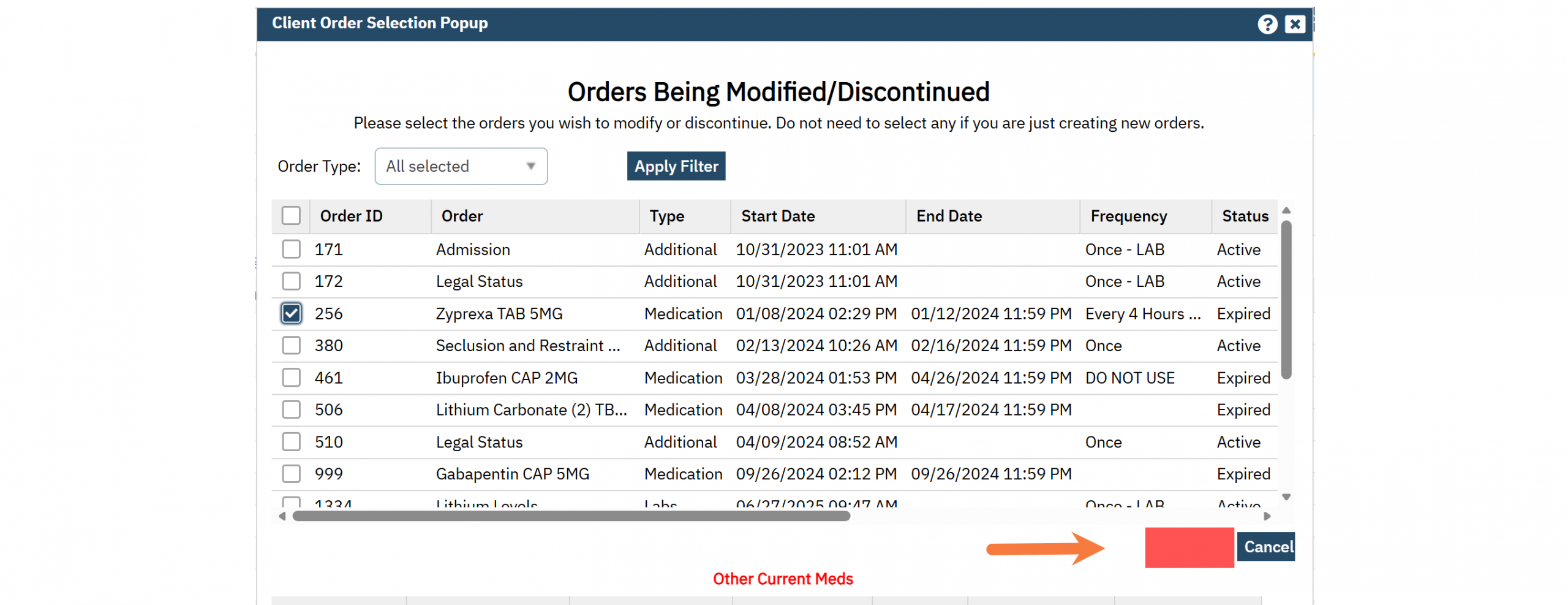
If you select a medication order to modify, a red box will be placed over the OK button.
If you attempt to click the red box blocking the OK button, you will get the following error: