
Overview
The Contractor Census screen was created to help counties track the full census of facilities they contract with that also contract with other payors. Simply tracking using the whiteboard, bed board, or residential board will only show those beds and clients that are associated with that county’s clients. Often, a facility will serve more than one county. For example, a facility that serves both Humboldt and Sacramento counties cannot enter Humboldt County client data into Sacramento County’s SmartCare instance for privacy reasons. Therefore, to Sacramento, it may look like the facility has open beds when in fact those beds are occupied by Humboldt County clients.
This census is a brief way to show what the actual census is at a facility at any given time. This requires some minor setup from the county system administrator.
Setup:
The county system administrator will need to modify the subcodes of the global code category XCensusFacilityType.
The Global Code Category “XCensusFacilityType” defaults to include 2 values:
- SUD Residential
- SUD Inpatient
Counties will need to edit the subcodes of each of these codes to add the actual facility names they work with. For example:
- SUD Residential
- Charla’s House
- Helping Hands Recovery
- SUD Inpatient
- Clever County Detox
Counties can also add global codes to the global code category if needed. For example:
- SUD Residential
- SUD Inpatient
- MH Residential
Using the Contractor Census:
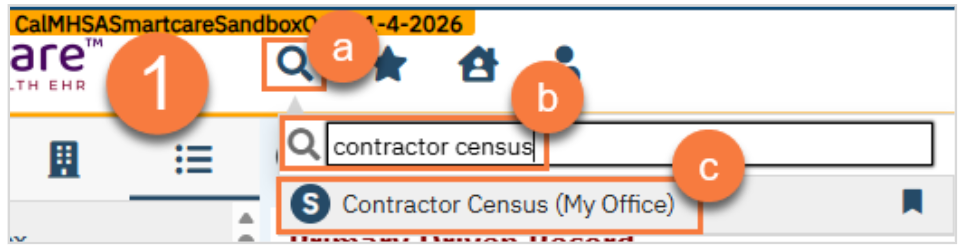
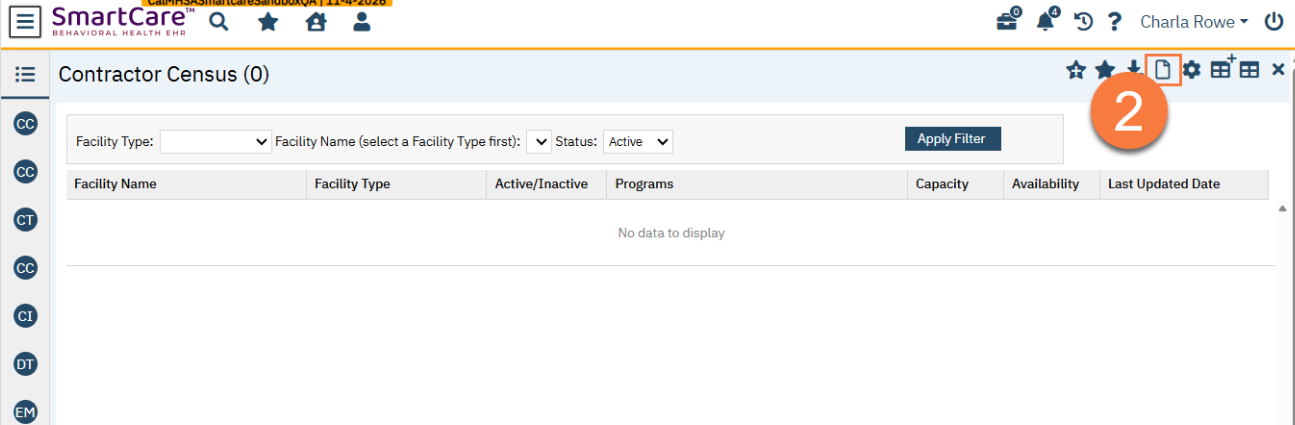
When you first start using the Contractor Census, you’ll need to create a new record for each facility you want to track. Follow the steps below to create a new census record.
- Navigate to the Contractor Census list page.
- Click New to create a record for a facility not yet included on the list pa
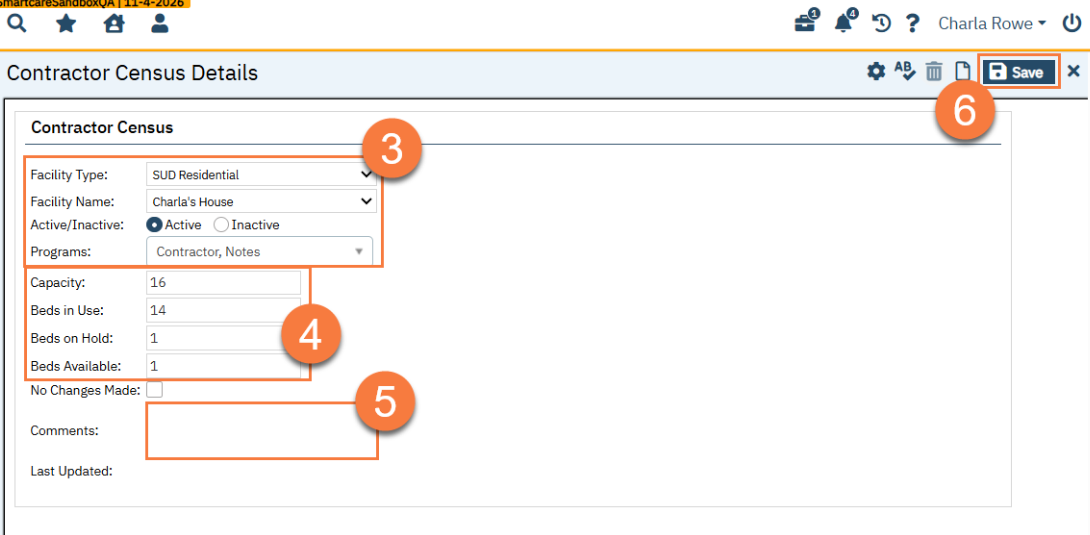
- Select the facility type, then the facility name. Select any programs that are associated with that facility.
- Enter the capacity information. The Beds Available will automatically calculate.
- Enter any comments.
- Click Save
Updating the Census:
When updating the census data for a facility that already has a record on the list page, you navigate to that record an update it. An audit log of all changes is recorded for history’s sake. The system will not let you create a new record if an existing census record exists for that facility name (global code + subcode).
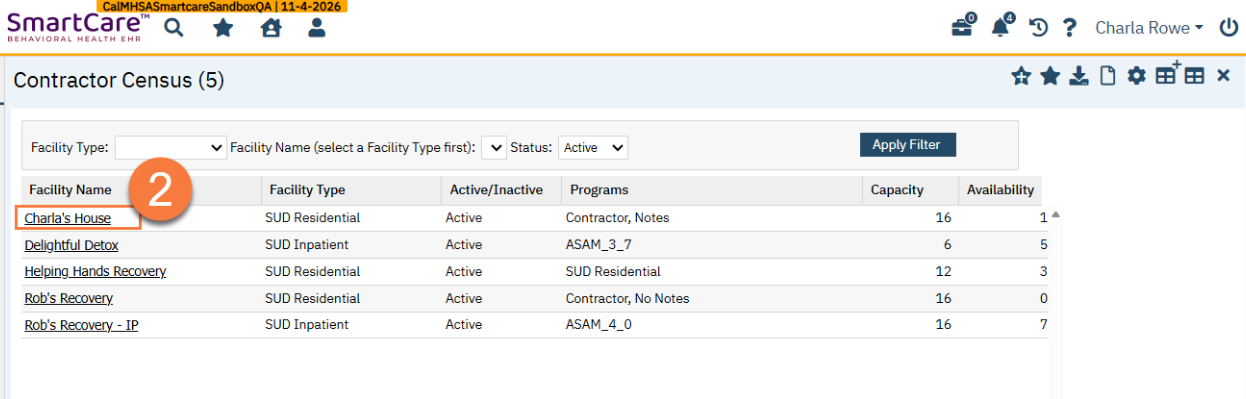
- Navigate to the Contractor Census list page.
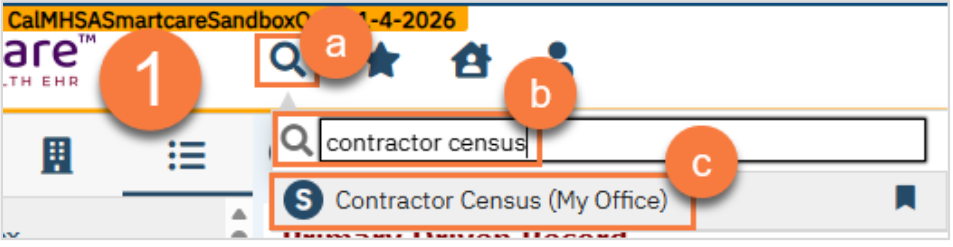
- Click on the facility name. Use the filters as needed to find the appropriate facility.
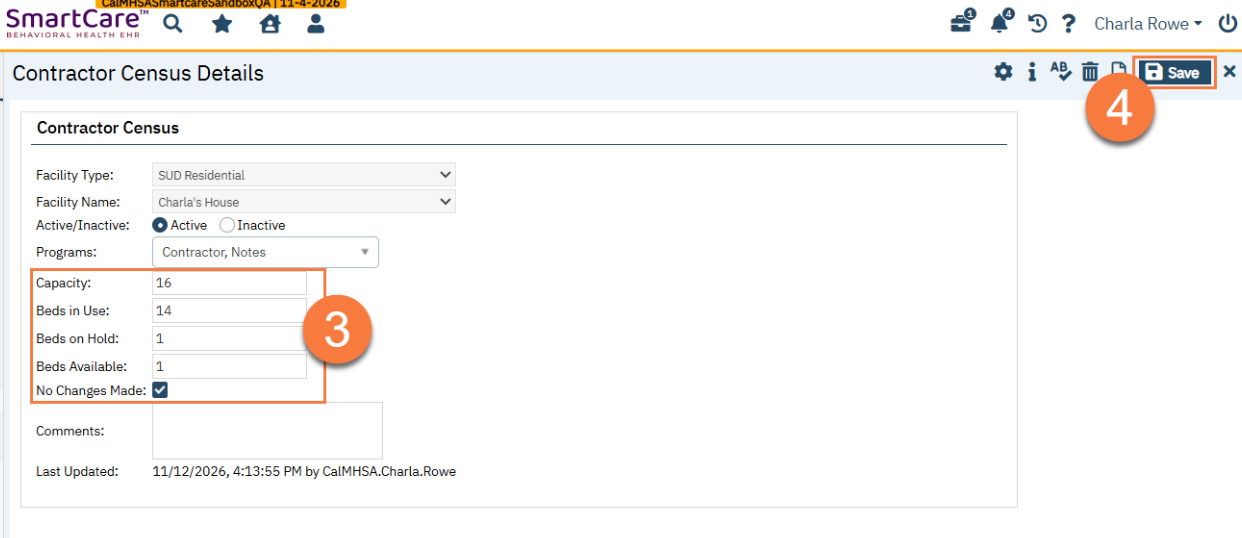
- Update the census data. If the census data is still accurate, select “No Changes Made”.
- Click Save.
Additional Information:
- CalMHSA recommends you confirm the census data regularly. The “No Changes Made” checkbox allows you to save the data with a new date/time stamp, even if there haven’t been any changes to the census. This allows county staff to confirm that the data is current.
- Checking the “No Changes Made” checkbox will allow you to save without making any changes to the record. Upon save, the “No Changes Made” checkbox will automatically uncheck, but you can confirm that the record was saved based on the “Last Updated” date/time stamp.
- The audit log can be queried by referencing the tables CustomCalMHSAContractorCensus (the main record table) and CustomCalMHSAContractorCensusHistory (the audit log table that tracks each change).