CARE Act activities are not billable to Medi-Cal. However, they are reimbursable through a specialized invoicing process. The current forms are available on the DHCS website as enclosures to BHIN 24-015.
BHIN 24-015 indicates that DHCS will reimburse counties an hourly rate for time spent on administrative functions as part of the Community, Assistance, Recover, and Empowerment (CARE) Act. DHCS identified 5 types of activities which may be reimbursed. CalMHSA created a procedure code for each of the 5 activities listed. This means that the activity can be tied directly to a CARE Act client but is not billed to Medi-Cal or any other payor. Travel time for outreach and engagement activities are included in the total time captured under the outreach and engagement category, per DHCS 2025 training.
Sometimes administrative activities related to the CARE Act occur without being tied to a specific client. These activities have been added to SmartCare as Calendar Event types, which can be used by clinicians (direct service providers) and non-clinicians (administrative support staff) alike.
CalMHSA has created a report (CalMHSA 207 – CARE Act Claiming Report) to provide counties with the information needed to submit the necessary claims to DHCS on a quarterly basis. Due to the nature of the DHCS-created submission file, this is not a report that can simply be run and submitted to DHCS as-is, so manual manipulation will be needed.
The “Medical Records/Quality Assurance” and “Billing” user roles are granted access to this report, which does not contain any client information, to submit reimbursement claims. This is the only CARE Act-specific item in SmartCare that has been given to a user role other than the “CARE Act Add-On” user role.
How to Run the Report
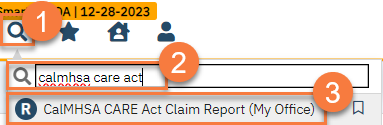
- Click on the Search icon.
- Type in “CalMHSA CARE Act Claims Report” in the search bar.
- Select “CalMHSA CARE Act Claims Report (My Office)” from the search results.
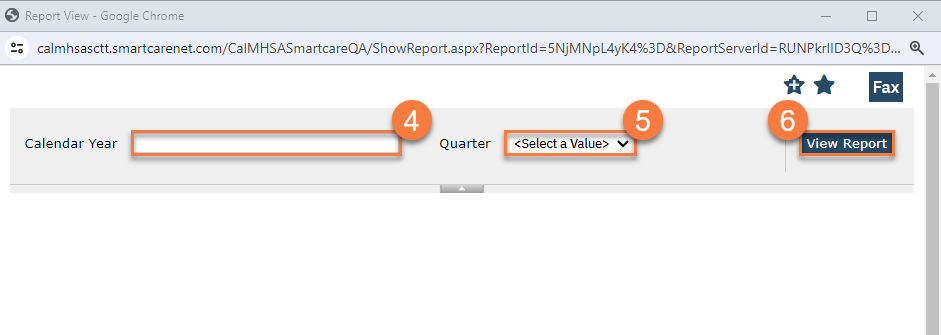
- This will open up the Report View window. Enter the calendar year (yyyy) of the timeframe you’re submitting claims for. Example: “2024”.
- Select the Quarter of the timeframe you’re submitting claims for.
- Q1 = Jan – Mar
- Q2 = Apr – Jun
- Q3 = Jul – Sep
- Q4 = Oct – Dec
- Click “View Report”.
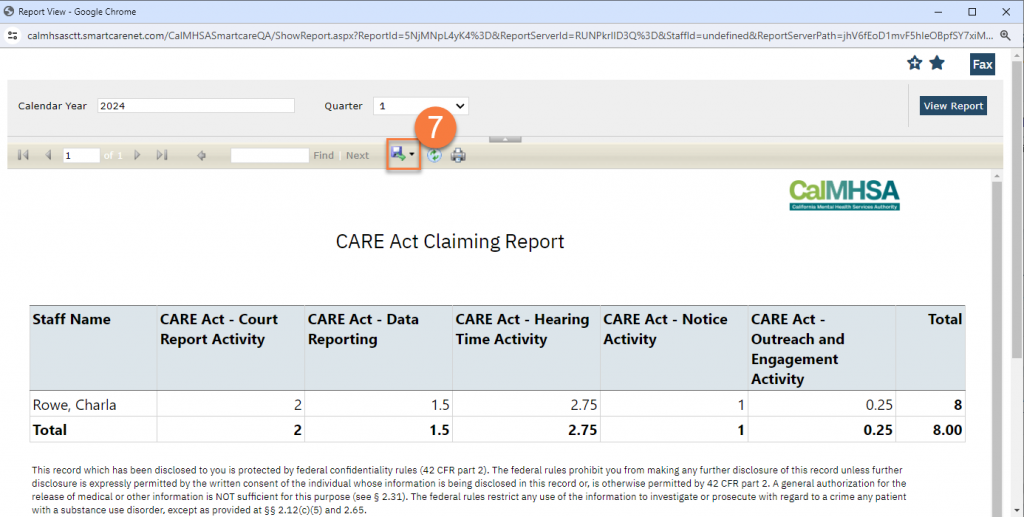
- This will load the report data. To export the data, click on the Export button and select the type of file you wish to create.