Overview
Prior Authorizations (PAs) in Connex manage the approval process for healthcare services that require pre-authorization before they can be delivered. The system supports creation, submission, review, and tracking of authorization requests across your organization.
The Prior Authorizations section is organized into two views:
- Action Required: Shows authorizations that require your attention — such as those with an Approved, Denied or Information Requested status for your organization. Sorted by due date so the most urgent items appear first.
- All Authorizations: A complete list of all authorization requests for your organization, regardless of status.
All Authorizations
To navigate to the Action Required screen, follow the steps below:
- Once you are logged into Connex, click the Authorizations drop-down from the lefthand navigation menu.
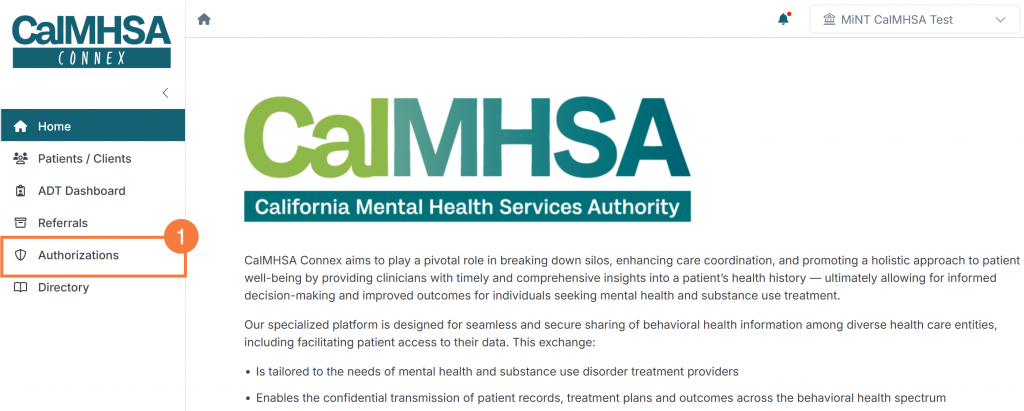
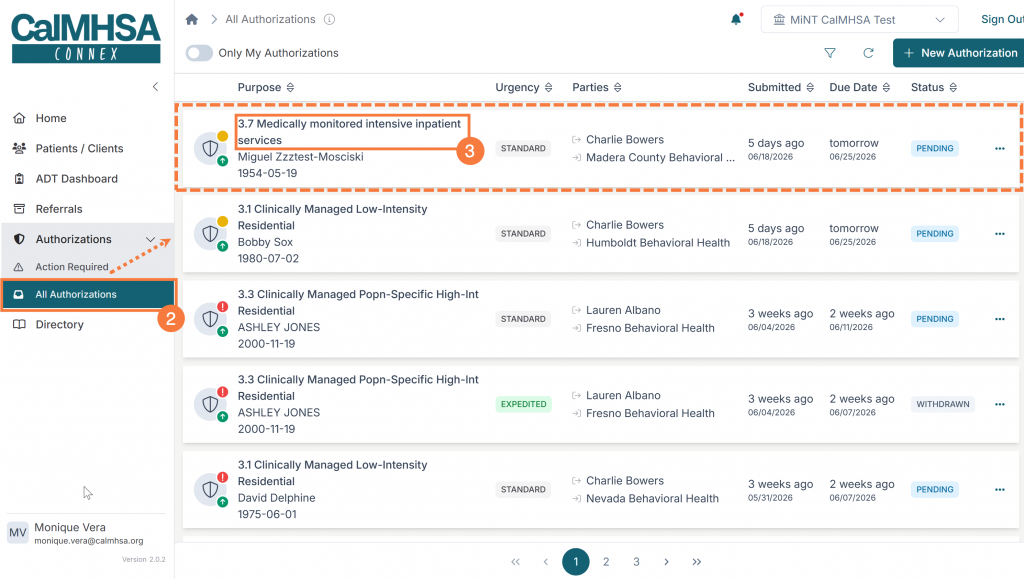
- Click All Authorizations and all authorizations, no matter the status, will display to the right.
- To view the authorization details, click the hyperlinked Purpose name.
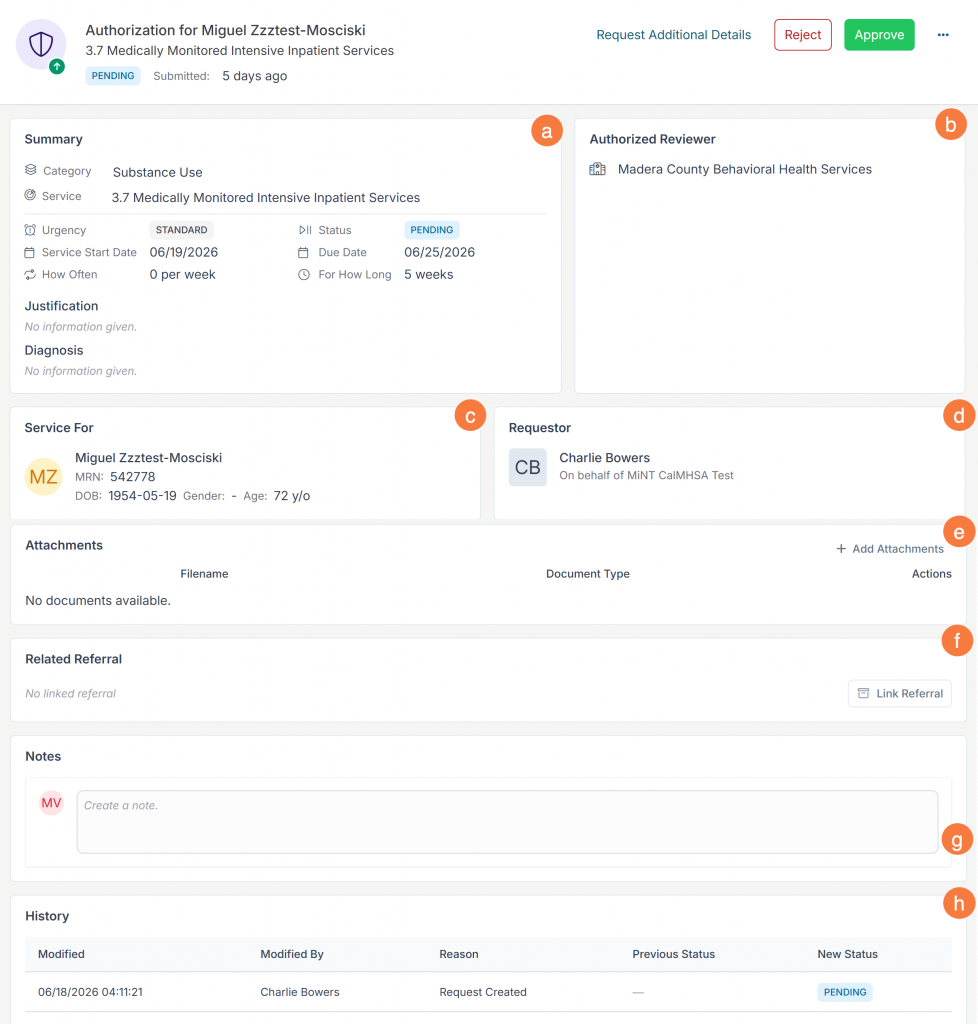
- Once an authorization has been selected the detail page will appear, which is organized into several panels:
- Summary Panel: Displays the key details of the authorization including:
- Service category and specific service type
- Current status (with color-coded badge)
- Urgency level
- Service start date and due date
- Frequency (how often) and duration (how long)
- Justification: if provided
- Diagnosis: if provided
- Override values (shown when the reviewer has modified the original request values)
- Authorized Reviewer: The requested reviewer
- Service For: This is the Patient Panel and shows the patient’s demographics and relevant information pulled from the patient’s record.
- Requestor: The authorization requestor
- Attachments: Upload and manage supporting documents. Each attachment is tagged with a document type.
- Related Referral: If the authorization is associated with a referral, it will be displayed here with a link to the referral detail page. You can link or unlink referrals from this panel.
- Notes: A chronological list of notes added by all parties. You can add, edit, and delete notes. Notes support rich text formatting.
- History: A timeline showing every status change from creation to current state, including who performed each action and when.
- Summary Panel: Displays the key details of the authorization including:
Action Required
To navigate to the Action Required screen, follow the steps below:
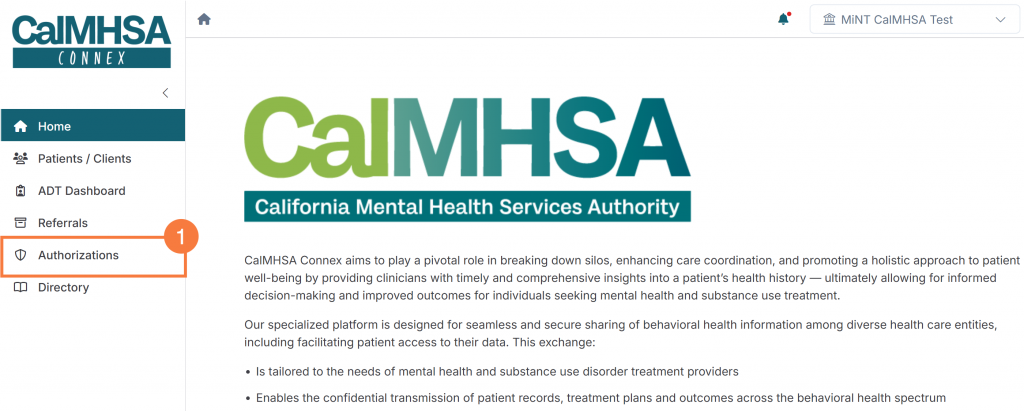
- Once you are logged into Connex, click the Authorizations drop-down from the lefthand navigation menu.
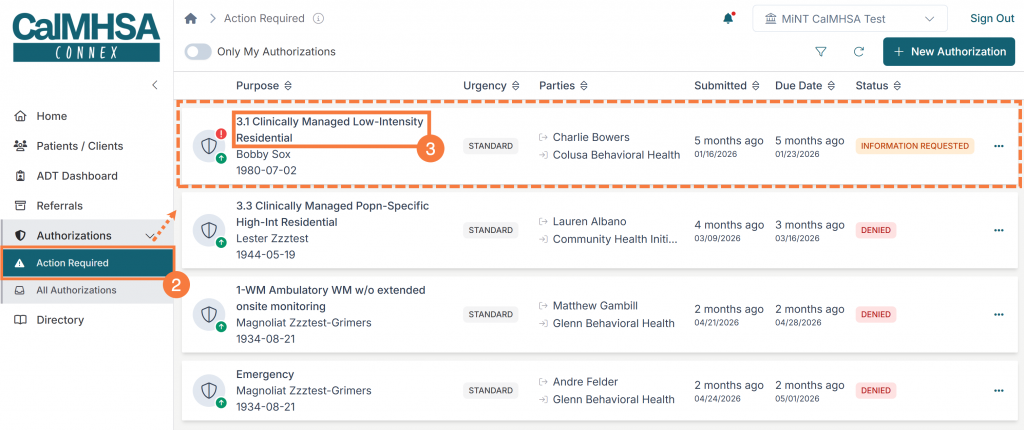
- Click Action Required and the corresponding authorizations will display to the right.
- To select an authorization to act on, click the hyperlinked Purpose name to open the authorization.
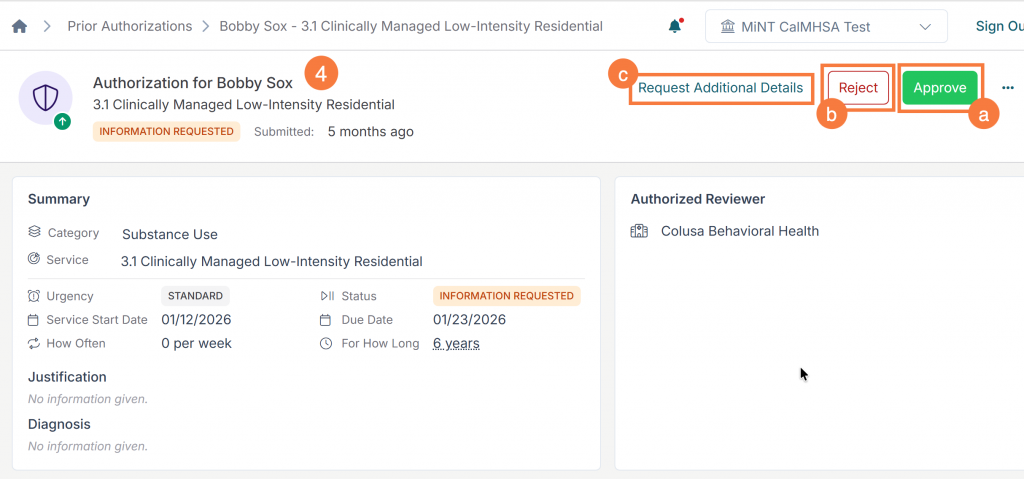
- This will bring you to the Prior Authorization details page. Users with applicable “Prior Authorization Approver” permissions see a Pending Review queue showing authorization requests submitted to their organization. The review interface provides three primary actions:
-
- Approve: Click the “Approve” button to approve the authorization. An approval dialogue box allows you to:
-
-
- Add an approval note
- Optionally modify the start date (override)
- Optionally modify the duration (override)
- Note: Override values are tracked separately from the original request values, so the original request is preserved for audit purposes.
-
-
- Reject: Click the Reject button to deny the authorization. You must provide a rejection reason in the dialog that appears. The rejection note is saved to the authorization record and visible to the requesting organization.
- Request Additional Details: If you need more information before deciding whether to approve or deny the request, click “Request Additional Details” and add any comments regarding the information to be included in the re-submission. This changes the authorization status to “Information Requested” and notifies the submitter that additional information is needed so that they can re-submit after making the requested changes.
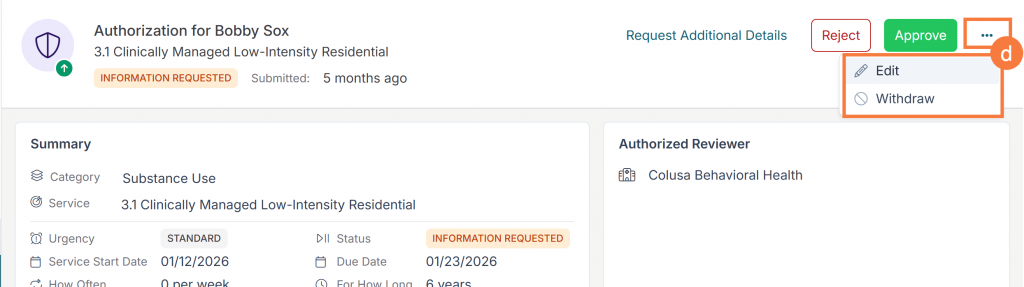
- Additional Reviewer Actions:
- Edit: Modify details of the authorization request
- Withdraw: Withdraw the authorization
- Additional Reviewer Actions:
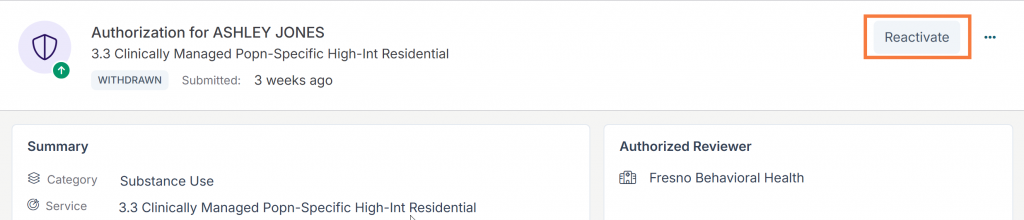
- Reactivate: Reactivate a previously withdrawn authorization.