
To create a new referral, follow the steps below:
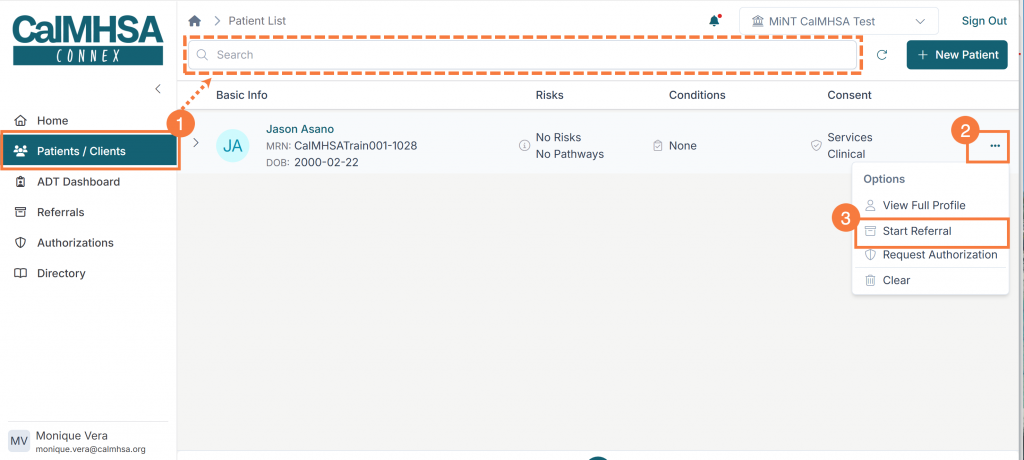
- Click the Patient/Clients icon to search for your client.
- Once you have located your client, click the ellipsis icon (3 dots).
- Click Start Referral from the menu options.
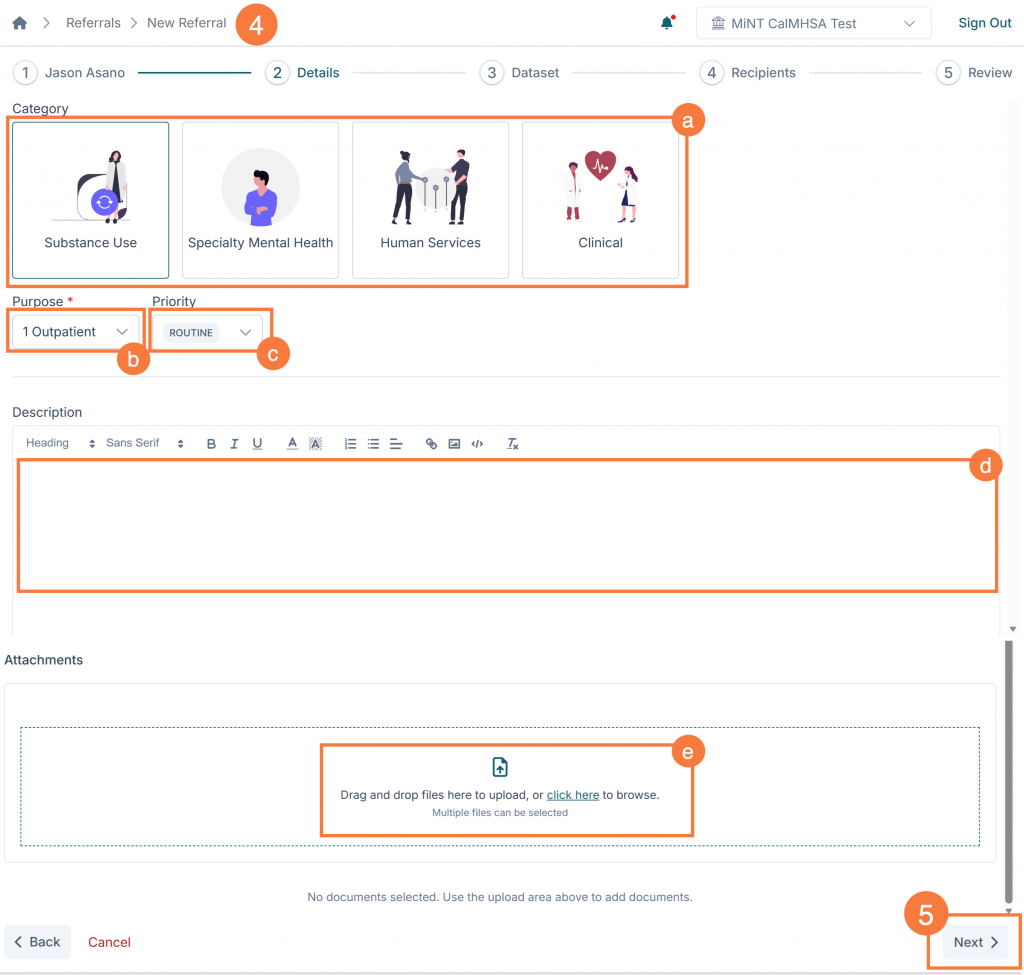
- Fill in the referral details:
- Service Category — The broad category of service needed (e.g., Substance Use, Specialty Mental Health, Human Services, Clinical)
- Purpose — The specific service type, based on the selected category
- Priority — The urgency level (Routine or Urgent)
- Description — Free-text notes about the referral
- Attachments — Upload supporting documents such as a relevant assessment, screening tool, or other document.
- Click Next to continue.
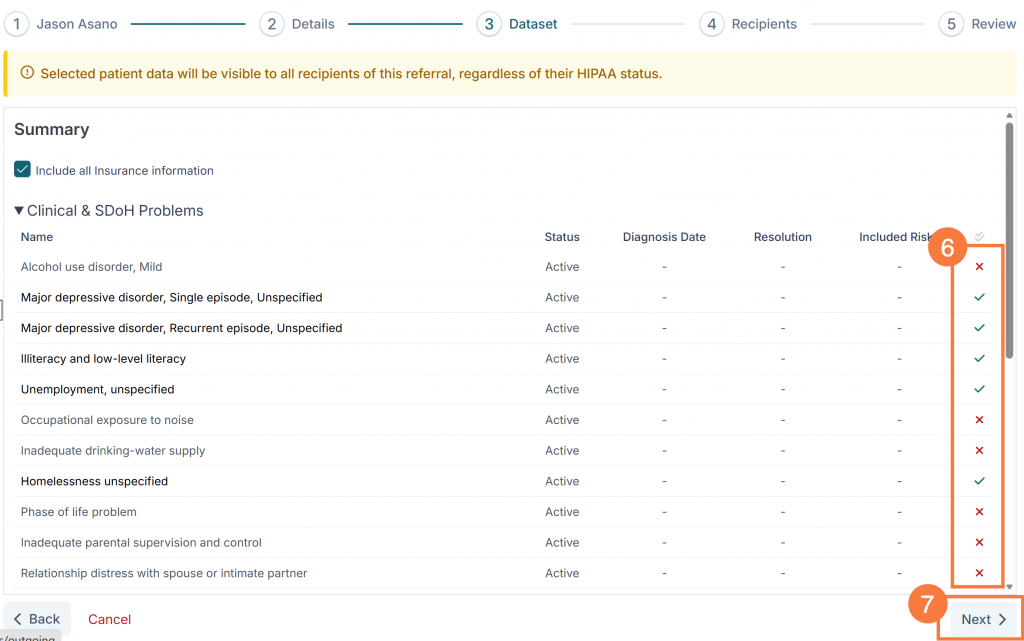
- Click Red X next to the clinical data you would like to include in the referral. This will turn to a Green Check indicating it will be included.
- Additional Information: Select clinical data to include with the referral. Data is pulled from the patient record and organized into selectable widgets:
- Clinical & SDoH Problems
- Encounters
- Medications
- Allergies & Intolerances
- Additional Information: Select clinical data to include with the referral. Data is pulled from the patient record and organized into selectable widgets:
- Click Next.
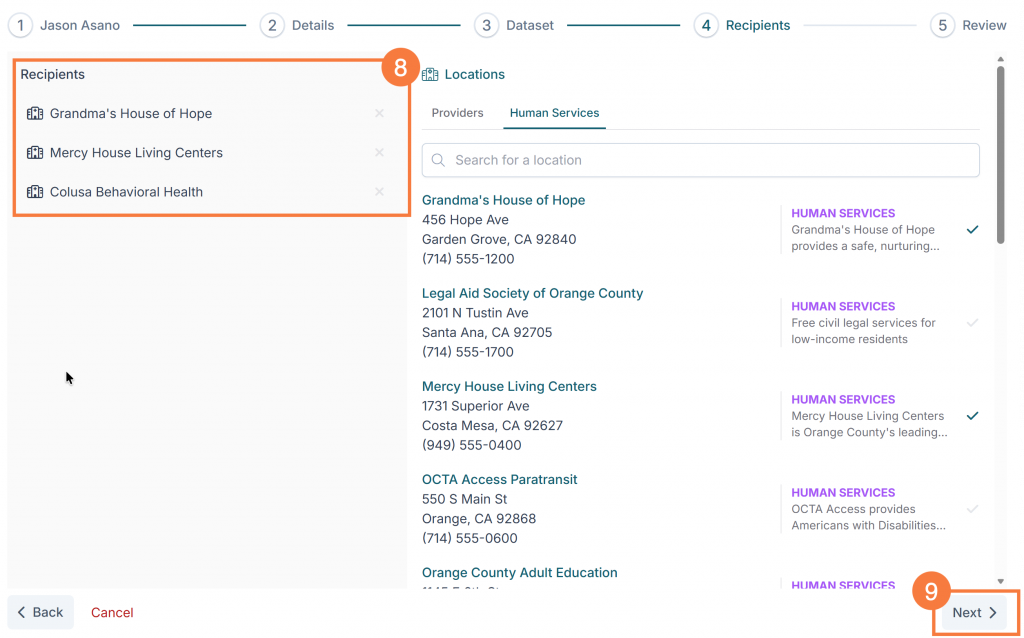
- Select one or more recipient locations for the referral.
- Note: Each recipient location receives the referral independently and can accept or decline it. You can add multiple locations to increase the chance of the referral being serviced. You can select locations from within the provider directory (i.e., a specific county location) or a location within the Human Services Directory.
- Click Next.
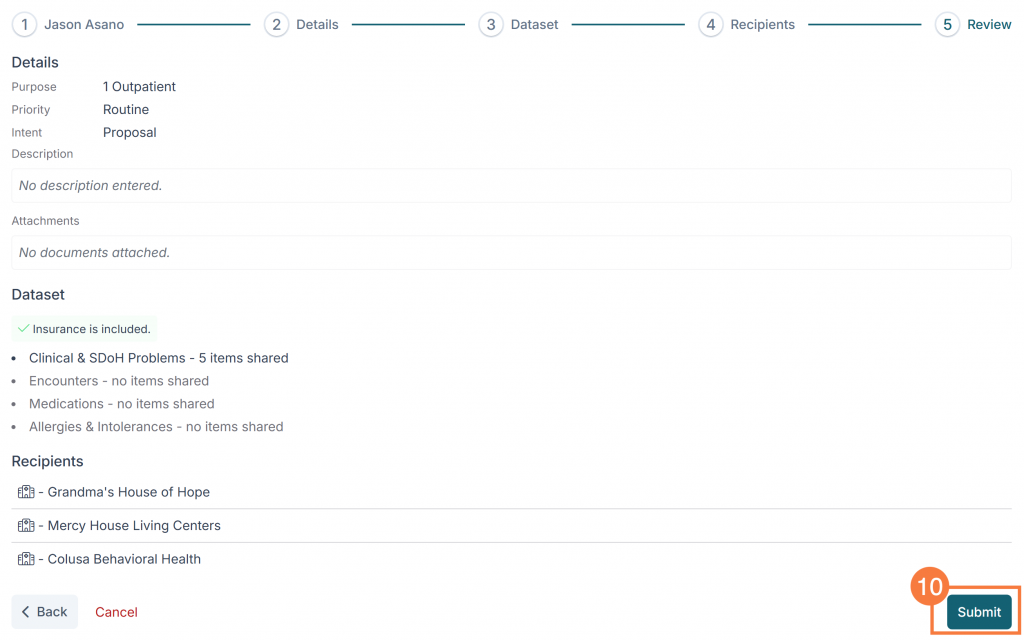
- Review all the information and click Submit. The referral will be sent.
- Note: Review all entered information before submitting. The review screen shows a summary of the patient, details, dataset selections, and recipients. If any required fields are missing, validation errors will appear. You can navigate back to any step to make corrections.
Once the referral has been submitted, it will be immediately viewable within the “Outgoing Referrals” tab. Users can click back into the referral details to make any edits, cancel the referral if needed, assign a specific recipient as the pre-approved owner, add additional comments, or upload additional documents.