CalMHSA Connex is designed to be respectful of client consent choices. ADTs will not be generated or shared for clients who have opted out of sharing their mental health information through the ASCMI consent form. The system will honor consent choices reflected in that form.
ADT Dashboard Left Panel
Navigate to Connex and login using your credentials.
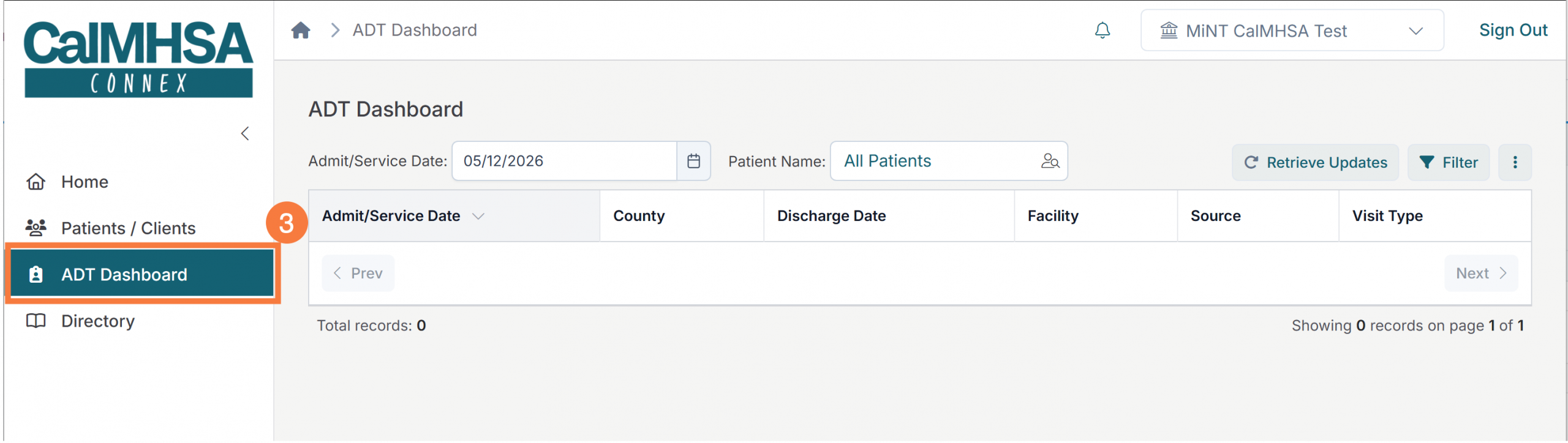
Locate the main navigation menu on the left hand side of the screen.
Click the ADT Dashboard menu option. The ADT Dashboard screen will display to the right.
ADT Dashboard Screen
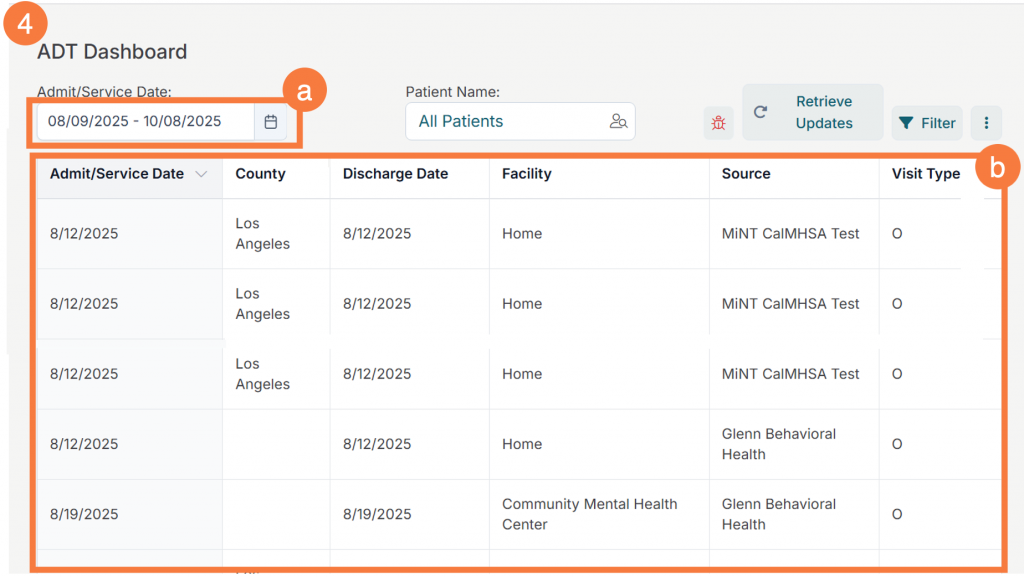
To filter ADT messages by their admit/service date, use the date filter function:
Locate the Filter: Identify the “Admit/Service Date” field on the Dashboard and select Date Range: Select the desired start date and end date to define the specific time frame you wish to analyze.
View Results: Once the start and end dates are selected, the system will automatically update to show all ADT messages with an admit/service date that fall within the selected date range on the Dashboard.
ADT Filter by Message Segments
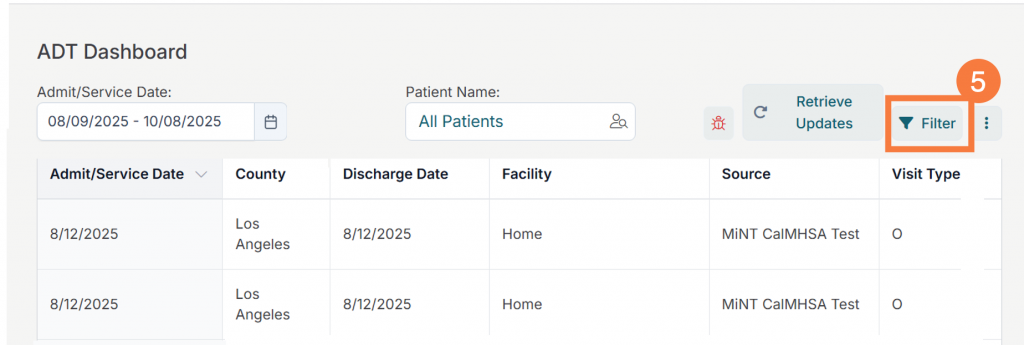
Access the Filter Panel. Locate and click on the Filter option, on the top right corner of the ADT Dashboard screen.
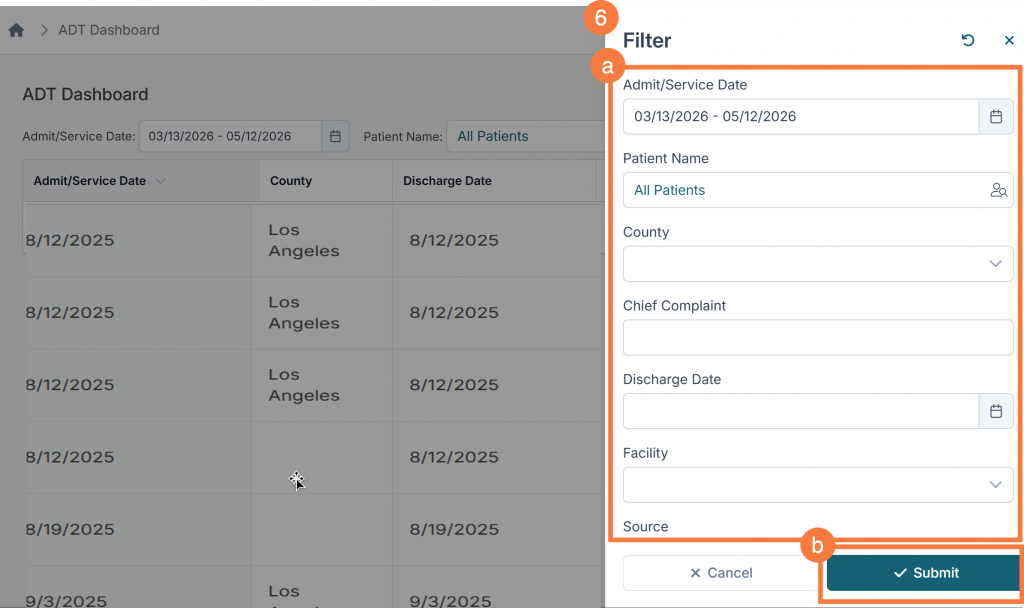
In the Filter drawer:
Select desired filter criteria in the filter drawer. Options include admit/service date, patient name, county, chief complaint, discharge date, facility, source, visit type, and discharge disposition.
Click Submit to update the information displayed on the dashboard.
Notifications Icon
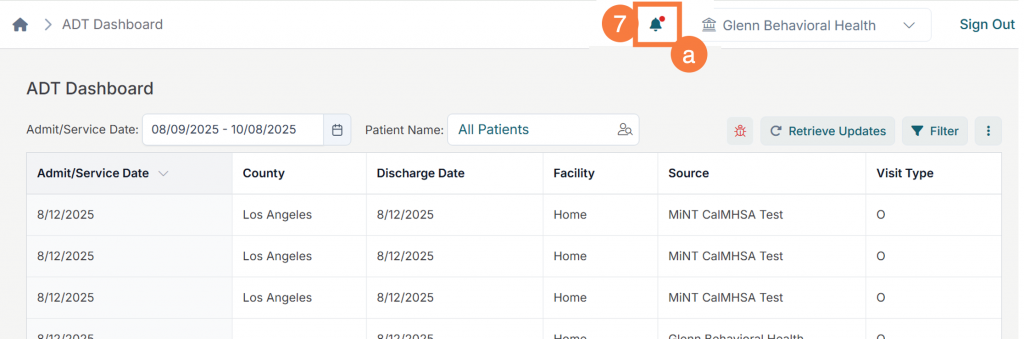
ADTs received for certain clients will trigger email and in-app notifications to specific ADT Dashboard Users who have either (1) Imported that client to the Patient/Client tab, or (2) have a care team member association with that client, as designated by being a treatment team member in SmartCare. When a notification is received, you will be able to view that notification by clicking the notification bell (located in the top navigation bar). To access the Notification list:
Click on the notification bell.
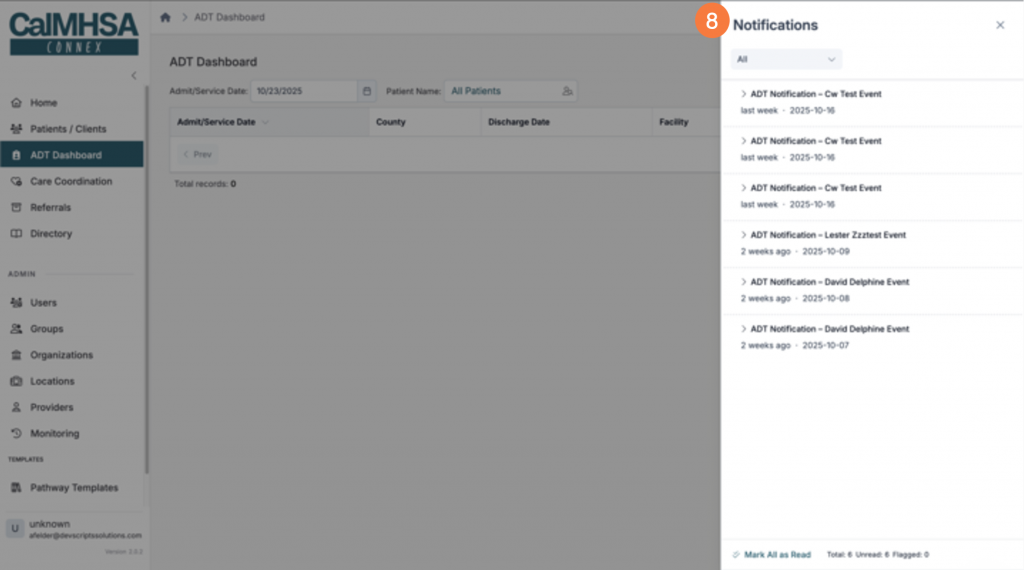
The Notification drawer will open. Review and Manage Alerts:
Review the list to see the summary of each new ADT alert
Click once on a specific notification in the list to expand the full details of that ADT notification.
Double clicking on a notification will bring the user to the ADT Details screen to view all information related to that ADT.
Once viewed, the alert will automatically be marked as “read,” or you can manually click a “Mark as Read” option on any notifications.
You can click the bookmark icon to flag a message for later, or mark a message as “unread” again
You can “mark all as read” by clicking the button at the bottom of the drawer
You can filter notifications by “all,” “unread,” or “flagged” via the dropdown at the top of the notifications drawer
ADT Details
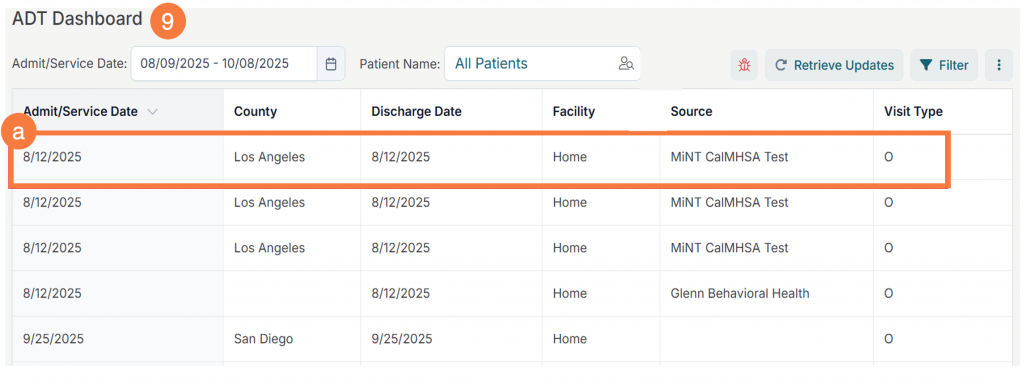
To view an ADT Message, navigate to the ADT Dashboard:
Find the specific message (row) you are interested in and click to select it.
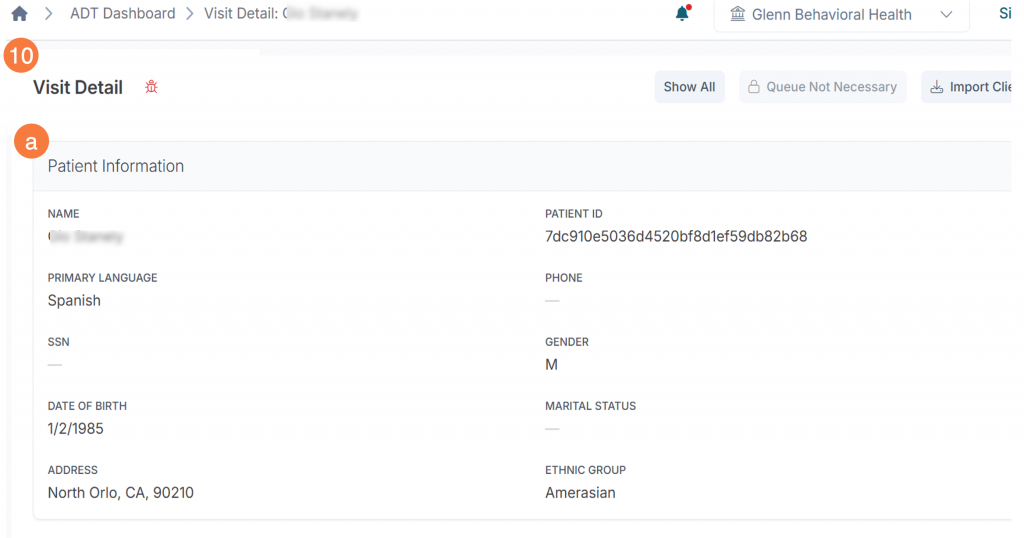
The Visit Detail screen will open.
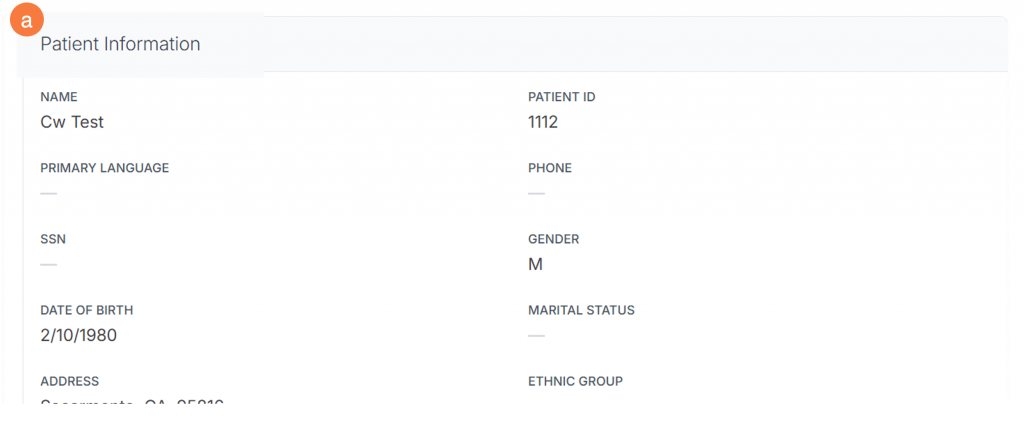
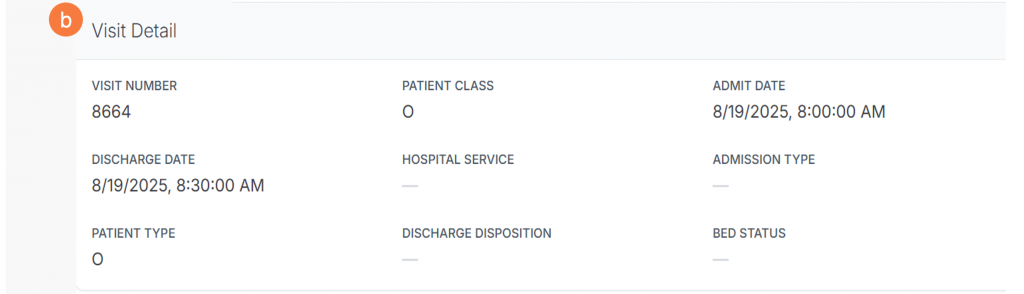
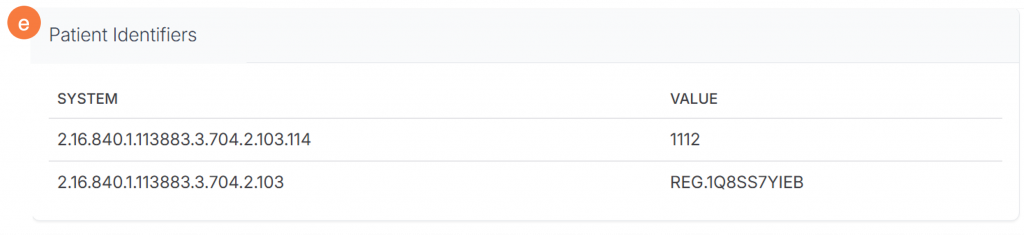
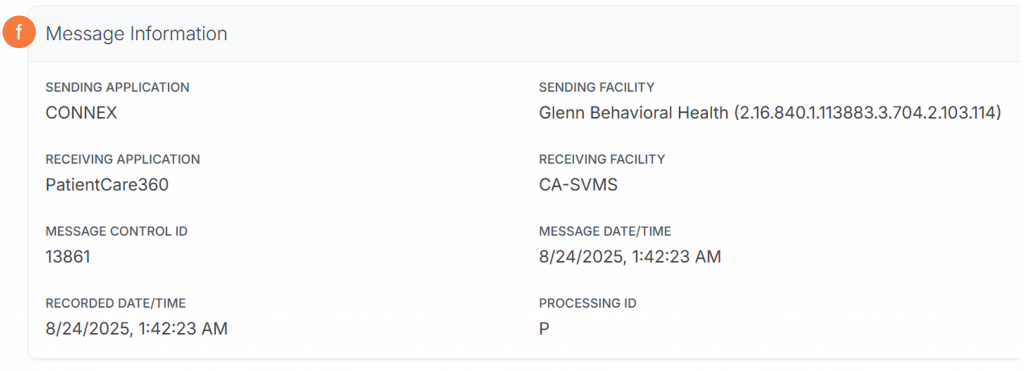
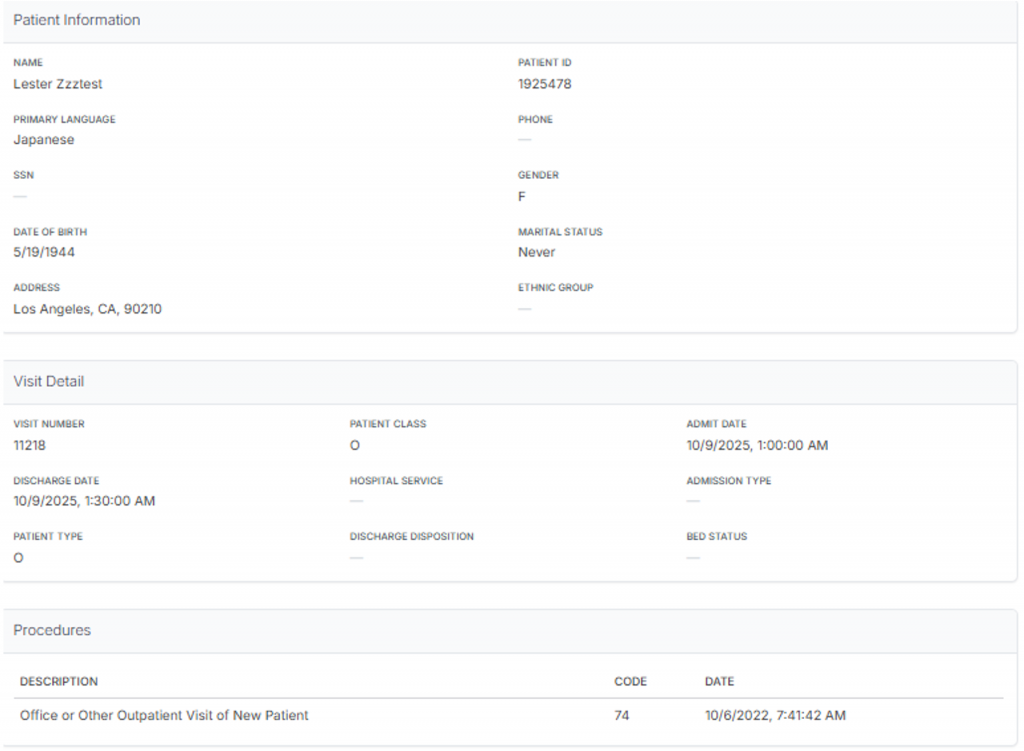
This will show you all the details related to that specific event, such as the full patient demographic information, clinical codes, location history, and the complete ADT message content.
View ADT details within distinct widgets
Patient Information: Identifies the individual involved in the event, including demographics like Name, Patient ID, and Date of Birth.
Visit Detail: Describes the specific encounter itself, including the Visit Number, Admit Date, and Discharge Date.
Procedures: Lists procedures associated with the patient or visit, including the description and date of the procedure
Allergies: Provides critical safety information regarding known patient allergies, listing the allergen and its associated reactions/severity.
Patient Identifiers: Provides system-specific codes used to track the patient across different platforms and organizations.
Message Information: Gives technical details about the transmission of the data, such as the Sending Application and the Message Control ID.
Go to Full Patient/Client Record
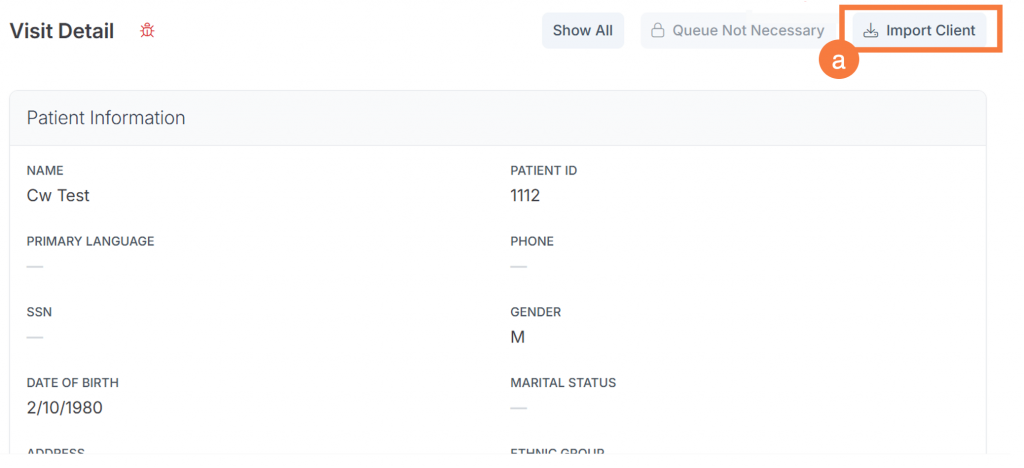
From the ADT visit details screen, navigate to the client’s full clinical record if they exist in Connex. If the “Import Client” button is available, that indicates that the client exists in Connex, but the user has not yet imported that client into their patient/client screen.
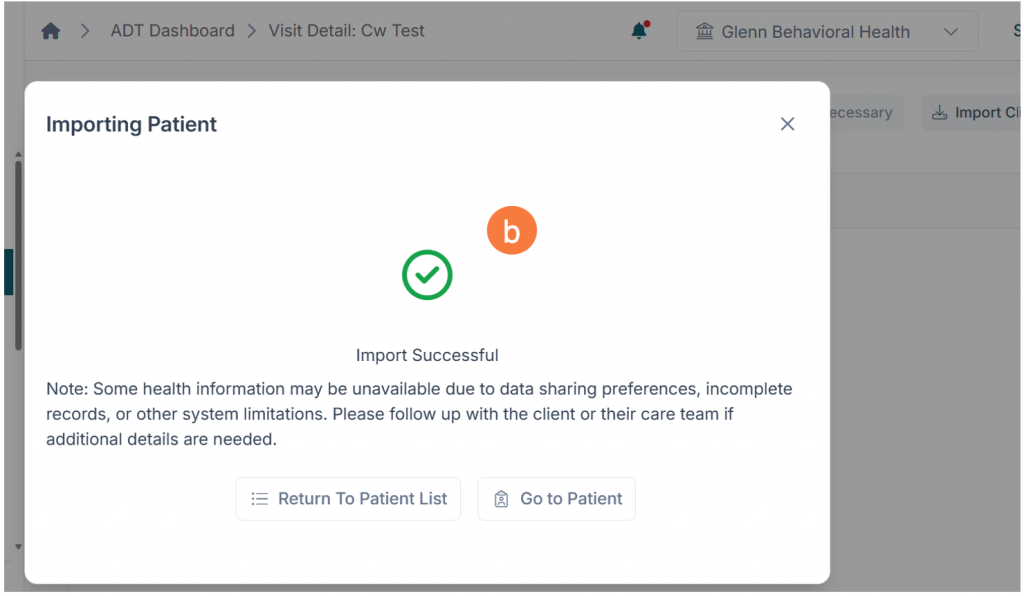
“Click Import Client”. Note: Wait for the system to process the request.
After successful import, the user will be able to visit their full patient/client list or navigate directly to the client’s full record in Connex.
Alternatively
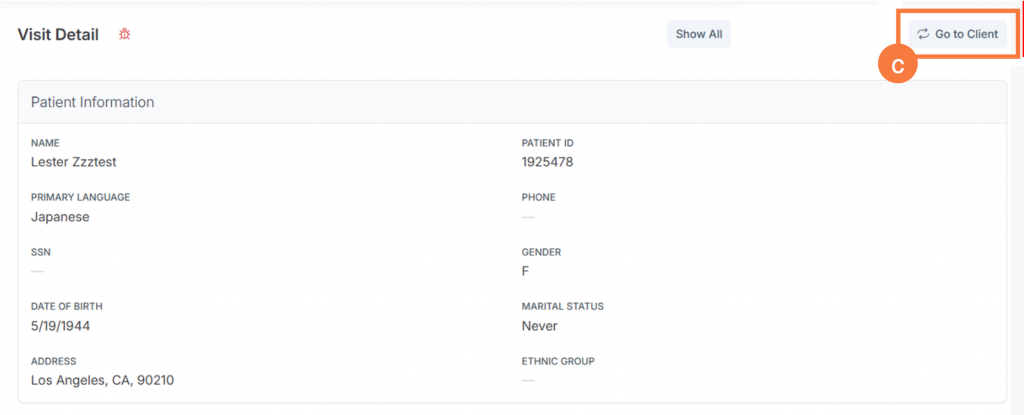
If the “Go to Client” button is available, that means that the user has already imported that client into their patients/clients list. Click Go to Client.
Details of ADT in the Overview Screen Widgets
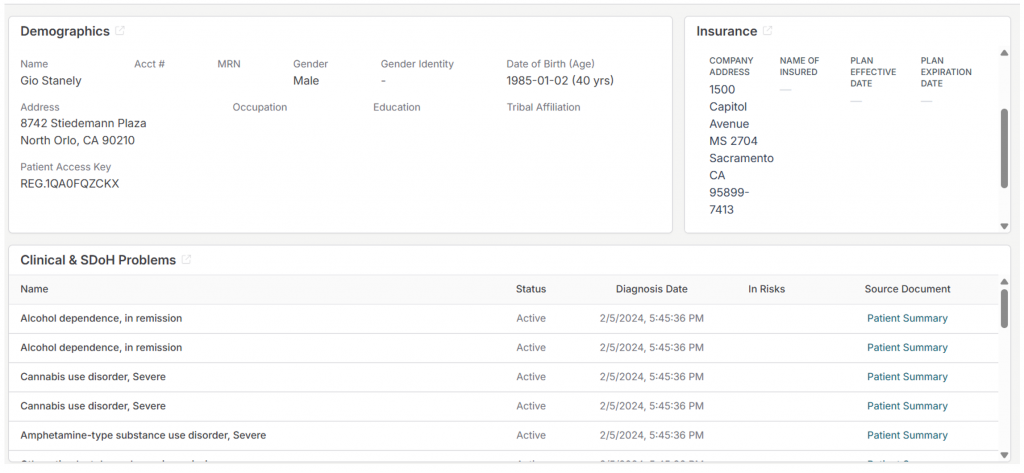
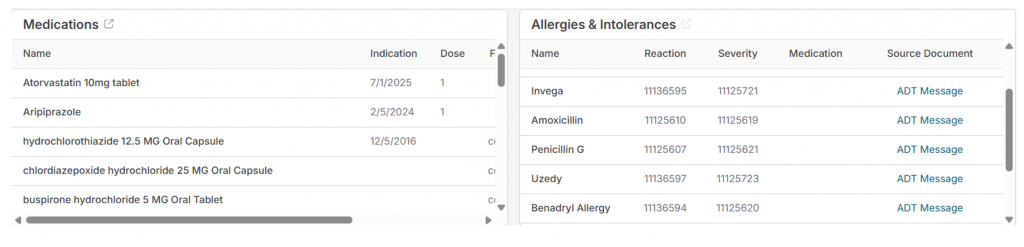
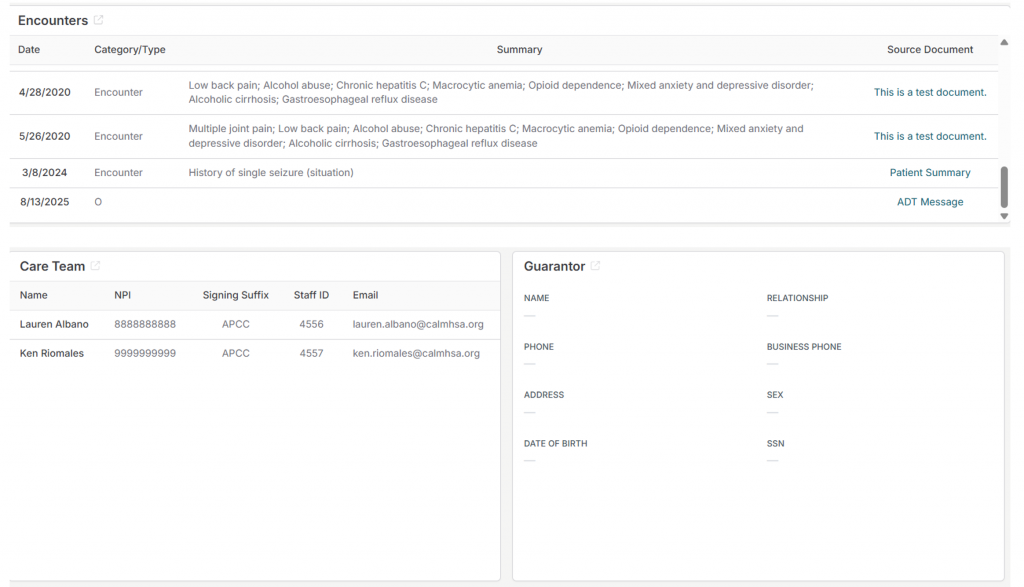
When an ADT message is received, it will be integrated into the client’s Clinical Overview screen among the various widgets, aggregated alongside CCDA clinical data.
You can navigate to the Overview screen either directly through the imported clients on the “Patients/Clients” tab or from the ADT visit details screen (as described in process above).
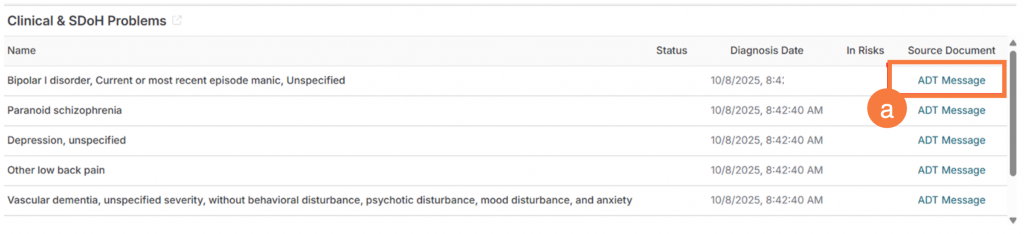
Relevant ADT information will be parsed into each corresponding widget, as seen in screenshots below.
The ADT Source represents the originating ADT message that sends patient admission, discharge, and transfer information into the platform. It shows where the data first came from the source message of record for patient encounter events. This ensures data provenance, allowing users to trace each patient event back to its original ADT message.
Click the ADT Message hyperlink.
This will return you to the original ADT message information.