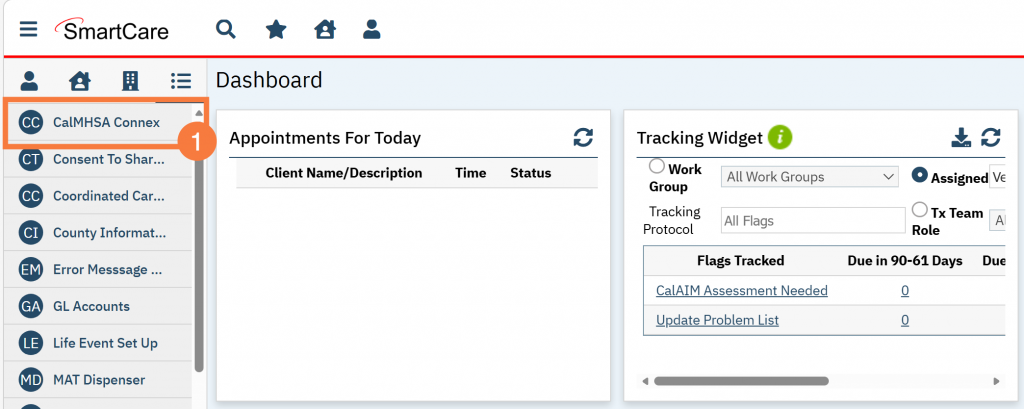
From your SmartCare home screen, locate the Quick Links bar on the left hand side and click to open Connex.
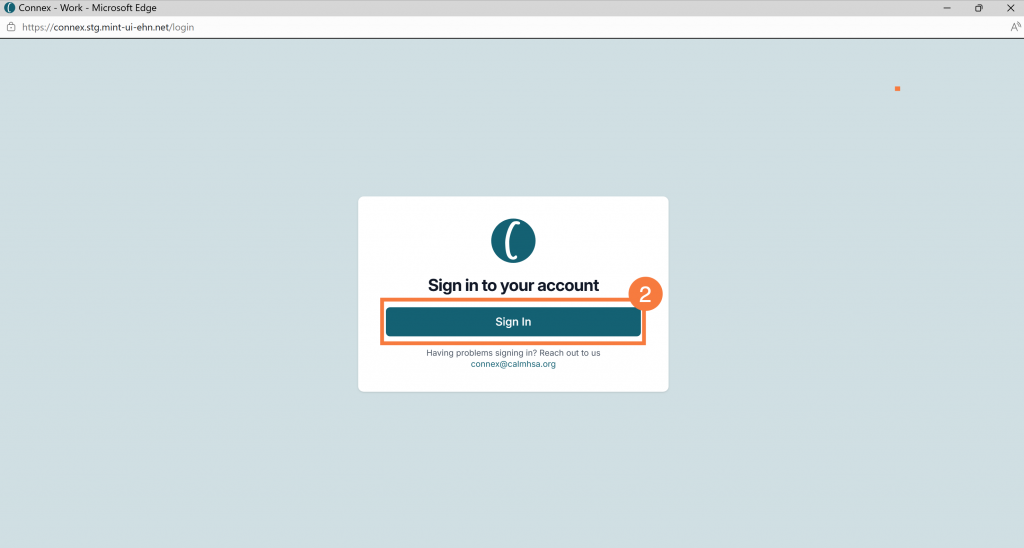
A new window will open. Click Sign In.
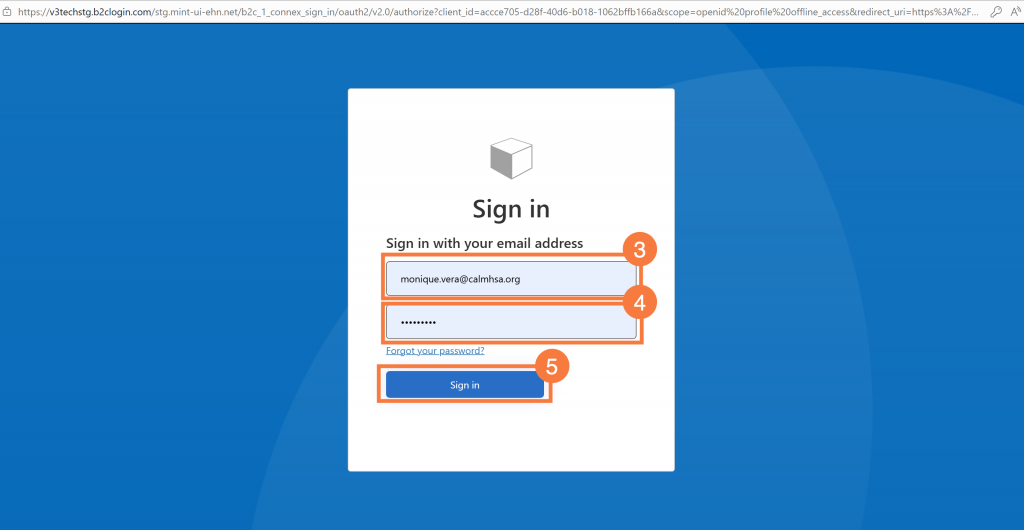
On the next sign in screen, enter Email Address
EnterPassword
Note: For first time users, your temporary password is provided by the CalMHSA Connex team in original access email.
Click Sign In.
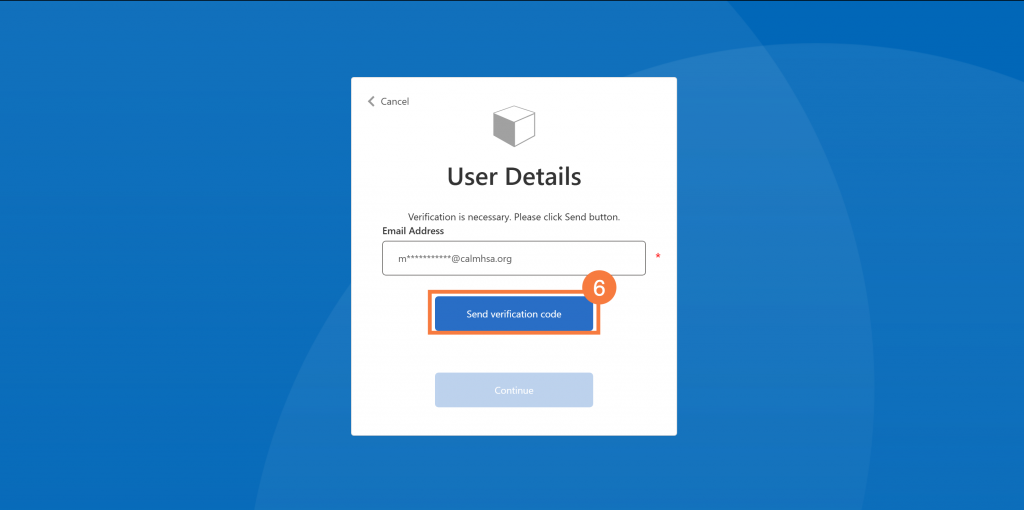
A multi-factor authentication is needed to login to Connex. To begin the authentication process, please follow the steps below:
Click the Send verification code button to generate a code that will be sent to the email address listed in the box above. This email usually takes about 30-45 seconds to arrive in your inbox.
Note: MFA is a global, mandatory setting for CalMHSA
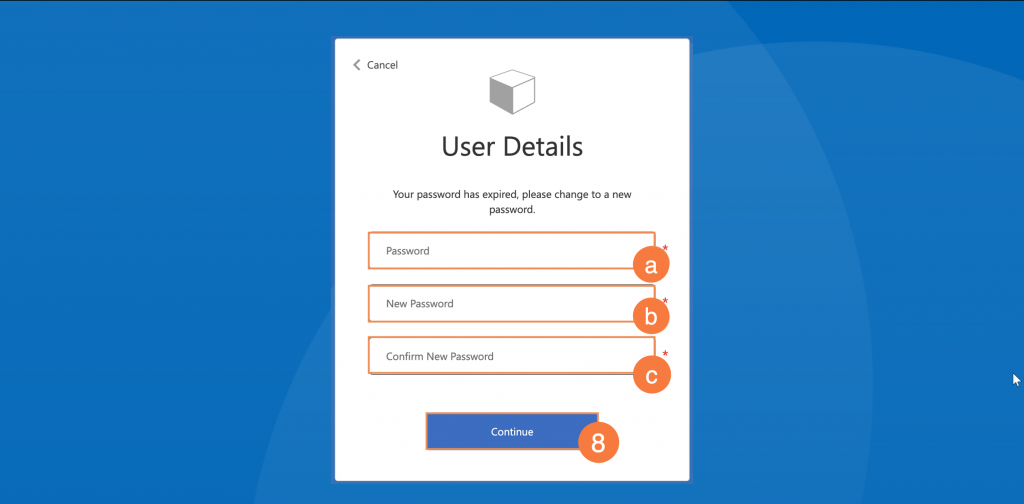
After email verification, you will need to create a new password.
Enter the temporary password you received from CalMHSA.
Create a new password.
Minimum eight characters in length
Must contain three of the four of the following character classes: upper case, lowercase, number and symbol
Confirm new password.
Click Continue.
Connex Dashboard
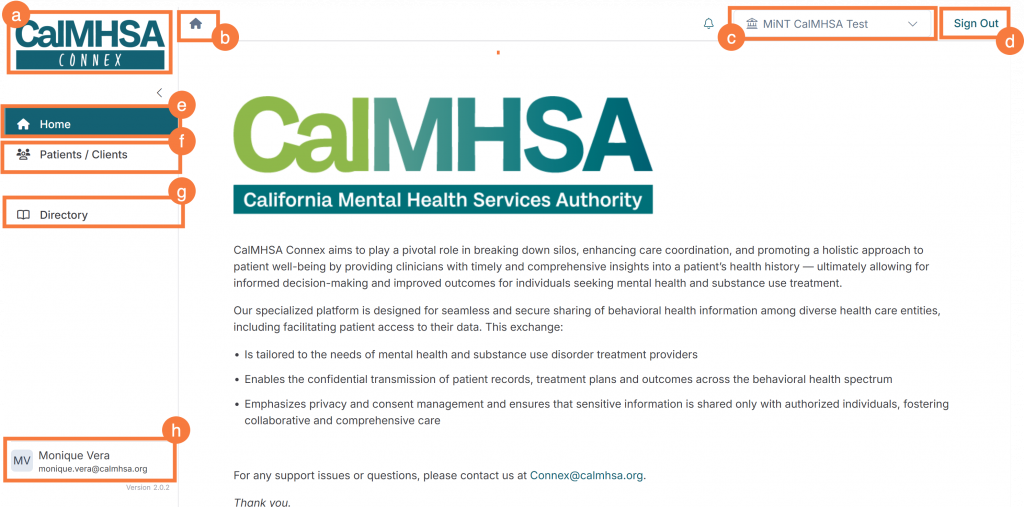
Upon successful authentication, the initial screen displayed will be the home page, which contains an overview of our company’s mission, values and dedication to quality, security and customer satisfaction.
From the home page, you can access several different icons which are consistent throughout Connex:
CalMHSA Connex Logo: Return to home screen
Home icon: Return to home screen
Organization name
Signout: Allows users to securely log out of Connex
Home tab: Return to home screen
Patients/Clients: Directs users to organization’s Patient/Client Index
Directory: Directs users to the Provider Directory index
Username: Clicking username provides the option to refresh and/or log out of Connex