This article explains how to manually apply a refund. Use this process when a payer has recouped (taken back) a payment, and the refund was issued as a check or EOB (Explanation of Benefits) rather than through an 835 electronic file.
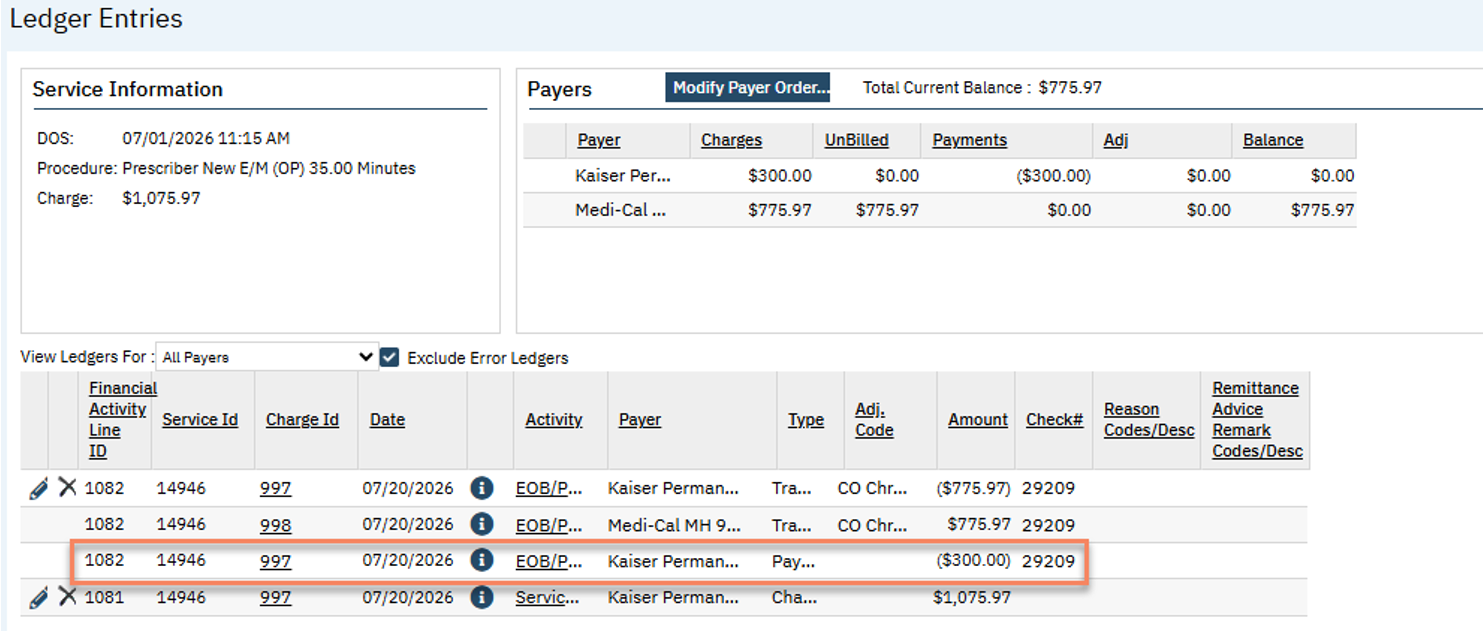
Example: A client received a $300 payment from Kaiser. Kaiser has since recouped that payment. A refund will need to be applied in SmartCare to remove the $300 from the Accounts Receivable and update the client ledger to reflect the transaction.
Below is a screenshot of a client’s ledger reflecting the $300 payment that need to be refunded:
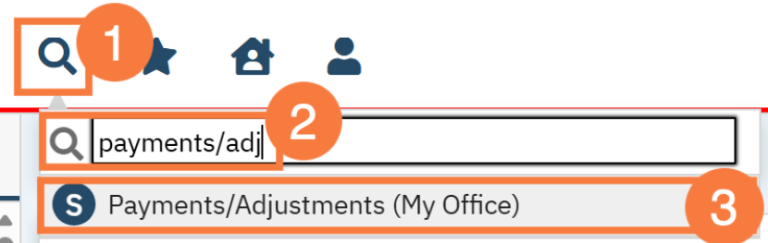
Click the Search icon.
Type Payments/Adjustments into the search bar.
Click to select Payment/Adjustments (My Office).
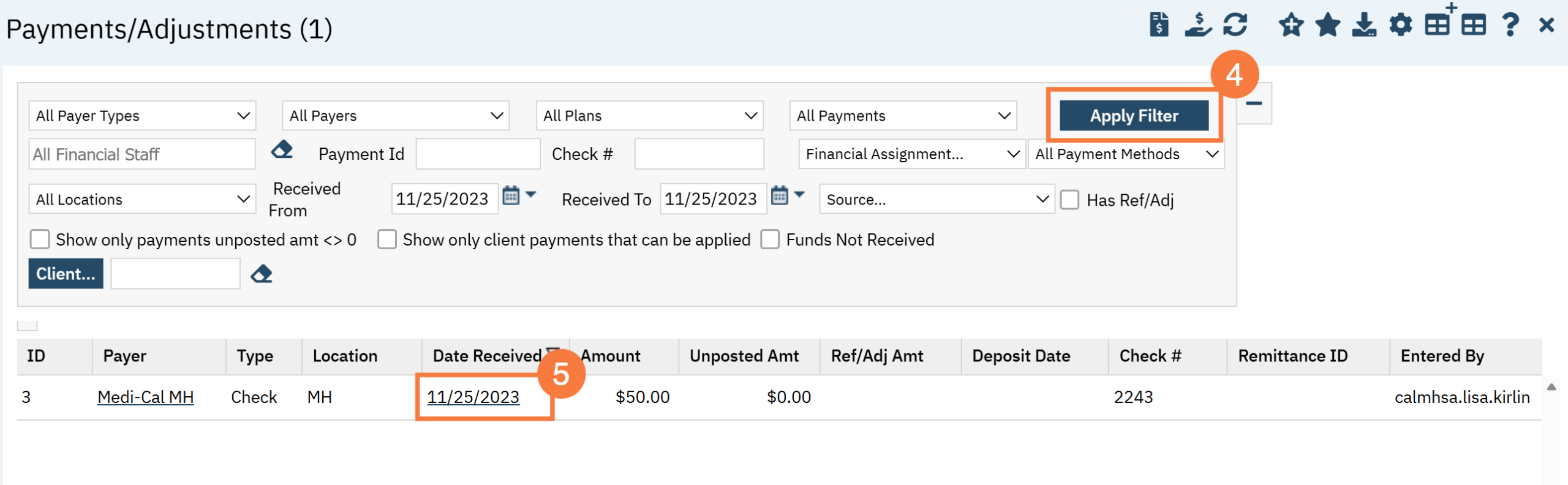
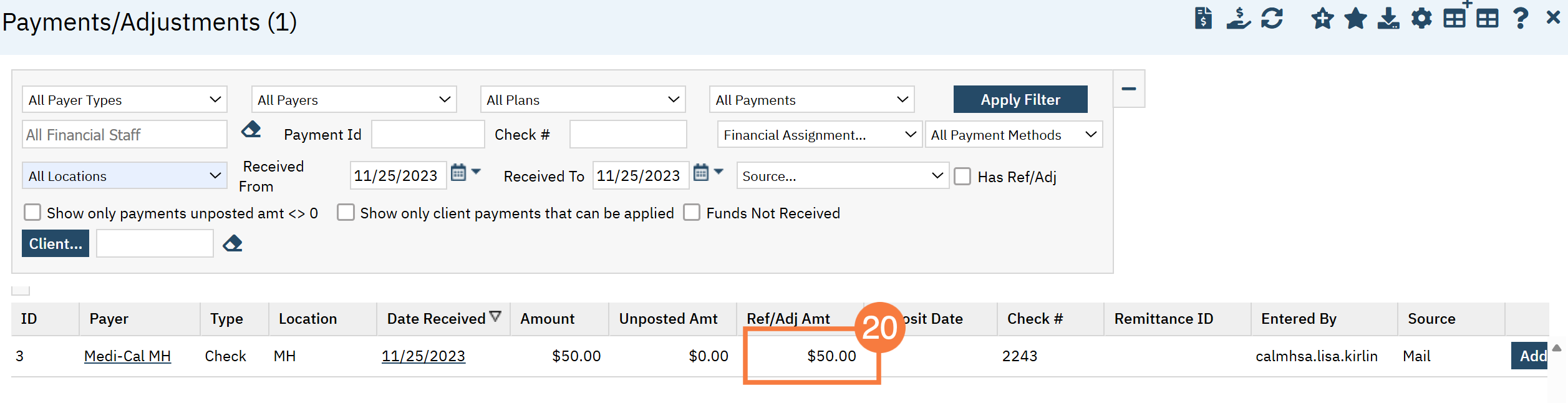
Use the filter options to locate the payment from the payer. Click Apply Filter.
Click the hyperlinked Date Received.
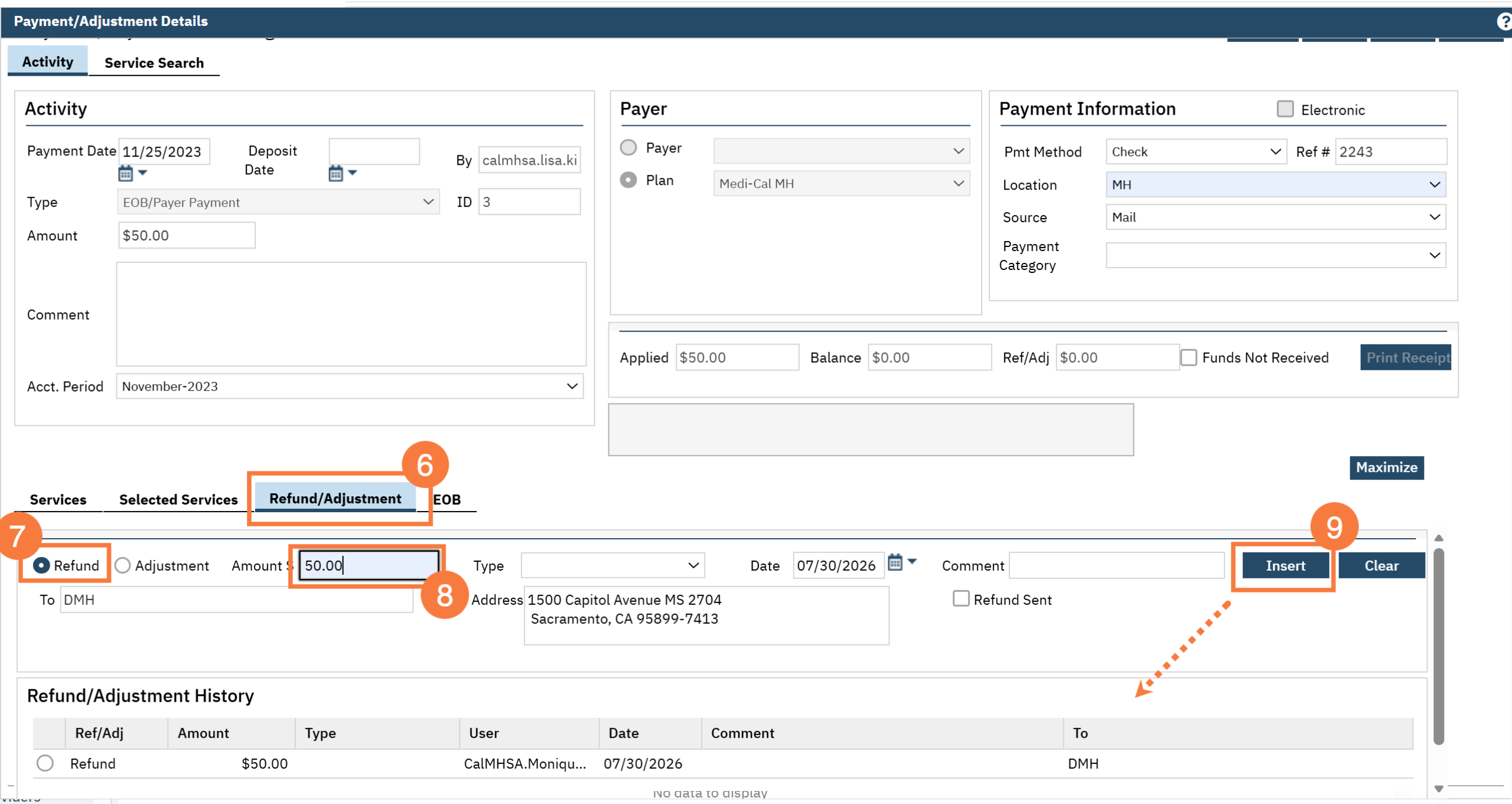
Click the Refund/Adjustment tab.
Click the Refund Radio button.
Enter the refund amount in the corresponding field.
Click Insert. The refund will drop into the Refund/Adjustment History grid.
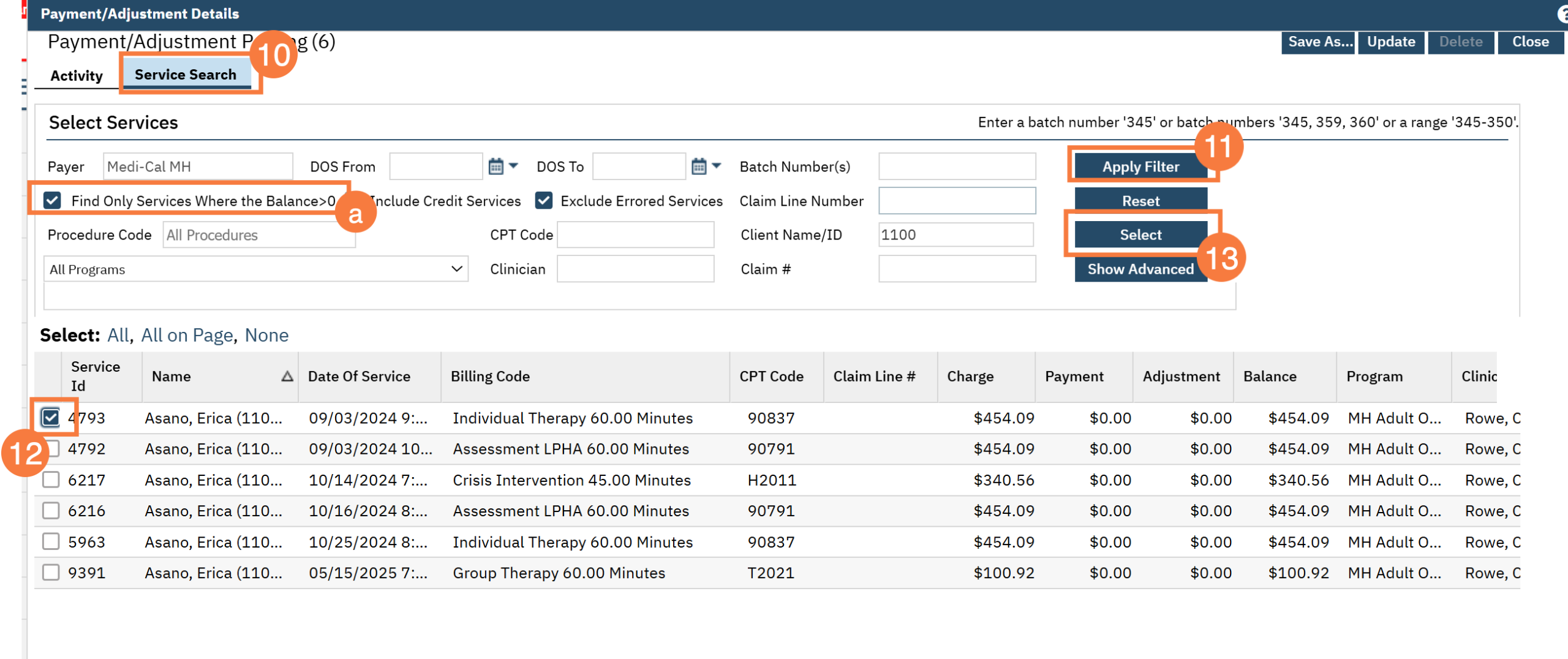
In the upper left-hand corner of the Payment/adjustment Details pop-up, click the Service Search tab.
Use the filters to locate the correct service and click Apply Filter.
If the service no longer has a balance, click the checkbox for “Find Only Services Where the Balance >0” so it appears in the results.
Click the checkbox to the left of the service that needs a refund.
Click Select.
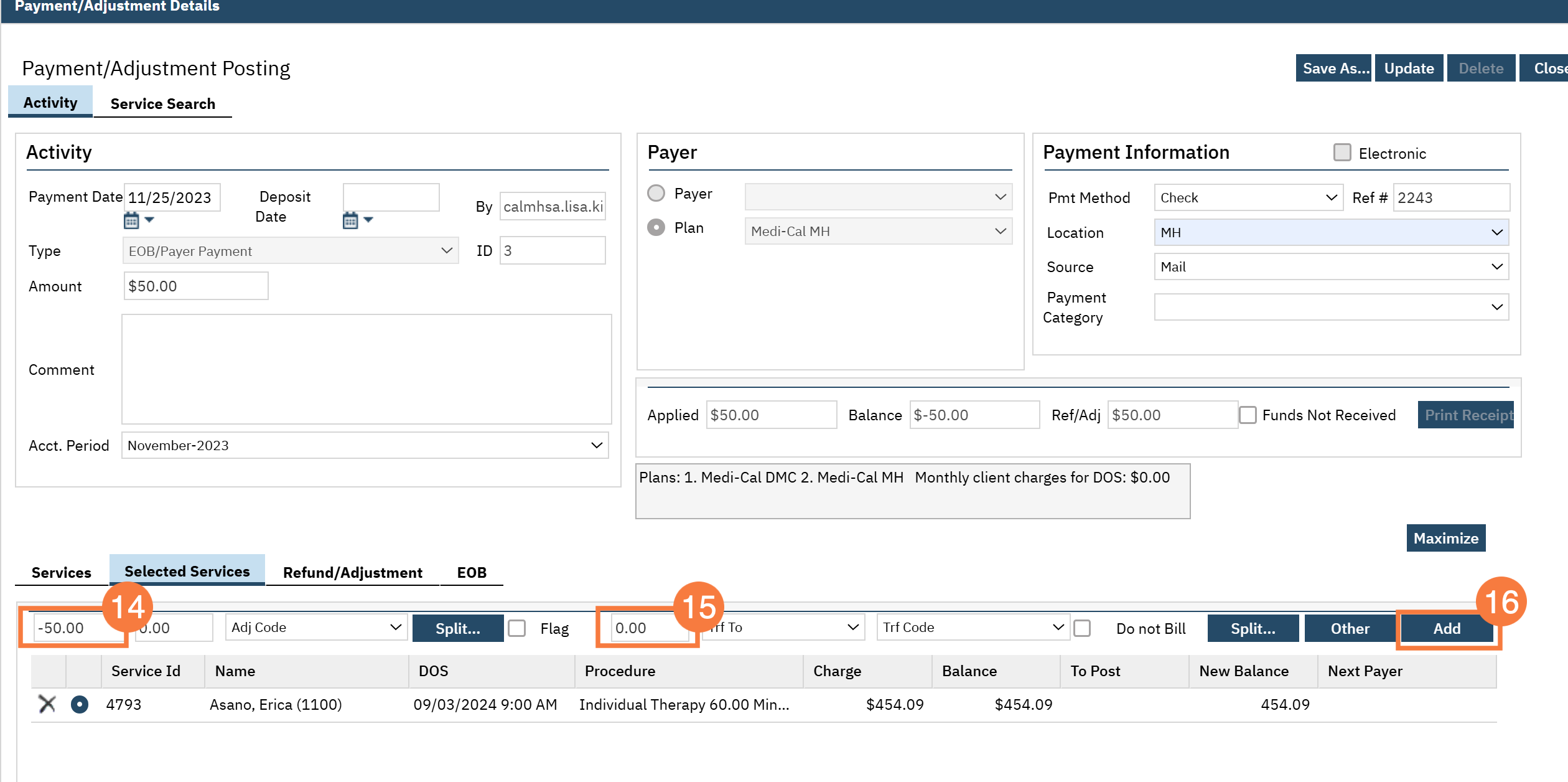
Enter the amount to be refunded as a credit.
Leave the Transfer To amount as $0.00.
Click the Add button.
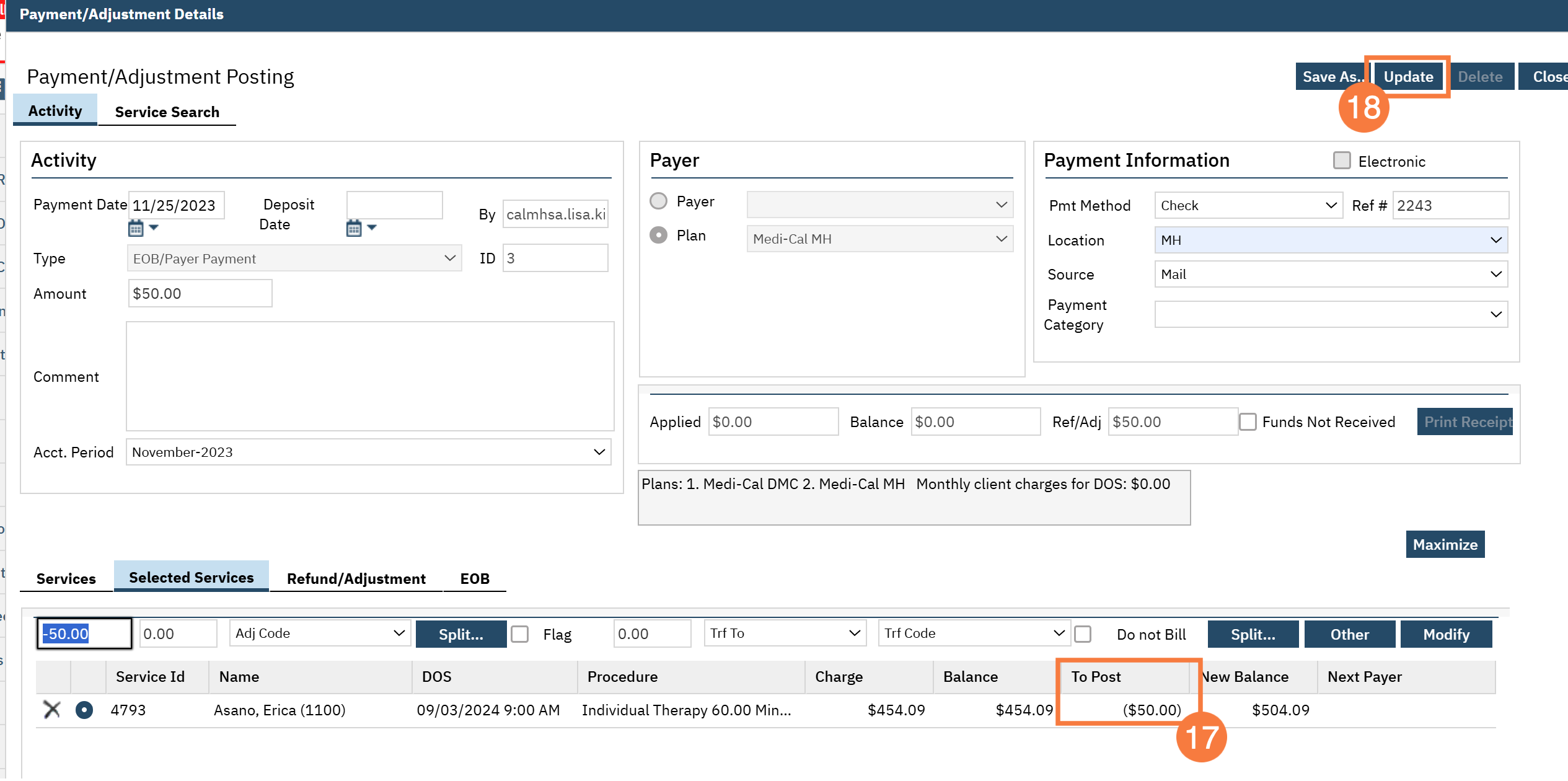
The refund will appear in the To Post column.
Click Update.
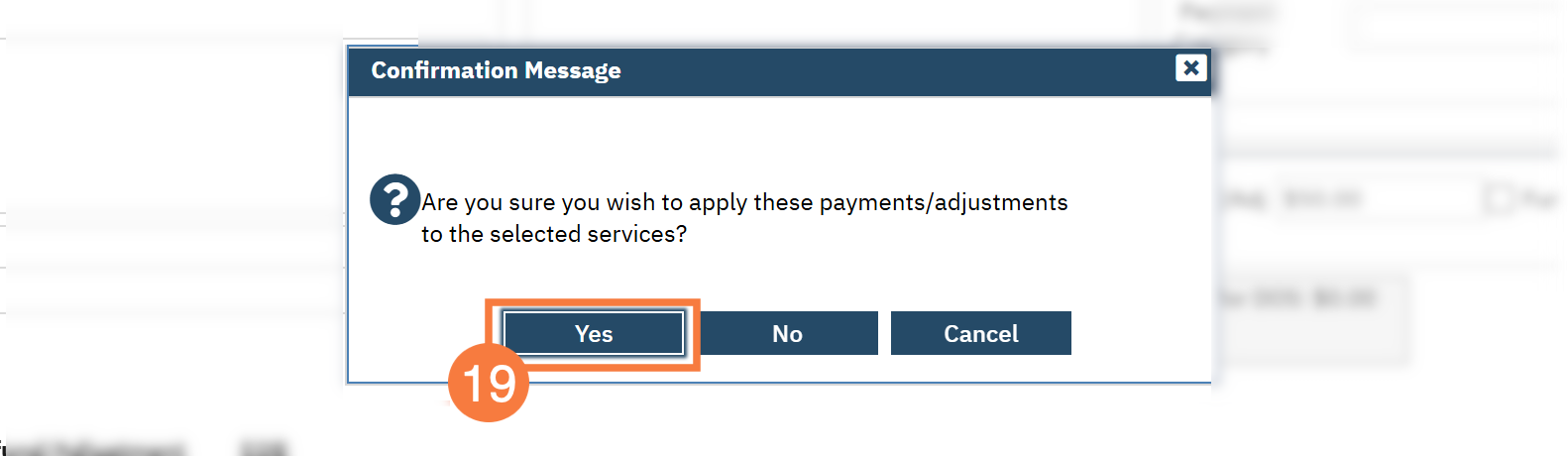
In the confirmation pop-up, click Yes.
Close the pop-up window and the payment record will reflect the refunded amount.
The client ledger will show the refund as a credit. The balance moves back to the payer and can then be transferred to another payer if needed.