This article is intended to support end-users to understand the functions and capabilities available within the Connex system for referrals. Counties may have additional workflows and procedures that are not incorporated in this article.
Referrals in Connex enable care coordinators to route patients to specific services, providers, or locations. The referral system supports a full lifecycle from creation through acceptance, assignment, and completion.
The Referrals section is divided into three views, each accessible from the main navigation:
Outgoing Referrals: Referrals you or your organization have sent. This is where you create and track referrals to other organizations.
Incoming Referrals: Referrals sent to your organization by others. You can accept or decline these referrals.
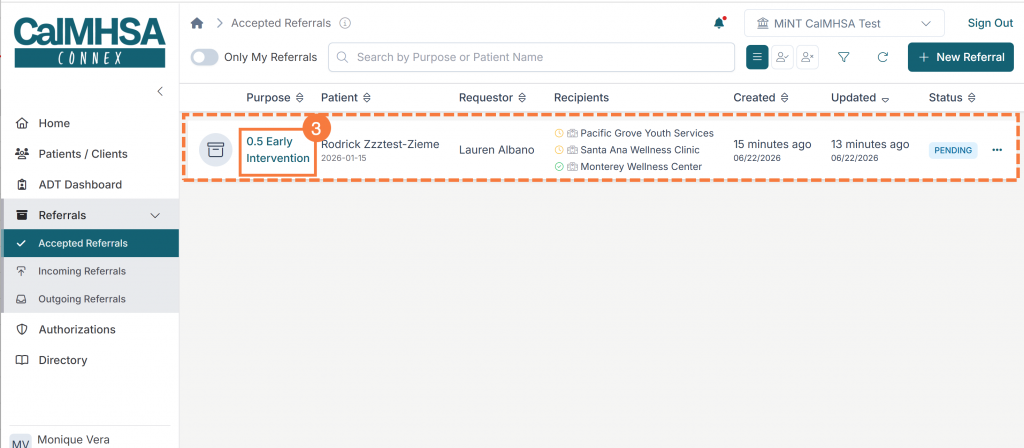
Accepted Referrals: Referrals your organization has accepted. In some situations, after accepting, the referral sender must confirm your organization as the referral owner before servicing can begin. This may occur in situations where a referral sender sends the referral to multiple recipients and then determines ownership after reviewing those who have accepted. This list contains both confirmed referrals (ready to service) and unconfirmed referrals (awaiting sender confirmation).
Outgoing Referrals
To navigate to the Outgoing Referrals screen, follow the steps below:
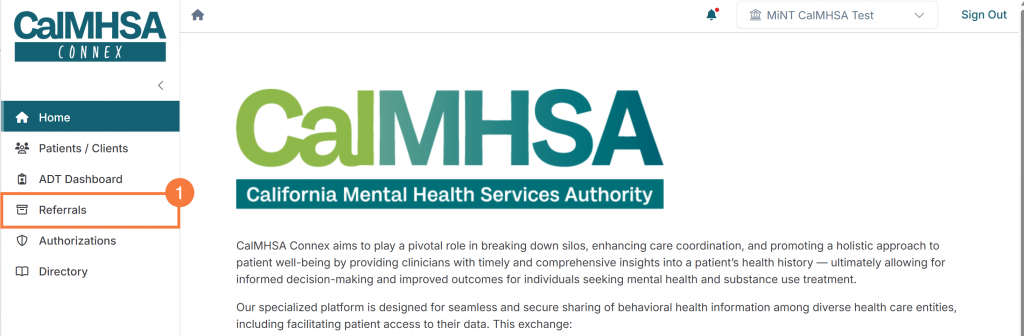
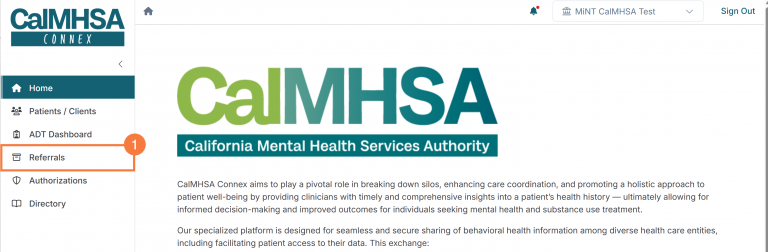
Once you are logged into Connex, click the Referrals drop-down from the lefthand navigation menu.
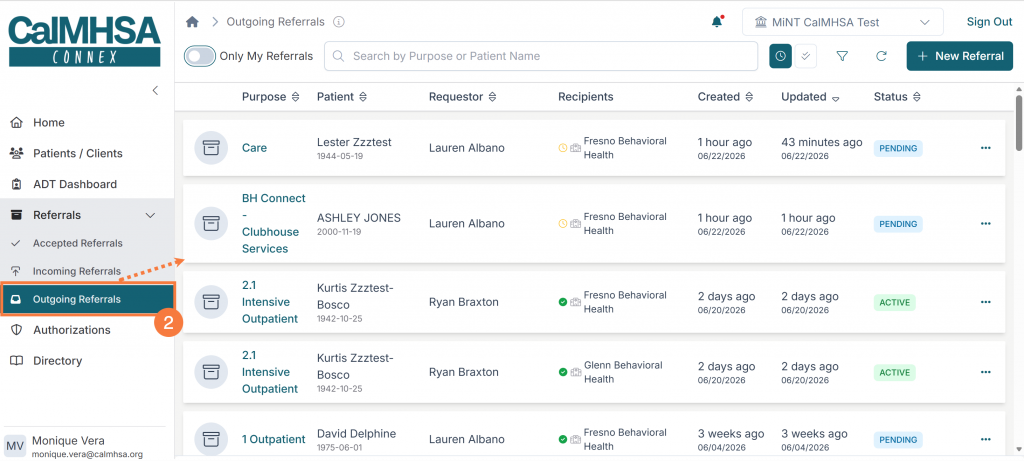
Select Outgoing Referrals. The screen will open to the right.
Click the “Only My Referrals” toggle button to view outgoing referrals for your organization or referrals that you have submitted only.
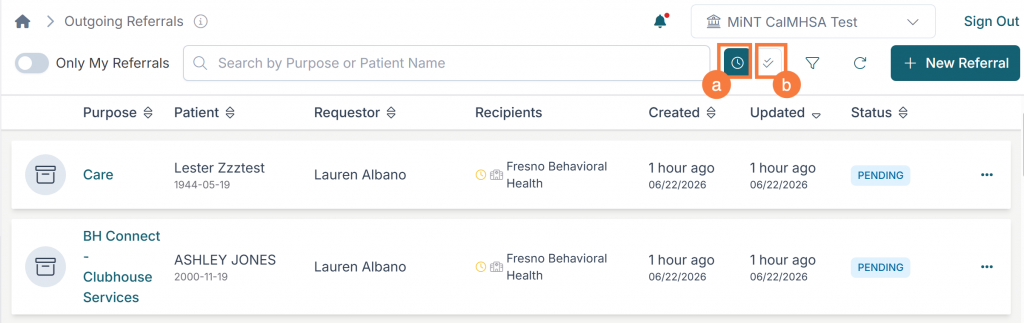
The Outgoing Referrals view shows all referrals created by your organization. The list is divided into two quick-filter tabs:
In-Progress: Shows referrals with statuses of Pending, Active, or Outreach Initiated.
Complete: Shows referrals with statuses of Completed or Cancelled.
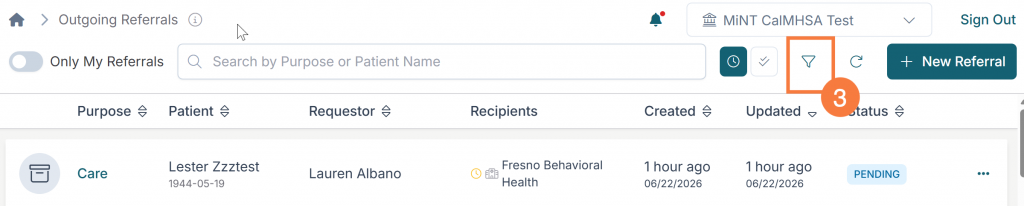
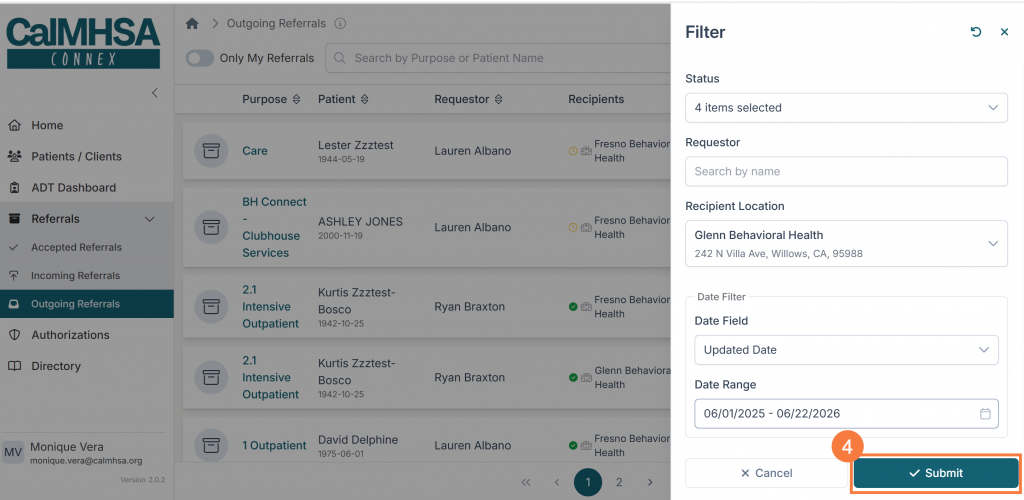
Optional: Use the filter drawer by clicking the filter icon at the top to narrow results by search text, requestor name, recipient location, status, and date range.
Click the Filter icon and the drawer will open.
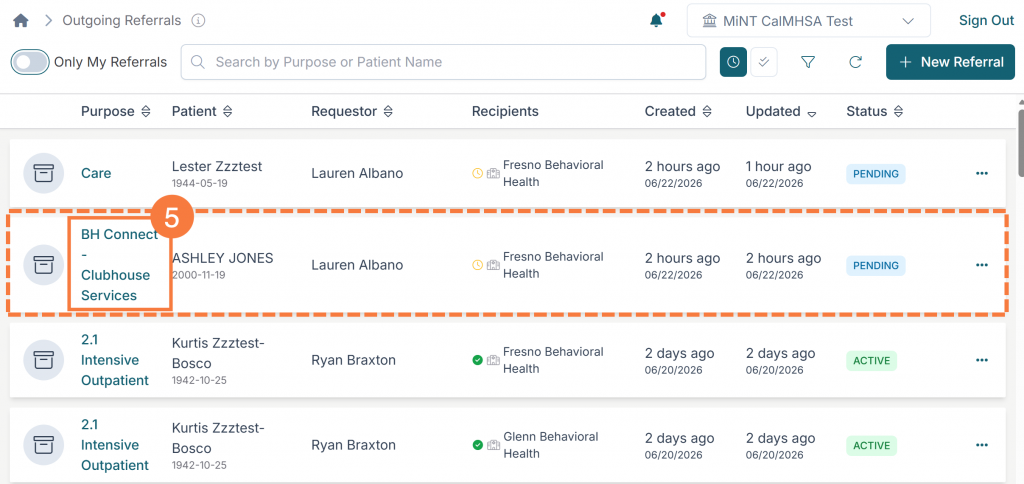
Once you have entered the appropriate filter, click Submit. The displayed outgoing referrals will update according to your filter(s).
Click the “Purpose” hyperlinked name in the referral card to view specific referral details.
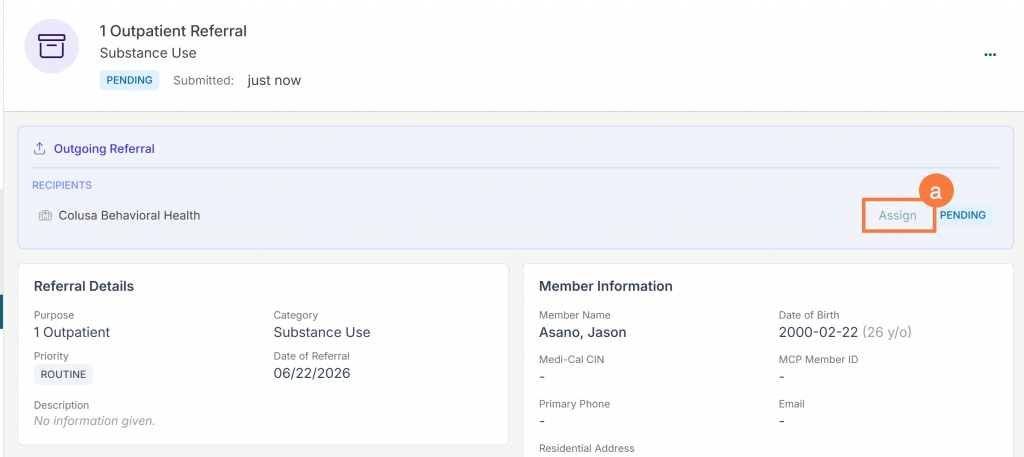
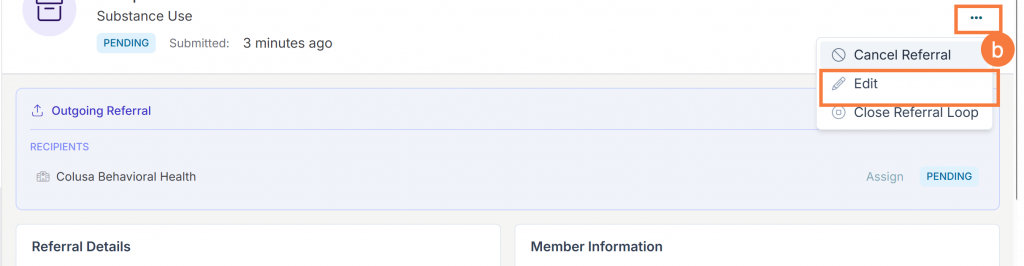
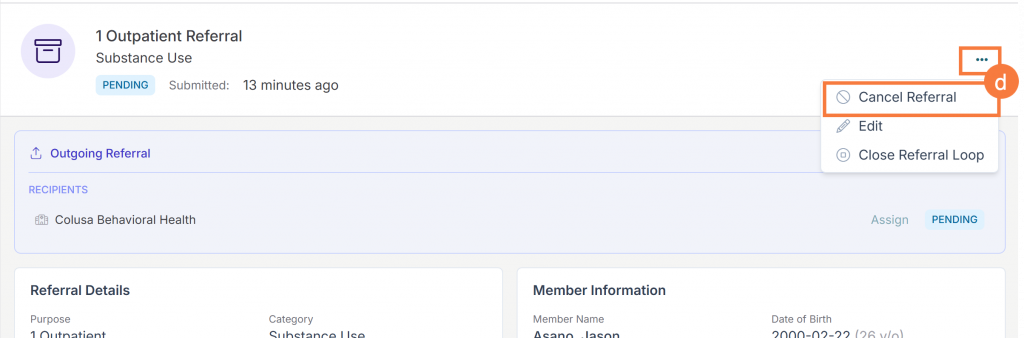
This will bring you to the referral details page. The detail page shows the referral summary, the list of recipients with their status (Pending, Accepted, Declined), and available actions. From this page you can:
Assign a recipient to the referral
Edit the referral (for Draft or pending referrals)
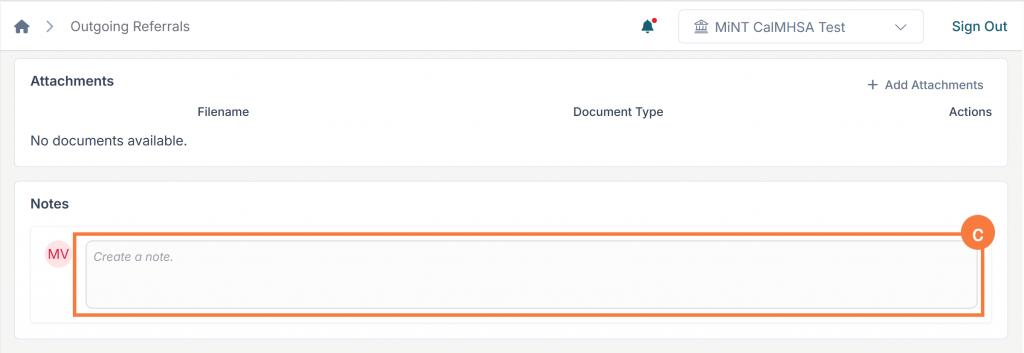
Add additional notes or attachments
Cancel the referral
Incoming Referrals
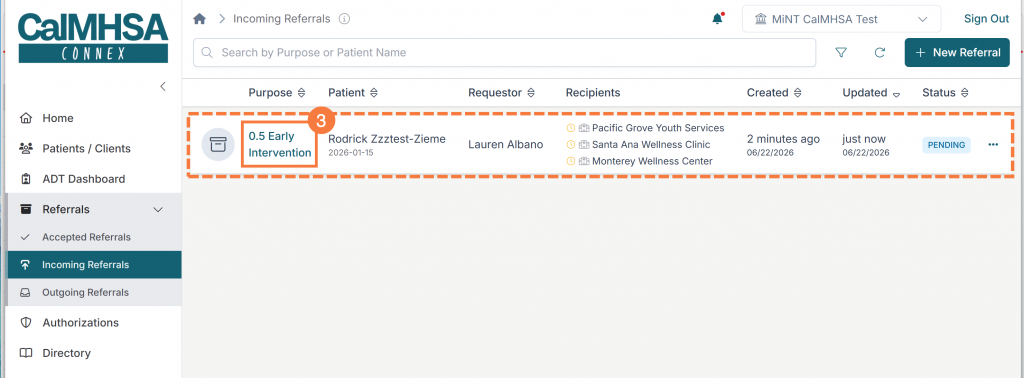
The Incoming Referrals view shows referrals sent to your organization that are pending an acceptance or a decline by your organization. To navigate to the Incoming Referrals screen, follow the steps below:
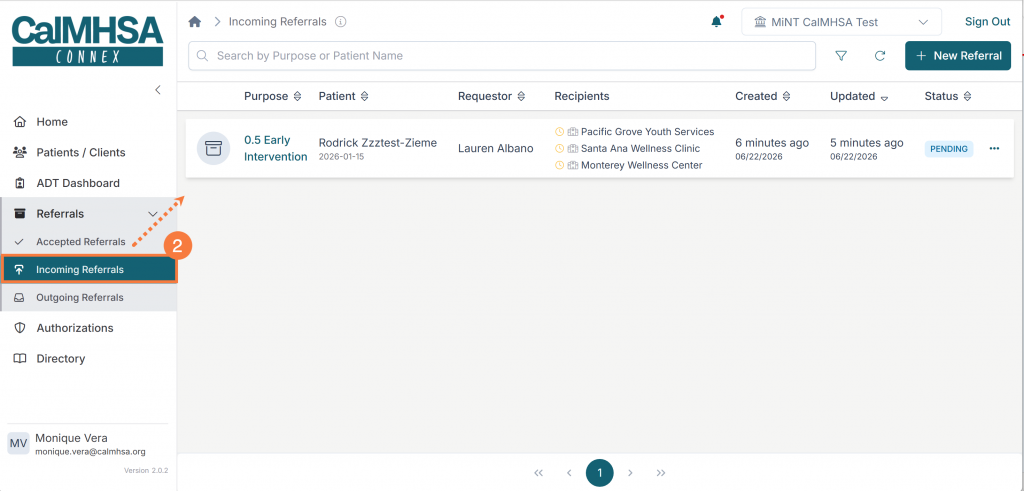
Click the Referrals drop-down from the lefthand navigation menu.
Select Incoming Referrals. The screen will open to the right.
Click the “Purpose” hyperlinked name in the referral card to open the referral.
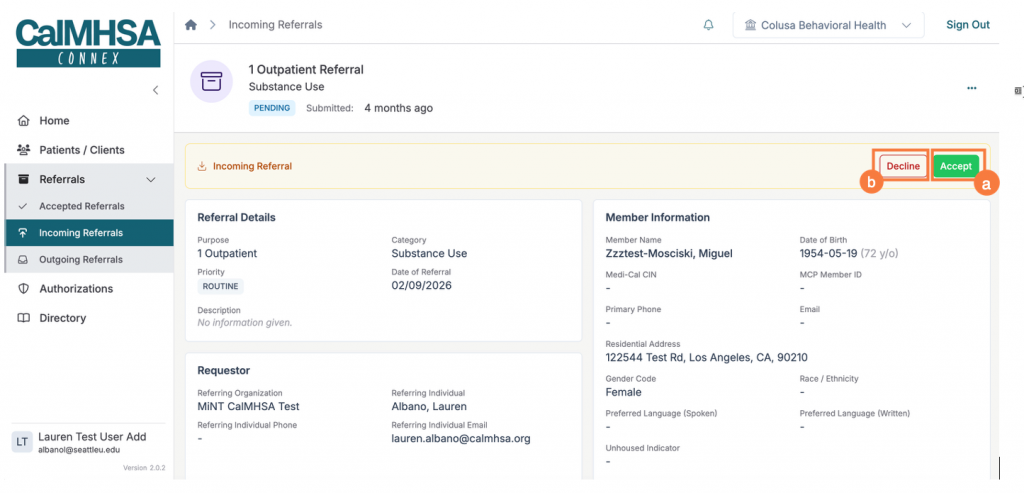
Once the referral opens, you will be presented with the following action buttons:
Accept: Click “Accept” to indicate your organization will service this referral. The referral moves to your Accepted Referrals list.
Decline: Click “Decline” to indicate your organization cannot service this referral.
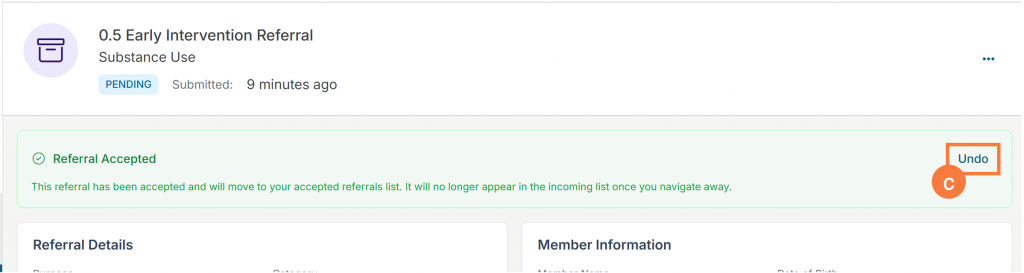
Undo: After accepting or declining, an Undo button appears briefly allowing you to reverse the action before navigating to a different screen.
Available after clicking Accept.
Accepted Referrals
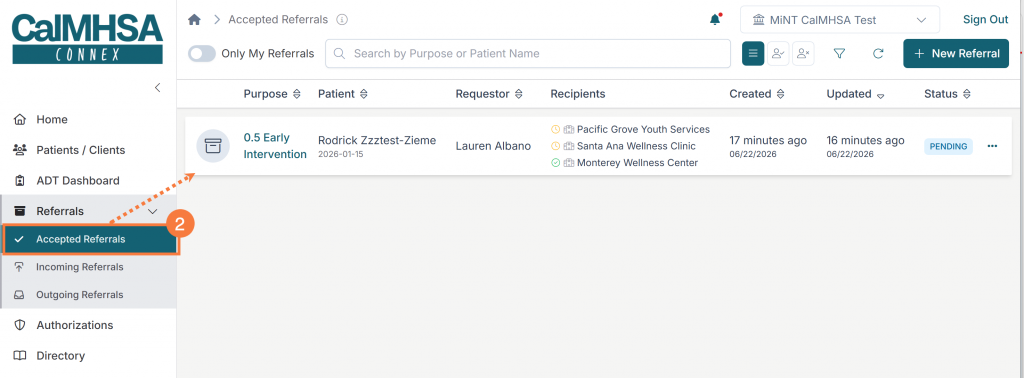
The Accepted Referrals view shows all referrals your organization has accepted. Accepting a referral does not immediately mean servicing should begin — the referral sender must first confirm your organization as the designated recipient in cases where the referral was sent to more than one organization for review. Until that confirmation happens, the referral remains in an unconfirmed state.
To navigate to the Accepted Referrals screen, follow the steps below:
Clickthe Referrals drop-down from the lefthand navigation menu.
Select Accepted Referrals. The screen will open to the right.
Click the “Purpose” hyperlinked name in the referral card to open the referral.
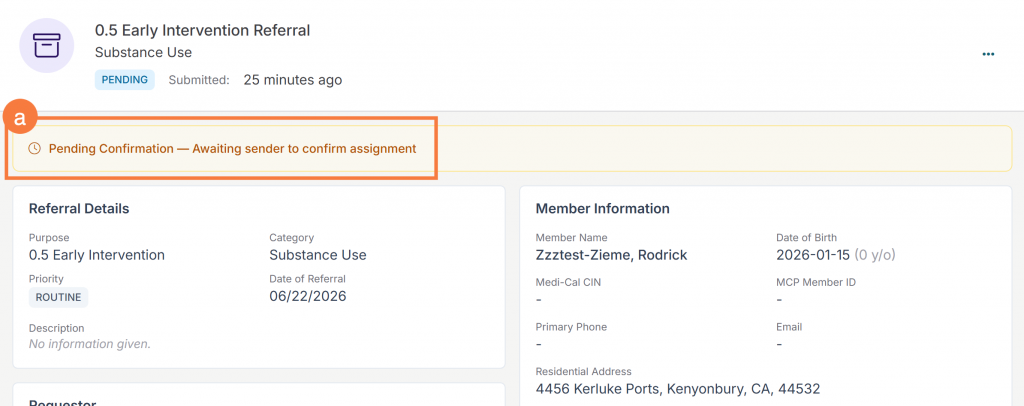
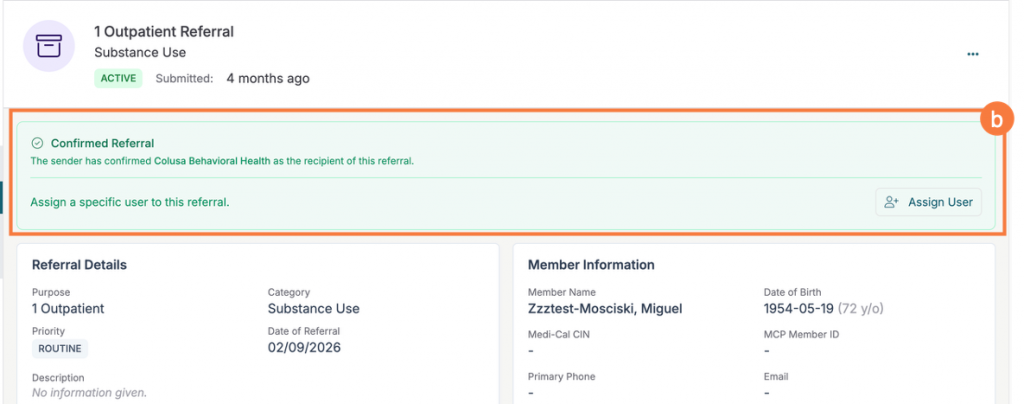
The Referral Details screen will open. Each referral in this view will show one of two states:
Pending Confirmation: Your organization has accepted the referral, but the sender has not yet confirmed the assignment. Servicing should not begin until confirmation is received. The sender may be evaluating multiple recipients before making a final decision.
Confirmed: The sender has confirmed your organization as the servicer. A confirmed referral displays the assigned user and location, and servicing can proceed.
Note: A referral may be sent to multiple recipient organizations simultaneously. The sender reviews which organizations have accepted and then confirms one as the final servicer. Until you see the Confirmed status, the sender may still be deciding
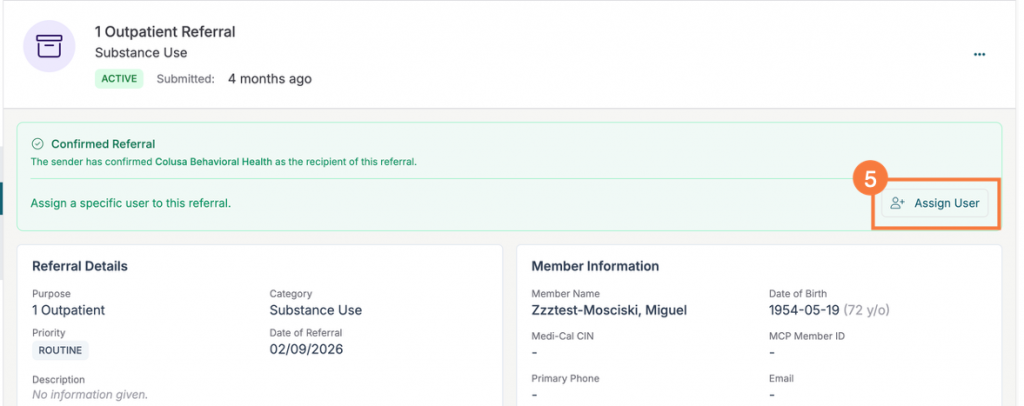
Click Assign User. Once a referral is confirmed, you can assign a specific user within your organization to handle it by clicking the Assign User button and selecting one (or more) users within your organization. These associated users will appear in the “Servicer” box and can be modified at any time.