Shared Treatment Plan
The purpose of this screen is to capture a multidisciplinary plan from different providers caring for a client. It allows for the capture of client’s short and long term goals, progress updates, and responsible team members. It should be used in conjunction with a provider’s individual note if more details are needed than space allocates. This screen is different from SmartCare’s Interdisciplinary Plan and there is no linked data between the two screens.
While it was designed for inpatient scenarios, it can be adapted to also be used in other settings. This screen is client-based, program-based, and CDAG compliant. The screen is set up to allow for multiple authors to revise the same treatment plan, and when signed, a PDF will capture the author of each version.
The defaulted users that have access to this are those with permission to the following roles:
- County Affiliate SysAdmin
- LPHA/Clinician
- Clinician Supervisor
- IP/CSU/Res
- Prescriber
- Medication Rx
- Medical Records/Quality Assurance
- Medical Supervisor
- CalMHSA SysAdmin
- Auditor/Read-Only
- Prescriber IP/CSU/Res
- Contractor, Full Permissions
- Nurse Medical IP/CSU/Res
- Pharmacist
How to Create a New Treatment Plan
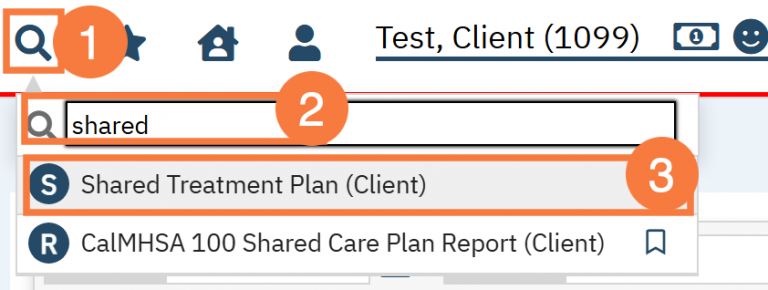
- With the client open, click the search icon.
- Type Shared into the search bar.
- Click to select Shared Treatment Plan (Client).
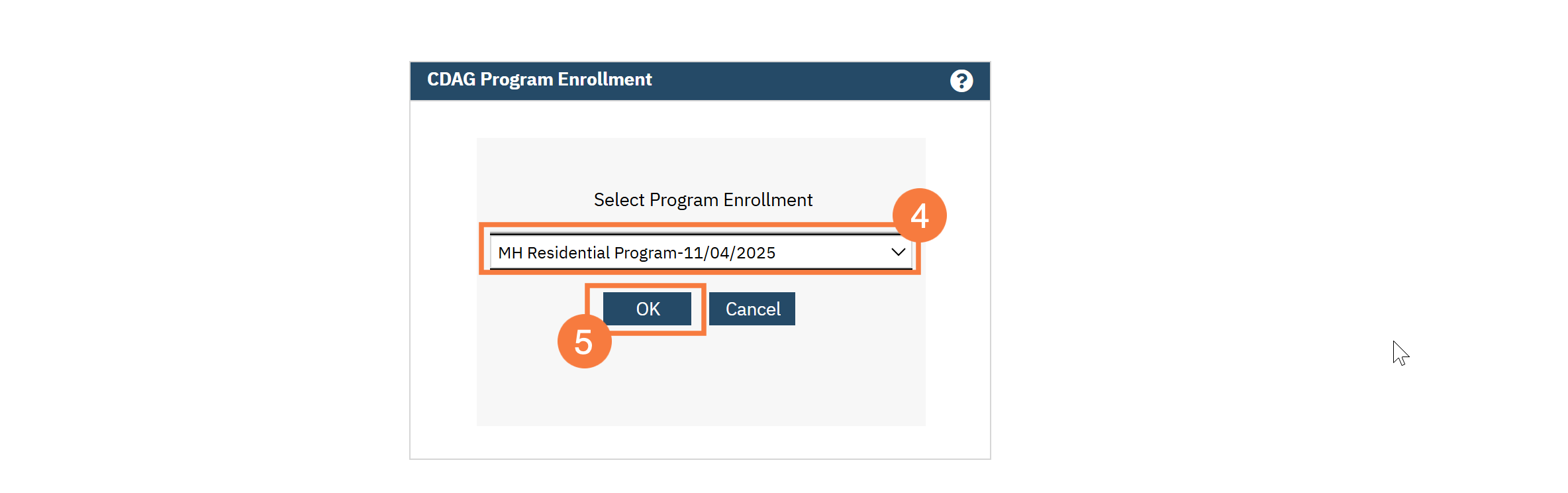
- In the CDAG Program Enrollment window, click the drop-down menu and select the appropriate program.
- Click OK.
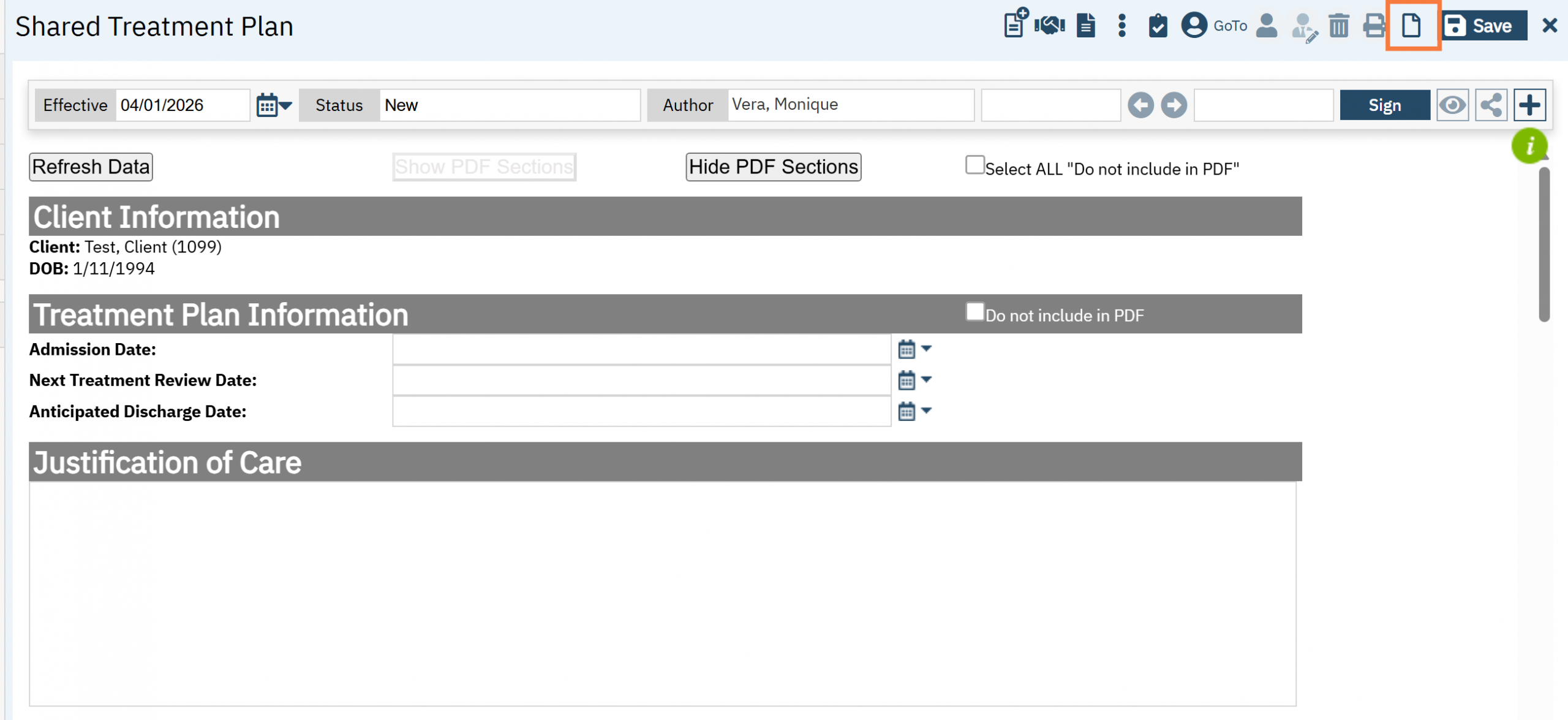
Note: If a Share Treatment Plan does not currently exist, you will be taken directly to the screen to create one. If there is one already on file, click the New icon to create a new one.
Refresh Data and Show/Hide PDF Options
The following options are available at the top of the form:
- Refresh Data: SmartCare should automatically pull in the following data tables, if this does not occur you can do it manually; click the Refresh Data button. Data tables include: Current Client Orders, Current Medications, Current Self-Reported Medications, Current Provider’s Psych/Medical Note Assessment, Active Diagnoses, and Active Problems.
- Show PDF/Hide PDF Sections: has the following functionality:
- This functionality was created to allow you to select only the sections relevant to the note and maintain a preview of information that may be historically important. This is done with the goal to avoid “chart bloat.”
- If “Do not include in PDF” is selected for a specific section, then that data will not show up on the signed PDF. If you would like to preview the note, click on “Hide PDF Sections.” If you would like to view all sections, then click “Show PDF Sections. There is a checkbox called “Select ALL Do Not Include in PDF/Delete from the Note” which will allow removal of all sections except for the required sections “Subjective/CC/HPI/Notes” and “Assessment and Plan.”
- Important: If “Do not include in PDF” is selected, then those sections will NOT save once signed. If saving is desired, then you MUST REMEMBER to remove the checkmark. Checkmarks will be retained for subsequent versions but not new documents.

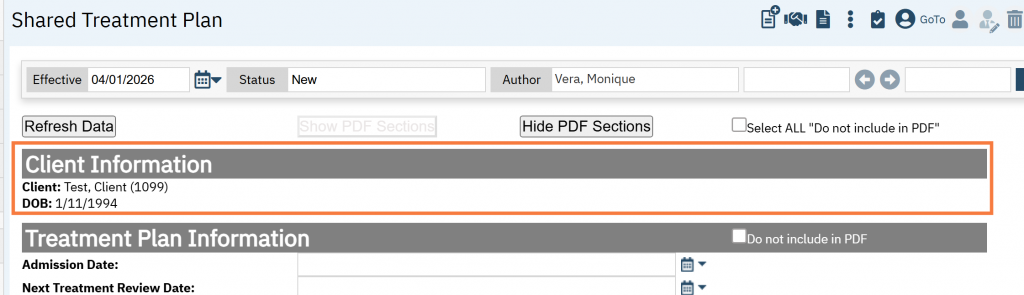
Client Information
This section displays the Client Name and ID, Date of Birth (DOB) and Program.
Treatment Plan Information
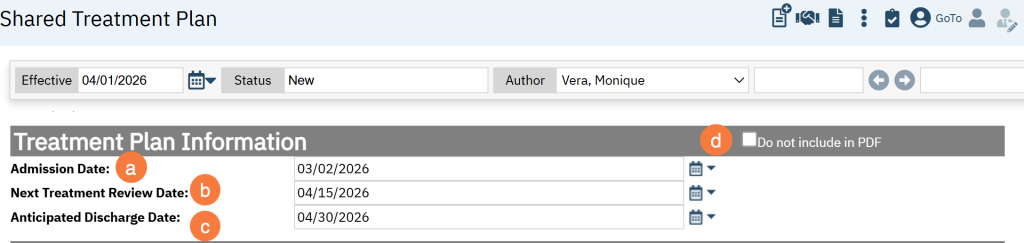
Click the Calendar icon to add the following information:
- Admission Date
- Next Treatment Review Date
- Anticipated Discharge Date
- You can choose whether to include in the PDF.
Justification of Care
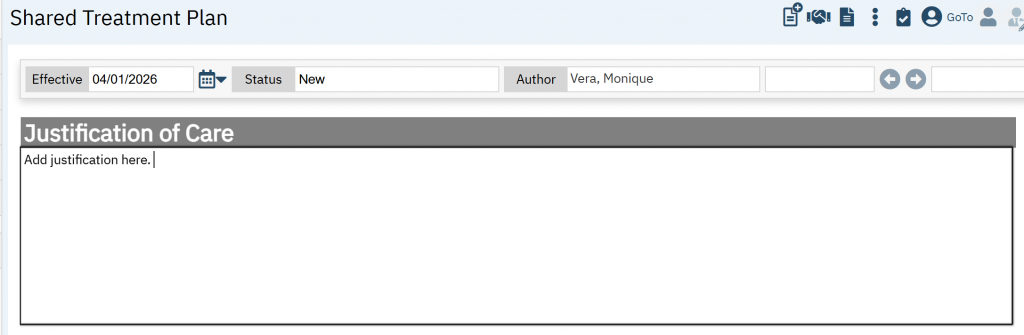
This is a free text field for you to document the reason for level of care and/or services, if needed.
Current Client Orders, Current Medications, and Current Self-Reported Medications
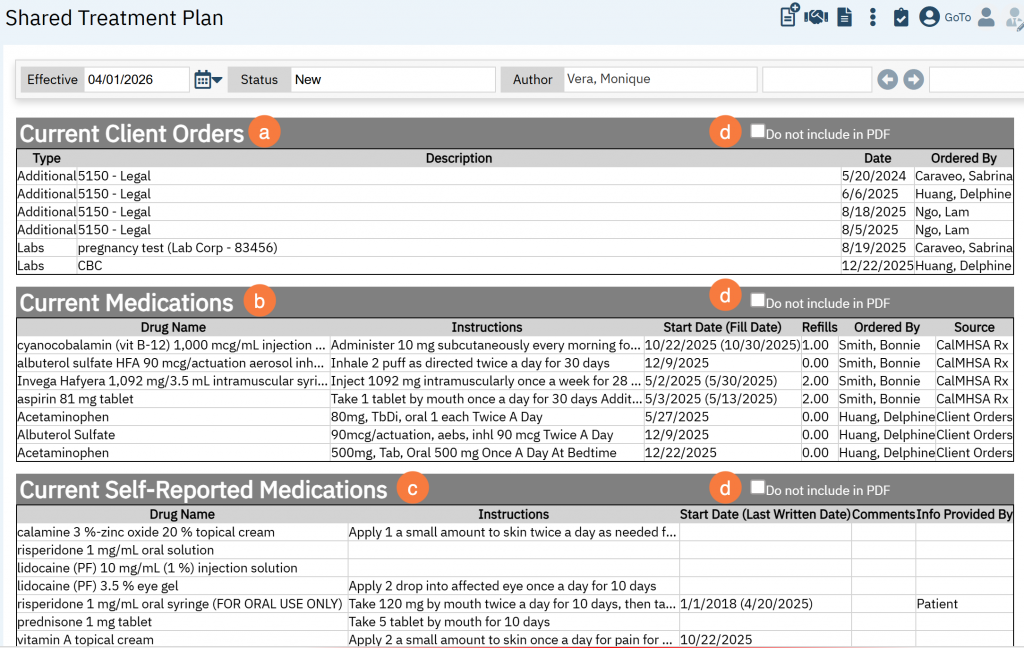
The next three sections pull in the client’s active:
- Client Orders
- Current Medications (from sources of CalMHSA Rx, Medication Rx, and Client Orders)
- Current Self-Reported Medications (from CalMHSA Rx and Medication Rx).
- All sections include a “Do not include in PDF” checkbocx
Note: This is NOT program dependent and therefore will pull in active information that available from those sources.
Current Provider’s Psych/Medical Note Assessment Plan
In this section, we have made an effort to reduce duplicative documentation by pulling in the Assessment and Plan section from the last Psych/Medical Note template. In order to do this, when you are completing the Psych/Medical Note, be sure to click the “Add to Shared Care Plan” checkbox.
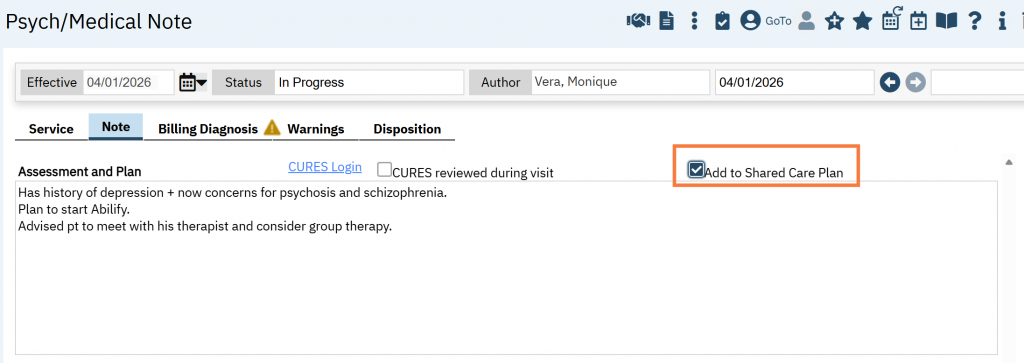
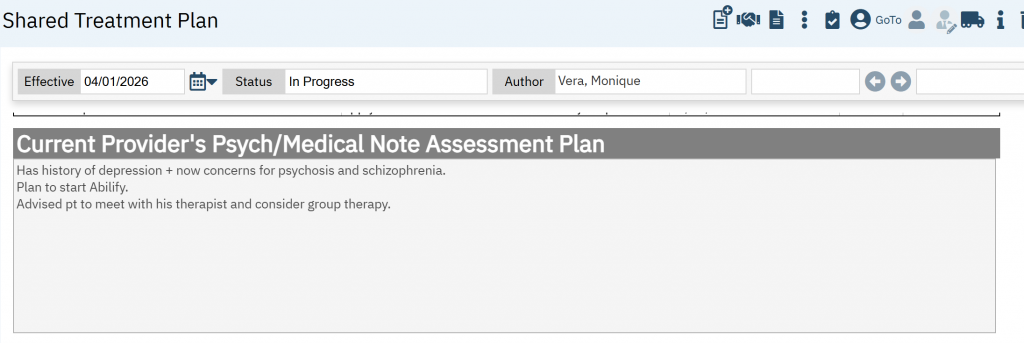
This will display in the Shared Treatment Plan as a non-editable field.
Active Diagnoses and Active Problems
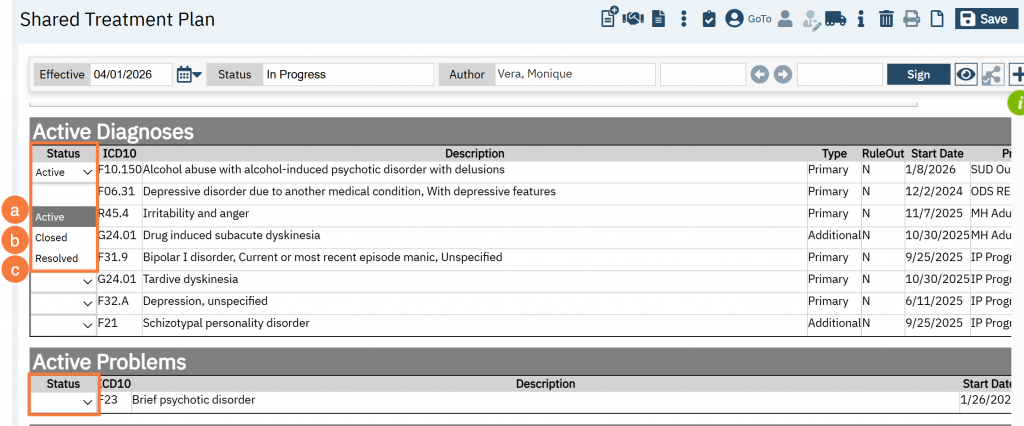
The Active Diagnoses information comes from the Diagnosis Document and the Active Problems information comes from Client Problem List.
Note: To add, modify or remove a diagnosis/problem, you will need to go back to the corresponding screens.
Both the Diagnoses and Problems have a drop down menu with 3 options:
- Active: This indicates an active problem that is being worked on. Note: This will auto-create a “Goals and Plan” section with a “Description” and “Long-term Goal(s)” textboxes. (see next section, Goals and Plan)
- Closed: This is an administrative status indicating the treatment plan is updated, finalized, or the client is discharged, which may occur when a problem is deferred, or no longer the focus of care. Note: This will auto hide its associated plan and goals.
- Resolved: Use this status to indicate a problem is resolved, with goals met and symptoms managed or eliminated. Note: This will auto hide its associated plan and goals.
Goals and Plans
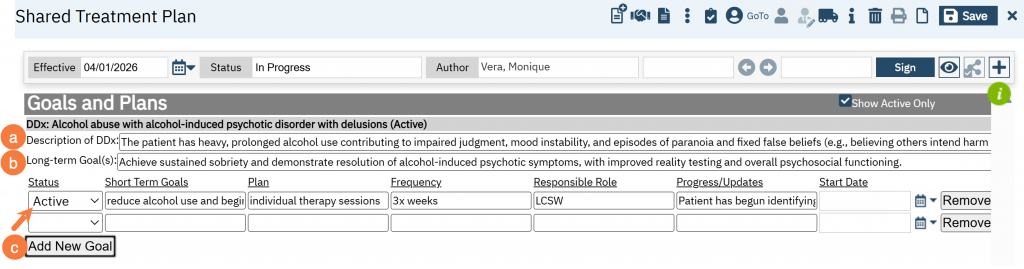
By selecting a status of “Active” in the Active Diagnoses or Active Problems section, it will create auto create a corresponding goal and plan for each active status. To add a goal and plan
- Add a description of the Diagnosis/Problem.
- Add a long term goal(s).
- To add short term goals, click Add New Goal.
- Select a Status (Active, Close, Resolved). Note: Selecting “Closed” or “Active” does not automatically update the associated Problem/Dx. You will still need to manually update it above.
- Enter a short term goal
- Plan
- Frequency
- Responsible Role
- Progress/Updates
- Start Date
- Remove, if needed. Note: Once it has been removed, you can re-add the data.
These statuses do not affect the original source statuses (such as the Diagnosis Document or Client Problem List); they apply only within the Shared Treatment Plan.
Any updates made to the original source will automatically be reflected in the Shared Treatment Plan screen. This means that if an ICD-10 code tied to a diagnosis or problem is removed from its original source, the associated Goals and Plans will no longer be available for editing. They will only remain accessible in the PDF version.
Important:
If you want the data to be retained in the PDF, set the goal status to “Closed” or “Resolved.” Then, uncheck the “Show Active Only” option and sign the treatment plan. This ensures the information appears in the PDF. Otherwise, the data will no longer display.
Be sure to complete these steps before removing the ICD-10 code from the Diagnosis Document or Problem List.
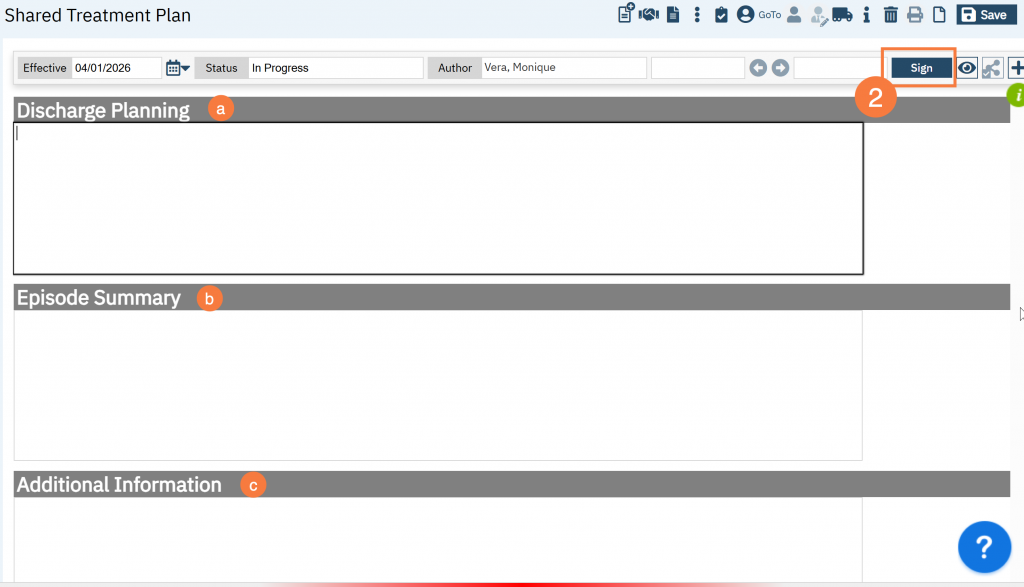
Discharge Planning, Episode Summary, and Additional Information
- The following boxes are free text fields:
- Discharge Planning: Use to add relevant discharge planning.
- Episode Summary: Use to add relevant information about visit episodes.
- Additional Information: Use to add any additional information.
- Click Sign when completed.
- Add co-signer if needed.
How to Update a Shared Treatment Plan
Note: Multiple authors are able to revise the same treatment plan.
- Open Shared Treatment Plan, it will open the most recent version. Click the Edit icon.
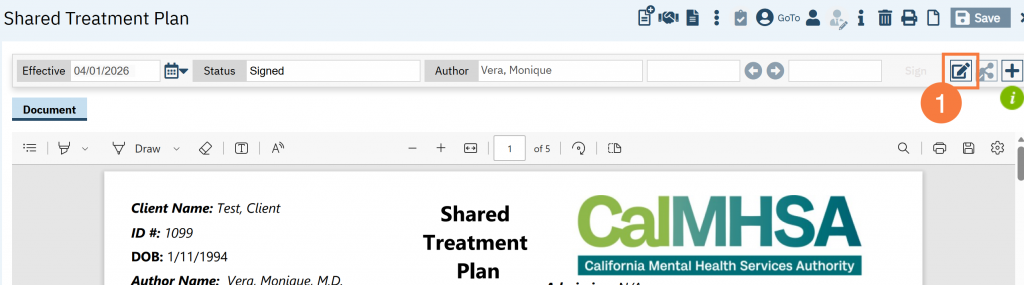
- In the Confirmation Message pop-up, it will ask you to confirm you want to create a new version, click OK.

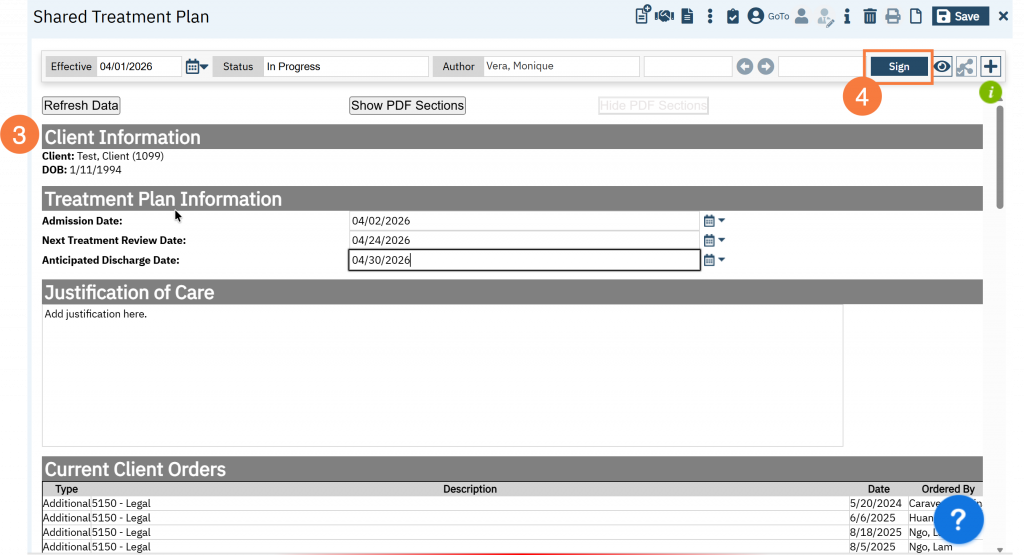
- Make any edits necessary.
- Please note that it will only initialize the textbox sections to this new version. The tables (eg current medications, orders, diagnoses, problems) will be pulling data from their associated primary source each time the page is loaded.
- Click Sign.
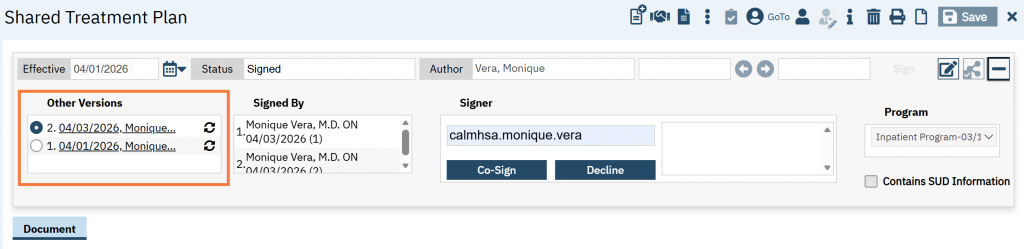
Note: It will always default to display the most recent version, but you can view historical versions of the same treatment plan of the screen, this can be found “Other Versions”.