Overview
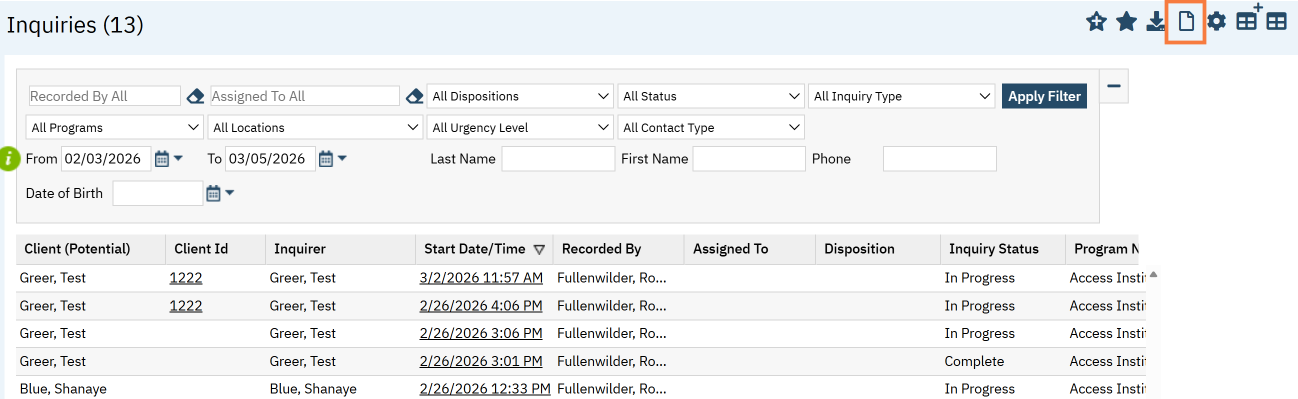
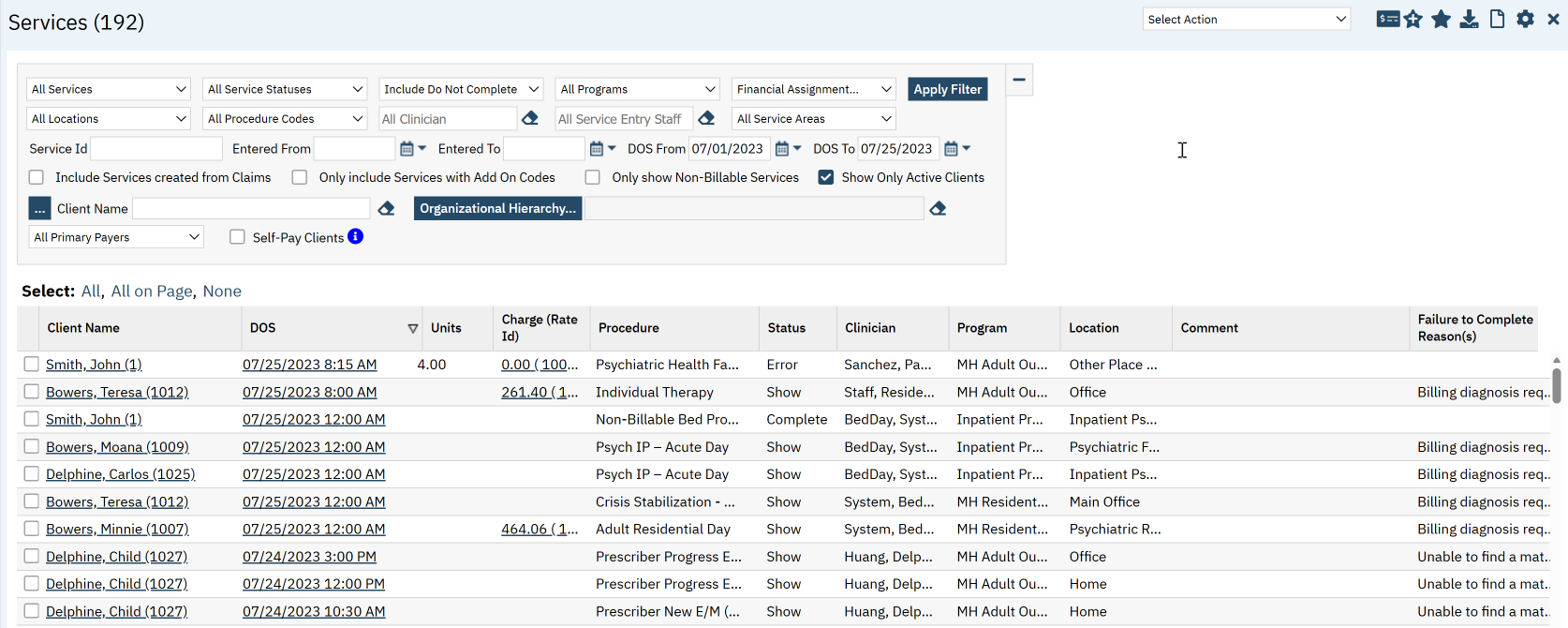
SmartCare uses List Pages to display and manage records throughout the system. List pages present information in a table format where each row represents a record and each column displays information related to that record. List Pages follow Clinical Data Access Group (CDAG) rules so you will only see records within your CDAG.
List pages allow you to:
- Locate records quickly
- Review information across multiple records
- Sort and filter data
- Open existing records
- Create new records
List pages are used across SmartCare for aggregating data in one place for items such as:
- Clients
- Appointments
- Services
- Programs
- Documents
- Inquiries
- Billing Tasks
Understanding how list pages work will help you navigate SmartCare more efficiently.
Types of List Pages
Many SmartCare list pages appear in two formats:
(My Office)
(Client)
These versions determine which records are visible in the list.
(My Office) List Pages
-List pages labeled (My Office) display records across the system or within programs the user has access to.
-These list pages are commonly used to view multiple clients or system-wide records.
-Examples include:
- Inquiries (My Office)
- Appointments (My Office)
- Services (My Office)
- Documents (My Office)
- Programs (My Office)
(Client) List Pages
-List pages labeled (Client) display records associated with the currently selected client.
-Before accessing these pages, a client must be selected in SmartCare.
-Examples include:
- Client Documents (Client)
- Client Services (Client)
- Client Inquiries (Client)
- Client Authorizations (Client)
Navigating to a List Page
To open a list page:
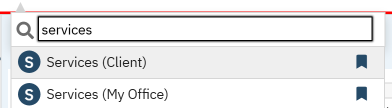
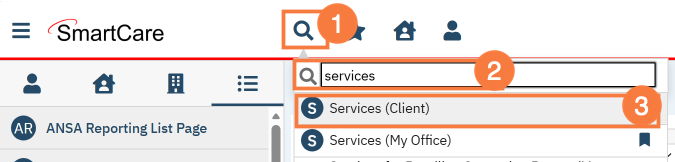
Click the Search icon with the client open if applicable.
In the Search Bar type the name of the list page.
Select the list page from the results.
Number of Records on the List Page
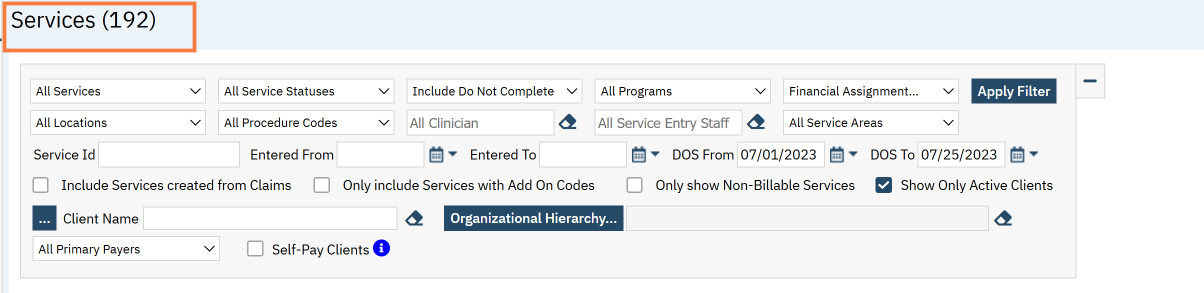
When you open a list page, to the right of the title of the list page will display the total number of records in parenthesis.
List Page Filters
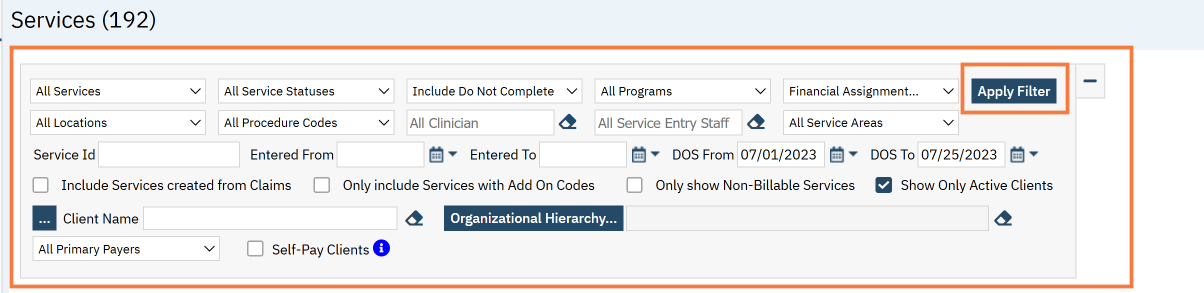
Filters allow users to narrow the list of displayed records. Filters on the list page could include check boxes, free text fields, drop-down menus, and radio buttons. Filters are unique to each list page but some common filter options include:
Date range
Client
Program
Status
Clinician
Using filters helps you quickly locate the information you need by clicking Apply Filter.
List Page Columns
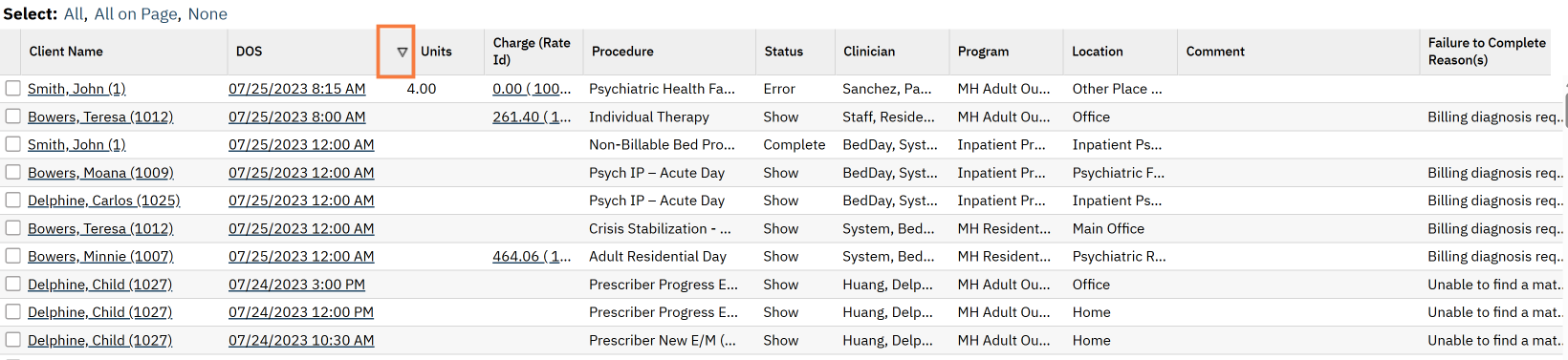
List pages display key information in columns so users can review records without opening each one. These columns provide a quick overview of records within the system. Some columns are sotable. You can click a column header to sort records by that field.
Columns vary depending on the type of list page but may include:
Client Name
Client ID
Date
Status
Program
Opening Records
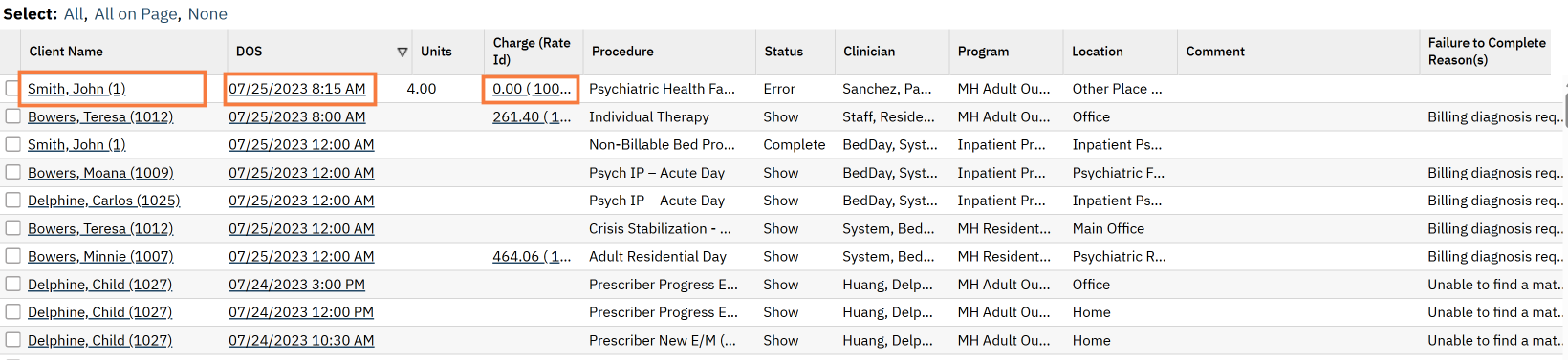
Records can be opened directly from the list page.
Users can click the hyperlinked field within a row to open the record.
Examples include:
Clicking a Client Name will open the client information screen
Clicking a Date of Service to open a service note
Clicking a Document Name to open a document
Creating New Records
Many list pages allow you to create new records directly from the list.
To create a new record:
Click the New icon
Enter the required information
Click Save
For example, a new inquiry can be created from the Inquiries (My Office) list page.