Overview
The ASCMI, or “Authorization to Share Confidential Member Information”, acts as a multi-provider authorization to release information document. This form was developed by the California Department of Health Care Services (DHCS) to improve the coordination between agencies and providers that work with Medi-Cal beneficiaries. This form is part of a larger project where DHCS can manage these releases so providers newly working with a beneficiary can search to see if an ASCMI is on file for the beneficiary, and if so, what type of information the beneficiary is ok with providers sharing amongst themselves.
The ASCMI meets all requirements to act as an authorization to release information, otherwise known as a Release of Information (ROI), for both HIPAA and 42 CFR Part 2. Medi-Cal beneficiaries should complete the ASCMI, even if they choose to not share any information. That way, a new provider can find this record on DHCS’s database and see that an ASCMI is on file and to NOT share any of the client’s information.
For additional information including recorded trainings, click here.
How to Complete the ASCMI
CalMHSA recreated the DHCS ASCMI form in SmartCare. Follow the steps below to create an ASCMI in SmartCare. This is a document you should fill out with the client, as all responses are based on the client’s wishes.
- With the client open, open the ASCMI document.
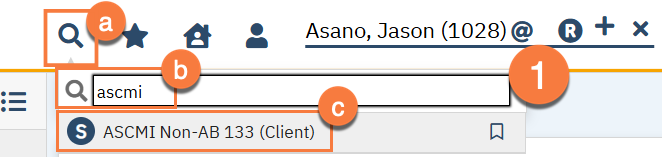
- With the client open, click on the Search icon.
- Type “ASCMI” into the search bar.
- Click to select “ASCMI Non-AB 133 (Client)” from the search results.
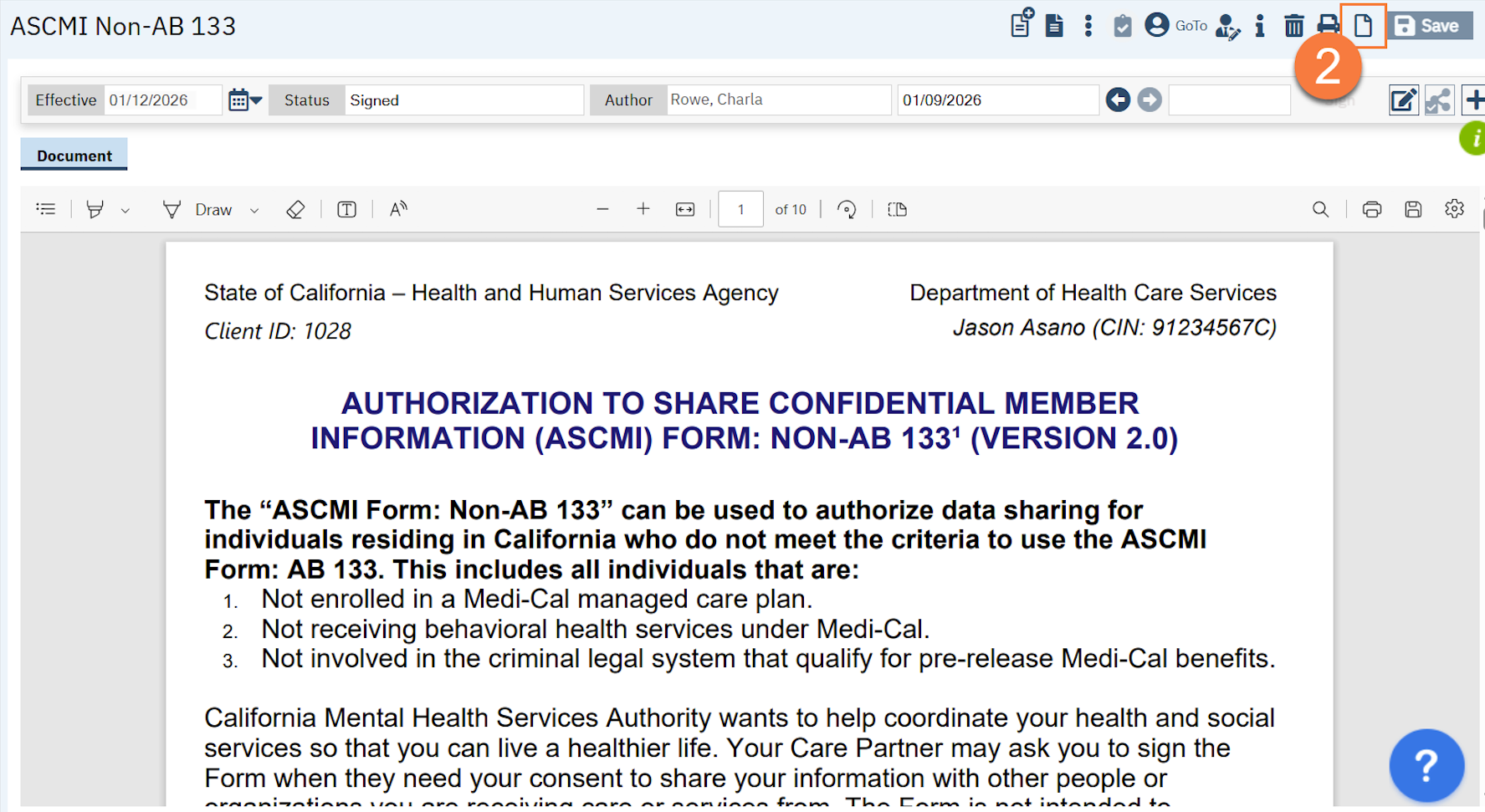
- If an ASCMI document already exists for this client, the system will show you the existing document. Click the New icon to create a new ASCMI. If there isn’t an ASCMI document for this client, the system will skip this step.
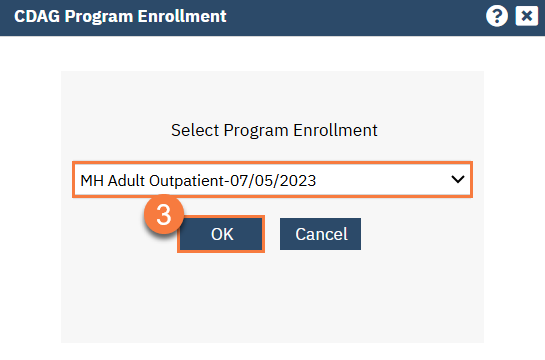
- This will bring up a CDAG Program Enrollment popup window. Select your program from the list and click OK.
- This will bring you to a blank ASCMI document. You’ll see an Organization Name field with the county’s agency name auto filled. Do not make changes to this field, unless instructed by your county otherwise. This field will be used throughout the ASCMI document. Begin to review the ASCMI document with the client, and answer any questions they may have.
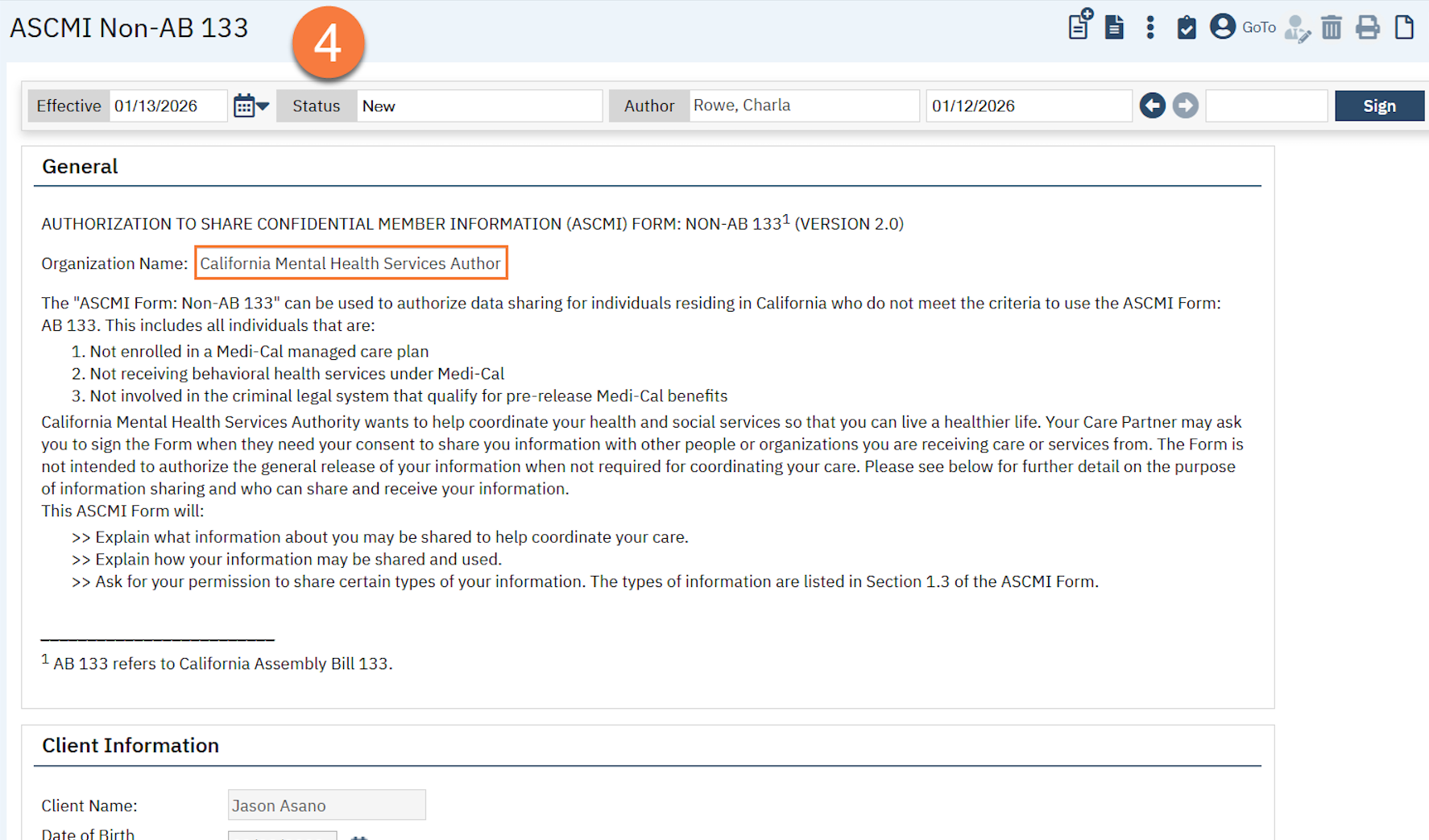
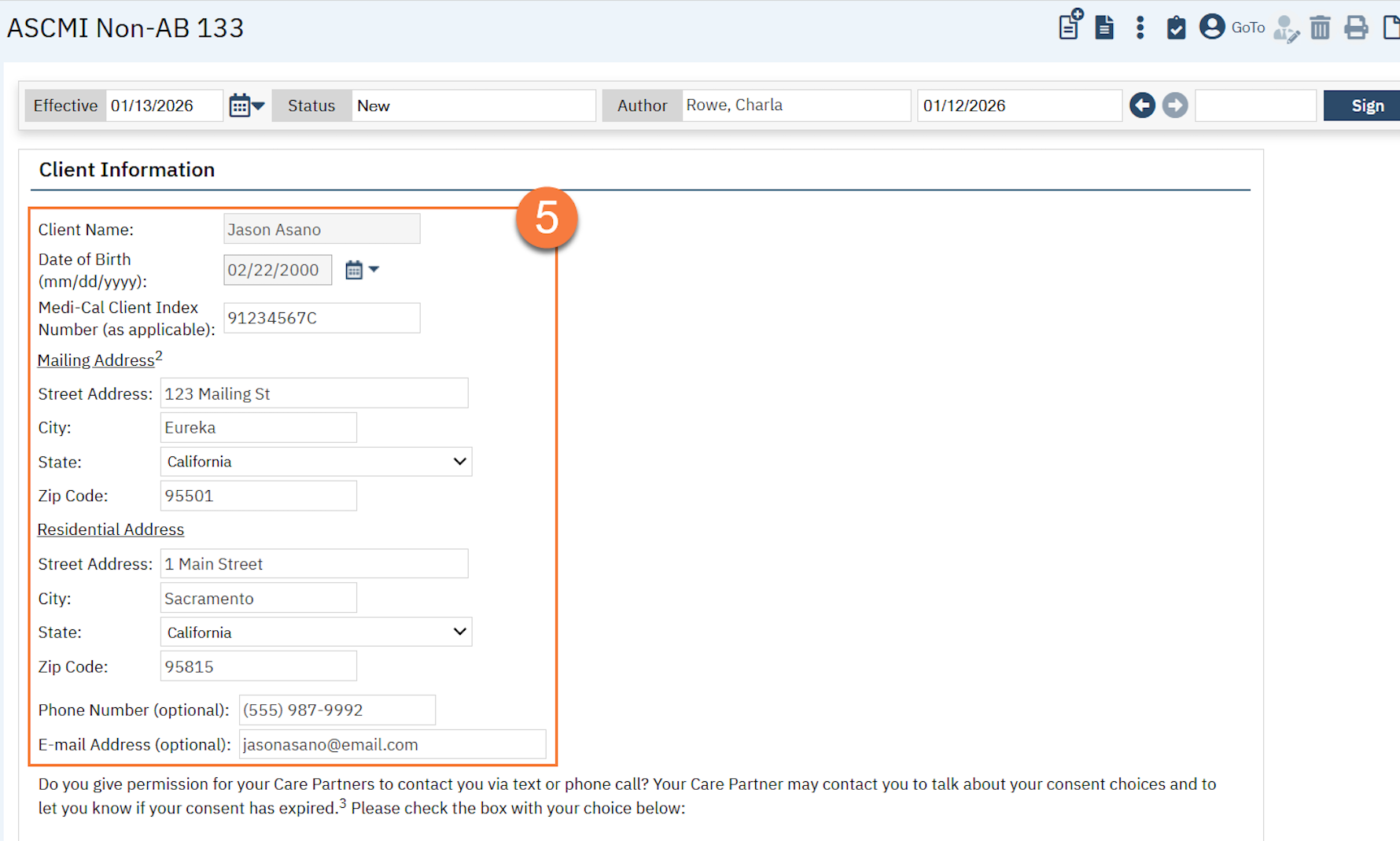
- The Client Information section will auto fill from the Client Information screen and the Coverage screen. If required information is missing, it may be best to navigate to the Client Information screen. You can enter information directly into the ASCMI if needed. Make sure all required fields are completed and accurate.
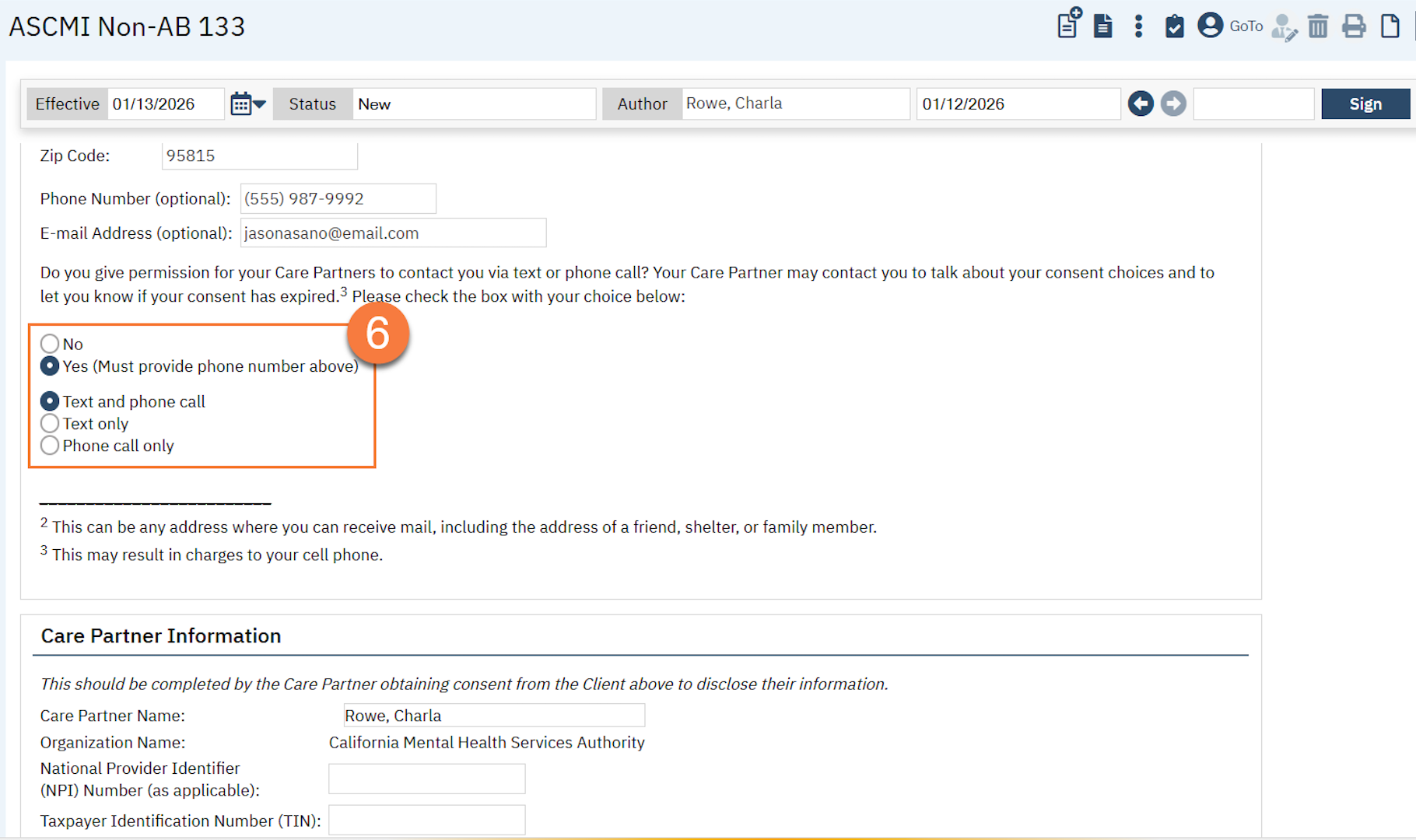
- In the Client Information section, there is a question for the client about whether they give permission to be contacted via text or phone call. Select either Yes or No based on the client’s wishes. If the client indicates “Yes”, then an additional question will show, asking for the type of communication allowed. Indicate the client’s selection again.
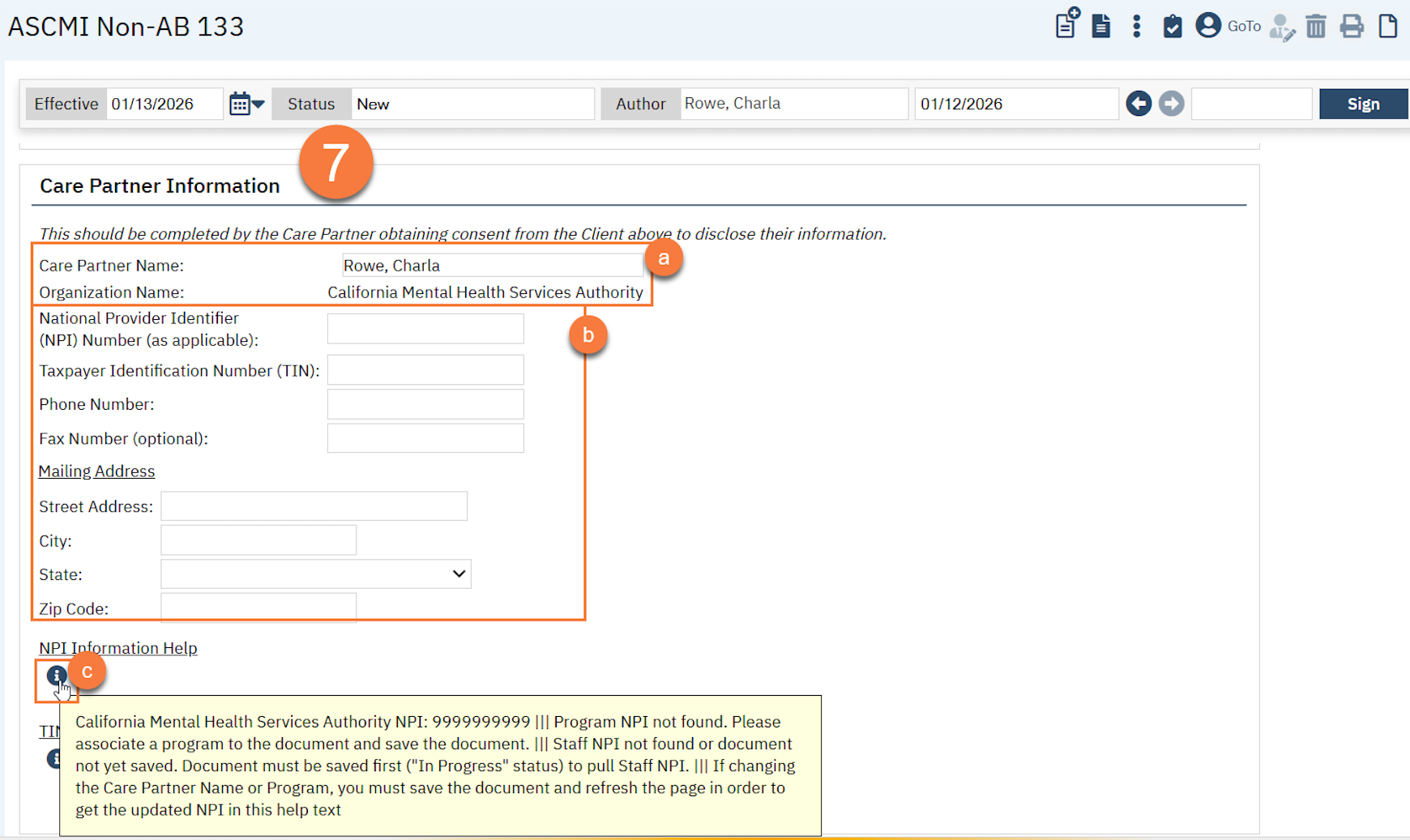
- Complete the Care Partner Information section.
- Your name will auto fill as the Care Partner Name and the Organization Name will auto fill from the field in step 4 above. You don’t need to change anything here.
- There are different interpretations about what information should be entered in the rest of the fields. Some feel that the specific person’s information (aka your information) should be entered here. Others feel that the organization’s information (aka the county or the agency provider) should be entered here. Enter the appropriate information based on your agency’s guidance.
- The NPI and TIN are optional fields, however we have some helpful tips to help you fill out this section below:
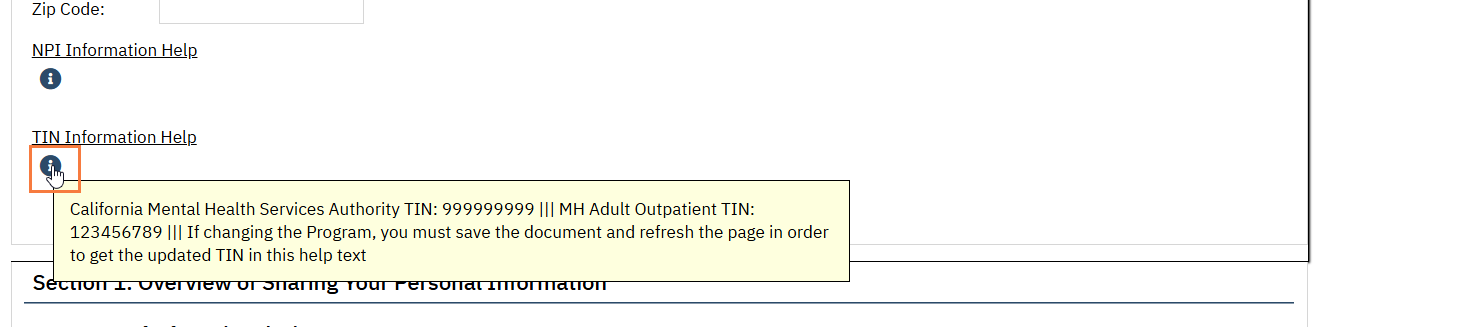
- If you hover over the NPI Information help, you’ll see some information from a few different places in SmartCare. The County’s NPI will show up (pulled from the Agency Table), as will the NPI associated with the Program you selected in step 3 above (from the Programs Table), and your NPI (from the Staff Users Table). If the Program NPI isn’t found, Save the document and re-hover.
Hovering over the TIN Information Help will do the same for TIN, though most users don’t have a TIN (only agencies do).
- TIN is an optional field to complete, as noted above in step 7c.
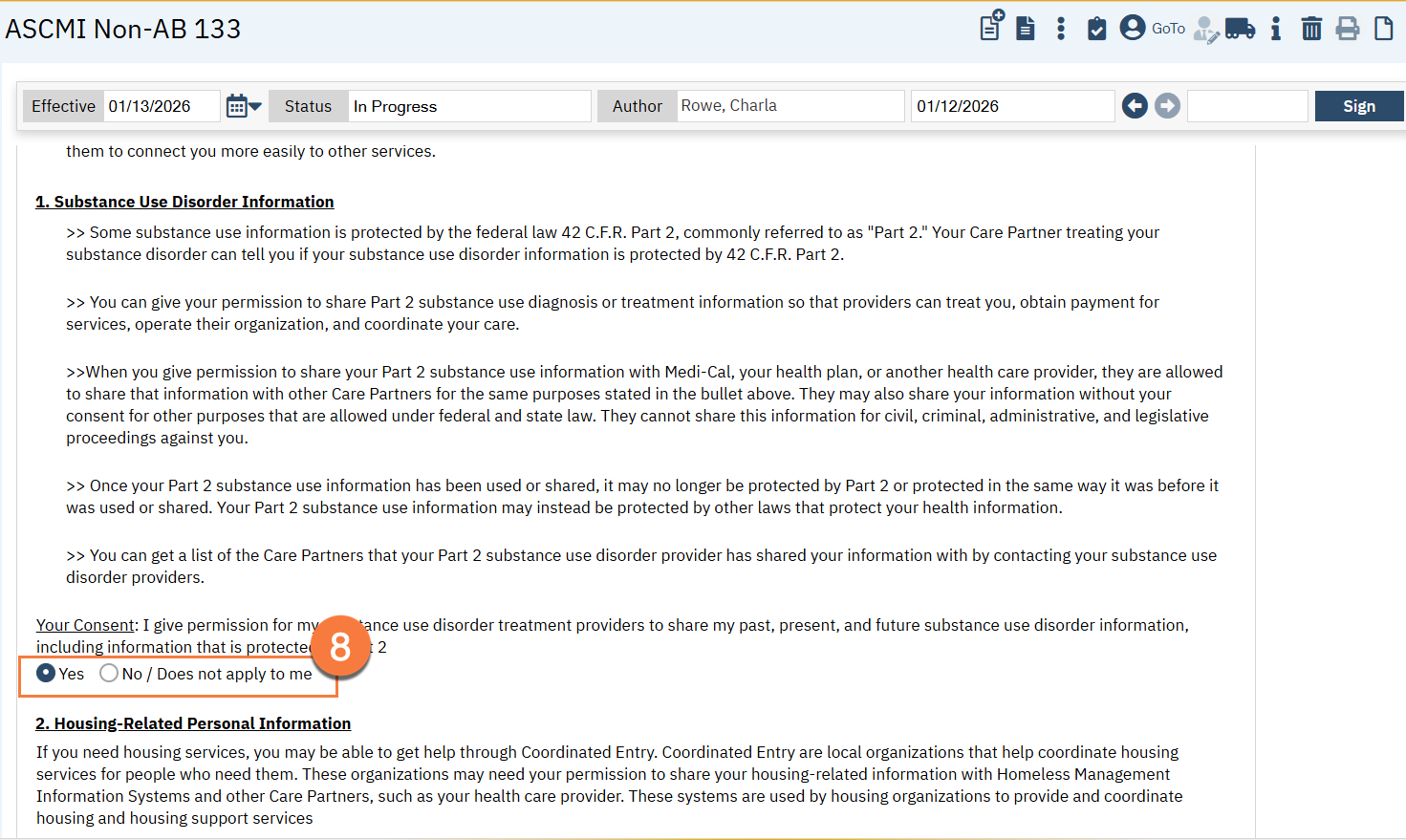
- Continue to review the ASCMI with the client. Under Section 2, indicate the client’s responses to the different types of information that requires authorization to be shared. Select either “Yes” or “No / Does not apply to me” for all 6 information types.
- Please note that if the client indicates “Yes” for “1. Substance Use Disorder Information”, this will deactivate CDAG rules for this client. This will only occur once the client has signed the document. No other information types will impact SmartCare functionality.
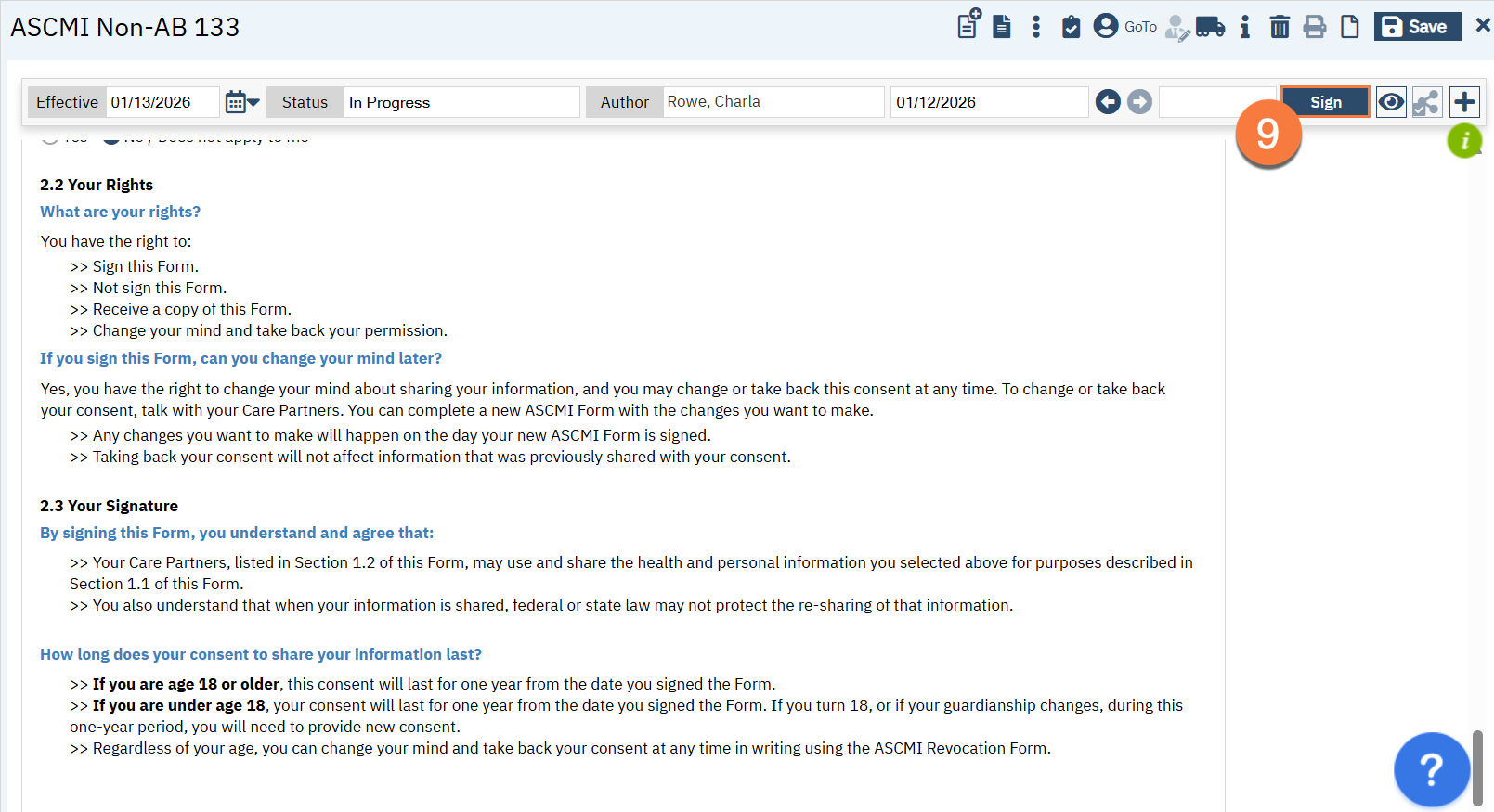
- Finish reviewing the ASCMI with the client. Click Sign to create the PDF.
- Have the client sign the document. Note: This document is not considered complete until the client signs. Any SmartCare functionality will only change once the client has signed the document.
- Click the Plus icon on the document ribbon to expand it.
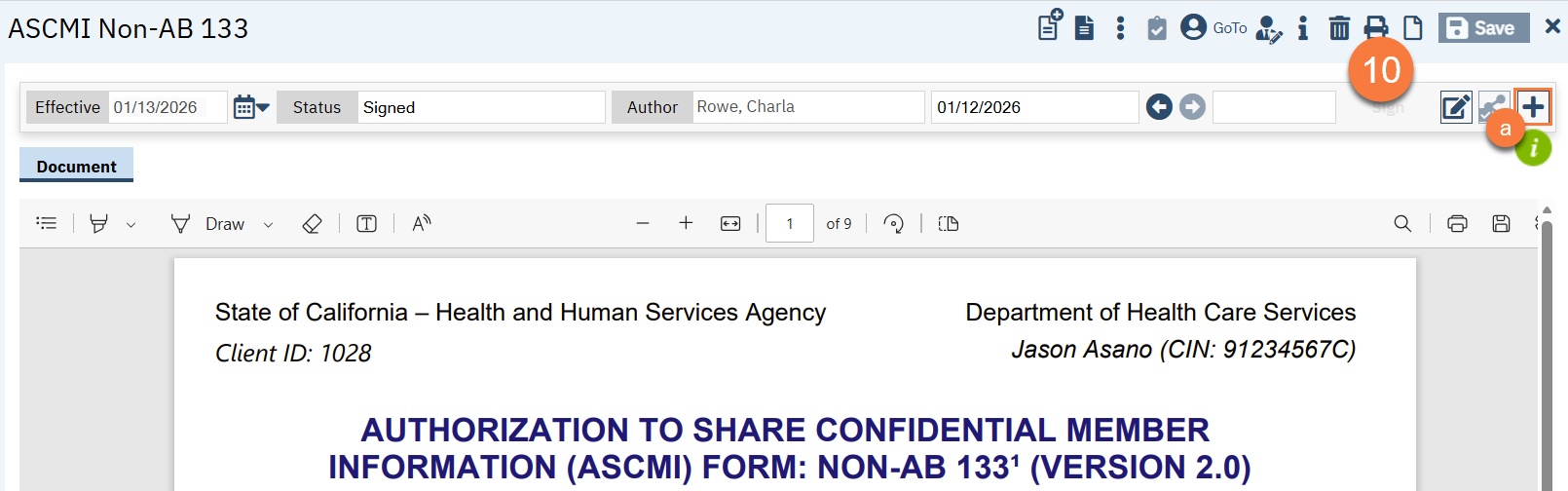
- Select the client in the Signer section and click Co-Sign.
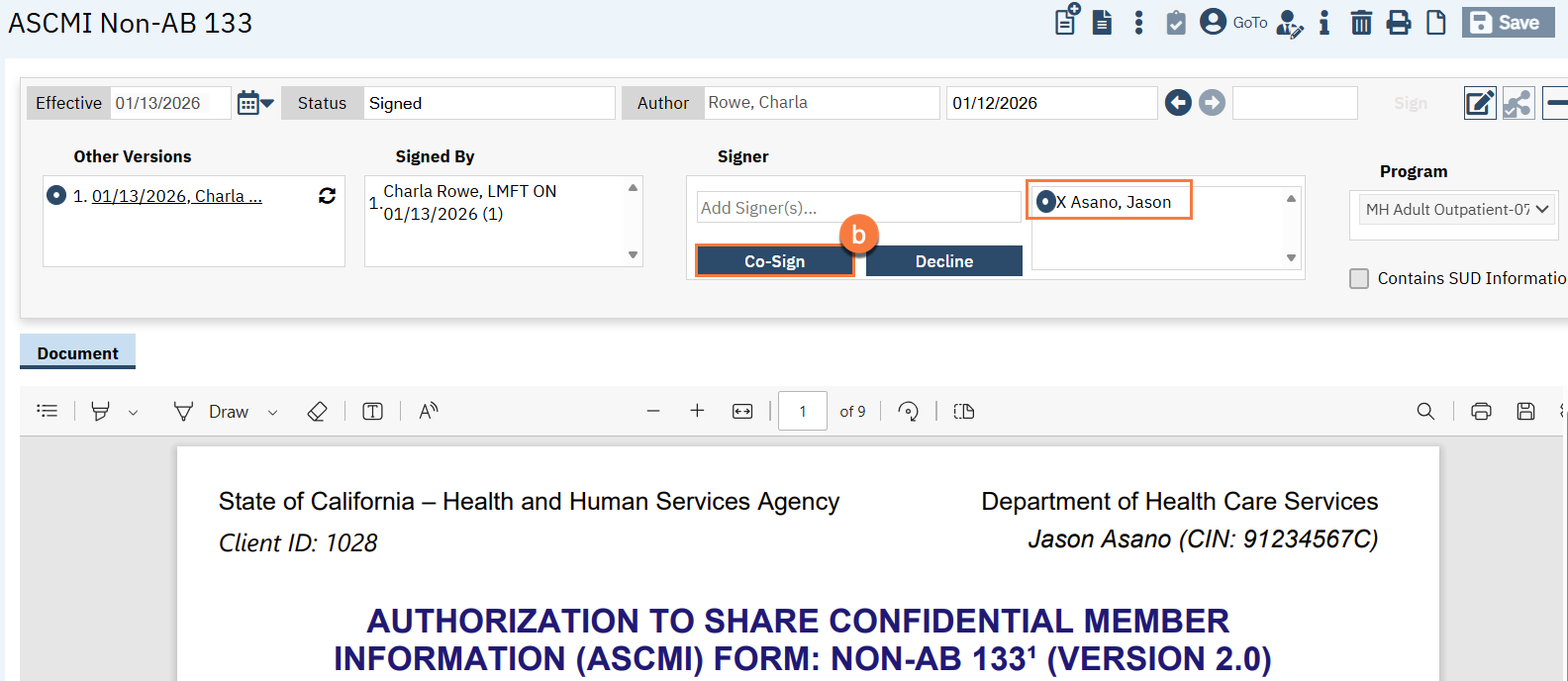
-
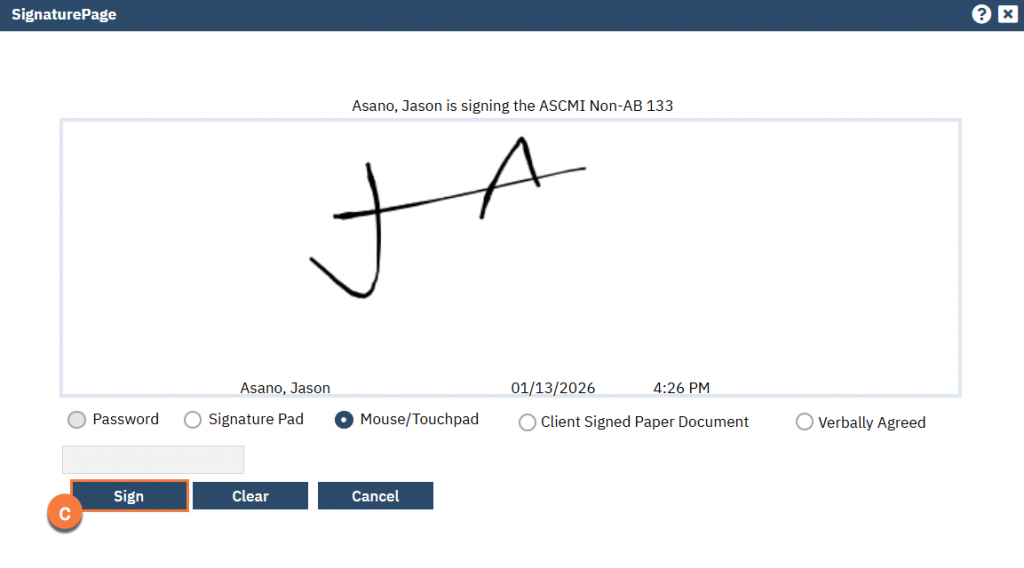
- This will bring up the Signature pop up. Have the client sign using a signature pad or a mouse/touchpad. Verbal agreement should not be used for this type of document. Click Sign to capture the signature.