Setup for Declining to Co-Sign Functionality
- To allow users to document why they are declining to sign a document, change the “ShowSignatureDeclinePopup” to “Y”. This is used for co-signing and reviewing.
- Global Code Category “DocSignDeclineReason” manages the reasons the user may select when declining to co-sign/review sign. Counties may add to this code and/or deactivate current options
Setup for Reviewer Functionality
- To set up a document to require a specific license type, navigate to the Document Management list page.
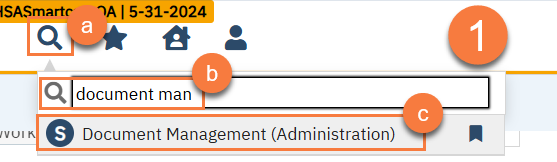
- Click on the Search icon.
- Type in “Document Management” in the search bar
- Click to select “Document Management (Administration)” from the search results.
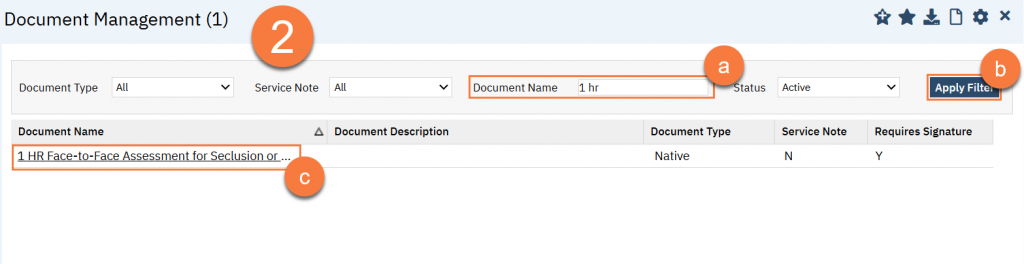
- Find the document in question and click to get into the Document Code Details screen.
- Type in the document name.
- Click “Apply Filter”
- Find the document in the results and click on the link in the “Document Name” column.
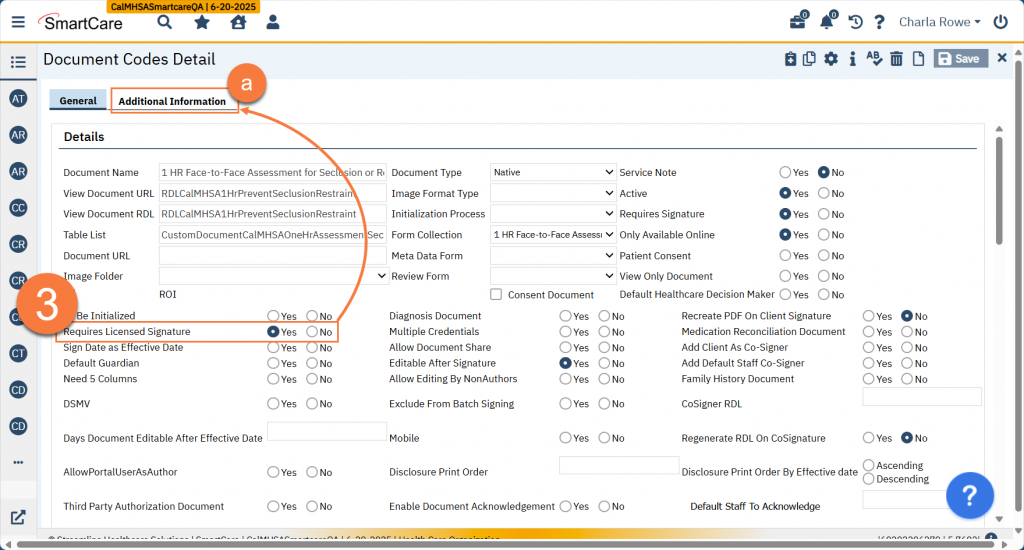
- Find the “Requires Licensed Signature” rule and select “Yes”.
- This will make a new tab, “Additional Information”, visible. Click on this tab.
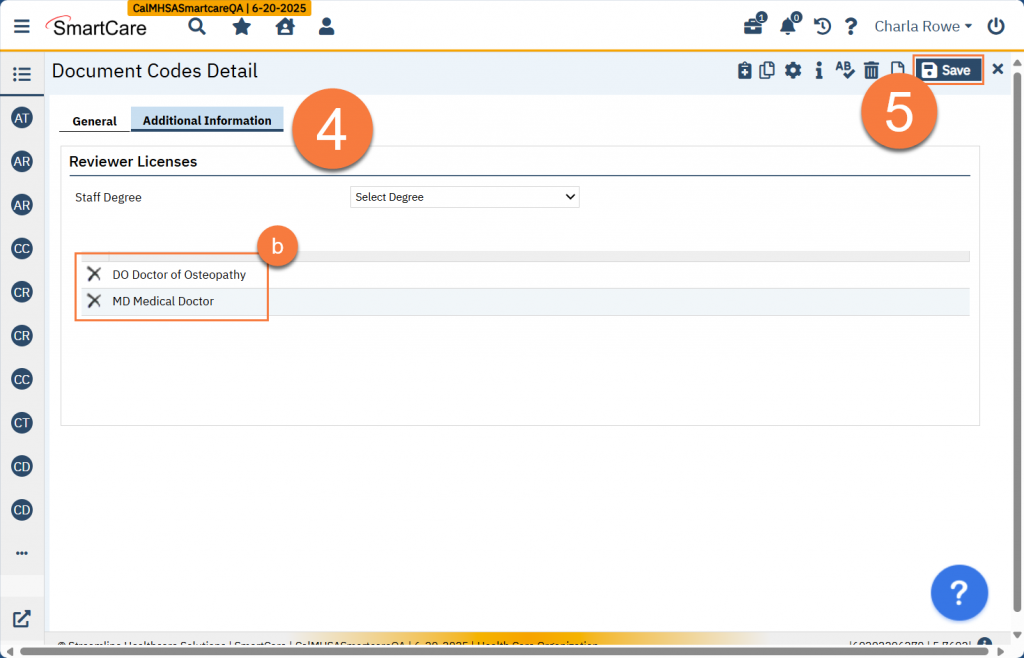
- Add the licenses you want to set as able to sign this document.
- The “Staff Degree” dropdown will only show you degrees that you have not yet added. Click to select one.
- Once selected, it will show on the list.
- If this is simply part of a reviewer process and not license-dependent, you’ll need to create at least one global code in the global code category “Degree” that will designate who is able to sign this document. (This allows for the use case where the author and reviewer have the same license type, such as an LCSW who is on a PIP and their supervisor is reviewing and approving their diagnosis documents.) This new global code will include people who can sign independently and those who are reviewers. Any author who does not have this degree associated with their account will be required to add a reviewer from a list of people who have this degree. Streamline recommended a pair of degrees (one to designate a reviewer and one to designate a person who doesn’t need a reviewer), but it should be noted that an author that must select a reviewer can choose anyone with any degree that is allowed to sign the document.
- Click Save. Refresh shared tables if needed. Changes should go into effect immediately.