
Document attempted and successful follow-ups
Every mobile crisis encounter requires at least an attempted follow-up within 72 hours of the initial encounter. This is considered part of the encounter and is not billable by itself, but must be documented to show follow-up was at least attempted. Document the Mobile Crisis Encounter by creating a new service note.
Sometimes, a client has a second mobile crisis encounter before the follow-up from the first encounter has occurred. When this happens, you’ll still want to document the follow-up to complete the mobile crisis encounter record for the first encounter.
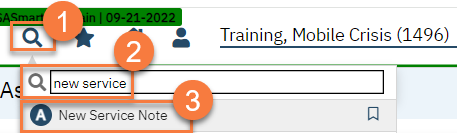
- With the client open, click the Search icon.
- Type “New Service Note” in the search bar.
- Select “New Service Note” from the search results.
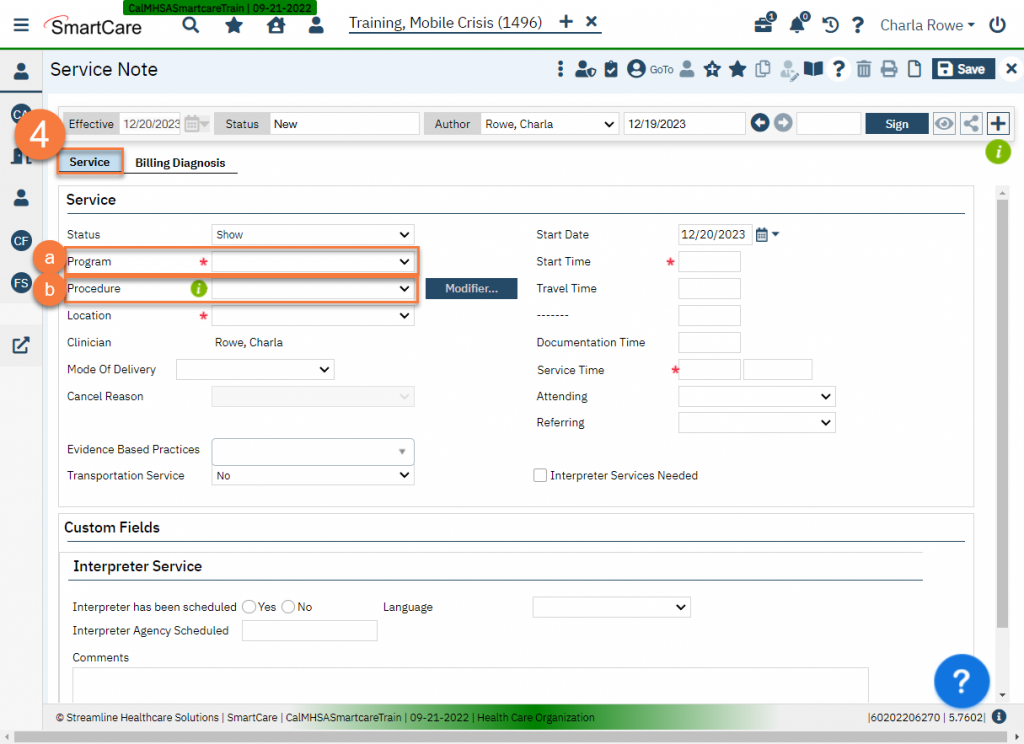
- This brings you to the service note screen. Complete the information in the Service tab.
- Select the Mobile Crisis program in the Program field.
- Select Mobile Crisis Follow-Up in the Procedure field. This will create the Note tab.
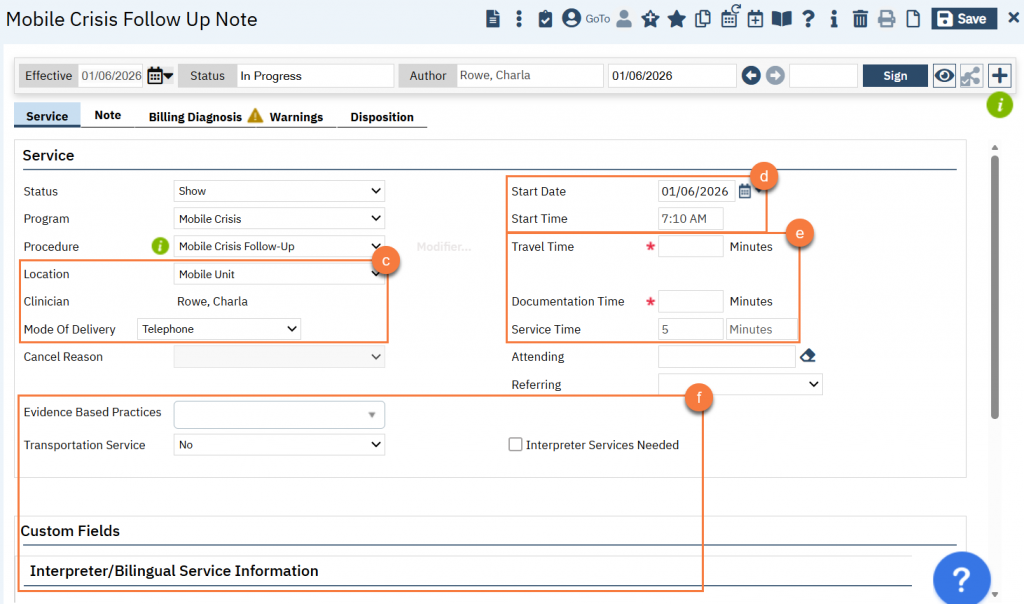
- Select the appropriate location and mode of delivery in the corresponding fields.
- Enter the date and time you made the follow-up in the Start Date and Start Time fields.
- Enter the time you spent on the follow-up. This includes any travel, documentation and direct service time.
- Enter any additional information, such as if an interpreter was used, if the service was provided in a language other than English, and if any CSI Evidence-Based Practices were used.
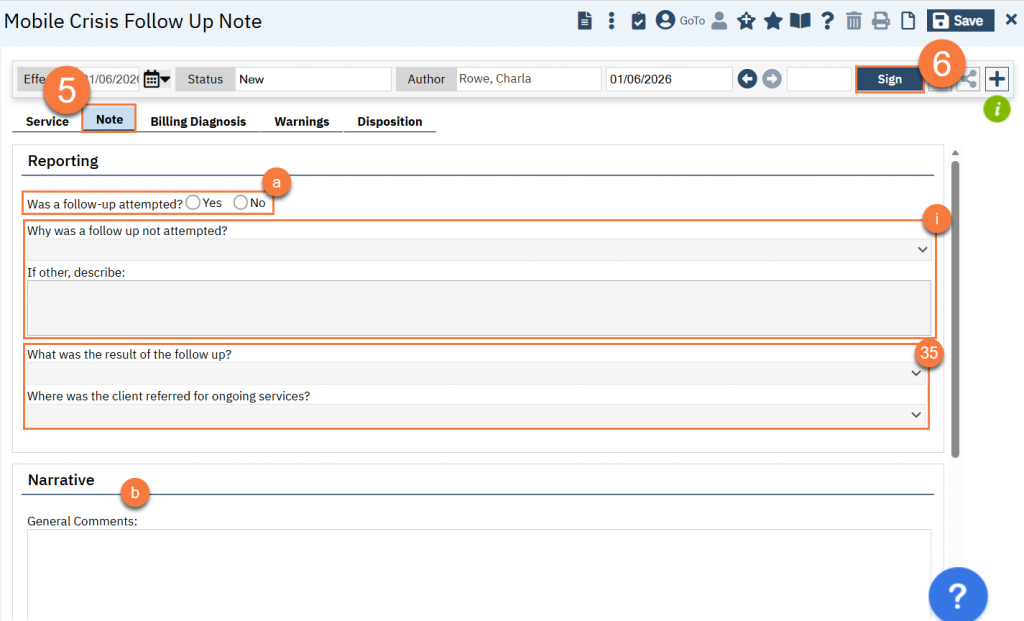
- Click on the Note tab and complete the Note.
- In the reporting section, document whether a follow-up was attempted. Depending on the answer, different questions will become editable.
- If a follow up was not attempted, select a reason. CalMHSA has populated some common reasons, such as another mobile crisis encounter occurring before the follow-up timeframe. If you select “Other”, you can enter your own reason.
- If a follow up was attempted, select the result of the follow up and where the client was referred for ongoing services. These are State Reporting data dictionaries and cannot be altered by counties. Please choose the one that matches closest.
- There is also a Narrative section for you to enter any other additional information that may be helpful.
- In the reporting section, document whether a follow-up was attempted. Depending on the answer, different questions will become editable.
- Click “Sign” to complete the service note.
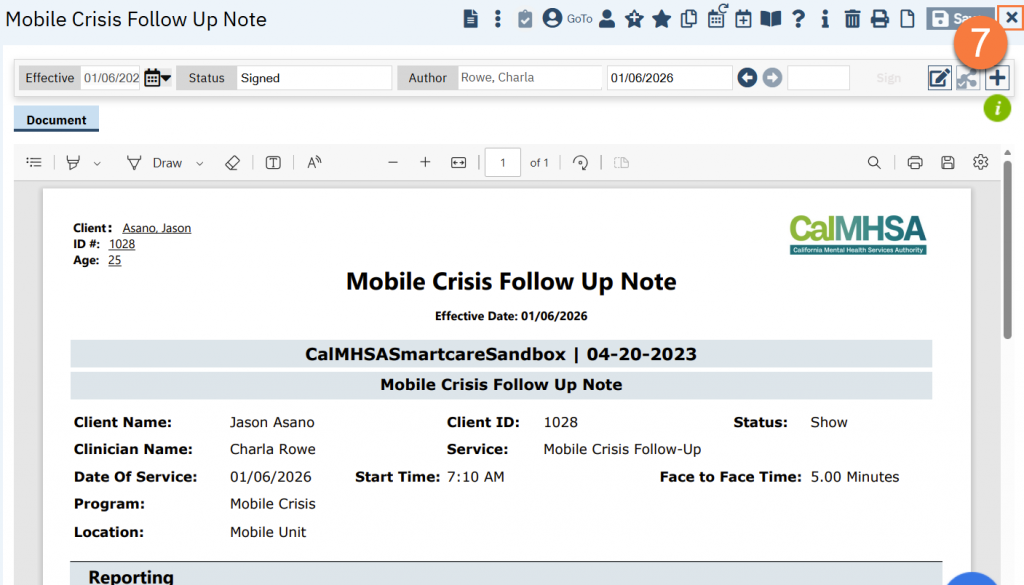
- This will bring up the PDF. Click the Close icon to exit this screen.
Discharge the Client from the Mobile Crisis Program
After you’ve successfully followed up with the client, or documented your attempts, you’ll need to discharge the client from the Mobile Crisis program. This is done even when a client has started a new mobile crisis encounter. Each mobile crisis encounter should have its own program enrollment to help keep things separated for reporting.
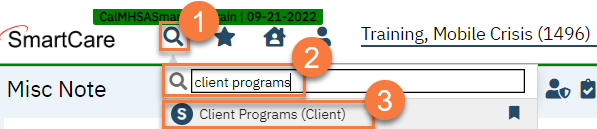
- With the Client already open, click on the Search icon.
- Type in “Client Programs” in the search bar.
- Select “Client Programs (Client)” from the search results.
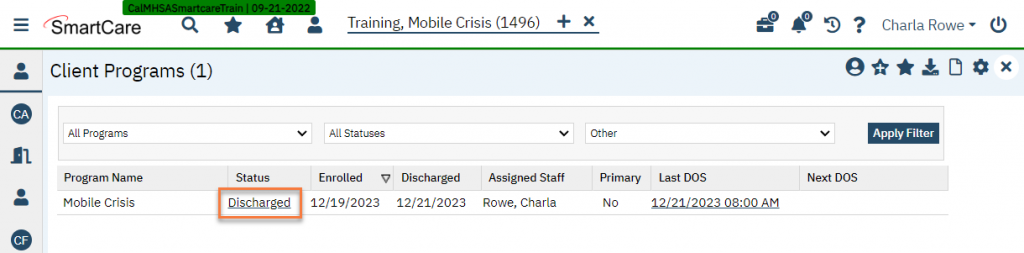
- This will take you to the Client Programs screen. Click on status of the Mobile Crisis Program (should be “enrolled”).
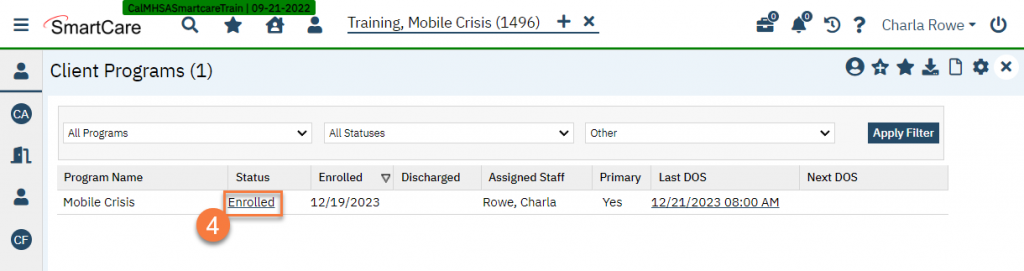
- This will take you to the Client Programs screen. Click on status of the Mobile Crisis Program (should be “enrolled”).
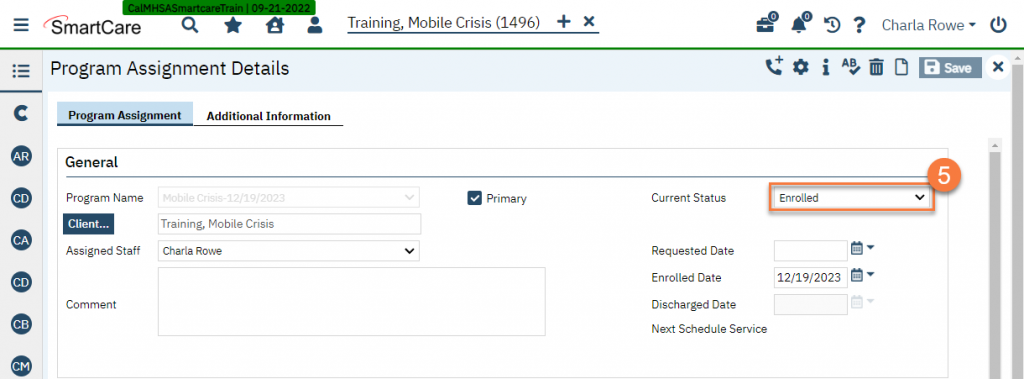
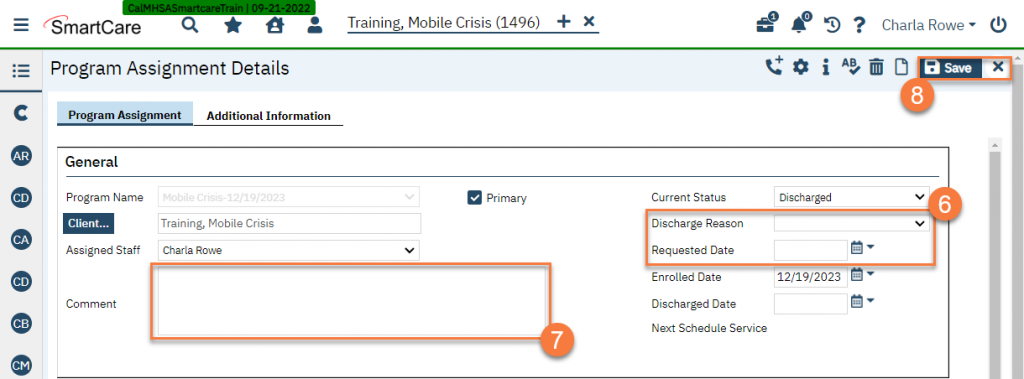
- This will open up the “Discharge Date” field and the “Discharge Reason” field. Enter the date the client was discharged and the discharge reason. This needs to be after all follow-up has been completed and/or all attempts have been documented. You can enter “c” to automatically populate today’s date (c=current).
- Enter any additional comments as necessary.
- Click Save and close. The client is now discharged from the Mobile Crisis Program.
Updated 12/21/23